

Àpèjúwe
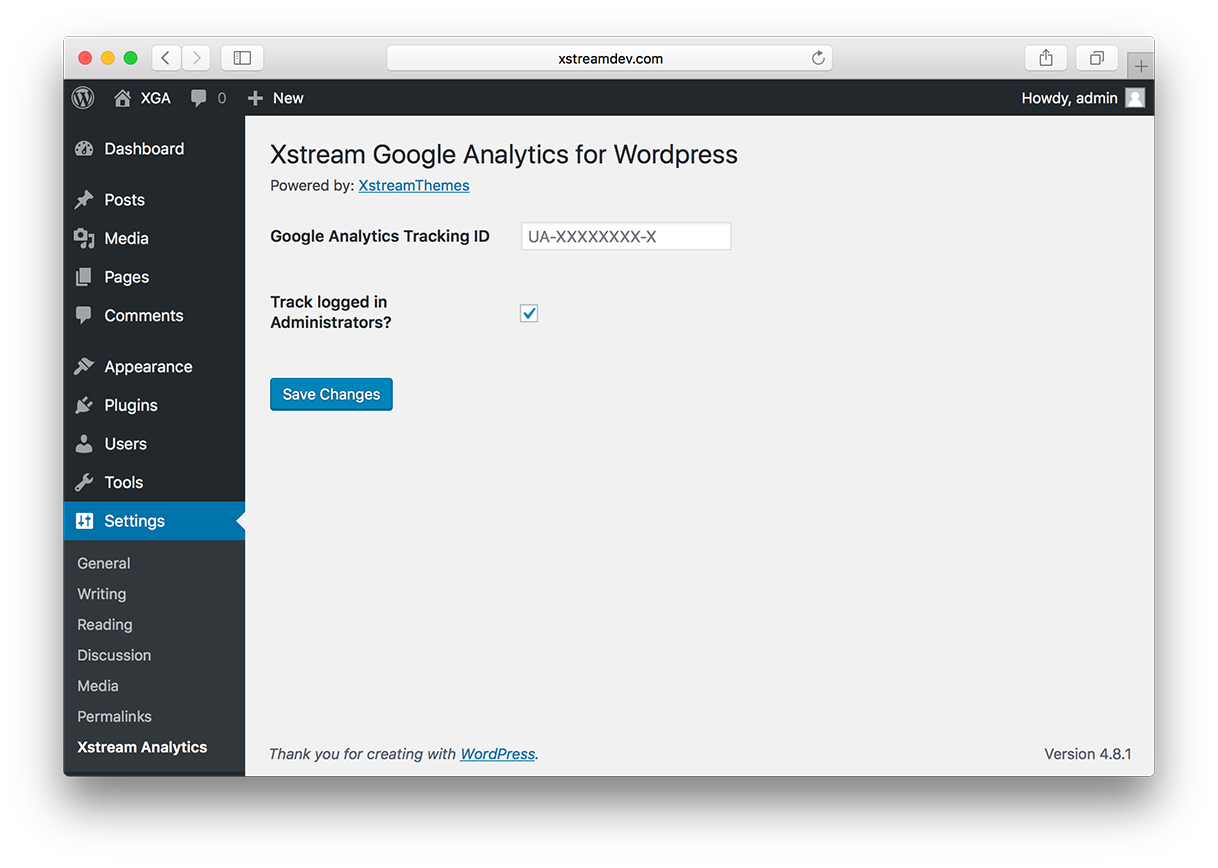
Track your WordPress website with Google Analytics service. JS file is completelly hosted locally for performance increase. Just add your tracking code inside settings page and thatÌtumọ̀ Yorùbá: ’s it.
Main features
- light weight and very easy to use
- analytics.js file is stored locally
- eliminates leverage browser cache error
PHP version 7.0 is recommanded.
Àwọn àwòrán ìbòjú
Ìgbéwọlẹ̀
- Remove existing Google Analytics plugin or disable them.
- Search for ‘Xstream Google Analytics’ in WordPress Plugin Directory and Download the .zip file & extract it.
- Upload the folder
xstream-google-analyticsto the/wp-content/plugins/directory - Activate the plugin through the ‘Plugins List’ page in WordPress Admin Area.
- Configure this plugin via SettingsÌtumọ̀ Yorùbá: –>Xstream Analytics
- Login to Google Analytics account to view stats.
FAQ
- Installation Instructions
-
- Remove existing Google Analytics plugin or disable them.
- Search for ‘Xstream Google Analytics’ in WordPress Plugin Directory and Download the .zip file & extract it.
- Upload the folder
xstream-google-analyticsto the/wp-content/plugins/directory - Activate the plugin through the ‘Plugins List’ page in WordPress Admin Area.
- Configure this plugin via SettingsÌtumọ̀ Yorùbá: –>Xstream Analytics
- Login to Google Analytics account to view stats.
- What is different with this plugin ?
-
WordPress plugin directory already filled with many of these kind of plugins.
But not all are optimized for performance. Also this plugin stores analytics.js file locally so you avoid leverage browser cache error inside google speed test. - Tracking code not shown up in front end
-
There may be several reasons for this.
- Make sure you have entered a valid tracking ID.
- Check if tracking is not disabled for current logged in user type.
- Try to flush/delete your site cache.
- Try re-installing the plugin.
- What if i uninstall/remove this plugin?
-
No worry! It will remove its traces from database upon uninstall.
It will also disable tracking by removing the code from front-end. - Where to find my GA Tracking ID ?
-
Just go here.
- Did you test it with old version of WordPress ?
-
I uses latest version WordPress during development.
So i recommend you to upgrade to latest WordPress today.
Àwọn àgbéyẹ̀wò

Àwọn Olùkópa & Olùgbéejáde
“Xstream Google Analytics for WordPress” jẹ́ ètò ìṣàmúlò orísun ṣíṣí sílẹ̀. Àwọn ènìyàn wọ̀nyí ti ṣe ìkópa sí plugin yìí.
Àwọn Olùkópa
Túmọ̀ “Xstream Google Analytics for WordPress” sí èdè rẹ.
Ṣe o nífẹ̀ẹ́ sí ìdàgbàsókè?
Ṣàwárí koodu, ṣàyẹ̀wò ibi ìpamọ́ SVN, tàbí ṣe àgbékalẹ̀ sí àkọsílẹ̀ ìdàgbàsókè nípasẹ̀ RSS.
Àkọsílẹ̀ àwọn àyípadà
1.0.1
- Release date: August 5, 2017
- Release note: Minor fixes to readme file and header images
1.0.0
- Release date: August 5, 2017
- Release note: First release