

Àpèjúwe
This plugin will automatically resize your WordPress auto-embeds, including video and other iframes, in a responsive fashion. It currently supports the following providers:
- YouTube
- Vimeo
- DailyMotion
- Blip.tv
- Viddler
- hulu.com
- Revision 3
- Funny or Die
- WordPress.tv
- Scribd
Live Example
Visit the test page where you can resize the browser and watch the videos automatically scale to fit the resolution.
About WordPress Auto-embeds
WordPress has a nifty auto-embed feature, allowing authors to automatically turn a link to a video embed into a video player when a post is viewed. To turn this feature on check the Auto-embeds check box in Administration > Settings > Media SubPanel.
Under the hood
Please note that this plugins modifies the output of modify_embed_output filter, adding HTML & CSS to make the magic happen.
Credit for the method used in this plugin goes to Anders M. Andersen for crafting the method used to gracefully resize the embeds.
Create and maintained by Kevin Leary, a WordPress developer living in Boston, MA.
Multisite Compatibility
The Responsive Video Embeds plugin is compatibly with WordPress Multisite, just use the Network Activate feature to enable responsive video resizing embed on every site. If you only want responsive video resizing to happen on a specific site, activate the plugin for that site only.
Àwọn àwòrán ìbòjú
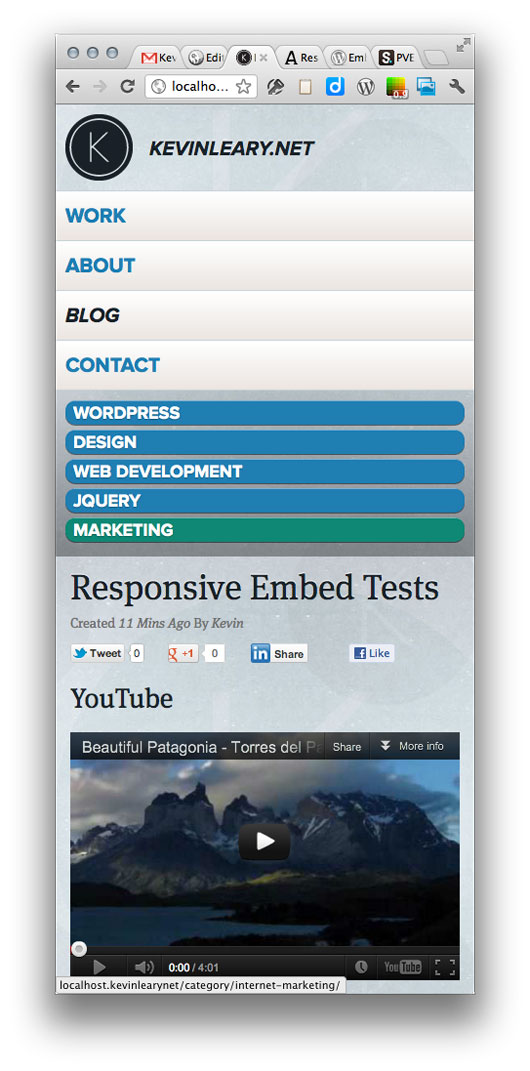
Automatically resized videos, the magic happens when you resize the window
Ìgbéwọlẹ̀
- Install easily with the WordPress plugin control panel or manually download the plugin and upload the folder
responsive-video-embedsto the/wp-content/plugins/directory - Activate the plugin through the ‘Plugins’ menu in WordPress
- In the WordPress admin, enable the Auto-embeds feature under the Settings > Media menu.
- Embed your videos using the auto embed feature provided by WordPress.
FAQ
- Installation Instructions
-
- Install easily with the WordPress plugin control panel or manually download the plugin and upload the folder
responsive-video-embedsto the/wp-content/plugins/directory - Activate the plugin through the ‘Plugins’ menu in WordPress
- In the WordPress admin, enable the Auto-embeds feature under the Settings > Media menu.
- Embed your videos using the auto embed feature provided by WordPress.
- Install easily with the WordPress plugin control panel or manually download the plugin and upload the folder
Àwọn àgbéyẹ̀wò


Àwọn Olùkópa & Olùgbéejáde
“Responsive Video Embeds” jẹ́ ètò ìṣàmúlò orísun ṣíṣí sílẹ̀. Àwọn ènìyàn wọ̀nyí ti ṣe ìkópa sí plugin yìí.
Àwọn Olùkópa
Túmọ̀ “Responsive Video Embeds” sí èdè rẹ.
Ṣe o nífẹ̀ẹ́ sí ìdàgbàsókè?
Ṣàwárí koodu, ṣàyẹ̀wò ibi ìpamọ́ SVN, tàbí ṣe àgbékalẹ̀ sí àkọsílẹ̀ ìdàgbàsókè nípasẹ̀ RSS.
Àkọsílẹ̀ àwọn àyípadà
1.2.4
- Update to validate against WordPress Coding Standards
- Minor fixes and updates to improve stability
1.2.3
- Fix issues with jQuery selector specificity on
embed,objectandiframeelements
1.2.2
- Fix issues with video height attributes and improper sizing
- Switch to more reliable JS resizing method
1.2.1
- Adjust sizing of width and height attributes
1.2
- Fix Vimeo embeds, removing black bars from the left, right, top or bottom
- Allow the sizing to adjust based on the source video’s aspect ratio
- Add a very small amount of JS to calculate proper aspect ratio
- Load CSS & JS conditionally, only when a supported embed is on a page/post
- Simplify HTML, removing an unnecessary
div
1.1
- Modifications to responsive container sizes to allow for a max-width setup using the WordPress [embed] shortcode.
1.0
- Initial public release to the WordPress plugin repository