
Àpèjúwe
Retouch function
- Resize to frequently used size
- Image rotation
- Adjust contrast and brightness
- Blur any part
- Change color temperature
Àwọn àwòrán ìbòjú

Click “Media” -> “Retouch” menu. Design a retouch button from a “Retouch Settings” form. 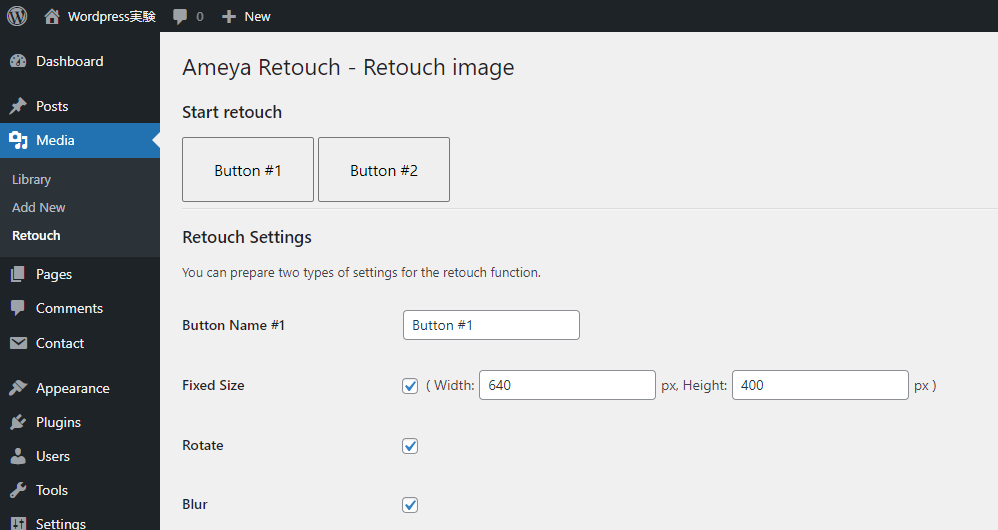
Press the designed button to start retouching. 
When the screen turns gray, drop the image file to load it, adjust the size or brightness, and press the save button. When all work is completed, press the close button to finish.
Ìgbéwọlẹ̀
Admin Installer
- Visit WordPress admin screen, click “Plugins” -> “Add New” menu.
- Search for “ameya retouch” plugin from the list or search results.
OR…
- Click “Upload Plugin” button, upload your zip file.
- Click the “Install Now” button.
- Activate the plugin.
Manual
- Upload the Ameya Retouch folder to the plugins directory in your WordPress.
- Activate the plugin.
FAQ
-
Why did you develop this plugin?
-
It was troublesome to launch Photoshop to make simple edits to the photos posted on the CMS.
Àwọn àgbéyẹ̀wò
Kò sí àwọn àgbéyẹ̀wò fún plugin yìí.
Àwọn Olùkópa & Olùgbéejáde
“Ameya Retouch” jẹ́ ètò ìṣàmúlò orísun ṣíṣí sílẹ̀. Àwọn ènìyàn wọ̀nyí ti ṣe ìkópa sí plugin yìí.
Àwọn Olùkópa

Túmọ̀ “Ameya Retouch” sí èdè rẹ.
Ṣe o nífẹ̀ẹ́ sí ìdàgbàsókè?
Ṣàwárí koodu, ṣàyẹ̀wò ibi ìpamọ́ SVN, tàbí ṣe àgbékalẹ̀ sí àkọsílẹ̀ ìdàgbàsókè nípasẹ̀ RSS.
Àkọsílẹ̀ àwọn àyípadà
0.3 – 2023-02
- FIXED: escape echo’d variables and options
- FIXED: use wp_enqueue commands
- FIXED: file location notation
0.2 – 2023-02
- FIXED: ‘z-index’ of retouch stage’s background
0.1 – 2023-02
- published!