
Automatic Cache

The cache is created in two ways. First, it is created when the page is visited. Second, If enabled, it is created by the Preload feature. In both cases, the cache takes time to create.
Thanks to the Automatic Cache feature, the cache of the content, the cache of the content’s categories and the cache of the content’s tags are automatically created immediately.
1. How to Enable It?
Once this feature is activated, it will be active for all content. No need to activate for every content.
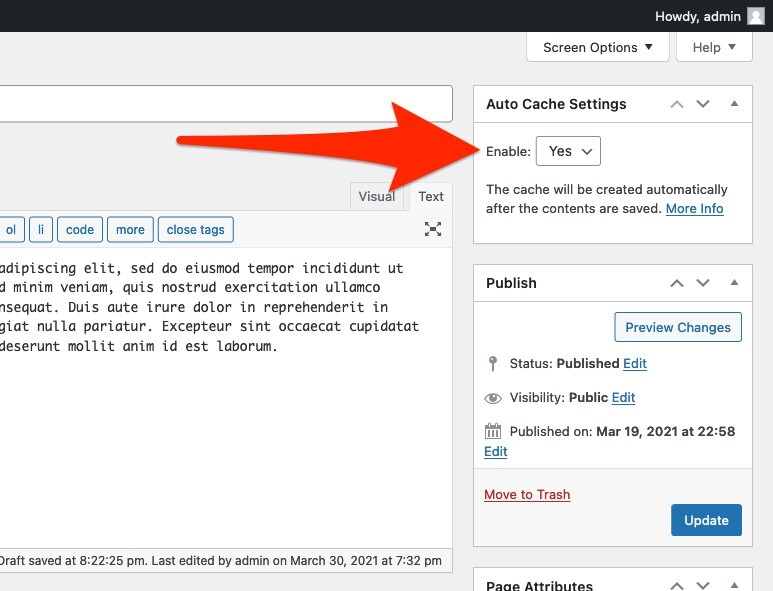
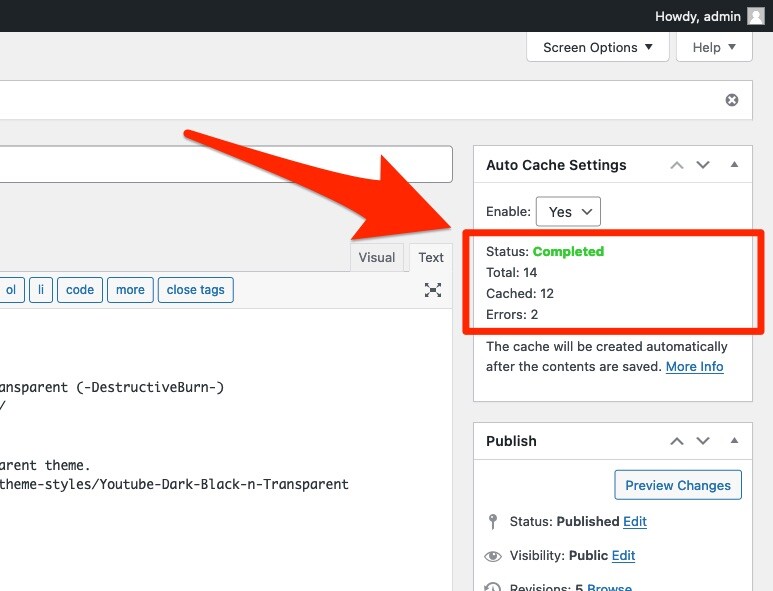
After new content is published or existing content is updated, the Auto Cache feature starts to work and caches pages as follows.
2. How to Hide It?
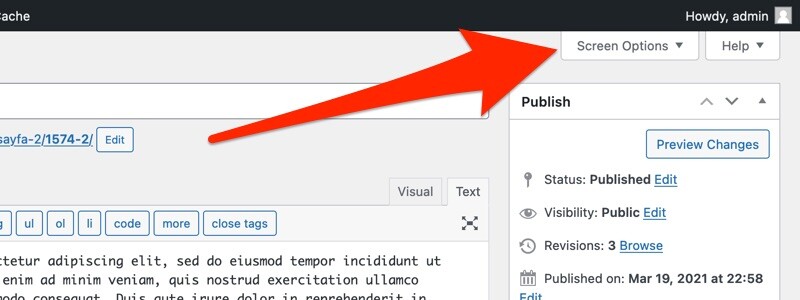
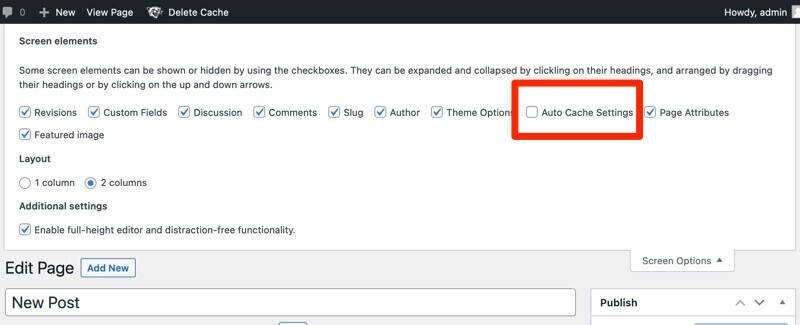
If you do not want to use this feature and do not want it to appear on the screen, you can turn it off via the Screen Options panel.
3. Gutenberg Editor
This Feature is not supported by the Gutenberg Editor. You need to use the Classic Editor.
