


You’re trying to upload an image to your WordPress site when, bam, you get hit with an error message. Your content is ready, your deadline’s close, and now you can’t even add a simple photo. It’s one of those WordPress headaches that can throw off your whole day. 🤦
At WPBeginner, we’ve also run into this issue more times than we can count while managing WordPress sites.
The good news? These image upload errors usually seem more complicated than they really are. Most of the time, they’re caused by simple settings or small glitches, and they’re easy to fix once you know where to look.
In this guide, we’ll walk you through 7 easy fixes that solve most WordPress image upload problems – the exact steps we use ourselves!

What Causes the Image Upload Issue in WordPress?
There are a few common reasons why you might have trouble uploading images in WordPress. Here’s a quick look at some of them:
| Cause | Explanation |
|---|---|
| Browser Compatibility Issues | Different browsers handle file uploads in different ways. An image might upload fine in Chrome but fail in Safari or Firefox. |
| Invalid File Names | File names with special characters or spaces can cause upload errors. Use only letters, numbers, and dashes (e.g., image-1.jpg). |
| Caching Problems | A stale browser or site cache can block new uploads or display errors. If this happens, then clearing your site cache often solves the issue. |
| Plugin Conflicts | Some plugins may interfere with the upload process due to bugs, security features, or compatibility problems. |
| Theme Conflicts | Poorly coded themes can conflict with WordPress functions like image uploads. Try switching to a default theme to test. |
| Incorrect File Permissions | If WordPress doesn’t have the right permissions to write to the uploads folder, the upload will fail. |
| Server Memory Limit | If your hosting services has low memory limits, it may not be able to process large images or uploads. |
Fixing the Image Upload Issue in WordPress
Understanding the common causes of image upload issues in WordPress is the first step. And now that you know some of the most common reasons for image upload issues in WordPress, we’ll show you how to fix them.
Here are all the tips we’ll cover in this guide:
- Reload the Page or Test With a Different Browser
- Reupload the Image Through the Media Library
- Rename Your Image File
- Clear Your Cache
- Check for Plugin and Theme Issues
- Adjust the File Permissions
- Increase Your PHP Memory Limit
Ready? Let’s get started.
Tip 1: Reload the Page or Test With a Different Browser
First of all, more often than not, reloading the page can fix the issue. This may sound like a simple fix, but it often works.
The image upload issue can be caused by your login session expiring. If this happens, reloading the page or navigating back from another tab will log you out. You will need to log in again.
Connection problems between WordPress and your browser can also cause upload errors.
This can happen due to issues with your internet service provider or temporary problems with your WordPress host. Reloading the page and reuploading the image file can resolve this error.
Other times, the image upload issue might be browser-related. You might want to try uploading your image using a different web browser. This can help you identify whether the problem is specific to your current browser.
Tip 2: Reupload the Image Through the Media Library
If the issue continues after reloading the page or switching to a different browser, then you might want to try reuploading the image through the media library.
So, instead of uploading the image directly through the post or page, you’ll want to go to Media » Add New Media File from your WordPress admin area.
Then, simply click ‘Select Files’ and try uploading the image there.

This can sometimes fix the issue.
Tip 3: Rename Your Image File
If your image file name contains spaces, then WordPress might reject it. Also, you should avoid using special characters like ‘#,’ ‘!,’ or ‘@.’ These characters can create issues because web servers and browsers may not support them.
So, let’s make sure you rename your image file to something simple and straightforward. You’ll want to use only letters, numbers, and dashes.
For example, instead of ‘my image #1!.jpg,’ you can rename it to ‘my-image-1.jpg.’
Tip 4: Clear Your Cache
An outdated website cache can cause various issues, including problems with uploading images.
Caching helps speed up your site by storing copies of your content, but sometimes it can cause conflicts. If the cache is outdated or corrupted, it may prevent new uploads from being recognized or processed correctly.
Refreshing the cache often fixes the problem by clearing out old data and letting your site handle the new upload properly.
Clearing your site cache is simple. At WPBeginner, we use a caching plugin, like WP Rocket, to manage the cache and improve performance. You can usually clear the cache through your caching plugin or your hosting provider’s control panel.

You should also clear your browser cache. Browsers store versions of web pages to load them faster later, which can sometimes interfere with new uploads.
To do this, you typically will need to go to your browser settings and look for the option to clear browsing data or cache.
For more details on clearing the cache, you can see our guide on how to clear your WordPress cache. Once the cache is cleared, go ahead and try uploading the image again.
Tip 5: Check for Plugin and Theme Issues
Sometimes, plugins or themes conflict with the image upload process. This can happen because some plugins or themes are not fully compatible with the latest version of WordPress or with each other.
To diagnose and fix this, you’ll need to perform some troubleshooting steps.
First, you’ll want to deactivate all your plugins. To do this, go to the ‘Plugins’ section in your WordPress dashboard and select ‘Deactivate’ for each plugin.

You can also deactivate all of them at once. For more detailed instructions, you can refer to our guide on how to easily deactivate WordPress plugins.
Next, you can switch to a default theme, like Twenty Twenty-One.
You can do this by going to Appearance » Themes in your WordPress dashboard and activating the default theme.
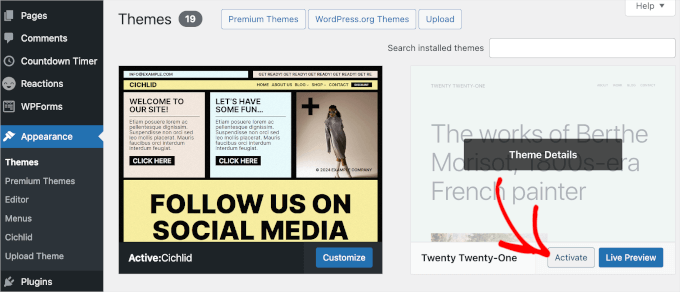
This step helps you determine if the issue is related to your current theme.
Then, try uploading the image again. If the upload works, it means that one of your plugins or your previous theme caused the problem.
To find the exact cause, you can start reactivating your plugins one by one. After activating each plugin, try uploading an image again. This way, you can find the specific plugin causing the conflict.
If the problem reappears after activating a particular plugin, you’ve found the culprit. It’s now time to look for an alternative or contact WordPress support.
If switching plugins doesn’t solve the issue, it might be related to the theme you were using. You can contact the theme developer for support or consider using a different WordPress theme.
Tip 6: Adjust the File Permissions
The image upload issue in WordPress can also happen because of incorrect file permissions. Your WordPress files are stored on your web hosting server and need specific file and directory permissions to work.
Wrong file permissions prevent WordPress from reading or uploading files on the hosting server. You may get the following WordPress error when uploading an image file:
‘Unable to create directory wp-content/uploads/2019/04. Is its parent directory writable by the server?’

Or you might see the error:
‘The uploaded file could not be moved to wp-content/uploads/.’
You might also notice that images are missing from your media library.

Now you might ask yourself: “My site was working fine before, who changed the file permissions?”
Well, this can happen due to a misconfiguration on your shared hosting server. For example, your hosting provider might run a system update that changes them without your knowledge.
If everything else is working fine on your WordPress website, then you can simply apply the correct file permissions to fix the image upload issue.
Changing File Permissions
In order to change file permissions, you will need to use an FTP client.
First, let’s connect to your website via FTP and then switch to the /wp-content/ folder. Inside, you will find the uploads folder, which is where WordPress stores all your media uploads, including images.
Now, right-click on the uploads directory and then select ‘File permissions.’

This will bring up the file permissions dialog box.
From here, you will need to set file permissions for the uploads directory and all the subdirectories inside it to ‘744’.
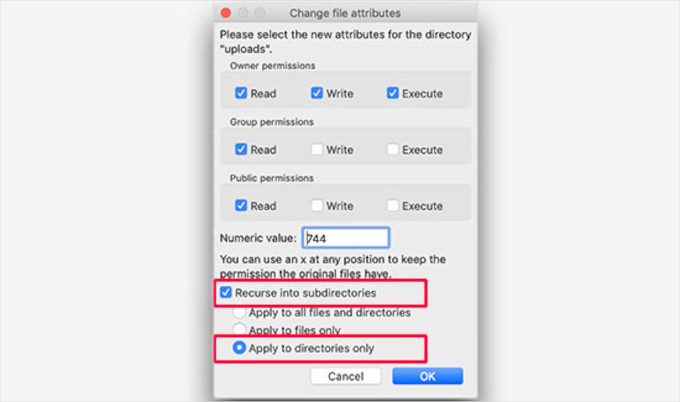
To do that, you can enter 744 into the numeric value box and check the box next to ‘Recurse into subdirectories.’ Then, simply click the ‘Apply to directories only‘ radio button.
Go ahead and click the ‘OK’ button to apply these changes. Your FTP client will now start applying file permissions to the directories.
📝 Note: If setting directory permissions to 744 does not seem to solve your problem, then try 755.
In the next step, you will need to set file permissions for all the files in the uploads directory.
To do that, right-click on the uploads directory and select file permissions. In the file permissions dialog box, change the numeric value to ‘644’.
Then, you can check the box next to ‘Recurse into subdirectories’ and select ‘Apply to files only.’
Finally, simply click on the ‘OK’ button to apply these changes.

The FTP client will now change the permissions for all files inside the uploads folder. Once done, you can go back to your WordPress admin area and try uploading images again.
If you have any file upload forms on your website, you should test those as well.
📝 Note: If you don’t know how to use an FTP client, then you can also use the file manager provided by your WordPress hosting company. Since each host is different, you may need to check with their support team for instructions.
Tip 7: Increase Your PHP Memory Limit
Sometimes, image upload issues occur because WordPress doesn’t have enough memory to process the upload. Increasing your PHP memory limit can help fix this.
Typically, you can do this by editing your wp-config.php file. However, the easiest way is to contact your hosting provider for help. They can increase your memory limit.
For more details, see our tutorial on how to increase the PHP memory limit in WordPress.
Bonus Tip: Optimize Your Images Before Uploading
Large or unoptimized image files can sometimes trigger upload errors or slow down your site, especially if you’re nearing your hosting or memory limits.
Before uploading, you can use image editing software like GIMP or TinyPNG to reduce file size (without losing quality).

You can also resize your images to match your theme’s recommended dimensions. We have a beginner’s guide to WordPress image sizes if you need help.
For ongoing optimization, consider using an image optimization plugin like:
- EWWW Image Optimizer – Offers bulk compression and CDN support.
- Optimole – Automatically compresses and serves images via a fast CDN with lazy loading built in.
- ShortPixel – Good for both lossy and lossless optimization.
Keeping your images lightweight not only reduces upload issues, but it also helps your site load faster. ⚡
FAQs: WordPress Image Upload Issues
If you’re still unsure about what’s causing your WordPress image upload issue, these frequently asked questions may help clear things up:
What should I do if I get an HTTP error when uploading images?
An HTTP error is a general message that can be caused by several things. It’s often related to server-side issues like low PHP memory or temporary connection problems.
You can start with simple fixes like reloading the page or clearing your cache. If that doesn’t work, try increasing your PHP memory limit (see Tip #7), which is one of the most common solutions for this error.
Can image optimization plugins cause upload errors?
Yes, they can. Some image optimization plugins may interfere with the upload process, especially after a plugin or WordPress update.
If you think a plugin is the problem, try disabling your plugins one by one (Tip #5) to see if the upload starts working again. If it does, you’ve found the conflict.
What is the maximum upload file size in WordPress?
This limit is set by your hosting provider, not WordPress itself. You can usually see the maximum size by going to Media » Add New in your dashboard.
If your image exceeds this size, it won’t upload. Increasing your PHP memory limit (Tip #7) can help raise this limit. Otherwise, we recommend contacting your host to adjust it.
What if none of these tips fix my image upload issue?
If you’ve tried all the steps in this guide and still can’t upload images, there may be a deeper issue with your server configuration.
In that case, it’s best to get expert help. There are many professional WordPress support agencies that are available 24/7 to troubleshoot and fix any WordPress issue, so you can stop stressing and get back to work.
Video Tutorial
Before you go, be sure to check out our video tutorial on how to fix image upload issues!
More Beginner’s Guides to Fixing WordPress Errors
We hope this article helped you fix the image upload issue in WordPress. If you found this helpful, you may also want to see our other guides on:
- How to Fix Common Image Issues in WordPress
- How to Fix Featured Image Not Showing in WordPress
- WordPress Form Does Not Work: Troubleshooting Tips
- How to Fix WordPress Stuck in Maintenance Mode
- How to Fix Common SSL Issues in WordPress
- How to Find and Access WordPress Error Logs
- Complete Troubleshooting Guide
If you liked this article, then please subscribe to our YouTube Channel for WordPress video tutorials. You can also find us on Twitter and Facebook.


henry
HELP!
I tried uploading an image. An error says “File upload stopped by extension.”
What’s wrong?
WPBeginner Support
Try these troubleshooting tips to figure out whats causing the error.
Admin
Vlad
Had the same issue on my site and it took me couple of hours to figure out the problem.
In my case the issue was generated by Wordfence plugin after i cheked in Option section at the bottom the line “Disable Code Execution for Uploads directory”
I was in the point of making back-up of database and to start again reinstaling everything from the scrach.
After uncheking that selection from above in Option tab, everything come to normal.
Rob
I tried your suggestions, I changed 755 to 744 and 644 fore the files. Did not work for me. Changed it back but problem http eror when uploading image file keeps appearing.
any other suggestion!!!!
Brad F.
I was getting an HTTP error when trying to upload images on Wordpress. Whatever the most current version is right now. I went through disabling any plug-in that I thought might have some impact on images. None of that seemed to help.
Today, I got on FileZilla and used the steps above. Switching to 744 broke images on my blog. If it wasn’t previously cached in my browser, it loaded as a broken image. So, I switched everything back to 755, which is what it was set to initially.
After that, I went into the upload folders that match the months of the posts I was trying to add images to. I found, in FileZilla, that even though my Wordpress dashboard in Chrome was showing that the image had not properly uploaded, and showed up as a little dot in the Media Library, it was actually in the folder in FileZilla and had “crunched” into different sizes as usual. I had deleted these images in the Wordpress dashboard, but that apparently didn’t carry through into the database. So, I deleted them through Filezilla.
When I attempted to re-upload the image through Wordpress, it went in without a hitch. I’m not sure if this is unique to my situation, or if I’m forgetting anything, but I’m putting this here in case it’s helpful to anyone else having the same problem.
agraj
thank you very much.solved my headache.Thank you very much..
alex
744 made my site not showing ANY picture :))) went back to 755 witch fixed it
but my HTTP error is still there…
WP 4.5.1 on HostGator, nothing special changed prior to the famous HTTP error when uploading files directly into WP
Krishnarajsinh
755 worked for me at
Reuben
Here’s some important information for anyone using GoDaddy – I followed the guide above which resulted in my website going down completely as it was unable to connect using the permissions above – I called up Godaddy to find out this default permissions to reset it and they were utterly useless.
After a good number of hours messing around I managed to fix it by changing all the folder permissions that I’d amended to 705.
Hope this helps anyone experiencing a similar issue!
jackhamm
So…..I was having the broken image link issue and did what it suggested above, mine were set at 705 when I had the issue. I have godaddy as a host. I did the steps above and it didn’t work and 705 was what it was set at before I tried to fix it. Any other settings I can try =( ) am SOL with 705 and 755.
collins
trying to edit the file permision via my server..i dont see any number
Reuben
I followed your guide… now not only can I not upload images but I can’t get onto any part of my website – thanks a bunch!
WPBeginner Support
Try to undo any steps you took earlier to get back to the point you started from.
Admin
Raúl
Or you can try to put all in 777 it’s not secure but… remember the meaning of the octal sequence read=4, write=2, execute(or x)=1, then rwx=4+2+1=7 and r-x=4+0+1=5 or rw-=4+2+0=6, and the position of the bit indicate the user level, so if you put all in 777 bring permissions for everybody do all what they want. In all cases I recommend to put in contact whit the support team of your hosting, maybe they have a protocol for strange behavior.
salman
thanku i helps me alot to fix my blog
sophie
755 worked for me, thanks very much for the clear and helpful instructions!!
Christine
Glad I am not the only one. I can upload some but not all of them. Mainly in the blog.
vic
Please I got this error!,The uploaded file could not be moved to wp-content/uploads/2016/04.
How can I escape from this
mehdi
the same problem for me !!! now we are in 05 month but still trying to upload in 04 month and it can’t success so fail and failed and … is there any trick ??
Dawn Cunnane
Wp Beginner to the rescue again! I thought I had a file permission issue as soon as I got an error uploading and watched this video to make sure how to change it properly. 744 didn’t work for me but 755 did, thank you guys!
John
Hi, I tried changing Numeric value to 744 and now when I try to go to either my site or the /WP-admin dashboard I get a’ Server Error 500′ message. I’ve tried changing it back to 755, but no luck. I’m in a much worse position now! Any ideas on how to restore it back?
WPBeginner Support
Please follow the troubleshooting steps in our guide on how to fix internal server error in WordPress. You can also contact your web host for support.
Admin
moon
Hi,
I tried to move the wordpress site to another hosting using the wordpress export and import function (due to some reasons unable to use MySQL database migration). After the migration, I found no image shown on Media Library (but the webpages worked okay with the images shown properly). It makes problem for me to amend and change the images latter.
Would you please let me know where to get the images of the uploads area into Media Library.
Thanks
Sonali
I am not able to upload the pictures on my blog post. it just shows some blue box which shows the name of the image.
Muhammad
Hi i have shifted my website from http to https as i buyed ssl certificate..after that my site is now working fine but only some images are bot showing and even media library images all are broken now..can i use this method to resolve my issue..plz help realy panic these days
Have a look and suggest me
Thanks alot
WPBeginner Support
Please try Really Simple SSL plugin. Take a look at our guide on how to add free SSL in WordPress with Let’s Encrypt. Since you already have a certificate, just scroll down to updating WordPress URLs section.
Admin
Kristen
Having the same trouble as several above – tried the recommended 644 fix and it broke it further. Switching back to 755 did not fix it.
Weird issue, though… the time/date stamp from all of the broken images is Dec 31 1969!
Help!
Keith
Hi,
I am very desperate for help. Initially I only have the problem for http error when uploading new images after updating my wp to 4.4.1
So, after I followed your guide and changed the permission, now all my images from my website, inside my wordpress, post and thumbnail all not showing. How can I reset to my original permission settings. it’s like making it worse.
Please please help me.
Regards
Keith Yuen
WPBeginner Support
It looks fine at our end. Seems like you already fixed it.
Admin
GMestres
ATTENTION: Try to not use CAPS to name the files.
MuhammadNauman
It didnt worked for me!! Day before i tried all stuff and suddenly uploading starts but right now it seems like old !! Cant upload images says HTTP error!
Any other solutions!!
Jared
I also have this error. My hosting claimed it was something with the theme I uploaded, but the theme host directed me here.
Any idea why the http error is showing?
Robbie Ferguson
This didn’t work for me so I dug a bit deeper.
Turns out WordPress did not change the “upload folder” when I had previously renamed the site in Settings->General. When I change a domain name, my host moves the files automatically. Site a.com now becomes b.com, which moves the files to /home/user/b.com – so the site works fine, but once I try to upload, it fails.
So I checked Settings->Media and sure enough, “Store uploads in this folder” is still set to /home/user/a.com. I edited it, and it works.
So, double check “Store uploads in this folder” and ensure the path is correct in Settings->Media.
Still, thanks for the post–indeed it was smart to change from 755 to 744 anyways… quite a bit safer.
Ebrahim DUROSIMI
You!!!!!!!!! You are a life saver. THIS IS THE PERFECT FIX… Thanks alot…
Sobia
Thanks ROBBIE
it worked like a charm,!!!
Laurynas
Hi,
I have tried this method and unfortunately it did not work for me. But I am more concerned that I have changed permissions numeric value to 755 for files also. I don’t remember what it was before. Does that affect anything? And how I could restore it? Thanks
WPBeginner Support
You can undo this by selecting the directory in FTP client. Right click and then change file permissions to 644. Select the radio button that says apply to files only and click on the OK button. See the last image in the article.
Admin
amardeep
I am also facing the same image broken issue don’t know what to do,to add more my add media option is also not working nothing happens when i click on it
Aafia
My Images get uploaded but when the post is published all images vanishes and only featured image remains.What could be the Problem?I have tried to fix the problem temporarily by Gmedia plugin. But I would like to know what is the problem with my Wordpress media gallery.
Thanks in advance for your consideration.
Cindy
I’m having this exact same problem! Help!
Aaron
i can’t upload either. It’s doing my head in. I have tried all the suggested options above and still this happens….
grant
When im in /wp-admin/customize/header the “add new image” button does nothing.
Im having this on multiple themes and have tried:
Browser
Cookies
All plugins
WP update
User permissions
File permissions
I wonder if its a problem within the code of the customize page and specifically the button not being linked? Please any advice I have been stuck with this for ages.
Asghar
Hello
Sir I have same problem I do what you said but my problem not solve please tell me what I can do now
Thanks
Nina
Thanks for helping me fix a little bit of my problem, but my uploads keep showing broken pictures for any added pictures, while the older pictures stay fine even though they have the same permissions, and file paths, etc. Also, it displays perfectly fine on Chrome and my smartphone, however Mozilla wont display certain pictures! I’ve tried everything I could find.
I recently updated to php 5.5 which I suspect caused the issue. For those of you that are still having trouble, I’d suggest backing up everything and doing a fresh install.
I tested another site with a fresh install and had no problem. Ugh. The trials and tribulations of wordpress…
Nina
I wanted to update that I solved my problem, in case this helps others. I have hotlinking protection enabled via my web host (hostgator). However, I had to
1) Add my own site domain to the list of enabled sites (meaning bypass hotlinking for the site itself)
2) I had to click ‘enable direct linking’ in order to enable others to see it besides myself when logged into wp-admin.
Once I did this, my pictures were able to load, view, edit, etc.! This may not be everyone’s problem, but if you have tried the file permissions fix, then this may be a good next step.
I had to use cpanel to fix this and go to the hotlink protection via hostgator. I don’t know how to fix it for other web hosts, but I imagine it’s similar. Good luck!
Monica
I had to upload my whole Wp site with a backup and some images were not showing even after trying twice. I used your instructions and worked perfectly. My settings were 755, I tried 744 and then every image was broken. So I went back to 755 for all files and folders and that made it. So I guess original some files had different permissions. Thanks a lot
Najam
For those who 755 or 777 didn’t work. Check out your Media settings page. If there is a path to where the files should be uploaded, try removing it to make it go to default. This worked for us and now we are able to upload without a problem.
Brenton
Najam you absolute star! Finally the solution I needed!
susanmcneal
Thank you! This worked for me!
ann wigmore
Worked!!
Claire
Hi, thanks for this – I deleted the whole path (as in, left it blank) and now when I return to Media Settings the box with the path isn’t there, just the size images. Any idea how I can get this back?
Liss
This worked for me! Thanks so much!!!!
Teresa
For me useless article, very useful comment. Thanks Najam.
John
This worked !!! Thanks !
Marie Reynolds
I am pulling my hair out trying to upload sydney settings to dashboard but it says
The package could not be installed. PCLZIP_ERR_BAD_FORMAT (-10) : Unable to find End of Central Dir Record signature
I have tried uploading from different servers, even different computers… please help!!!
Syed Hamza
I also facing this problem. Please help me.
Tanbeen
I have tried all about this way. but nothing is happening. still image missing. i have contact to the host provider but they said its developer issue. what can i do now? please help me someone.
Vince Comfort
Hi Tanbeen,
Check your plugins. Try to disable any cache plugin you have. Clear the cached files, then try to upload the images. It should work fine.
If it still doesn’t work, contact me on facebook and I will check it out for you.
Stephen
Wow! This is fantastic – 755 worked for me. Thanks for this well-written article. First link I found off Google and it solved my problems immediately. Many thanks. *bow*
Mike Sinkula
Thanks for this. I had to set the folders to 755. But, I got everything working.
ale
I have the same problem! The file permission didn’t work for me either. I’ve been looking for a solution to this problem for over 4 months! Please give us another solution to try! Thank you!
Phil Chow
Did not help me either. Followed your instructions to the tee. Help!
Abhishek
I’m facing http error while uploading image, how to fix that issue? I can’t upload any of the image , does that above tutorial world for that too?
Andrew
Hi
Just thought I’d add on here that this issue isn’t always a permissions based issue but it can be due to file size. All images were uploading perfectly fine until my client tried to upload files of over 4000px in width and height.
While the upload was successful the admin doesn’t seem to be able to handle the file.
Adam McKenna
Thanks for the post.
This sadly did not help me.
WPBeginner Support
Let us know more about your issue, may be we can help.
Admin
Mandak
Well, this helped with the broken images in my media library, but didn’t fix the uploading issue. I’m 1/2 way there I guess! Thanks
Valentin
Hey guys,
How are you? First comment and all. I’d be chippier but I need to get DTB. Right now I’m having a problem uploading media to a site. It’s been replicated both on live and localhost.
The site runs on the Spanish 4.2.2 version of WordPress.
Here’s the rundown:
1) Any attempt to upload media (let’s say, a logo) to the site shows an instant 100% transfer completion message or hangs up.
2) Regardless of what it returns, the files in the media library appear without title, without author, without attachment reference and without date.
3) They are impossible to edit, view, or permanently delete (I don’t even get the option on this last one).
4) The files are in the corresponding yyyy/mm folder and can be deleted there but it doesn’t affect the Media library interface.
Here’s two screencaps to help illustrate:
What I’ve tried:
1) Theme(Salient) & plugin on/off
2) WordPress 4.2.2 Dashboard reinstall
4) .htaccess modsec hack
3) Rain dance
Any help would be most appreciated. Hell, I’d be more than willing to buy someone a beer over this.
Disclaimer: this may or may not be an almost carbon copy from my post at Wordpress Support. Yes, I am shameless. I regret nothing!
WPBeginner Support
We see that you have already tried rain dance, not sure we can be much help after that but we will try. Have you tried increasing WordPress PHP memory limit. If that doesn’t work then connect to your website using an FTP client and go to wp-content/uploads/ folder to verify that WordPress is able to regenerate image sizes. For any image you upload to WordPress there should be at least three or more copies of the same image in different sizes. If there are no image sizes just the original upload, then most probably your WordPress file permissions are not set properly.
Admin
Hannah Ransom
Didn’t work for me with either 744 or 755 Bummer.
Laure
Hi, Even tried full access, images seem to be upload correctly, I even have access to them if I use the link displayed in image description (from wordpress/media) but that’s all
still doesn’t work for me
Amir
Worked great. Thanks.
toby Phillips
Hi,
I tried this and now all the links to my previous images are now broken on my blog and I still have the upload issue ;-( Any help would be appreciated.
kevin
Same, all media is broken now.
kevin
Scratch that, 755 worked. Thanks!!
Jennifer Nini
The same thing has happened to me. Have you been able to fix it?
David Townsend
I’m on a Mac using Fetch FTP to access my wordpress files. When I right-click on the uploads folder, I only have an option that says “UNIX equivalent” and a box to enter in the new number 744. There’s no other checkbox options. How do I find that?
WPBeginner Support
You can enter the file permission by entering the number. Like 644, 655, 755, or 744. Look up for file permissions to learn more.
Admin
Andrea
This works brilliantly – clear, simple, easy to follow and solved the problem. Thank you. Andrea
Thabiso
Thank you for assistance , it worked for me. I created folder in uploads with permission 755 and pictures inside were permission 644 and my array slide show worked