


Manually copying lead data from your website into Salesforce can be frustrating. It eats up your time and often leads to messy errors that cost you money.
Even then, you might miss details or create mix-ups, which can hurt your conversion rates.
We understand the pain of disconnected systems because we manage high volumes of form entries daily. That’s why connecting your forms to your CRM, like Salesforce, is the smartest way to fix this problem.
In this guide, we will show you how to connect Salesforce to your WordPress forms. This solution is beginner-friendly and helps you automate your lead generation process immediately. 🚀

Why Connect Salesforce to Your WordPress Forms?
Connecting Salesforce to your WordPress forms lets you automatically send new leads from your website straight into your CRM – no manual entry required.
Salesforce is one of the top CRM (customer relationship management) solutions out there. Many of the world’s largest businesses use it to manage customers, leads, and business contacts from one single dashboard.
Now, most websites collect leads through contact forms, but manually adding them to your CRM takes time – and you might forget to follow up.
By connecting Salesforce to your WordPress contact form, you remove this hurdle. As soon as a user submits their information, it will automatically be added to your Salesforce contacts.

From there, you can follow up with customers to boost conversions and sales from your WordPress site.
With that in mind, we’ll share how to easily integrate Salesforce with WordPress using forms. Here are all the steps we’ll cover in this guide:
- Setting Up WPForms to Connect With Salesforce
- Setting Up the Connection Between WPForms and Salesforce
- Creating a WordPress Form with Salesforce Integration
- Bonus Resources 🔗: Creating WordPress Forms
Let’s get started.
Setting Up WPForms to Connect With Salesforce
For this tutorial, you’ll need WPForms. It is the best WordPress contact form plugin used by over 6 million website owners. You can use it to easily create any type of form using a simple drag-and-drop form builder.
At WPBeginner, we actually use WPForms to create lots of our forms, including our contact form and annual readers’ surveys. If you want a deeper dive into all of their features, go ahead and check out our full WPForms review.
First, let’s create a WPForms account. On the WPForms website, you can click the ‘Get WPForms Now’ button, select a plan, and complete the checkout process.

📝 Note: You’ll need their Elite plan to use the Salesforce addon. There is also a WPForms Lite version, which is available for free.
With that done, you’ll have your own WPForms dashboard, where you can find your WPForms Elite zip file and license key.
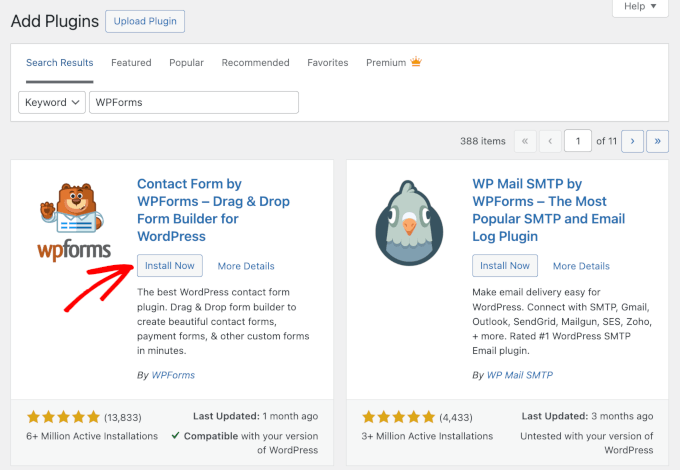
From here, you can go back to your WordPress admin area to install and activate the WPForms plugin. To do this, navigate to the Plugins » Add New Plugin page.

On the next screen, you can quickly look for the WPForms plugin using the search feature.
Then, click the ‘Install Now’ button and then ‘Activate’ to complete the installation process.
For more details, see our step-by-step guide on how to install a WordPress plugin.
Upon activation, you need to visit the WPForms » Settings page to enter your license key. You can find this key under your account on the WPForms website.

Once you’ve added it in the respective field, go ahead and click the ‘Verify Key’ button.
Setting Up the Connection Between WPForms and Salesforce
Now, you need to set up a connection between WPForms and Salesforce. WPForms comes with the Salesforce addon, which lets you easily connect the two apps together.
To do this, head over to the WPForms » Addons page and locate the Salesforce addon. Then, click the ‘Install’ button, and it will be installed and activated automatically.

After that, you can go to the WPForms » Settings » Integrations page from your WordPress dashboard.
Here, you need to click on the Salesforce integration to open it up.

Under Salesforce settings, go ahead and click on the ‘Add New Account’ button.
WPForms will show you Salesforce settings with a Callback URL.

We recommend copying the Callback URL and pasting it into a text file or safe place immediately, like a password manager. You will need this URL in a later step.
Now, you need to create an app in your Salesforce account. Don’t worry – we’ll walk you through the process step by step.
📝 Note: You need an Enterprise, Unlimited, Performance, or Developer edition of Salesforce. The API access required for this connection is not included by default in the ‘Essentials’ or ‘Professional’ plans. But there’s a free trial you can use to get started.
If you don’t already have an account, you can create one by going to the Salesforce website and clicking the ‘Start My Free Trial’ button.

On the next screen, you can enter your details like name, work email, job title, company, phone number, and more to create an account.
After entering the data, go ahead and click the ‘Start My Free Trial’ button.

After completing the signup, you’ll reach your Salesforce account dashboard.
The Salesforce interface changes frequently. To follow this tutorial easily, we recommend switching to the Salesforce Classic view. You can usually find this option by clicking your profile avatar in the top right corner and selecting ‘Switch to Salesforce Classic’.

Next, you’ll see the classic Salesforce dashboard.
After that, you need to click the Setup link at the top to access the Salesforce dashboard settings.

On the next screen, you can navigate to the Build » Create menu from the column on the left.
From here, click the ‘Apps’ option in the menu.

This will bring you to the ‘Apps’ section.
From here, click on the ‘New’ button under the ‘Connected Apps’ section.

Next, you need to fill in the details for your app.
For the ‘Connected App Name,’ enter the name you want to use so that other users on your Salesforce account can see it.
The API name will default to the Connected App Name. You don’t need to enter or change it. For the contact email, enter your email address.
You don’t need to enter the logo image, icon, info URL, or description. These fields are for Salesforce users who will be publishing their apps.

Below this, you need to check the ‘Enable OAuth Settings’ box.
Once you check the box, you will see the OAuth settings.

First, you need to enter the ‘Callback URL’ that you found earlier in your WPForms account.
Simply paste the link in the ‘Callback URL’ field.

After that, scroll to the ‘Available OAuth Scopes’ section. The selected OAuth Scopes let Salesforce know what permissions your app should have.
Next, you need to enable 2 permissions here: ‘Manage user data via APIs (api)’ and ‘Perform requests at any time (refresh_token, offline_access).’
Click the ‘Add’ button to add those permissions.

There’s nothing else you need to change on this page.
After adding the permissions, go ahead and click the ‘Save’ button at the bottom.
Once everything is saved, we recommend waiting about 10 minutes to make sure your app settings fully propagate.

After that, you’ll see your API information on the next screen. You might want to give it another 10 minutes before using your app, just to be sure everything is fully ready.
Now you can copy your ‘Consumer Key’ and ‘Consumer Secret’ into WPForms.
📝 Note: Depending on your Salesforce version, these may be labeled as ‘Client ID’ and ‘Client Secret.’

Go ahead and click the ‘Manage Consumer Details’ button to continue.
Next, Salesforce will ask you to enter a verification code to move ahead.

After entering the code, go ahead and click the ‘Verify’ button.
Next, you’ll see the ‘Consumer Key’ and ‘Consumer Secret’ codes. Go ahead and copy them.

Now, let’s switch back to the tab with your WPForms Salesforce settings.
If you have closed this tab, then it’s easy to find it again in your WordPress admin. Just go to the WPForms » Settings » Integrations page.
Then, paste the ‘Consumer Key’ and ‘Consumer Secret’ into the Salesforce settings for WPForms.

Then, go ahead and click the ‘Connect to Salesforce’ button.
You will then need to log in to your account using your username and password.
Next, click the ‘Allow’ button to give WPForms access to your Salesforce account.

After this, you will see your Integrations page again.
There should be a message at the top of the screen to let you know that the connection was successful.

Now that you have connected WPForms to your Salesforce account, you can start creating forms and send entries directly to Salesforce.
Creating a WordPress Form with Salesforce Integration
The next step is to create your form.
You can connect any type of form to Salesforce, just go to the WPForms » Add New page from your WordPress admin area to get started.

This will launch the WPForms drag-and-drop form builder. From here, you can enter a name for your form at the top, then choose how you want to build it.
WPForms lets you create a form from scratch using a blank canvas. But the faster and easier options are the AI form builder or a pre-made template.
If you choose the AI builder, you can use a short prompt and let the tool generate the form for you. You can also use one of the example prompts provided, if any of them fit your needs.

For this tutorial, though, we’ll use the ‘Simple Contact Form’ template.
To select it, you can hover over the template box and click the ‘Use Template’ button.

This will open the form editor.
Here, you can drag and drop different fields from the left menu onto the template. For instance, you could add a phone number field.
Plus, you can rearrange their order and further customize each field in the form.

For details, you can see our guide on how to create a contact form.
Once you’re done customizing the form, go to the Marketing » Salesforce tab to connect it to your Salesforce account.
Go ahead and click the ‘Add New Connection’ button.

You will then see a popup where you need to name your connection. Your site’s visitors will not see this. It’s just for your own use.
Just enter the name you want to use. Then, click the ‘OK’ button.

Now, you need to select your Salesforce account and Salesforce Object.
The object is the type of data you are sending to Salesforce. For most contact forms, we recommend selecting Lead, as this allows you to qualify the prospect in Salesforce later.

Once you’ve chosen your Salesforce Object, you will see some new dropdowns.
Here, the ‘Custom Field Name’ column is the name of the field in your Salesforce account. The ‘Form Field Value’ is the name of the field on your form.

You need to select a ‘Form Field Value’ for each custom field you want to use. This means your form data will be entered into the correct field in Salesforce.
The only required field in Salesforce for this example is the Full Name field. For this, select ‘Name’ as the Form Field value.
Next, you can select a Salesforce field from the dropdown list, then choose the corresponding WPForms field to map it to.
For this tutorial, we have included the email and phone fields from our form here:

Don’t forget to click the Save button at the top of the screen after adding your Salesforce connection.
Adding Your Form to a WordPress Page or Post
WPForms makes it super easy to add forms anywhere on your WordPress website.
Simply edit the post or page where you want to add the form or create a new one. On the content editor screen, click on the (+) add new block button and then add a WPForms block to your page.

Next, you need to choose your contact form from the dropdown list within the block.
Finally, go ahead and publish your page to see your form live on your site.

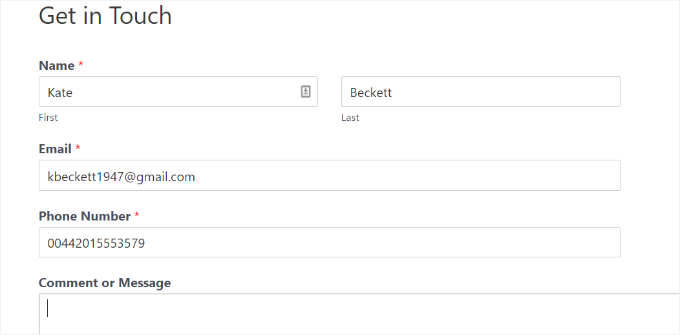
It’s best practice to test your form to make sure that you’ve correctly connected Salesforce and WPForms.
You can preview it, fill in some test data, and click ‘Submit.’
After that, switch to your Salesforce account dashboard.
You should see a new item listed on your homepage.
You can click on the name to see the information for that contact.
You’ve successfully connected Salesforce to WPForms. Now, all your new contacts will be automatically added to Salesforce for you!
Bonus Resources 🔗: Creating WordPress Forms
We hope this article helped you learn how to connect Salesforce to your WordPress forms using WPForms.
Want to explore more ways to build and improve your WordPress forms? Check out these helpful tutorials:
- How to Send Contact Form Details to Multiple Recipients
- How to Add CAPTCHA in WordPress Login and Registration Form
- How to Add Slide-Out Contact Forms in WordPress
- Tips to Create More Interactive Forms in WordPress and Increase Conversions
- Best Online Form Builders (Our Expert Picks)
If you liked this article, then please subscribe to our YouTube Channel for WordPress video tutorials. You can also find us on Twitter and Facebook.


Ikram
Is Salesforce free?
WPBeginner Support
Not at the moment
Admin