



Let’s be honest: there’s nothing more frustrating than losing a potential customer because you didn’t answer their question quickly enough.
From our experience working with WPBeginner and countless other business owners, we’ve learned that people expect an answer right now. If they don’t get it, then they’re gone – often straight to a competitor who is ready to talk.
This is where a good chat plugin can be a game-changer. It lets you connect with visitors in real-time and answer their questions on the spot.
The best chat solutions can even handle those repetitive questions automatically, so you’re not stuck answering “What are your business hours?” for the hundredth time.
WPChat promises to deliver exactly this kind of instant communication for WordPress sites. But is it right for you?
In this hands-on WPChat review, we’re testing everything from its mobile responsiveness to its automation capabilities so you can make an informed, confident choice for your WordPress website.
WPChat Review: The Good, the Bad, and the Ugly (Our Experience)
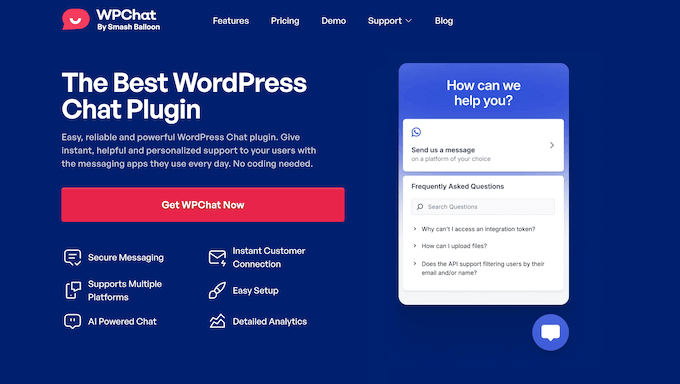
WPChat is a WordPress plugin that solves a problem many of us have struggled with: ‘What’s the best way to add live chat that people will actually use?’
We’ve tested a lot of live chat tools over the years, and many of them can be a bit clunky. They often make visitors fill out a form just to ask a simple question, or they use a slow chat window that feels really impersonal.
WPChat does something completely different, and it’s a brilliant approach. Instead of adding a new, unfamiliar chat system to your site, it connects directly to WhatsApp.
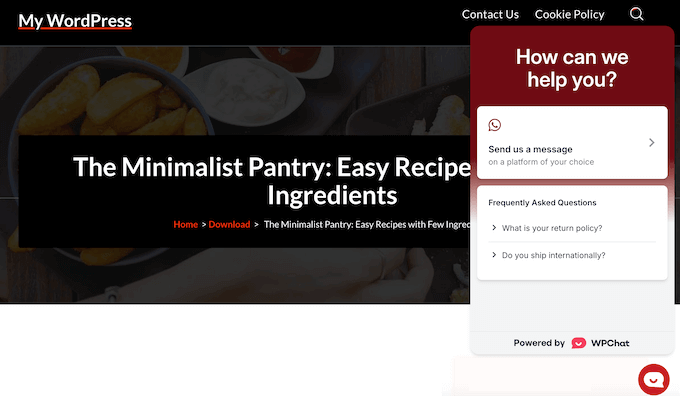
When a visitor clicks the chat button on your site, it opens a new conversation in their WhatsApp app (if they’re on their phone) or on WhatsApp Web (if they’re on their computer).
This is a huge deal, since your customers don’t have to learn a new tool or wait around on your website for a reply. They can just send a message using an app they already know and trust.
As a site owner, these messages come straight to your phone so you can answer them from anywhere. It’s all about making customer support feel less like a formal ticket and more like a real, personal conversation.
Even better, you can download a lite version of WPChat directly from WordPress.org.
This is actually what we recommend when you’re just starting out. WPChat lite is completely free to use, so you can get a feel for how everything works without a big upfront investment.
With this free version, you’ll get many essential features. You can connect to your WhatsApp number, add the chat button to your site, and get everything looking professional in just a couple of minutes.
However, if you want to add multiple agents to your WPChat account, then you’ll need to upgrade to a premium plan.
The premium upgrade also unlocks advanced features like the analytics dashboard. This lets you track things like chat conversion rates, see when your busiest times are, and monitor your team’s performance.
WPChat Review: Is It the Right WordPress Chat Plugin for You?
A two-minute delay in response time is all it takes to lose a high-value customer or potential lead.
That’s why so many top businesses and websites invest in live chat.
A good real-time chat solution instantly bridges the gap between you and your audience. You can engage with visitors right then and there, where their interest is highest – rather than hours later via email.
That said, in this WPChat review we’re exploring all its features, strengths, and weaknesses, to see how it stands up to the competition. By the end of this hands-on review, you’ll know whether WPChat really is the best WhatsApp chat plugin for your WordPress website.
1. Solving the ‘Closed Tab, Lost Chat’ Problem
We’ve all been there: you start a live chat on a website, get distracted, and close the browser tab. Just like that, the conversation is gone forever. This is a huge problem for many website owners.
WPChat is designed to solve this exact problem. It moves the conversation from your website to a place where customers spend a lot of time: their WhatsApp.
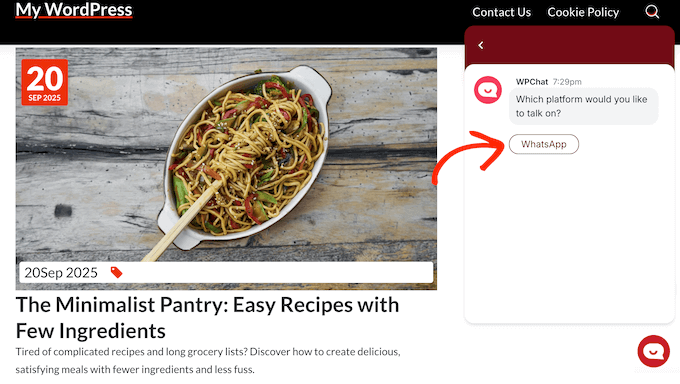
With WPChat, visitors can click a chat bubble on your site and open a new conversation in their actual WhatsApp mobile app. There’s no clunky web-based window, just the familiar interface they use every day.
This is a huge deal because the conversation doesn’t have to end when the person leaves your site. They can ask you a question, go about their day, and your reply will pop up as a regular WhatsApp notification on their phone. It keeps the connection alive.
Even better, your business is now a contact in their phone, which makes follow-up so much easier.
2. A Truly ‘Live’ Chat Solution
What’s really great about WPChat is how it brings instant conversation right to your WordPress site.
During testing, we were really impressed by its speed. Many live chat tools can feel a bit sluggish, but WPChat was completely different.
There’s no awkward loading time, and no waiting for a connection. This is because the plugin is built to be super lightweight.
The conversation itself feels just as fast and natural as chatting with a friend over WhatsApp. When a customer asks a question, WPChat lets you respond quickly, making them feel valued and heard.
It’s this immediate, reliable connection that really sets WPChat apart and makes it feel like a truly ‘live’ chat solution.
3. Lightweight Code for Minimal Performance Impact
A question we always ask before installing any new plugin is: ‘Will this slow down my website?’
Speed and performance is a huge concern for all website owners, because a slow site can frustrate visitors. This was one of the first things we looked at with WPChat.
The team behind it says they use ‘lightweight code’, which basically means they’ve built WPChat to be as fast and efficient as possible. To test this, we ran a few speed tests before installing the plugin, and then ran them again after getting everything set up.
The results were pretty good. We didn’t find a significant, noticeable impact on page load times, which is always a relief.
However, it’s worth remembering why WPChat is so light. This plugin isn’t a heavy, all-in-one chat system that runs on your server. Instead, it connects your site to the WhatsApp app, which keeps your WordPress website running smoothly.
The trade-off is that all your chat history is managed inside WhatsApp, and not inside your WordPress dashboard. For some, this is a fair exchange for the speed and convenience, but it’s definitely something to keep in mind.
4. Easy Setup Wizard: Get Started in Minutes
WPChat helps you set up a ‘chat assistant’ without needing any specialist technical skills. During testing, the setup wizard walked us through everything in just a few clicks.
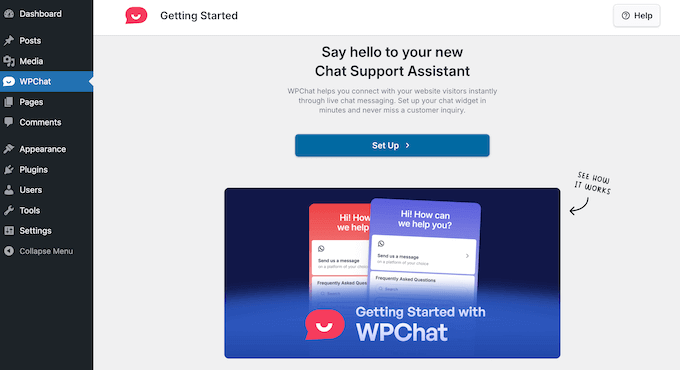
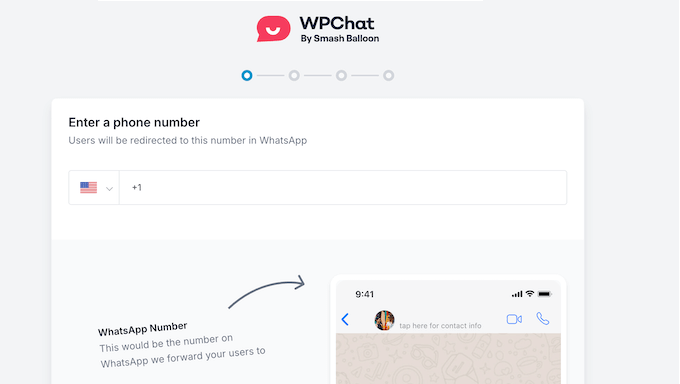
First, you enter your WhatsApp number.
This is the main step that connects your WordPress blog or site to your phone, so messages come right to you.
Next, you choose how your chat button and window looks. WPChat gives you three pre-built styles to choose from. That said, you should have no problems finding one that suits your WordPress theme.
Finally, you decide where the chat bubble appears. For example, you can display it across your entire site, or limit it to specific pages or categories.
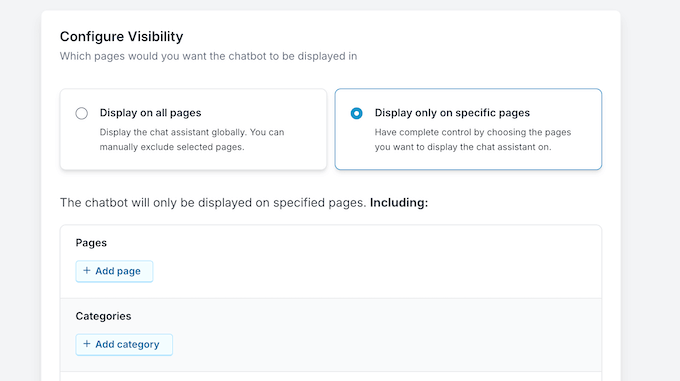
We completed the whole process in less than two minutes. There’s no code involved, and you don’t need to dig through complex menus, making it easy for anyone to get started.
5. Preset Themes and Live Preview
Don’t you just hate it when a plugin adds a button to your site that looks out of place or just plain ugly? That’s why we made sure to look at WPChat’s design options.
WPChat comes with three preset ‘themes’, which change how the chat widget looks with just a few clicks. To put it to the test, we clicked through the options, and the preview updated straight away.
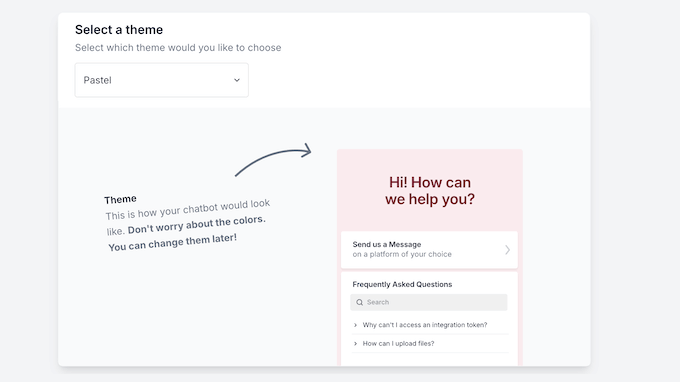
If you’re not a designer and just want to add a professional-looking button to your site quickly, these themes are a decent starting point. However, it’s still a good idea to spend some time fine-tuning these presets, in order to create something that properly reflects your branding.
6. Beyond the Presets: Detailed Customization
As we already mentioned, you’ll want to customize the preset themes if you’re serious about matching your brand. The good news is that WPChat includes a visual customizer, so it’s easy to fine-tune how the chat bubble and window look.
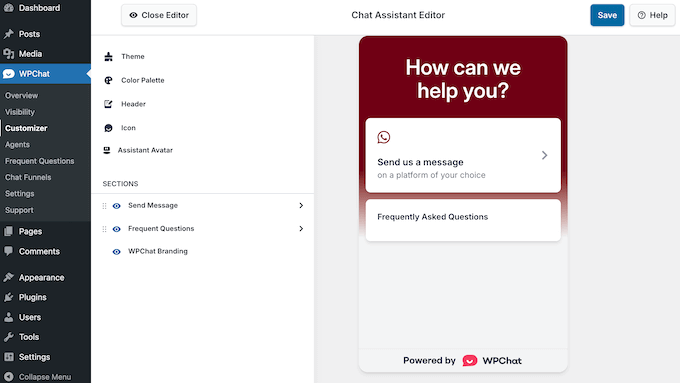
The visual customizer displays a live preview of your chat widget and has simple controls so you can change all the little details, including the colors, icon, and header messaging.
Even better, the live preview updates to show these changes. This means you don’t need to waste time saving and refreshing to see what you’ve done.
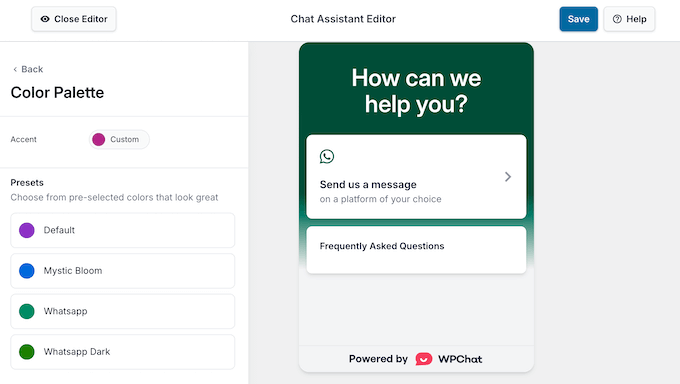
This makes the process much more efficient and removes a lot of the guesswork. It’s this level of control that makes the chat widget feel like a professional, custom part of your website, blog, or online store.
7. Customizing Your Greeting and Brand Voice
You’ll want your chat tool to speak in your brand’s unique voice, so it doesn’t sound like a generic bot.
By default, WPChat displays a ‘Send us a message’ header, with a subheading that says ‘on a platform of your choice.’
If this feels a little clunky, then you can easily change the main text to a friendlier greeting that matches your site’s tone.
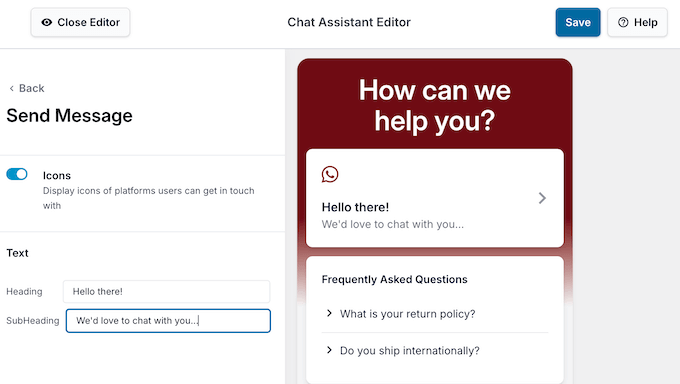
WPChat gives you a few other simple options, like showing or hiding the WhatsApp icon in the header.
These are small changes, but they’re important. It’s this first impression that helps the chat assistant feel less like a third-party plugin and more like a natural part of your website.
8. Adding a Human Touch with Multiple Agent Profiles
If you’re just starting out, then the free version of WPChat may be all you need. However, as your business grows you’ll almost certainly need multiple team members to handle customer questions.
This is where the ‘multiple agents’ feature comes in, and it’s one of the main reasons to upgrade to the premium version of WPChat.
After upgrading, you can add as many agent profiles as you want.
For each person, just add their name, a photo, and their WhatsApp number. This shows your visitors that they’re talking to real people, which immediately makes your business feel more human and approachable.
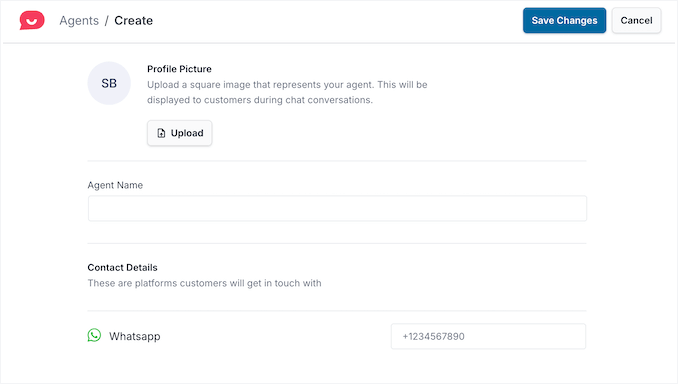
But the smartest part is the ‘availability schedules.’
For each agent, you can set their specific working hours.
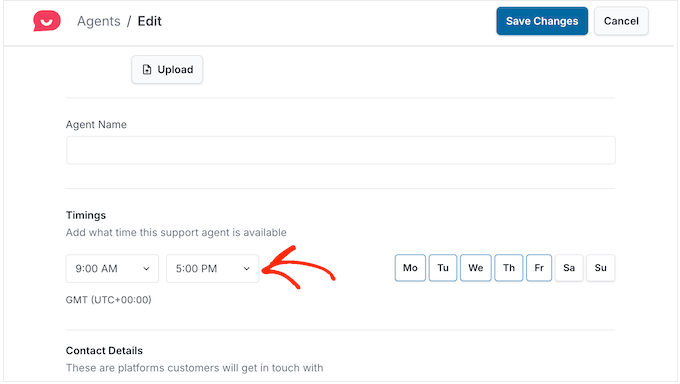
This is a huge practical benefit for your team. It means your support staff won’t get customer messages on their personal WhatsApp at 2 AM. When an agent is ‘offline’, WPChat knows not to route chats to them.
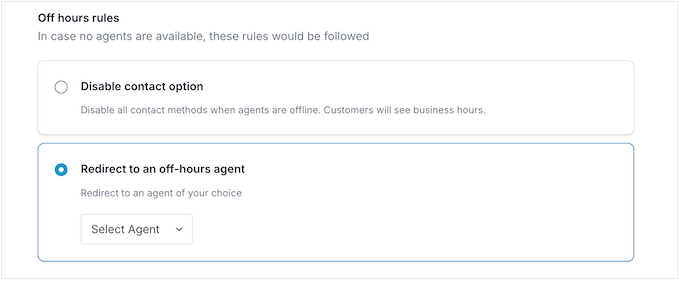
When all your agents are unavailable, the plugin has a sensible fallback. You can set it to automatically show your business hours, or even redirect visitors to a single off-hours contact.
It’s a really professional way to manage customer expectations.
9. Save Time with Multi-Step Conversations
Now, let’s look at one of the more advanced features, which is called ‘chat funnels’.
This basically lets you create a guided, multi-step conversation for your visitors. Think of it like a smart assistant that asks a few questions to understand what the customer needs before connecting them to a real person.
We tested this out by building a simple funnel for a fictional help desk. First, the chat asks if the visitor wants to create a new ticket or ask about an existing ticket.
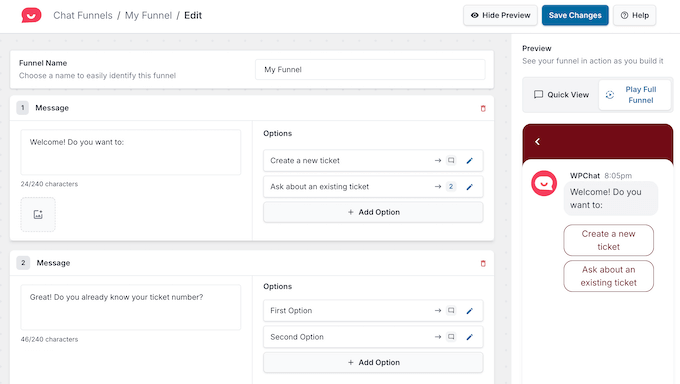
If the customer selects ‘existing ticket’, then it asks them to enter their ticket number. Only after getting these details does WPChat connect them to a live agent.
This is a huge time-saver for any business. It means your support team gets all the essential information upfront, so they can get straight to helping instead of asking the same basic questions over and over again.
In this way, WPChat makes your whole support process more efficient and professional.
10. Offer Instant Answers, 24/7
WPChat lets you create an automated FAQ system so visitors can get instant answers to their questions, even when you’re not online.
Inside the dashboard, there’s a straightforward interface where you can add your common questions and their answers.
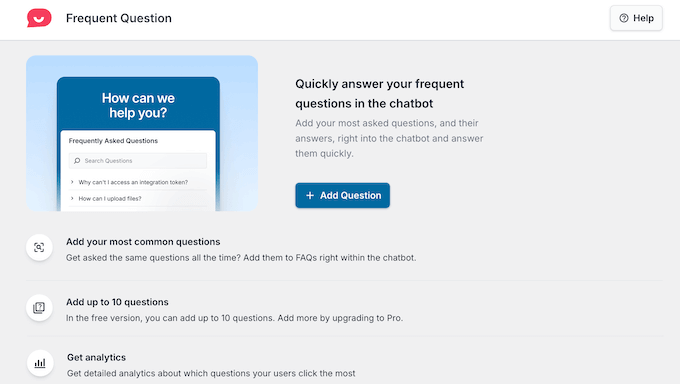
We spent about ten minutes adding a few standard FAQs, like ‘What is your return policy?’ and ‘Do you ship internationally?’
With that done, they appeared in the chat widget on our test site. Visitors could then click a question from the list to see the answer pop up automatically, without needing to type anything.
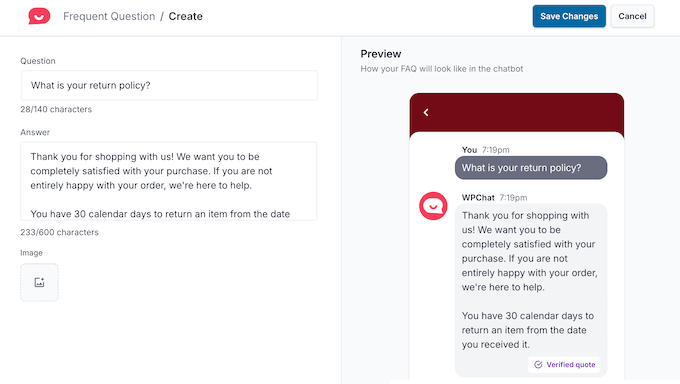
This feature allows you to build a long-term resource for your visitors. Every time you get asked something new, you can add it to the system. Over time, this creates a knowledge base that can handle many routine questions automatically.
It’s a neat way to offer instant help, as long as you invest the time into writing clear and helpful answers for your most common queries.
Just be aware that the free version of WPChat limits you to 10 FAQs, so you’ll likely need to upgrade to a premium plan at some point in order to get more entries.
11. Cut Down on Repetitive Questions with ‘Smart Search AI’
We’ve all been there: answering the same customer questions over and over again. WPChat aims to help with this through its ‘Smart Search AI.’
The idea is simple: you build a knowledge base of your most frequently asked questions, as we’ve already discussed. Then, when a visitor starts typing a question into the chat window, WPChat tries to find a match within your FAQ content.
We tested this out by adding an FAQ entry about a fictional shipping policy. The chat widget immediately suggested the relevant FAQ article we’d just created.
In this way, your customers will get an instant answer, even outside of business hours. At the same time, it reduces those simple, repetitive questions your team has to handle manually.
However, the quality of WPChat’s AI depends entirely on your FAQ library, since it’s essentially searching your pre-written content.
If you don’t create a robust, helpful FAQ library, then WPChat likely won’t find a good match, and you’ll still need to respond to your visitors manually.
While this feature has the potential to be great, it relies heavily on the effort you put into creating the underlying knowledge base.
12. Beyond Guesswork: Actionable Insights for Your Team
One of the big challenges with customer support is knowing how well you’re doing. Are people getting the help they need? And what exactly are they asking? WPChat aims to answer this with its analytics dashboard.
It presents the key information in a pretty simple, clear way. This includes important numbers like how many chat conversations were started, what the conversion rate was, and the total interactions, which includes things like clicks on FAQs.
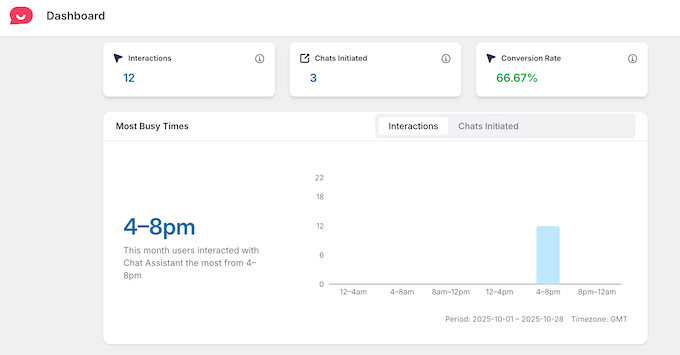
The dashboard also breaks down stats per agent, so you can see which members are handling the most conversations. This would be useful for managing workload and identifying who might need more support.
However, the most useful part is identifying your busiest times.
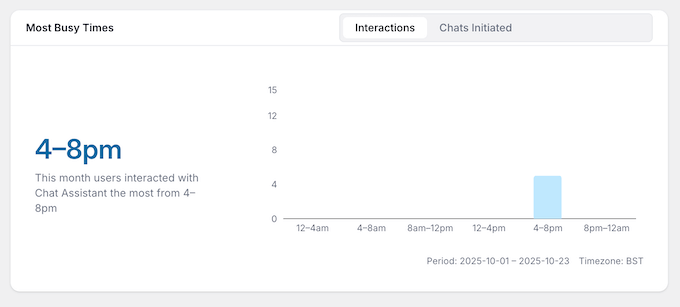
It’s these kinds of actionable insights that help you move away from guesswork and start making informed decisions to improve your customer service.
WPChat Review: Community and Professional Support
Even with an easy-to-use plugin, it’s important there’s help available when you need it. That’s why it’s good to see that WPChat offers a solid range of support options for both free and paid users.
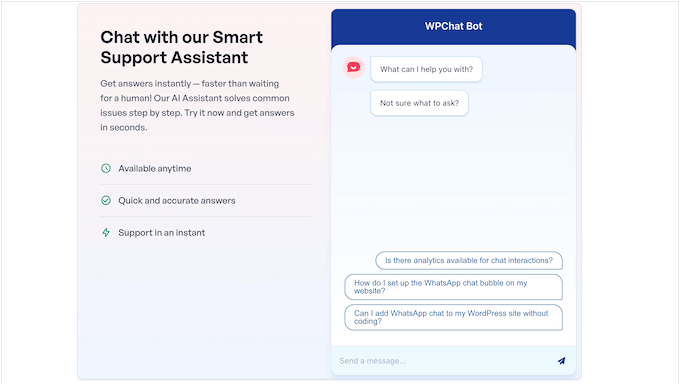
To start, WPChat has a smart AI support assistant that can instantly answer common questions. We tried it out by asking a few complex questions about the plugin’s setup process and pricing, and it gave us accurate, helpful answers right away.
If you invest in the premium version of WPChat, then you can access professional support by submitting a ticket or reaching out via email.
All the WPChat plans include professional support, but if you upgrade to Plus or higher then you can skip the queue with priority support.
If you prefer to solve problems yourself, then you’ll also find comprehensive support on the WPChat website.
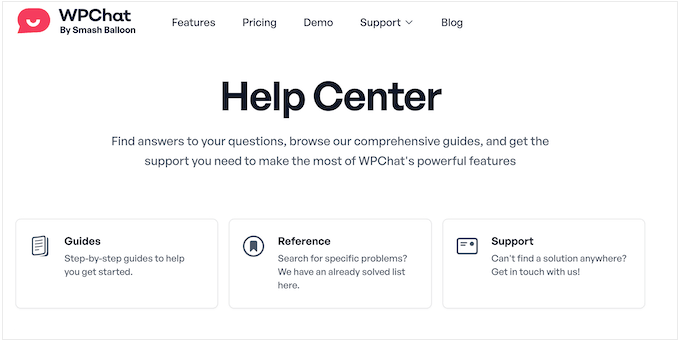
You can access this documentation no matter whether you paid for a premium plan or you’re using the free WPChat plugin. It’s nice to see that this valuable resource is available to all users.
WPChat Review: Pricing and Plans
WPChat offers a few different pricing tiers, so it’s accessible for everyone from small bloggers to large online stores.
To start, you can download the lite version of WPChat for free from WordPress.org. This is fantastic because you can install the plugin on your site and test it out without any financial commitment.
You can even create a small number of FAQs, so you can handle some common questions automatically.
However, the free plan is quite limited, as you’d expect. It’s really designed for a single user like a solo blogger or freelancer, so any serious business will likely need to upgrade pretty quickly.
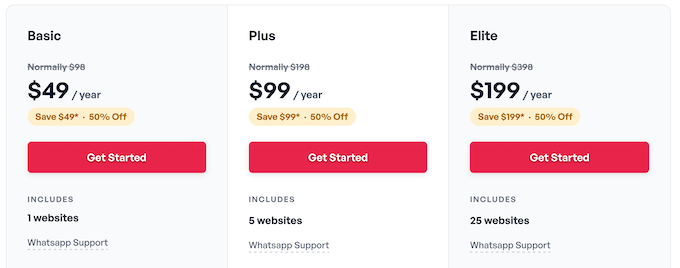
In that case, there’s three paid plans to choose from:
- Basic. For $49 per year, you can add up to 5 agents to your WPChat account. You can also create up to 30 FAQs. This is a good starting point for a small team that needs multiple people to handle WhatsApp chats but doesn’t require deep analytics.
- Plus. Priced at $99 annually, this plan lets you add up to 10 agents and create 100 FAQs. It also unlocks advanced analytics so you can better understand your audience and your agents’ performance. You can also remove the WPChat branding, which is essential for a professional look. For most growing businesses, this plan likely hits the sweet spot between features and price.
- Elite. For $199 per year, Elite lets you create unlimited agents and unlimited FAQs. You can also use WPChat on up to 25 sites. This plan is clearly designed for larger teams, agencies managing multiple client sites, or businesses with a very high chat volume and complex FAQ needs.
In summary, WPChat’s pricing is straightforward and refreshingly affordable compared to many Software as a Service (SaaS) platforms that often charge per agent, per month.
The free plan is genuinely useful, and the inclusion of multi-agent support in the mid-tier ‘Plus’ plan makes it a practical option for small businesses working with a tight budget.
WPChat Review: Is It the Right WordPress Chat Plugin for You?
So, after trying WPChat on my test site, what’s the final verdict?
Based on its features, ease of use, and smart integration with WhatsApp, WPChat is an excellent and straightforward solution for many WordPress website owners.
It cleverly taps into an app that billions of people already use, making it incredibly convenient for customers and visitors to reach out.
We were particularly impressed with how well WPChat caters to a range of business needs.
For WooCommerce stores, the ability to answer product questions instantly via WhatsApp can directly impact sales. For bloggers and service-based businesses, the automated FAQ feature provides instant answers to common questions.
Meanwhile, if you’re a small team or solo worker, then WPChat is a huge time-saver that also adds a layer of professionalism.
Ultimately, if you’re looking for a simple, affordable way to improve your customer communication, reduce your support burden with automated FAQs, and improve engagement, then WPChat is definitely worth trying out.
We hope this WPChat review helped you decide whether it’s the right live chat plugin for you. You may also want to learn how to use AI for customer service or see our expert pick of the best communication tools for small businesses.
If you liked this article, then please subscribe to our YouTube Channel for WordPress video tutorials. You can also find us on Twitter and Facebook.

WPChat User Reviews
Please share your WPChat review to help others in the community.