


Choosing between coming soon and maintenance mode can feel confusing, especially if you’re launching or updating a WordPress site for the first time.
They might look similar, but using the wrong one can affect how your site appears to visitors and search engines, which can lead to lost traffic or SEO issues.
If you’re not sure which mode to pick, don’t worry. Many website owners run into this exact problem during setup or redesign.
In this guide, we’ll break down the key differences between coming soon and maintenance mode, when to use each one, and the easiest way to set them up. 🙌

What Is Coming Soon Mode vs. Maintenance Mode (and Why Does It Matter)?
Coming soon mode is used when your WordPress site hasn’t launched yet, while maintenance mode is used when your live website needs to be taken offline temporarily for updates or fixes. Both display a temporary page, but they serve very different purposes.
Here’s a quick look at when you’d use each one:
| Coming Soon Mode | Maintenance Mode |
|---|---|
| You’re building a brand-new website behind the scenes | You’re updating plugins, themes, or core files |
| You want to collect emails before the official launch | You’re fixing a design or technical issue on a live site |
| You want search engines to start indexing your site early | You want to prevent visitors from seeing errors or broken layouts |
Several WordPress plugins, such as SeedProd, make it easy to switch between these two modes.
But it’s still important to choose the correct one. Using the wrong option can confuse search engines. For example, using maintenance mode on a new site might stop Google from indexing it properly.
With that clarified, here’s a quick overview of what we’ll cover in this guide:
- When to Use a Coming Soon Page
- How to Create a Coming Soon Page
- When to Use Maintenance Mode
- How to Put Your Site in Maintenance Mode
- Bonus Tip 💡: Create a Custom WordPress Login Page
- FAQs About Coming Soon vs Maintenance Mode
- Keep Learning with WordPress Maintenance Guides
You can use the jump links to go to a section, and without further ado, let’s dive in!
When to Use a Coming Soon Page
You should use a coming soon page after registering for a domain, but before you finish building your website.
A coming soon page lets you generate buzz about your upcoming site before launch. More importantly, it allows Google to index your content and start sending you visitors.
It’s also a best practice to add an email newsletter signup form to your coming soon page. This allows people to get an email when your site goes live and also helps you get a head start on building an email list.

You can easily create great-looking coming soon pages with SeedProd. It’s the best WordPress landing page builder on the market, with a drag-and-drop editor and premade templates that let you create a professional coming soon page in minutes.
Many of our partner brands use SeedProd to build their custom pages, and they’ve been very happy with the results.
For details about the plugin, you can see our complete SeedProd review.
Now, let’s take a look at how to create a coming soon page in WordPress.
How to Create a Coming Soon Page
To create a coming soon page, you first need to create a SeedProd account.
On the SeedProd website, go ahead and click the ‘Get SeedProd Now’ button. Then, you can pick a plan and complete your checkout.

📝 Note: We are using the SeedProd pro version for our tutorial because it offers more customization features and templates, but you can also use SeedProd’s free plan.
After signing up, you’ll land on your SeedProd dashboard, where you’ll find your SeedProd Pro’s zip file and license key.
Next, you need to install and activate the SeedProd plugin. In your WordPress dashboard, go to Plugins » Add New Plugin.

On the next screen, use the search bar to quickly find the plugin.
Hit the ‘Install Now’ button and ‘Activate’ when it appears.

For more details, see our step-by-step guide on how to install a WordPress plugin.
Upon activation, you’ll be prompted for your license key. You will find this in your account area on the SeedProd website. Enter the key and click the ‘Verify Key’ button:

After that, you can visit the SeedProd » Landing Pages screen from your WordPress admin area.
Here, click the ‘Set up a Coming Soon Page’ button to start the process.

This will direct you to the ‘Choose a New Page Template’ screen, where you have to pick a template for your coming soon page.
There are over 150 different premade SeedProd templates to choose from.
Simply hover over a template you like and click the orange checkmark button.

You’ll now be taken to SeedProd’s drag-and-drop page builder, where you’ll see a live preview of your coming soon page on the right and the block panel on the left.
You can change anything you like by dragging and dropping blocks from the left column onto your page preview.
For instance, you can drag and drop standard blocks for text and images or choose Advanced blocks to add a countdown timer, contact form, icons, and more.

You can also customize the fonts, background image, text, button colors, and more
For detailed instructions, you may want to see our tutorial on how to create coming soon pages in WordPress with SeedProd.
If you’d like to integrate your coming soon form with your email marketing service, simply go to the ‘Connect’ tab at the top.
After that, select your email marketing service.

Then, follow the on-screen instructions to connect your coming soon page to your email service.
Once you’re happy with your coming soon page design, head over to the ‘Page Settings’ tab at the top. Then, click on the ‘Page Status’ toggle and switch the status from ‘Draft’ to ‘Publish.’

Don’t forget to click the ‘Save’ button at the top and then exit the landing page builder.
Next, go to SeedProd » Landing Pages in your WordPress dashboard. From here, switch the toggle under ‘Coming Soon Mode’ to ‘Active’ to make your site visible.

Your coming soon page is now live.
To view it as a visitor, log out of your website or open it in a private/incognito browser window.

When to Use Maintenance Mode
You should use maintenance mode when you need to briefly take your site offline for changes or updates.
For instance, you may want to use maintenance mode while changing WordPress themes so you can make sure everything looks and works correctly before visitors see the changes.
Another good time to use maintenance mode is when you’re adding an online store to your site. You can keep the rest of your website online, but put your store into maintenance mode.
Maintenance mode tells search engines that your site is down temporarily by returning the 503 (Service Unavailable) header code. This ensures your site’s SEO won’t be affected by the downtime.
Plus, it’s good practice to let users know that your site will be back soon. You can do this by adding a clear message to your maintenance page. You might also add an email signup form so visitors can get an alert once your site is back online.
🧑💻 Pro Tip: When you update plugins, themes, or core WordPress, your site will automatically go into maintenance mode for a few seconds. If your site gets stuck in this mode, we have instructions on fixing the WordPress maintenance mode error.
How to Put Your Site in Maintenance Mode
To put your site in maintenance mode, you’ll need to install and activate the SeedProd plugin. See the installation step in Method 1.
Or you can refer to our beginner’s guide on how to install a WordPress plugin.
Upon activation, you can head over to the SeedProd » Landing Pages screen from your WordPress admin panel and then click the ‘Set up a Maintenance Mode Page’ button.

Next, you can select a template for your maintenance mode page.
SeedProd offers numerous templates to get started.
If you’re not sure which style to choose, you can check out our showcase of maintenance page ideas you can use on your WordPress site.

After that, you can customize the page in the SeedProd landing page builder just like you did for the coming soon page.
Simply drag and drop the blocks you want to add to the template, and edit the text, fonts, layout, colors, and more. For detailed instructions, see our guide on how to put your WordPress site in maintenance mode.

You can also connect an email marketing service under the ‘Connect’ tab.
Simply choose a service and follow the on-screen instructions to set it up.
Next, head over to the ‘Page Settings’ tab.
Here, click the ‘Page Status’ toggle to switch it from ‘Draft’ to ‘Publish’ for your maintenance mode page.

Once that’s done, go ahead and click the ‘Save’ button and exit the page builder.
When you’re ready to put your site into maintenance mode, go to SeedProd » Landing Pages in your WordPress admin area and switch the Maintenance Mode page to Active.
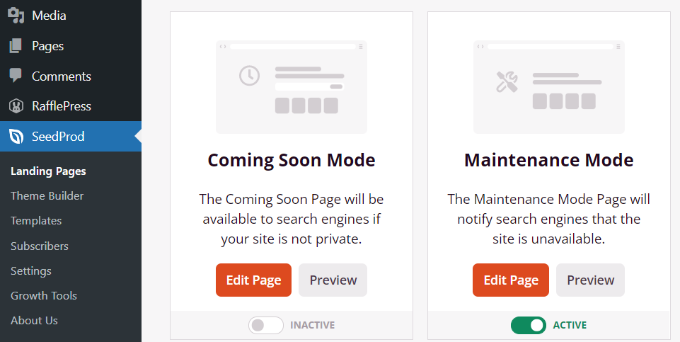
🧑💻 Reminder: Maintenance mode should only be used when your site is down for updates. If you have not yet launched your site, use the coming soon mode instead. Also, if you activate maintenance mode but still see your live website, try clearing your browser cache and any WordPress caching plugins.
Bonus Tip 💡: Create a Custom WordPress Login Page
Beyond coming soon and maintenance pages, you may also want a custom login page once you’ve launched your website. It provides a more visually appealing, branded experience for users logging in to your site and can even help you generate more leads.
To create a login page with SeedProd, just visit the SeedProd » Landing Pages screen and select the ‘Login Page’ option.

After that, you can choose any one of the premade templates to add to your site.
Once you do that, the login page template will open in the drag-and-drop builder, where you can add elements like a countdown timer or social sharing icons as needed.
After that, just click the ‘Save’ button to store your settings.

Now, head to the SeedProd » Landing Pages screen again and switch the login page status to ‘Active.’
You have now successfully added a custom login page for your website. For more details, see our beginner’s guide on how to create a custom WordPress login page.

FAQs About Coming Soon vs Maintenance Mode
Before we wrap up, here are some common questions readers ask about coming soon and maintenance mode.
What is the best Coming Soon and Maintenance Mode plugin?
SeedProd lets you display a temporary page while your site is under construction or undergoing updates. You can turn coming soon or maintenance mode on with one click, without touching any code.
What should I put on a coming soon page?
A good coming soon page should include your brand name or logo, a short description of what you’re launching, and an email signup form so visitors can stay updated. It also helps to add your social media links for additional ways to follow your progress. If you want to build excitement, you can include optional elements like a countdown timer or a teaser image.
What’s a better way to say “coming soon”?
A better way to say “coming soon” is to use phrases like “Launching Soon” or “Opening Soon.” You can also use more creative and playful alternatives, such as “We’re Getting Ready Behind the Scenes” or “Something New Is Coming,” to set expectations while keeping things friendly and clear.
Why put a site in maintenance mode?
Maintenance mode prevents visitors from seeing broken layouts or errors while you’re updating your live site. It shows a clean, temporary message instead, making your site look professional while you work.
What are the advantages of WordPress maintenance?
Regular WordPress maintenance helps keep your site secure, improve performance and loading speed, and fix bugs or outdated features. It also ensures your themes and plugins run smoothly and reduces the chances of downtime or unexpected errors.
Keep Learning with WordPress Maintenance Guides
We hope this article helped you understand the difference between coming soon and maintenance mode.
Next up, you may also want to check out our guides on:
- Best WordPress Website Maintenance Services
- Crucial WordPress Maintenance Tasks to Perform Regularly
- WordPress Maintenance vs Managed Hosting – Which Is Better?
- How to Fix WordPress Stuck in Maintenance Mode
- How to Put WordPress in a Read-Only Mode for Migration and Maintenance
If you liked this article, then please subscribe to our YouTube Channel for WordPress video tutorials. You can also find us on Twitter and Facebook.


Moinuddin Waheed
I think the main difference between the two is the fact that coming soon page is for new website that is to be launched and maintenance one is for already running website that needs some routine check and updates.
But it’s good to know how Google differentiates the two.
thanks for the tutorial.
Jiří Vaněk
I wouldn’t divide it so generally, because “coming soon” can be useful even for an existing website. I encountered a site that was so infected with viruses that it took us many days to fix it. It required a complete website overhaul, redesign, and the deletion of damaged and infected files. In total, it was three weeks of hard work, and that’s why “coming soon” seemed like a much better option. It also gave people the impression that they could look forward to a completely new site. From a marketing perspective, it worked great.
Jiří Vaněk
Thank you for the explanation. I had no idea that Google differentiates between the two mods in some way.
Lorenzo
Maintenance mode does it arms SEO for longer periods? I mean if you make a quick change, it won’t hurt your website but what if you have problems and you need to keep the website in maintenance for some days. After how many days a website will be penalized?
WPBeginner Support
There is no specific time limit on when it would negatively affect your site but it is best to keep maintenance as short as possible to prevent any issues.
Admin