


We have provided an extensive beginner’s guide on responsive web design testing for your benefit.
In today’s times, the use of mobile devices to access the internet has grown immensely and become very popular. Almost everyone uses the mobile version of a particular website.
However, most websites are not optimized as well as they should be for mobile devices. Testers should perform a mobile responsive test on responsive designs.
Traditional software products render essentially the same on all kinds of devices.
Take Microsoft Office for example, it looks the same on every personal computer. Imagine taking Microsoft Word the exact way it runs on your desktop and viewing it on an iPhone. Either the menu and buttons will appear tiny, or else you’ll only see a corner of the screen and need to use extensive scrollbars. In any way, the application will become essentially unusable.
Every designer has this experience when they try to design for the web. The fix for the problem is something called “responsive design”.

Responsive design is a technique to have web pages ask the browser what the resolution is, then gracefully re-design the user experience based on the available screen real estate. Suddenly, it is impossible to know exactly how your software will look in production.
That means a test strategy (and an automation strategy) that needs to be capable of experimenting and learning what “looks right” and what doesn’t at different resolutions.
Table of Contents:
- Beginner’s Guide to Testing Responsive Website Designs
- What is Responsive Web Design
- Advantages of Responsive Design:
- Main Components of Responsive Website Design:
- Responsive Web Design Examples
- How to Test a Responsive Website
- Sample Test scenarios for responsive website testing:
- Tools to Test a Responsive Website
- Challenges of Testing Responsive Design and Possible Solutions
- Tips for Responsive Web Testing
- Conclusion
Beginner’s Guide to Testing Responsive Website Designs
When we try to open a website, the server reads “m.sub-domains” to identify what kind of mobile device the request originated from. Based on that, it redirects the user to the corresponding mobile version.
To make this 100% effective, each device should have its own design of the website specifically built for it; for example, a different specific design for Blackberry, iPhone, iPad, etc. taking into account their screen size and resolution.
However, different web versions for every resolution and device is not practical. Ethan Marcotte came up with a new approach – Responsive Web Design (RWD) – that solves this problem.
What is Responsive Web Design
RWD targets for websites to react to their device resolution and be able to render and adapt correctly. For example, if the user switches from desktop/ laptop to iPad, then the website should automatically adapt the resolution changes like image size etc. as per the respective device abilities.
In short, Responsive Design is “One website for every screen”.
Below is a screen example of RWD:
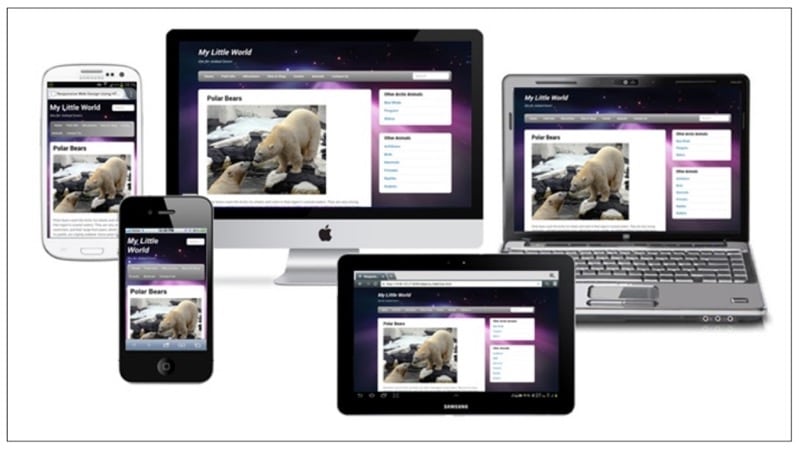
Note: A real-time example of a responsive website is www.fpl.com
In RWD, a website is designed to give a superior user experience through easy navigation, clear and simple user interface, etc. Responsive websites adapt easily and work with all resolutions, browsers, screen sizes, hardware, and Operating Systems.
- Responsive websites are coded in PHP, .Net, Java, CQ5 (Adobe Experience Manager – AEM) and many new frameworks which are very handy to develop responsive designs.
- CSS and HTML features are leveraged to make screen resolutions and images get resized automatically.
- RW design uses breakpoints to identify the layout of a site. Each design is used at different breakpoints. One design is applied over a breakpoint whereas another design is used below the breakpoint. These breakpoints are generally based on the width of the browsers.
- While designing a responsive website, the developers consider the content, design, and performance of the site across all devices to ensure usability.
The diagram is an accurate simile to how the content adapts to the environment and behavior of the device.

Note: Apart from RWD there is another approach called Adaptive Web Design (AWD). In the AWD approach, there will be a specific design for each device. However, AWD might not be suitable all the time. Besides, designing AWD sites takes more time and money in comparison to the RWD sites.
Advantages of Responsive Design:
#1) User Experience: Based on the device from which we access an RW, it hides the unusual elements and helps the users achieve their goals faster. For example: if we open an RW from mobile then it hides the unimportant elements and speeds up the loading of web pages.
#2) Sharing or Linking: For an RW only one URL can be used for various devices. As only a single URL is accumulating all the data and information from various devices, it gives a better UX for users.
#3) Little or minimum maintenance required for an RW.
#4) RW layouts are fluid.
Differences between Responsive Web Design and Adaptive Web Design:
RWD & AWD are closely related to one another.
- RWD reacts quickly and positively to the changes whereas AWD can be modified easily for a new purpose.
- RWD has multiple fluid grid layouts and AWD has multiple fixed width layouts.
- The images in RWD are known as context-aware.
Main Components of Responsive Website Design:
Responsive Web Design has the following three main components:
#1) Flexible Layouts: Building a website with a flexible grid that can be easily resized to any width dynamically.
#2) Media Queries: Provide various styles for the browsers and devices based on the context, such as the orientation of the device, viewport, etc.
#3) Flexible Media: As the size of the viewports changes, the media (images, videos etc.) also need to change their size or resolution according to the requirement.
Note: “Viewport” is the area of the browser where the actual content of the website is displayed. Viewport does not include toolbars, tabs, etc.
Responsive Web Design Examples
Example #1)
Open the link www.fpl.com from various devices and observe the URL. The URL of the Responsive website remains the same for all devices.
a) View the RW from a desktop or laptop (large screen size)

b) View the RW from the tablet (medium screen size)

c) View the RW from a mobile (small screen size)

Example #2)
Open the site www.yepme.com from a laptop and also from a mobile and compare the URLs. This yepme.com link is not responsive.
a) View a non-responsive website from a desktop or laptop

b) View a non-responsive website from a mobile

How to Test a Responsive Website
Responsive design testing means testing the website or URL from different devices. Practically, it is not possible to test the responsive website completely because to do so we need to set up various systems for various screen sizes.
A possible way to conduct a responsive test is by resizing the browser window size as per the test scenario.
Some browsers, such as IE and Safari, will provide plug-ins or browser extensions that will help you view the viewport area in pixels. This makes testing easy by getting the desired screen size by modifying the pixels.
Other browsers like Chrome provide software or program called “Emulator” which will help change the screen features and environment as per the desired device needed for testing.
Note: “Emulator” is a software or program that is provided within the browser which makes the host system (current browser) behave like the guest system (browser of the desired device that is to be tested for the screen size desired).
Even though the emulators cannot give you the exact environment needed for testing, they are a cost-effective solution to test an RW at a high-level.
Sample Test scenarios for responsive website testing:
The responsive web design tester should make sure that responsive design is satisfying all the below-mentioned test scenarios to ensure it is a bug-free responsive design.
#1) Responsive website link or URL should be the same for all browsers on each and every device irrespective of the screen resolution.
Suppose www.abc.com is a responsive website. If you open it on a laptop or on a mobile phone then the URL should be the same on both the devices. The website opened in the mobile browser should not start with www.m.abc.com or www.mobile.abc.com
Example: Open the website www.kotak.com from a laptop and also open the same from mobile too and observe the URL in both the devices. The URL is not the same for both the devices.
The below snapshot displays how the URL changes for a non-responsive website on different devices such as laptops and mobiles.

Open the website www.w3schools.com from a laptop and from mobile and check the URLs. It should be the same for both the devices.
Below snapshot shows the URL remains the same for a responsive website in different devices:

#2) The display location of the content (images, sub-links, menus, etc.) of a responsive website should change dynamically as per the change in the screen resolution. That is, if we change the screen resolution from the size of the laptop to a mobile then the display of menu options should change dynamically.
Example: Open the link www.fpl.com from a laptop and click on the menu in the top right corner of the window. Menu options are displayed as shown below:

Open www.fpl.com from mobile and click on the menu in the top right corner of the window. Menu options are as below:

Note: This scenario can also be tested using browser emulators (Ex: chrome).
Open the website www.fpl.com through a desktop and observe how the menu options are displayed. See snapshot below:
Now resize the browser window to that of mobile screen size and then check the display of the menu options. See below snapshot:

#3) URLs of a responsive website should also be resolution specific.
Pre-requisite to test this scenario: Ask the developer to insert any sub-link into the Responsive testing website where the sub-link is not responsive.
For example, the developer can insert link www.snapdeal.com to our testing website.
Now, open the responsive testing website from a mobile and click on the sub-link mentioned in the pre-requisite. Then the URL of the sub-link should change to https://m.snapdeal.com.
#4) The same scenario can be tested from a laptop too. Open the RW from a desktop or laptop and click on the sub-link (mentioned in the pre-requisite of test scenario three) that is not responsive. The URL for the sub link should not change (as we are testing this scenario from the laptop the URL should remain the same).
#5) Pre-requisite to test this scenario: Ask the developer to insert any sub-link, for example, www.paytm.com into the testing site. The mobile device in which you are going to execute this scenario should have the respective application of Paytm installed in the mobile.
Now open our testing responsive website from a mobile and click on the “paytm” sub-link. Then the Paytm application which is installed in the mobile should be opened. The user should not be redirected to the website in a browser or another window; only the app should be open.
#6) The images in the responsive website are resolution specific. This means that the resolution of the image inserted in the code of a responsive website designed for mobile compatibility is different from that of a desktop or tablet. Each screen size should have its own specific image in the design.
Pre-requisite to test this scenario: Testing and checking the resolution of the images could be a tough task. Ask the developer to insert three different images into the responsive website separately for mobile, tablet and desktop.
Open a test responsive design website from a desktop, tablet or mobile. The images on the responsive web page should be different for all three devices.
(OR)
Open the testing RW from a desktop and check the image on the web page. Now resize the window to that of a tablet and check the image. This should be different from the image shown for the desktop screen size. You can now resize the window to mobile screen size and check the image. This image should also be different from the above two images.
Example: Open the responsive site www.fpl.com from a desktop; right click on the image on the home page -> select “Inspect” from the menu. Check the image resolution (check the image file name extension.jpg) from the code. See the below screenshot:

Now resize the same window to that of a tablet screen size and check for the image resolution. (The image name extension is medium.jpg)

Finally, resize the window size to that of a mobile screen size and check the image. (The image name extension is small.jpg)

#7) Click randomly anywhere on the web page to check if any data or text that is not hyperlinked gets initiated or redirected to any other page or content. This tests whether any word or text is marked as a hyperlink on the back end.
Note: In a few projects, the requirements talk about the pixel size and resolution of the screen for particular devices. (For example, a tablet view for their RW should be at 15:15 pixel and for a mobile, it should be at 10:10 etc.)
Testing for the dynamic changes that should happen for the RW display when we change the pixel size is the main scenario.
#8) Open our testing RW in a browser and view the content and display of the main images. Now resize the window to the breakpoint of the tablet size and verify the changes that should happen to the image resolution and any other content. At breakpoints, the changes should happen dynamically (sometimes the changes will not happen at the breakpoints and may change at some other pixel size which is a defect.)
Tools to Test a Responsive Website
There are few tools (websites) that will let you preview the web pages of our responsive website.
For example, we can test our responsive site at different predefined screen resolutions (smartphones, tablets, etc.) and also customize to any desired resolution. These tools make testing activities easier and quicker. Such in-browser tools can be termed as “Responsinator”.
Some tools also offer an important feature of capturing responsive screenshots that might help us test website designs, HTML, layouts, CSS, etc. of the responsive website.
These tools are great alternatives when the actual devices are not available or ready.
Here is a quick tool list:

Enter the URL of the responsive website that needs to be tested in the above “Enter Your URL Here” field and click “GO”. You can even select the device and resolution at which you want to view the responsive site.
Now enter www.fpl.com in the field, select the layout “Nexus 7 PORTRAIT” and click GO. The site gets displayed in the resolution of the selected format.

#2) Screenfly

Enter the testing site www.fpl.com and click GO.

Change the layout to desktop, tablet, mobile, etc. and test the site. With this tool, you can even customize the resolution.
For example, set the screen resolution to 512 x 256 and test the site.

Note: With this tool, you can even test scenario 6 easily by changing the resolution and verifying the image naming.
#3) Designmodo

Enter any URL, www.makemytrip.com and click Enter.

On the top right side of the browser, you have the option to change the layout of the website to that of any specific mobile model or device etc.
Note: This tool has one additional feature like dragging the screen and modifying the resolution to our desired resolution.
#4) isResponsive

Enter the testing URL, www.fpl.com in the field and click on “Test” button.

Note: This tool only has a few fixed layout options on which our site can be tested.
#5) Mattkersley
If you want to have a view of your RW on multiple screen sizes at a time then this tool mattkersley is what you need.

Now enter your testing URL in the address bar and click enter. You can view the RW on multiple screen sizes at a time.

#6) By default, chrome has few Dev Tools through which we can simulate the device mode and its capabilities.
To use this feature of chrome, open any testing responsive design website like www.fpl.com in chrome and right-click on the webpage and select “Inspect” option from the menu or press Ctrl+Shift+I. The window below gets opened at the bottom of the web page.

Now click on the icon as shown in the below screenshot.

The mobile mode of the web page gets opened. From that, you can change the resolution to any specific pixel and also to any predefined mobile model which is displayed in the drop-down menu. View the snapshot below to get a clear idea:

Note: We can also change the web page to portrait or landscape view too.

Other good tools to test responsive design:
7) ResponsiveDesign
8) BrowserStack
9) Troy
10) AmIResponsiveDesign
11) Responsinator
12) Studiopress
13) ResponsiveTest
14) For MAC machines we have a separate application called “APTUS” to test an RW. This application allows you to set-up various breakpoints on various devices for testing. APTUS is not a free application and we have to buy it from the Mac App Store.
Challenges of Testing Responsive Design and Possible Solutions
Dynamic Test Strategy
Moving from 320×480 (the resolution of the iPhone4) to 2048×2048 (a large monitor) leaves over 4 Million possible browser sizes. Most test groups will narrow the list of test devices down to a handful. Even then, the manual testing problem is hard or impossible to approach.
Developers cannot possibly anticipate all of the platform problems, and testers can’t catch them before release. Because of this, we found the occasional user interface issue in production.
Maybe someone reduced the size of their browser causing important text fields to be covered by a page label. Perhaps some code designed to handle dynamic page resizing breaks modal date pickers and never gets noticed by a normal test built on WebDriver. There are too many display options to build tests for and too little time.
Let’s take a look at a realistic example to illustrate the problem.
Dynamic pages, things like advertising slides, and content streamed in from users in different page sizes, are a staple of many software products. Add to this the fact that we can’t predict how the page will be displayed and many automation efforts start with failure.
I see two popular solutions for this problem – using a standardized, or baseline, data set and refreshing that every time the test suite is run, and taking things to one environment or platform at a time.
Standard data ensures page content will look the same every time we load the test environment. This strategy is combined with something like Sauce Labs that gives people access to many platforms and you get pretty far.
This approach takes time and resources. You will need time from someone with database access, usually a DBA, to create and update database exports. Also, someone has to create scripts setup and teardown scripts to maintain the test environment. After all this effort, you might end up with the type of sanitized environment bugs love to hide in.
Alternately, you can use Visual Testing technology to help automate tests on web pages that vary in layout and content. Using this tooling, you can create tests without any changes to your test environment, and without requiring any skill sets from people outside of your test group.
Let’s look at an example.
Consider the Twitter mobile app.
This product is a combination of continuously changing user content and advertising. There are also a few core parts of the user interface, such as the news feed and notifications, in the header.
Using a visual testing tool, you can start by performing a screen capture of the entire scrollable page, not just the viewable area. You can choose a comparison option that ignores text content but focuses on on-page elements.
For example, you could see that the fields for tweets exist, that each tweet has a name element and a date/time element, without worrying about what is in the elements.
Searching for elements across full pages also relieves the maintenance and complexity burden we see in many automated tests. Rather than manipulating data on a page, save, scroll and then verify, you get everything in one shot. This means less code to write, less code to maintain, and fewer false positives for nightly test runs.
Responsive Testing for Responsive Design:
Responsive design has added a combinatorial problem to every available platform. The question is: out of all of these possible platforms and screen sizes, which do we select for the best test coverage?
Reducing the number of environments we cover to only the most popular ones makes the technical task easier while also ignoring the coverage problem.
Increasing the number of environments with an automation framework alone creates a maintenance nightmare and potentially adds an unsolvable testing problem.
The combination of good visual testing tools with a flexible UI automation framework, such as web drivers, can make the technical aspects of this problem not just easier to deal with, but solvable.
The target is good user interface coverage with a reasonable maintenance burden. Visual testing is your only robust and scalable option.
Tips for Responsive Web Testing
#1) While testing an RW you should be mindful of the design consistency such as the alignment of images, text, padding around the edges, etc. across all browsers and Operating systems.
#2) During the testing of an RW, the tester should be aware of what to test and how to test on multiple devices at different breakpoints. Otherwise, it could be quite exhaustive and disorienting.
#3) For thorough testing of a responsive website, tester and developer coordination is a must. The developer should help testers with creating the conditions mentioned in the prerequisites of the test cases.
#4) Check whether web pages are readable at all resolutions, i.e. the content should be readable even if we resize the browser to mobile screen size.
#5) The important content of the RW should be visible to all breakpoints, i.e. if we change the browser size from desktop screen to mobile screen then the main images, main text, menu, etc. should remain the same.
#6) If the browser is resized for testing then any click area (like buttons, menus, sub-links, etc.) of the RW should be suitable for clicking.
#7) Resizing the browser and testing the responsive website can identify only a few major issues whereas there may be a few other issues related to finger-swipes, tapping, etc. on mobile devices. Testing these particular features on actual devices can lead to better defect finding and removal.
Conclusion
While we are testing the Responsive design, you will encounter a number of challenges. You should think in an efficient way to overcome the challenges.
Testing a responsive website is very important for a successful future of many mobile applications. Mobile users are only going to increase and their expectations are very varied from that of desktop users. Implementation and thorough testing of RWD is a great way to set up your site to meet your expectations.
Implementation and thorough testing of RWD is a great way to set up your site to meet your expectations.
We hope the information, tips and test scenarios discussed in this article will surely help your responsive website testing needs.
Try all the examples provided in this article and let us know if you have any queries/thoughts on the same. We would love to get your feedback in the comments section below.
Was this helpful?
Recommended Reading
-

Importance of Mobile Responsive Testing: In today's mechanized world, websites are not just viewed on a laptop or a desktop but also on a tablet and a smartphone as well. Gone are the days when we used to sit in front of our desktops or laptops to do shopping internet…
-
Comprehensive list of the best Software Testing Tools. Put an end to your search for the right Manual or Automated Testing Tool with this informative list: We are happy to present this exclusive list of the most popular QA Testing Tools that are available in the market. Get Ready To…
-

We have provided a detailed SOA Testing Tutorial for you: We are going to discuss the testing techniques for an SOA architecture in this article. In the current scenario, software is very versatile and prone to handle changing user expectations every now and then, a standalone model is not useful.…
-

Overview of Android and iOS Mobile Application Security Testing Tools: Mobile technology and smartphone devices are the two popular terms that are often used in this busy world. Almost 90% of the world's population has a smartphone in their hands. The purpose is not only for “calling” the other party…


In this era of smart phones, it is but natural for everyone to have the need for an app for every website visited. Thank you Dear Laxmi, for posting such an edifying and information filled article supported with snapshots of each result. This is the go-to article when one needs to know all about responsive web design testing.
RESPONSIVE DESIGN CHECKER is not working for all websites or our own private network.
Thank you very much for the helpful tips. Are there are any tools that you find useful in automating these points you’ve mentioned. Like, for each image, checking a different image is used for screen size?
Thanks for the comments.
@Samuel – yes, you can automate few test cases of responsive testing. For this you need to use Galen Framework tool.
knowledge based content
Very Useful Tips and Points Covered, Knowlege based, Informative Conten, Enjoyed a lot While Reading @ Thank U Lakxmi !!!!!
Thank you very much for the helpful article. Are there are any tools that you find useful to automate RWD testing in selenium ?
Thank you
you really should give Bruce Lee the credit for the “Be like Water” quote.
I really enjoyed your post on responsive web design testing guide and thank you so much for the valuable tips
one of the best Chrome Add_On “Responsive Web Design Tester ”
responsivewebdesigntester.com
this is good article……
i was enjoying must be your little bit thinking in our RWD and AWD Testing overcomes then how to be complete our session in possitive thinking….. thats amazing…
Awesome guide. Thank you for sharing such a useful one.
Good guide for Responsive Testing covering various aspects to be considered for this type of testing
Hi I have a few questions which were asked in an interview
1. How does the application know the size of the screen to appear properly, whether it is mobile or tab or laptop?
2. How does the application know if we are using a mobile app or accessing the application from the browser?
Please answer these as o was asked these many times in interview
How do you test a responsive website? What are the challenges involved in testing websites in different devices? How is testing a website on a desktop monitor different from testing on a handheld device such as a mobile phone?
Very helpful thanks for your effort 🙂
This is one of the most inspiring and educational articles. This is an extensive guide/walkthrough for creating responsive sites. Great stuff! Please keep articles like this coming.
thank u