This tutorial discusses the reasons for losing data permanently and different methods to Recover Deleted Files on Windows 10:
The data is any form of information that is provided to the system. It can be anything ranging from a password to a notepad file. Data is a key element in today’s world, as it has made our lives easy.
We are becoming more dependent on data with each passing day, but have you ever imagined that what would happen if any day your important data somehow gets deleted?
Table of Contents:
- Recover Deleted Files On Windows 10
- Frequently Asked Questions
- Ways To Recover Deleted Files
- Recommended Tool – System Mechanic Ultimate Defense
- Method 1: Using Third-Party Software
- Comparing Top Tools To Recover Deleted Files
- Method 2: Restore From Recycle Bin
- Method 3: Restore Files Using Command Prompt
- Method 4: Recover From Backup
- Method 5: Using Windows File History
- Method 6: Using Restore Previous Versions
- Conclusion
Recover Deleted Files On Windows 10

Pro Tips:
- Enable File History in your system for easy data recovery.
- Do not throw away storage devices, you can extract data using recovery software.
- Choose the best data recovery based on the type of data to be recovered.
- Prefer recovery software that works on both Windows and iOS.
Reasons For Losing Data Permanently
Whenever a file is deleted from the system, then that particular file directly reaches the Recycle Bin. If you want to restore the deleted files to reuse them, then those files can be restored from the Recycle Bin easily.
Sometimes certain files are deleted permanently from the system, and there can be various reasons for it.
Some of these reasons are mentioned below:
- If you have emptied the Recycle Bin, then the deleted files cannot be restored from the Recycle Bin.
- Deleting files using “Shift + Delete” deletes files permanently.
- Some malware might be present in your system, which might delete the files permanently.
- If files are deleted using the Command line.
- If the “Do not move files to Recycle Bin” feature is enabled in the system.
The above-listed reasons are major reasons responsible for getting the files permanently deleted. Continue reading the article, as we will discuss various methods that you can use to recover permanently deleted files in the later sections.
Windows File Recovery Modes And File Systems
Windows offers its users Windows File Recovery software that allows users to recover data from different volumes by using various recovery modes.
Windows File Recovery supports the following listed file systems:
- FAT and exFAT: SD cards, Flash or USB drives (< 4GB).
- ReFS: Windows Server
- NTFS file system: Computers (HDD, SSD), external hard drives, flash or USB drives (> 4GB).
Windows File Recovery recommended recovery modes:
- If you are using the NTFS volume and if the file was deleted recently, then you must use the default mode.
- If you are using NTFS volume and the file was deleted a while ago, and the data was corrupted, then first use the segment mode and then use the signature mode.
- If you are not using NTFS volume, then signature mode must be used.
Suggested Reading =>> Best File Recovery Tool To Recover Your Files
Frequently Asked Questions
Q #1) Are deleted files gone forever?
Answer: No, the deleted files do not directly vanish out of the memory. They are sent to the Recycle Bin and can be retrieved from there in case of emergency.
Q #2) How do I recover a file I accidentally deleted?
Answer: There are various methods that can recover accidentally deleted files.
- Restore from Recycle bin
- Use restore software
- Load Backup
- Use FileHistory
Q #3) How can I recover permanently deleted files from recycle bin without the software?
Answer: The user can directly restore the files from Recycle Bin without using any software. Also, there are numerous other methods to restore the deleted files, and some of them are mentioned below:
- Using File History
- Using Command prompt
- Using Restore Previous versions
Q #4) Can you recover permanently deleted files on Google Drive?
Answer: No, if the deleted files are still in the trash folder, then only you can retrieve the files. Else it is impossible to retrieve the deleted files on Google Drive.
Ways To Recover Deleted Files
There are numerous ways to recover deleted files on Windows 10, and some of them are listed below:
Recommended Tool – System Mechanic Ultimate Defense
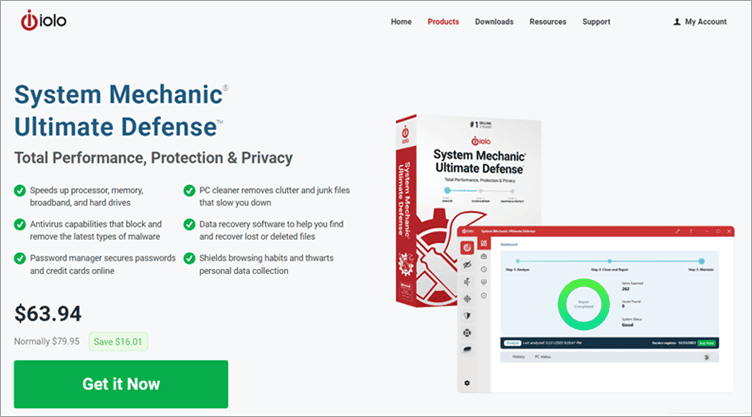
System Mechanic Ultimate Defense – Recovering deleted files is difficult and nearly impossible if you aren’t using file recovery software. This is why we would like to introduce you to System Mechanic Ultimate Defense. This tool can recover deleted documents, music, video, and photos, regardless of what caused the data loss scenario. It is also compatible with most digital devices and drives.
What is really impressive about System Mechanic is the fact that it can even recover files from a damaged device. System Mechanic employs two methods to scan a device for lost data. The “Smart Scan” allows you to search only relevant files which are not a part of junk or useless data.
Then there is the ‘StrongScan’, which allows you to perform sector-level searches to find data that was lost years ago. Restoration of found data is also very simple. All you have to do is click on the file you want to restore and it will be transferred back to its original path.
Features:
- Perform Custom Searches
- Recover Files from Damaged Devices
- Compatible with most drives and digital devices being used today.
- Performs ‘SmartScan’ and ‘StrongScan’ to be more precise and accurate in data recovery.
Price: $63.94 annual plan
Get 70% off HERE On SYSTEM MECHANIC ULTIMATE DEFENSE >>
Method 1: Using Third-Party Software
There are different third-party software that allows users to locate and recover deleted files in the system. In this article, we have used the EaseUS File Recovery software to recover the deleted files on the system.

The user can open the software and allow the software to locate the deleted files and click on “Recover” to recover the files to the original folder.

There are remarkable File Recovery Software tools available in the market. Let us review and compare the most popular ones.
Comparing Top Tools To Recover Deleted Files
| Tool Name | Best For | Compatibility | Price | Free Trial |
|---|---|---|---|---|
| EaseUS | Recovery of mails and database for users | Windows XP, Vista, 7,8.1, 10,MacOS X | Pro: $69.95 Pro+Win PE: $99.90 Technician: $269.1 | Yes |
| Disk Drill | Byte level backup of drive | Mac OS X, Windows 8.1 and later versions | Pro: $89 Enterprise: $499 | Yes |
| Recuva | Recovering Media files from formatted drives | Windows XP, Vista, 7, 8.1, 10 | Basic: $19.95 | Yes |
| Stellar | Advanced scanning features to restore sector-to-sector files | Windows 7,8,8.1,10 Mac OSX 10.11-11.0 | Standard: $49.99/year Professional: $89.99/year Premium: $99.99/year Technician: $199 Toolkit: $299 | No |
Review of the tools:
#1) EaseUs Data Recovery Wizard
EaseUs Data Recovery Wizard – Best for recovery of emails and database for users.

EaseUS data recovery software is advanced working software that allows users to recover files after partition and often recover files database. This software can be a suitable choice in various conditions like format recovery, raw recovery, partition recovery, etc. The software also provides deeper scans in other storage devices to retrieve data.
Features:
- Allows data recovery from formatted devices.
- Allows you to have a preview of the files before restoring them.
- Shorten the search process by specifying search parameters.
Pros:
- It can work on both Windows and macOS.
- It can recover databases and emails.
- Quick assistance and support.
Cons:
- The prices for this software are comparatively higher.
- For heavy files, the work is slow.
Verdict: It is a professional software and can make your task easier and it also makes database recovery easier.
Pricing:
- Pro: $69.95
- Pro+Win PE: $99.90
- Technician: $269.1
#2) Disk Drill Data Recovery
Best for byte-level backup of the drive.
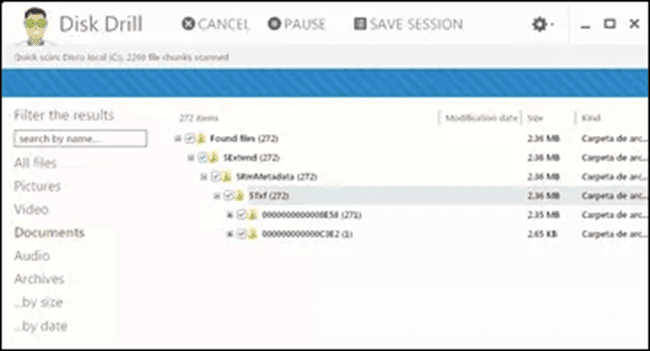
Disk Drill is a tool that allows users to restore deleted files on the system with ease. Also, its sophisticated algorithms have made restoring deleted files much easier for the users. With the simple and user-friendly UI, the tool is very easy to use.
When you are trying to mount your partitions and suddenly, because of some failure, you lose your important data, then this tool will come in very handy as it allows you to restore all deleted files.
Features:
- Retrieves lost files from formatted partitions or the files which failed to mount.
- Pulls out data from crashed hard disks.
- The Recovery Vault feature prevents the loss of any form of data.
Pros:
- It provides a user-friendly interface.
- It provides free data protection tools to users.
- Has a streamlined data recovery working.
- Optimized scanning algorithms to enhance efficient working.
Cons:
- It does not provide much technical support to users.
- The free version has only 500 MB of recovery.
Verdict: This software is comparatively good and the best choice for formatted partition data backup.
Pricing:
- Basic: Free
- Pro: $89
- Enterprise: $499
Website: Disk Drill
#3) Recuva
Best for recovering media files from formatted drives.

Recuva is a freeware that allows users to easily extract data from formatted files and restore that data back on the system. Recuva allows the easy recovery of data from damaged discs and its sophisticated algorithms can perform layered searches and restore deep-buried files. This is a convenient tool to securely delete files from the user’s end.
Features:
- It has a sophisticated algorithm for deep search.
- It can recover data from damaged disks.
- It has a feature that allows the safe deletion of files.
Pros:
- It allows you to securely delete files.
- It is freeware at a very low price.
- It provides users with preview screens.
Cons:
- It is comparatively less useful than other paid applications.
Verdict: This software can be your best choice because it has a bunch of sophisticated algorithms which make the deep search easier.
Pricing:
- Free: Advanced File Recovery
- Premium: $19.95
Website: Recuva
#4) Stellar Data Recovery Professional
Best for advanced scanning features to restore sector-to-sector files.

Stellar Data Recovery allows you to recover deleted files from various storage devices, and this makes recovery and restoration simplified. It has an interactive interface for users to use it easily.
You can efficiently customize your searches and scan for the deeper files and then restore those files. It has a bunch of other services too, like video restoration, photo restoration, etc.
Features:
- Its secure delete feature allows you to completely wipe out data.
- It can repair and fix SQL databases.
- Repair EDB and export mailboxes feature.
Pros:
- Allows Unicode File Recovery.
- Various types of scans to restore files.
- Create sector-based disk images and restore them.
Cons:
- No free data recovery and requires an annual license.
Verdict: It is a good software that allows SQL data backup and email recovery features.
Pricing:
- Standard: $49.99/year
- Professional: $89.99/year
- Premium: $99.99/year
- Technician: $199
- Toolkit: $299
Website: Stellar Data Recovery Professional
Method 2: Restore From Recycle Bin
The Recycle Bin stores all the deleted files in Windows, and you can also recover deleted files from the Recycle Bin by following the steps mentioned below:
#1) Open Recycle Bin. Right-click on the file, and click on “Restore”.

Method 3: Restore Files Using Command Prompt
The Command Prompt allows users to directly pass commands to the command line and hence execute the commands which are far within the reach of the normal user.
Follow the steps mentioned below to initiate the recovery process using Command Prompt and recover deleted files:
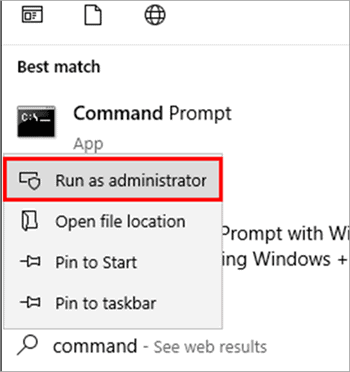
#1) Search Command Prompt and right-click on “Run as administrator” as shown in the image below.
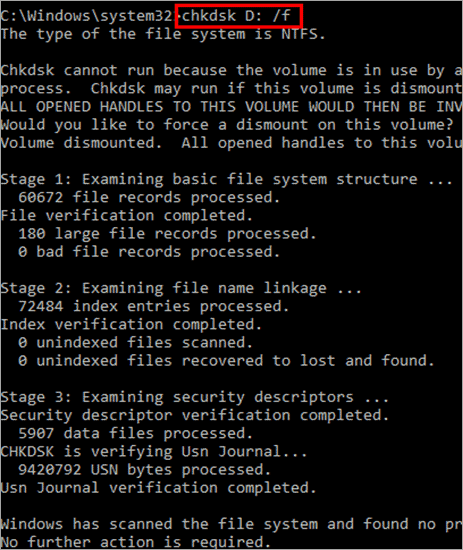
#2) Type “chkdsk D: /f” and press Enter as shown below.
#3) Type “ATTRIB –H –R -S /S /D D:*.*” as shown below.
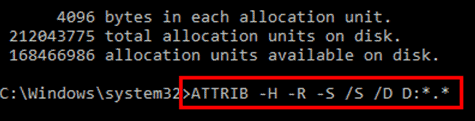
The recovery program will be initiated, and the system will begin recovering the deleted files in the drive mentioned by the user.
Method 4: Recover From Backup
Windows provides its users with the feature to prepare the backup of the drive and later reload the backup to retrieve deleted files in the memory.
Follow the steps listed below to create a recovery drive and later recover deleted files back into the memory:
Note: Connect a USB device of 8 GB or a bigger storage device before initiating this method.
#1) Search for Recovery in the search bar and click on the icon as shown in the image below.

#2) A window will open. Click on “Create a recovery drive”.

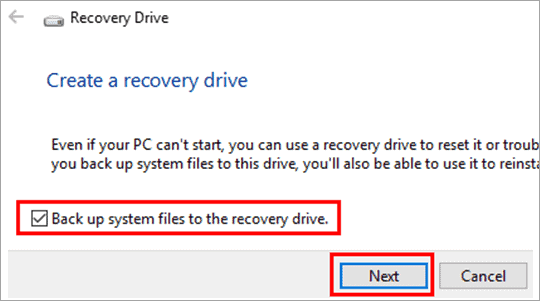
#3) A dialog box will open, as shown in the image below. Click on “Back up system files to the recovery drive” and click on “Next”.
#4) Select the USB storage to choose as a recovery point and click on “Next”.

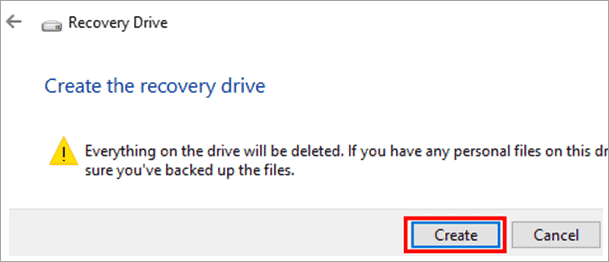
#5) Click on “Create” and a recovery point will be created in the external storage device.
Method 5: Using Windows File History
Windows provides its users with the File History feature. By turning on this feature on the system, you can retrieve files that were deleted in the selected drive/folder.
Follow the steps below to know about how to recover deleted files on Windows:
#1) Open Recovery and click on “File History” as shown in the image below.

#2) Now, click on “Restore personal files”.
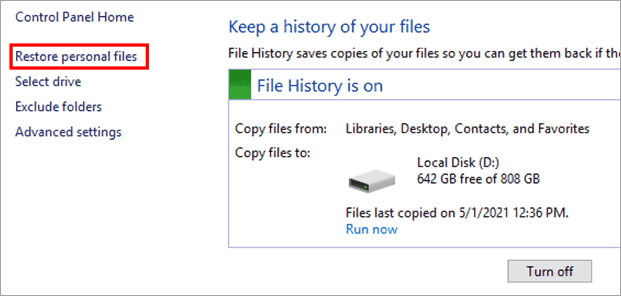
#3) Select the file which has to be retrieved and click on the icon as shown below.

The file will be retrieved from the original location.
Method 6: Using Restore Previous Versions
Windows offers its users the feature to restore previous versions of the folders, which allows you to restore permanently deleted files.
Follow the steps discussed below on how to recover deleted files on Windows 10:
#1) Open the parent folder and right-click on the parent folder that contains the folder you want to restore. Now, click on “Restore previous versions”.

#2) A dialog box will appear as shown in the image below. Select the time before the file was deleted, and click on “Restore”.
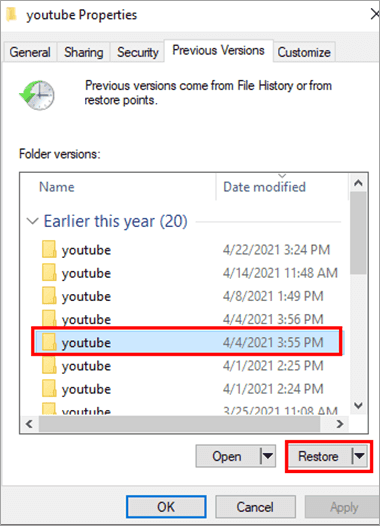
#3) The restore process will begin, as shown in the image below.

The file will be restored along with the folder and will be saved in the same directory.
Conclusion
Data being one of the most important and sensitive things around us, its security remains the prime concern. Besides keeping the data secure to avoid data theft, it is even crucial to back up the important data in case it gets deleted accidentally. Also, we should know all the methods to retrieve the data on the system, if deleted.
In this article, we have discussed various ways on how to recover deleted files.
Further reading =>> How to recover deleted files after Windows 11 update
Was this helpful?
Recommended Reading
-

List and comparison of the top-rated data recovery service provider companies: In today’s digital world, data storage devices play a very important role in our professional as well as personal lives. Whether it is an important professional document on a hard disk drive medical data on a USB flash drive…
-

Explore and compare the top Android Data Recovery Software and go for the best Android Recovery App to recover your precious data: Your smartphone or Android device, in particular, can do a lot of heavy lifting, the most useful of which can store data. An Android device can masquerade as…
-
Comprehensive List & Comparison of Top File Recovery Software. Read This Detailed Review To Select The Best File Recovery Tool & Recover Your Files Easily: Are you having trouble in selecting a File Recovery Tool? You can make the right decision after reading this review of the Top 10 File…
-
List and Comparison of the Top Best Data Recovery Software Download for Windows and Mac users to quickly recover lost data, deleted files, and photos or formatted partition data: Data recovery software is an application that recovers lost files from any storage medium. It can recover files that have been…
-
Coolmuster Android Assistant Review: A One-Stop Solution For Your Android Data Recovery Problems Are you worried just because you accidentally deleted anything important from your mobile? Lost the entire content after a factory reset? Just stay chill! No more worries hereafter!! All you need to do is, spend some time…
-
This tutorial explains how to use EaseUS Data Recovery software to effectively recover deleted data from a variety of storage systems: Have you ever accidentally deleted weeks' or months’ worth of work from your system? If so, then find solace in the fact that you are not alone. This severe…
-
Here we review and compare the top iPhone Data Recovery Software to help you select the best iPhone recovery software as per your requirement: You’re always vulnerable to data loss whether you’re using a computer, smartphone, or another device that can store data. Similarly, it does not matter if you…