Summary: in this tutorial, you’ll learn about the ttk elements and how they are assembled into styles of widgets.
Introduction to ttk elements #
So far, you have learned that a theme is a collection of styles that defines the appearance of all ttk widgets.
A style is a description of the appearance of a widget class. A style is composed of one or more elements.
For example, a Label consists of border, padding and label elements. And these elements are nested within each other like the following picture:
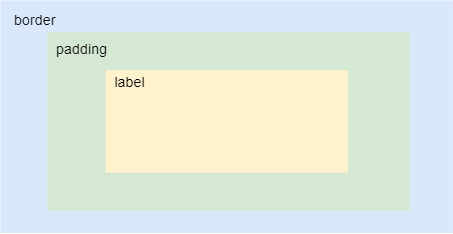
In general, most of the built-in ttk styles use the concept of a layout to organize the different element layers that build up a widget.
To get the layout of a widget class, you use the layout() method of the Style object like this:
style.layout(widget_class)Code language: Python (python)If a widget class doesn’t have a layout, the layout() method will raise a tk.TclError exception.
The layout() method returns a list of tuples (element_name, description), where:
element_nameis the name of the element.descriptionis a dictionary that describes the element.
The following example uses the layout() method to get the layout of the TLabel widget class:
import tkinter as tk
from tkinter import ttk


class App(tk.Tk):
    def __init__(self):
        super().__init__()

        style = ttk.Style(self)

        layout = style.layout('TLabel')
        print(layout)


if __name__ == "__main__":
    app = App()
    app.mainloop()Code language: Python (python)
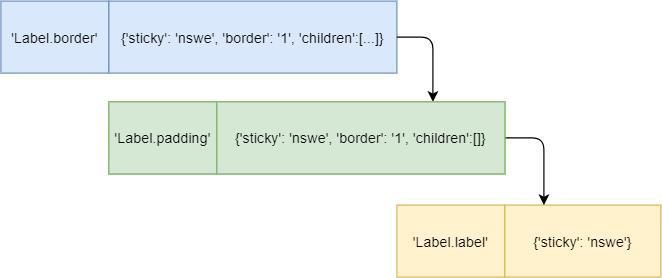
The following output shows the style’s layout of the TLabel:
[('Label.border',
    {'sticky': 'nswe',
     'border': '1',
     'children': [('Label.padding',
                   {'sticky': 'nswe',
                    'border': '1',
                    'children': [('Label.label',
                                  {'sticky': 'nswe'})]
                    })]
     }
)]Code language: Python (python)
The TLabel has three elements nested within each other:
- The
Label.borderis the outermost element that has thesticky,border, andchildrenkeys. - The
Label.paddingis nested inside theLabel.border. It also has thesticky,border, andchildrenkeys. - The
Label.labelis the innermost element that has only onestickykey.
For example, when an element has a sticky key with the value of nswe, it would be stretched to adhere to the north, south, west, and east of the parent element.
Note that the style’s layout of a widget’s class depends on the current theme. If you change the theme, the layout may be different.
Element options #
Each element has a list of options that specify the appearance of the element. To get the list of option names, you use the element_options() method of Style object:
style.element_options(styleName)Code language: Python (python)The following program shows the element options of the Label.border, Label.padding, and Label.label elements:
import tkinter as tk
from tkinter import ttk


class App(tk.Tk):
    def __init__(self):
        super().__init__()

        style = ttk.Style(self)

        # layout
        layout = style.layout('TLabel')
        print(layout)

        # element options
        print(style.element_options('Label.border'))
        print(style.element_options('Label.padding'))
        print(style.element_options('Label.label'))


if __name__ == "__main__":
    app = App()
    app.mainloop()Code language: Python (python)
Output:
('relief',)
('padding', 'relief', 'shiftrelief')
('compound', 'space', 'text', 'font', 'foreground', 'underline', 'width', 'anchor', 'justify', 'wraplength', 'embossed', 'image', 'stipple', 'background')Code language: Python (python)
In this output:
- The
Label.borderelement has one option:'relief'. - The
Label.paddingelement has three options:'padding','relief', and'shiftrelief'. - The
Label.labelelement has many options including'font','foreground','with', etc.
Attributes of element options #
To get a list of attributes associated with an element option, you use the lookup() method of the Style object:
style.lookup(layout_name, option_name)Code language: Python (python)The following example shows the attributes of the font, foreground, and background options in the TLabel.label element:
import tkinter as tk
from tkinter import ttk


class App(tk.Tk):
    def __init__(self):
        super().__init__()

        style = ttk.Style(self)

        # attributes of the font, foreground, and background
        # of the Label.label element
        print(style.lookup('Label.label', 'font'))
        print(style.lookup('Label.label', 'foreground'))
        print(style.lookup('Label.label', 'background'))


if __name__ == "__main__":
    app = App()
    app.mainloop()Code language: Python (python)
Output:
TkDefaultFont
SystemWindowText
SystemButtonFaceCode language: Python (python)
As you can see clearly from the output, the font is TkDefaultFont, the foreground is SystemWindowText, and the background is SystemButtonFace.
Put it all together #
The following shows how to change the appearance of a Label widget:
import tkinter as tk
from tkinter import ttk


class App(tk.Tk):
    def __init__(self):
        super().__init__()

        self.geometry('500x100')

        message = 'This is an error message!'

        label = ttk.Label(self, text=message, style='Error.TLabel')
        label.pack(expand=True)

        style = ttk.Style(self)

        style.configure('Error.TLabel', foreground='white')
        style.configure('Error.TLabel', background='red')
        style.configure('Error.TLabel', font=('Helvetica', 12))
        style.configure('Error.TLabel', padding=(10, 10))


if __name__ == "__main__":
    app = App()
    app.mainloop()Code language: Python (python)
Summary #
- A ttk widget is made up of elements. The
layoutdetermines how elements assembled the widget. - Use the
Style.layout()method to retrieve the layout of a widget class. - Use the
Style.element_options()method to get the element options of an element. - Use the
Style.lookup()method to get the attributes of an element option.

