

Tests
Managing and running tests is the core of your testing process. In order to work efficiently, it is critical that your tests are properly organized and defined.
One of PractiTest’s main benefits is the ability to manage the entire QA process from requirements through tests to issues, all on one centralized platform. For example, PractiTest can automatically show you which requirements are not covered by tests, and which customer features are either more or less stable than others. It can give your developers insight into the exact tests where the bugs were detected with the ability to manage the entire development lifecycle in one place.
Test Types
There are four types of tests:
- Scripted: test cases where users predefine steps. When choosing a scripted test, you can add the description in the general tab and a “Steps” tab will appear where you can define the steps. Read more about Scripted Tests here.
- Exploratory: tests without predefined steps where users add annotations “on the fly”. When choosing an Exploratory test, you will find fields for Test Charters and Guide Points instead of a description. Read more about Exploratory tests here.
- BDD: a test which is written as a scenario or as a scenario outline. When choosing BDD tests, you can use the common Gherkin syntax in the added Scenario field. Each Gherkin row you add will become a step when you run it. If you use Scenario Outline, each example will be added to the test set as a separate instance. Read more about BDD tests here.
- Automated: tests which run automatically and update PractiTest using one of the following tools:
- API tests: reporting automation results using the REST API
- FireCracker Tests: automatically converts XML results files received from CI/CD tools to PractiTest tests and runs
- xBot: an internal automation framework to run, schedule, and execute tests. When choosing any of the automation-type tests, you can add the description in the general tab and an “Automation Info” tab will appear where you can write down your Automated Test Design and the Script Repository. Read more about automated test options here.

Each test type has its own icon to help differentiate the different tests in the grid easily. In the test library grid, you can sort or filter the tests by their types as described below.
Creating a Test
The Test Library module is where your tests are created, managed, and stored.
Tests can also be created from inside a test set in the Test Sets & Runs module. When created this way, the new test is automatically added both to the test set and to the Test Library.
To create a new test, click ‘New Test’. By default, the test type will be Scripted, but you can manually change it to Exploratory, BDD, or Automated.
In the test creation screen, the layout is divided into two main sections:
- On the left side, you’ll find the Description field where you can add test objectives or detailed instructions, comments, and attachments.
- On the right side, in the General Info section, you’ll see all your system fields (such as Status, Author, Version) and any custom fields configured for your project. You can add as many custom fields as you like.

Once you’ve filled in the relevant fields, click the ‘Create’ button at the bottom of the screen to save and create your new test. These tests can later be executed as part of your Test Sets.
Note: Scripted, Exploratory, and Automated tests can be converted into a different test type after saving. To do so, use the 3-dot button at the top-right of the test.
Configuring the Test Layout
You can customize the layout of the Test form to better suit your team’s workflow and priorities.
To configure the layout: Open any test and click ‘Configure’ on the right side of the General Info section. Then, select ‘Edit Form Layout’.

This opens the layout editing mode, where you can:
- Add new sections and decide where to place them within the test form
- Choose which fields appear in each section
- Reorder fields within a section
- Hide fields that are not relevant to your workflow

Once you’re done, click ‘Save’ to apply your changes. The updated layout will apply to all tests in the project.
Note: Layout configurations are managed at the project level and apply to all users and all tests within the same project.
Time Management Field
If you want to use the time management feature, enter an estimated duration time.
Note: the project administrator will need to enable this feature in project settings.

The Traceability Tab
Under the traceability tab, you can view:
- The test instances in the Test Sets that this test was added to
- The issues that were found using this test
- Which requirements this test is covering
- The tests that are calling this test

Importing Tests, Steps and Traceability
When importing tests into PractiTest, upload an XLSX-type file from your computer or open a Google Sheet from your Drive. When uploading a CSV file into PractiTest, please make sure the CSV file is saved with the current encoding (UTF-8). For more information, please read here.
There are two ways of importing tests and steps into PractiTest. You can import them together in one file, or you can choose to first import tests and then import the steps separately.
To import a BDD test, check the “Support Scenario Field to create BDD test“ checkbox at the bottom of the table. You will see a new scenario field in the table. Include a field named ‘Scenario’ in your file. If the Scenario field has a value, PractiTest will import it as a BDD type test. If the Scenario field is empty, PractiTest will import it as a manual scripted test.
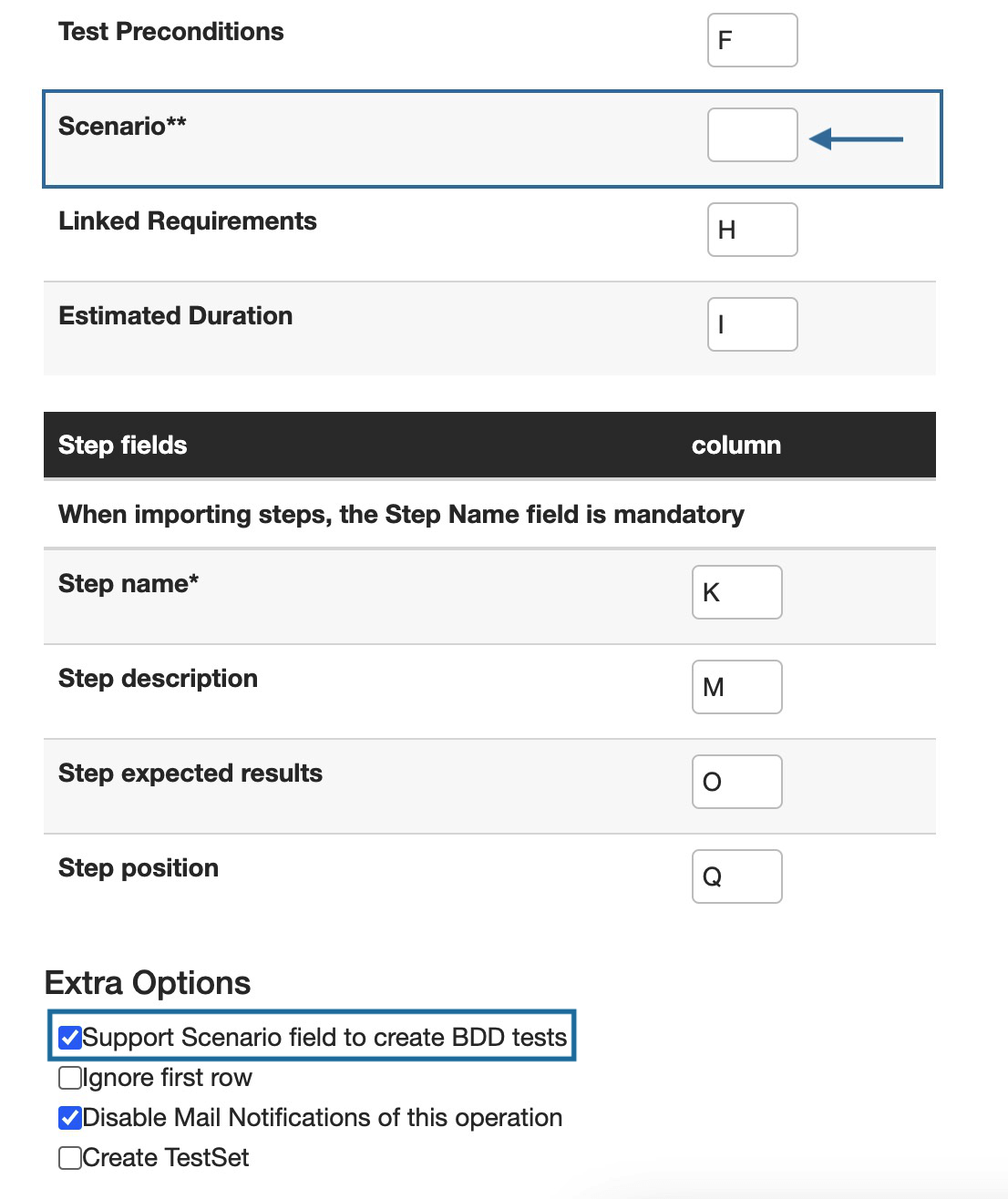
To import traceability details, use the Linked Requirements field and map it to a column where you have all the linked test IDs separated by commas.
Note: When leaving the author column empty, the user that imports the file will be set as the author of the imported entities. If you want to change the author value, state an email address or display name of one of the account’s users.
Importing Tests and Steps in One Operation
To import tests and steps in one operation, first make sure that your XLSX or Google Sheets file is organized in a way that will allow PractiTest to recognize and import the data correctly.

The image above shows a file structure that can be used to import Tests and Steps into PractiTest. In this file, both tests and steps are listed together. Click here to download this template.
The first row for each test will include all the information with your test data, including custom fields as well as the first step of this test. Additional steps for this test will be shown in subsequent rows. Do not add the information for your test on these additional rows.
After the last step, place the information on your next test – including the first step – followed by separate rows for each step.
Test and Step information should be mapped in a similar way to how you mapped the information for your Issues or Requirements (see above) in the following form:

Note: the system field “Name” can include a maximum of 250 characters.
Importing Tests and Steps in Two Operations
First tests, then steps
Operation 1 – Import your tests Use the form for importing tests and steps to import only tests. To do this, map the information for tests only, leaving all steps-related fields empty. The tests will then be imported into PractiTest and each one will receive a unique test ID.
Operation 2 – Import your steps To import the steps, you must provide the Test ID field for each step. Add a new column to the field that contains your steps and write the PractiTest Test ID that each test received when they were imported. Map the Test ID column in the import file to the Test ID field in PractiTest.
You can reorder the steps within your tests using the Step Position field. Set the position by numbering your steps sequentially, starting from number 1. If this field is left empty, the steps will be added in the order they appear in the file.

For more useful tips on importing, please visit this page.
How Do I Run My Tests?
Before running a test, it must be added to a Test Set. Test Sets use copies of the tests in the test library called Test Instances. This allows you to make changes to a single Test Instance without altering the original test. For example, if you delete a step in a Test Instance, the original test in the test library will remain unchanged. Each test can be added to as many Test Sets as needed.
When viewing a test in the test library, open the traceability tab to see the instances of this test and in which test sets it is being used.
For information on creating Test Sets and running tests, visit the Test Sets & Runs page.
Test Workflow
Note: This feature is available only for Corporate Licenses.
A test workflow is the set of statuses and transitions a test can go through as it progresses from creation to execution and beyond. PractiTest allows you to define and customize the status workflow for tests on a per-project basis (each project in PractiTest can have its own test status workflow). Customizing the workflow will allow you to tailor it to your team’s specific QA process within the platform.
To customize the test status workflow, go to Project Settings and tick the Enable Status Flow checkbox. Once enabled, switch to the Workflow tab and use the Entity Type dropdown to select Test.

Test Statuses
Statuses represent the various stages a test can be in. PractiTest includes a few system statuses, and you can add as many custom statuses as needed.
System Statuses
- Draft – Default status assigned when a new test is created (cannot be deleted)
- Ready – Indicates the test is ready for execution
- To repair – Used when the test needs updates or corrections
- Obsolete – Marks the test as no longer relevant for execution
Custom Statuses
You can create additional statuses and rename or remove any custom ones. All statuses (except Draft) can be removed or renamed. To add a new status, enter the desired value in the ‘Create a new Transition Status’ box and then click on ‘Add’.

Status Transitions
Each status includes rules that define which other statuses it can transition to or from. You can:
- Set allowed transitions for each status
- Define who can make transitions using default user groups or custom groups
Locking Options
To maintain control over test data at different workflow stages, you can apply locking rules to each status:
- Edit Lock – Prevents users from editing test content when the test is in a specific status. When a test is locked, the following actions are still allowed:
- Adding comments
- Uploading attachments
- Changing the assignee
- Adding tags
- Moving the test to a different folder
- Execution Lock – Prevents users from running the test while it is in that status
Managing Tests in the Test Library
The Test Library grid is initially displayed with the default view, which shows all tests and some default fields in the columns.
You can choose to display only tests that fall under certain criteria based on your filters. Filters can be created from the grid itself or from the project system panel. When defining filters, base the criteria on the test field value. You can also configure the fields to display under each filter in the grid. Read more about the filters displayed here.
The test run status that appears in the test library reflects the status of the last time that test was run on any test set.

To adjust the columns of your main Tests view, click the 3-dot button next to “All Tests” in the Filters section, and then choose edit.

You can filter tests by their type using the filter option in the ‘Type’ column of the grid:

Grid Filters
You can filter and sort entities directly from the grid using the displayed columns. Any applied fast filters will appear at the top of the bar. For example, clicking on the filter icon on the ‘Run Status’ column allows you to display only issues with a status of ‘Blocked’.

You can sort entities by clicking on the column name. In the example below, the issues are sorted by the “Assigned to” column, displaying blocked tests arranged by the assignee name.
Note: You can filter any list-type field in the grid based on the value ‘No Value’, allowing you to easily find items where a specific field value (e.g., Version, Priority) is not defined.

Click the ‘Clear All’ button at the top right corner of the grid to clear the filtering and sorting, returning the grid to display all results.

You can create and save any fast filters applied in the grid as a new filter, without navigating to the Settings page. To save a new fast filter, simply apply the desired filters and click on ‘Save as a Filter’.

If you’re viewing All Tests (no specific filter selected), the new filter will be created with criteria based on the fast filters you’ve applied. If you’re working under an existing filter, the new filter will be created as a child filter of the current one, combining the existing filter’s criteria with the additional fast filters you applied.
Note: The ‘Save as Filter’ option is not available when working within an existing auto filter.
Find and Replace
To replace the same phrase in multiple entities in a single action, go to the grid and choose the Tests you want to perform the action on. Then, click on the 3-dot button at the top of the grid and choose Find & Replace.

Enter a phrase you want to replace in the ‘Find’ field, then enter the value you want to replace it with in the ‘Replace with’ field.
Choose the areas and fields you want to apply the search to – you can choose to replace it in all fields or select specific fields such as title fields, description fields, and so on.
Note: the ‘Find & Replace’ action is case-sensitive.

After pressing ‘Find & Replace’, you will see a message at the top of the screen confirming how many entities you are about to change. For example, if you choose 10 entities, but the word you want to replace appears only in 4, you will see 4 entities to be changed. After confirming the action, the phrase you entered will be automatically replaced.
Batch Edit Fields
To edit multiple tests simultaneously, select the tests you would like to edit using the checkboxes on the left side of the grid, then click the ‘Batch Edit’ button at the top of the grid. The changes you make will apply to all issues you have selected.

Choose the fields you want to edit in the selected tests, then enter the value you want them to receive. You can add a comment to the updated tests and enable / disable email notifications of this batch edit.

Batch Clone
Clone and modify one or more tests in a single action.
We recommend using the clone action only if you are changing something in the test or steps. Tests in the test library are reusable and there is no need to clone a test. To manage test runs with different parameters such as sprints or testers, we recommend adding these parameters as fields to the Test Set module. Continue using the tests in the test library without assigning them to specific executions.
In the grid, choose the tests you want to clone, click on the 3-dot button at the top of the grid, and choose ‘Clone’.

In the next window, you can modify fields, add a comment, create a new filter in the grid view, and enable / disable email notifications of this clone. 
You can also clone the selected tests to a different PractiTest project. In this case, if you want to clone the values of custom fields, the target project must have the same equivalent fields with the exact names.
Clone Tests From One Project to Another
- In the test library, select the checkboxes for the tests you would like to clone.
- Once selected, click on the “Clone Tests” link above the grid (see example in Batch Clone section above).
- Edit the test fields by selecting the checkbox next to the field you would like to change, and then selecting the desired value. Keep in mind that this value will change for each cloned test.
- At the bottom of the page, select the “Clone tests to a different project” checkbox. This will open a dropdown menu. Choose the project where you would like the cloned tests to be saved.
- Click the “Clone” button.
Important Notes
- In order to be copied correctly, custom fields must have identical names and values in both projects. These values are also case sensitive, so please pay close attention to both uppercase and lowercase letters.
- When you create a new project based on an existing project, you can choose to clone the fields and their values. This will ensure that cloning tests between projects will transfer all the details correctly.
- When cloning a test to a different project, the cloned test will have the ‘Cloning’ section in the Traceability tab like the regular cloned tests, considering the permissions of the user.
Ancestor Info in Cloned Tests
When a test is cloned in a project or from one project to another, the cloned test will include a new section called ‘Ancestor Info’ within its Traceability tab.
This section provides a link to the original (ancestor) test it was cloned from, making it easier to track the source and maintain consistency.

Syncing Changes from the Ancestor Test
Note: The Sync Changes feature is available only for Corporate licenses. You must also have permission to view the ancestor test and edit the cloned test.
On the right side of the Ancestor Info section, you’ll see a Sync Changes button:
- If no updates were made to the ancestor test since cloning, the button will be disabled.
- If updates exist, the button will be enabled and clicking it will update the cloned test to reflect changes made to the ancestor.

When syncing changes, all test data from the ancestor test, except system and custom field values, will be copied into the cloned test.
- Steps, descriptions, etc., will overwrite the existing values in the cloned version.
- Custom/system fields in the cloned test remain unchanged.
Create Test Sets Directly From the Test Library
Test Sets can be created directly from the test library. Simply select the tests you want to group together in a Test Set, then click on the 3-dot button and choose ‘New Test Set’.

Add Tests to Existing Test Sets
Adding tests to existing Test Sets can be done both from the test library and the Test Sets & Runs module.
To add tests to existing Test Sets from the test library, select the tests, then click ‘Add Test to Test Set’.
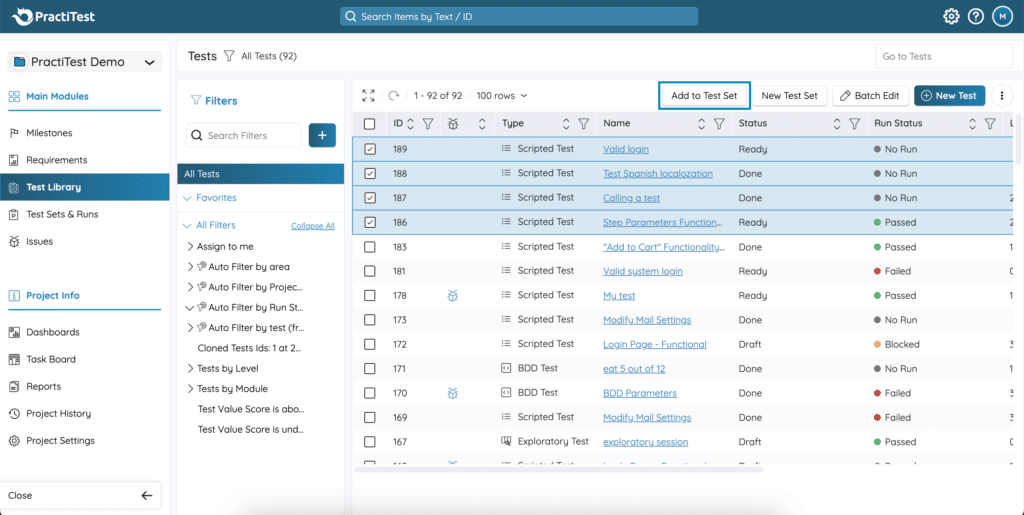
A new screen will appear, containing the different filters from the Test Sets & Runs module. Select the Test Sets you want to add the tests to, then click ‘Add Tests to Test Sets’.

Followers
By following a test, you’ll be notified of important changes like updates to test steps, status, or other fields, without needing to be assigned.
You’ll find the Followers icon in the top-right corner of the test, next to the test name. The number in the box represents the number of current followers.
Clicking the icon opens the follower list, where you can choose to follow the test yourself or add other users by typing and selecting their names.
