
In this quick tutorial, we’ll bootstrap a simple Spring Boot application backed by an in-memory H2 database. We’ll use the Spring Data JPA to interact with our database.
Project Setup:
Firstly, let’s generate our project template using Spring Initializr:
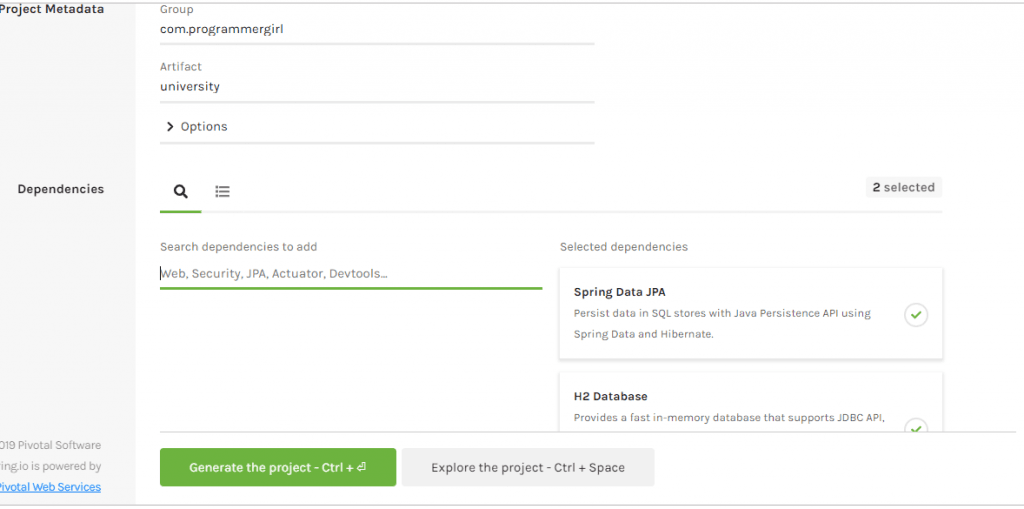
On clicking the ‘Generate the project’ link, our project files will get downloaded.
Now, if we look closely at the generated POM file, we’ll have below added dependencies:
01 02 03 04 05 06 07 08 09 10 11 12 13 14 15 16 17 | <dependency> <groupId>org.springframework.boot</groupId> <artifactId>spring-boot-starter</artifactId></dependency><dependency> <groupId>org.springframework.boot</groupId> <artifactId>spring-boot-starter-test</artifactId></dependency><dependency> <groupId>org.springframework.boot</groupId> <artifactId>spring-boot-starter-data-jpa</artifactId></dependency><dependency> <groupId>com.h2database</groupId> <artifactId>h2</artifactId> <scope>runtime</scope></dependency> |
H2 Default Properties:
Since we have added H2 database dependency, Spring Boot will auto-configure its related properties. The default configurations include:
1 2 3 4 5 | spring.datasource.url=jdbc:h2:mem:testdbspring.datasource.driverClassName=org.h2.Driverspring.datasource.username=saspring.datasource.password=spring.h2.console.enabled=false |
Let’s override a few of these properties by defining those in our application.properties file:
1 2 3 | spring.h2.console.enabled=truespring.h2.console.path=/h2spring.datasource.url=jdbc:h2:mem:university |
Here, our database name will be a university. We have also enabled the H2 Console and have set its context path.
Defining Entities:
Now, we’ll define a Student entity:
01 02 03 04 05 06 07 08 09 10 11 12 13 14 15 16 17 18 | @Entitypublic class Student { @Id @GeneratedValue(strategy = GenerationType.AUTO) private Integer id; private String name; public Student(String name) { this.name = name; } //getters, setters public String toString() { return "{id=" + id + ", name=" + name + "}"; }} |
And its corresponding Spring Data JPA repository:
1 2 3 4 | @Repositorypublic interface StudentRepository extends CrudRepository<Student, Integer> {} |
The Student entity will get mapped to the database table with exactly the same name. If we want, we can specify a different table name with @Table annotation.
The Application Class:
Finally, let’s implement our UniversityApplication class:
01 02 03 04 05 06 07 08 09 10 11 12 13 14 15 16 17 18 19 20 21 | @SpringBootApplicationpublic class UniversityApplication { public static void main(String[] args) { SpringApplication.run(UniversityApplication.class, args); } @Bean public CommandLineRunner testApp(StudentRepository repo) { return args -> { repo.save(new Student("James")); repo.save(new Student("Selena")); List<Student> allStudents = repo.findAll(); System.out.println("All students in DB: " + allStudents); Student james = repo.findById(1); System.out.println("James: " + james); }; }} |
This class is the starting point for our Spring Boot application. Here, the @SpringBootApplication annotation is equivalent to having @ComponentScan, @EnableAutoConfiguration, and @SpringConfiguration together.
We have also defined an instance of CommandLineRunner. And so, when we run our application, our console logs will have:
1 2 3 4 | UniversityApplication:All students in DB: [{id=1, name=James} , {id=2, name=Selena}]James: {id=1, name=James}... |
Please note that in Spring Boot, all entities should ideally be defined at either the same package level or at lower levels(in sub-packages) to that of the main application class. If so, Spring Boot will auto-scan all those entities.
Accessing the H2 Console:
We can also check the database entries on the H2 console.
To do that, we’ll open the URL: http://localhost:8080/h2 on any browser and use our database configurations to login. With it, we’ll be able to see all our created tables and entries easily on a UI Console dashboard.
Conclusion:
In this tutorial, we bootstrapped a very simple Spring Boot application with a single entity. This application is integrated with the H2 database and uses Spring Data JPA.
We can easily extend it to cater to a much wider application scope.
Published on Java Code Geeks with permission by Shubhra Srivastava, partner at our JCG program. See the original article here: Spring Boot with H2 Database Opinions expressed by Java Code Geeks contributors are their own. |


