
JIRA Tutoriál pro začátečníky
 Thomas Hamilton
Inteligentní shrnutí
Jira Tutorial for Beginners introduces Jira as a comprehensive tool for bug tracking, issue tracking, and project management developed by Atlassian. It enables efficient software lifecycle management by providing integrated workflows, customizable issue types, and Agile-friendly reporting tools that enhance team collaboration and productivity.


co je Jira?
Jira is a tool developed by the Australian Company Atlassian. This software is used for sledování chyb, sledování problémů, si řízení projektů. The name ‘Jira’ comes from the Japanese word ‘Gojira,’ meaning Godzilla. The basic use of this tool is to track issues and bugs related to your software and Mobile apps.
Používá se také pro řízení projektů. The Jira dashboard consists of many useful functions and features that make handling issues easy. Some of the key features are listed below. In this Jira tutorial for testers, you’ll learn about Jira Přeběhnout and Project tracking software
Na co se Jira používá?
Software Jira lze použít pro následující účely:
- Požadavky a správa testovacích případů.
- In Agilní metodologie.
- Projektový management.
- Vývoj softwaru.
- Produktový management.
- Správa úkolů.
- Sledování chyb.
How to Use Jira for Beginners?
Here is a step-by-step process for beginners on how to use Jira software:
- Krok 1) Otevřete software Jira a přejděte na ikonu Jira Home.
- Krok 2) Vyberte možnost Vytvořit projekt.
- Krok 3) Vyberte šablonu z knihovny.
- Krok 4) Set up the columns as per your needs from Board settings.
- Krok 5) Vytvořte problém.
- Krok 6) Pozvěte členy svého týmu a začněte pracovat.


Which Teams Can Jira Help?
Below are 7 different teams that leverage Jira to achieve their goals.
- Týmy vývoje softwaru.
- Agilní týmy.
- Týmy projektového řízení.
- Týmy DevOps.
- Týmy produktového managementu.
- Marketingové týmy.
- Týmy zákaznických služeb.
Now that you understand what Jira can do and who uses it, let’s explore the core concepts that make Jira work—starting with schemes and issue types.
Test Management in Jira
Tricentis Test Management pro Jiru
Můžeš použít Tricentis Test Management pro Jiru as a test management solution. It allows me to handle all planning, tracking, and reporting directly within Jira.

Má intuitivní uživatelské rozhraní a používá problémy Jira k definování požadavků a testovacích případů, což zajišťuje, že QA a vývoj sdílejí viditelnost do jediného testovacího záznamu. Na rozdíl od mnoha dnešních rozšíření Jira je Test Management for Jira nízkonákladový a zůstává rychlý a výkonný, jak váš tým a projekty rostou, takže můžete bez obav škálovat. Dostupné pro Jira Cloud.
Vlastnosti Tricentis Test Management pro Jiru
- Centralizovaná správa testů: Integruje testování s Jirou, aby sladilo QA, vývojové a produktové týmy.
- Generování testovacího případu s umělou inteligencí: Automaticky generuje testovací případy z požadavků pomocí AI.
- Přehledy v reálném čase: Poskytuje okamžitý přehled s podrobnou analýzou provádění testu.
- Flexibilní správa testovacích případů: Podporuje vytváření, organizaci a správu testovacích případů pomocí funkcí, jako je klonování a hromadné aktualizace.
- Integrace nástrojů třetích stran: Umožňuje správu ručního a automatického testování v rámci Jira prostřednictvím integrace externích nástrojů.
Jira Scheme
Inside the Jira scheme, everything can be configured, and it consists of
- Pracovní postupy.
- Typy problémů.
- Vlastní pole.
- Obrazovky.
- Konfigurace pole.
- Oznámení.
- Oprávnění.
Jira Issues and Issue Types
This section in this Jira tutorial for beginners will guide you through Jira Software Issues and their types.
What is a Jira Issue?
An issue is the fundamental unit of work in Jira. Everything you track—whether it’s a bug, a feature request, or a task—is represented as an issue.
Jira issues would track bugs or issues that underlie the project. Once you have imported the project, you can create issues.
V části Problémy najdete další užitečné funkce, např
- Typy problémů.
- Pracovní postupy.
- Obrazovky.
- Pole.
- Atributy vydání.
Now, in this Jira Agile tutorial, let us see Jira issues in detail:
Typy problémů Jira
Issue Type displays all types of items that can be created and tracked via the Jira testing tool. Jira Issues are classified under various forms, such as new feature, sub-task, bug, etc., as shown in the screenshot.

There are two types of issue type schemes in the Jira project management tool:
- Výchozí schéma typu problému: Ve výchozím schématu typu emise budou všechny nově vytvořené emise automaticky přidány do tohoto schématu.
- Schéma typu problému agilního scrumu: Problémy a projekty spojené s Agile Scrum budou používat toto schéma.

Apart from these two issue type schemes, you can also add schemes manually as per requirement. For example, we have created an IT podpora scheme, and for this, we will přetáhnout typy problémů z Dostupný typ vydání k Issue type for the current scheme, as shown in the screenshot below:

Komponenty Jira
Jira Components are sub-sections of a project used to group related issues within a project into smaller parts. Components add some structure to the projects, breaking them up into features, teams, modules, subprojects, and more. Using components, you can generate reports, collect statistics, and display them on dashboards and so on.

Chcete-li přidat nové součásti, jak je znázorněno na obrazovce výše, můžete přidat název, popis, vedení součásti, a výchozího příjemce.
Jira Screen
When the issue is created in Jira, it will be arranged and represented in different fields; this display of the fields in Jira is known as a screen. This field can be transitioned and edited through workflow. For each issue, you can assign the screen type as shown in the screenshot. To add or associate an issue operation with a screen, you have to go to the main menu, click on Problémy, klikněte na Obrazovku schémata, a pak klikněte na tlačítko "Přiřaďte problémovou operaci k obrazovce," and add the screen according to the requirement. In this Jira tutorial for testers, we will learn about Jira Issue Attributes.

Atributy problému Jira
Issue Attributes encompass:
- Stavy.
- Usnesení.
- Priority.
Statuses: Different statuses are used to indicate the progress of a project, like To Do, InProgress, Open, Closed, Reopened, and Resolved. Likewise, you have resolutions and priorities. Resolutions again tell about the progress of the issue, like Fixed, Won’t fix, Duplicate, Incomplete, Cannot reproduce, Done. Also, you can set the priorities of the issue, whether an issue is critical, major, minor, blocker, or trivial.

Vydávat bezpečnostní schémata
This function in Jira allows you to control who can view the issues. It consists of a number of security levels, which can have users or groups assigned to them. You can specify the level of security for the issues while creating or editing an issue.
Similarly, there is a Default Permission Scheme. Any new project that is created will be assigned to this scheme. Permission Schemes allow you to create a set of permissions and apply this set of permissions to any project.
Správa systému
Some of the useful features that the Jira admin provides to users are:
- Protokol auditu
Under Audit Log, you can view all the details about the issue created and the changes made to the issue. - Propojení problému
This will show whether your issues are linked to any other issue that is already present or created in the project. Also, you can deactivate issue linking from the panel itself. - Mail in Jira
Za použití Mail systému v admin, můžete odesílat problémy na účet na poštovním serveru POP nebo IMAP nebo zprávy zapsané do systému souborů generované externí poštovní službou. - Události
An event describes the status, the default template, the notification scheme, and workflow transition post-function associations for the event. The events are classified into two types: System event (Jira-defined events) and Custom event (User-defined events). - Seznam toho, co chci vidět
Jira allows you to watch a particular issue, which informs you about notifications of any updates relating to that issue. To watch an issue, click on the word “watch” in the issue window. To see who is watching your issues, click on the number in brackets. - Sběratelé emisí
In the form of Jira issues, an issue collector allows you to gather feedback on any website. In administration, if you click on Issue Collectors, an option will open asking to Add an Issue Collector. Once you have configured the look and feel of an Issue Collector, embed the generated JavaScénář na jakékoli webové stránce pro zpětnou vazbu. - Vývojové nástroje
You can also connect your Software development tools, including the Jira testing tool, to Jira using this admin function. You have to enter the URL of the application to connect with Jira.
With the foundational concepts covered, let’s put them into practice by creating your first issue in Jira.
How to create an issue in Jira
In this section, you shall learn how to create and manage issues in Jira, starting with setting up a project. I will guide you through the step-by-step process I use to create, edit, and summarize an issue in Jira, an effective tool for testing.
Step 1) Open Jira software and log in with your ID and password.
Once you log in, Jira opens the Dashboard, where you can access your projects. Under the free Jira dashboard, you will find the option Project; when you click on it, it will open a window that lists options like Simple Issue Tracking, Project Management, Agile Kanban, Jira Classic, and so on, as shown in the screenshot below.

Krok 2) Zadejte podrobnosti o problému.
Když kliknete na možnost Jednoduché sledování problémů, otevře se další okno, kde můžete uvést všechny podrobnosti o problému a přiřadit problém odpovědné osobě.
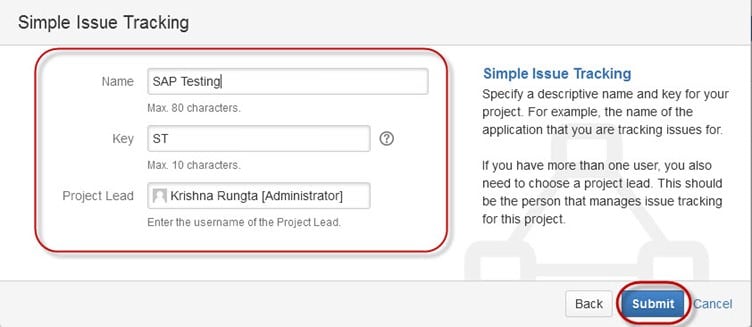
Krok 3) Poskytněte podrobné informace pro vytvoření problému.
When you click on the “Submit” button, a window will open where you can perform a list of tasks like creating issues, assigning issues, checking the status of issues like resolved, In-Progress, or closed, and so on.

Po vytvoření problému se na vaší obrazovce objeví vyskakovací okno s oznámením, že váš problém byl úspěšně vytvořen, jak je znázorněno na snímku obrazovky níže:

Krok 4) Otevřete nabídku Issues (Problémy), abyste mohli hledat a provádět různé funkce týkající se problémů.
Now, if you want to edit an issue or export the issue to an XML or Word document, then you can hover your mouse on the main panel and click on Issues. Under Issues options, click on Search for issues, which will open a window from which you can locate your issues and perform multiple functions.

Když vyberete "hledat problémy" pod Problémy, a window will appear as shown in the screenshot:

- Možnost Hledat problémy vás přenese do okna, kde můžete vidět problémy, které jste vytvořili. Například, zde máme problémy ST1 a ST2.
- Here in the screenshot, you can see the issue „Při testování přijetí uživatelem byla zjištěna chyba“ a všechny podrobnosti s tím související. Odtud můžete provádět různé úkoly, jako je zastavení postupu u problémů, úpravy problémů, komentování problémů, přidělování problémů a tak dále.
- Můžete dokonce exportovat podrobnosti o problému do dokumentu XML nebo Word.
- Also, you can view the activity going on the issue, reviews on the issue, work log, history of the issue, and so on.
-
Under the time tracking option, you can see the estimated time to resolve the issues.
Ve stejném okně můžete nastavit filtr pro problém a uložit jej pod Oblíbené filtry, takže když chcete vyhledat nebo zobrazit konkrétní problém, můžete jej najít pomocí filtru.
Krok 5) Kliknutím na možnost Souhrn zobrazíte podrobnosti o problémech
To view the summary of the issue, you can click on the options summary; this will open a window that will show all the details of your project and progress on this chart. On the right-hand side of the summary window, there is an Stream aktivit, který uvádí podrobnosti o problémech a připomínky, které k problému vznesl nabyvatel.

Dílčí úkol
Subtask issues are useful for splitting up a parent issue into several smaller tasks that can be assigned and tracked separately. It addresses issues more comprehensively and segregates the task into smaller chunks to be done.
How to create a Sub-Task?
Sub-tasks can be created in two ways:
- Create a sub-task under the parent issue.
- Creating an issue as a sub-task.
To create a subtask in Jira, you have to select an issue to which you want to assign the subtask. Under the issue window, click on the Assign more option, and then click on Create subtask, as shown in the screenshot below. You can also select convert to subtask under the same tab to convert the parent issue into a subtask.
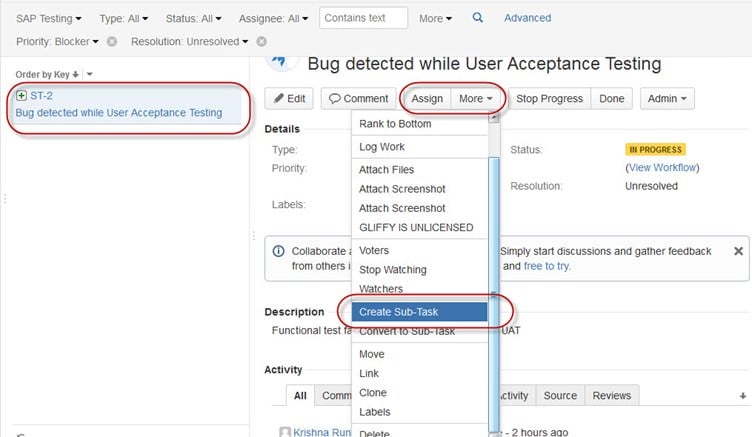
Jakmile kliknete Vytvořit dílčí úkol, a window will pop up to add a sub-task issue. Fill in the details about the sub-task and click on Vytvořit, as shown below, and this will create a sub-task for the parent issue.
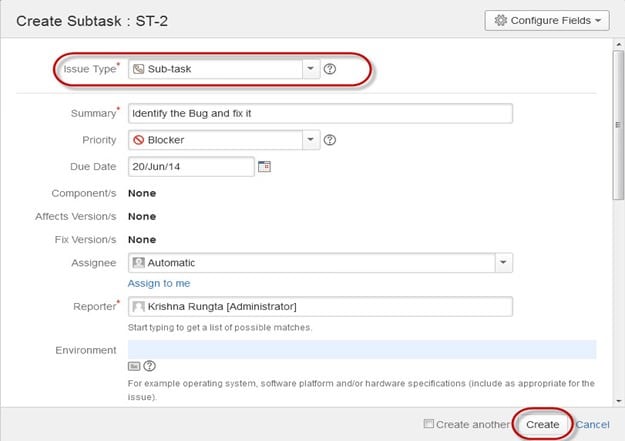
It will create a sub-task under parent issues, and details will appear about when to complete the task on the issue type page, as shown in the screenshot below. If you want to add more sub-tasks, you can click on the plus (+) sign in the corner of the sub-task panel. Likewise, if you want to note the time spent on the present task, click on the (+) plus sign in the corner of the time tracking and put down the details in the log sheet.

Some important points to remember while creating a Sub-Task:
- Pod vydáním můžete mít tolik dílčích úkolů, kolik potřebujete.
- Nemůžete mít dílčí úkol pro dílčí úkol.
- Jakmile je dílčí úkol vytvořen pod nadřazeným úkolem, nelze jej převést na dílčí úkol.
- Dílčí úkol však může být převeden na nadřazený problém.
- Můžete pracovat na svém dílčím úkolu, aniž byste museli opustit nadřazený problém.
Pracovní postupy
A Jira workflow is a set of statuses and transitions an issue undergoes during its lifecycle. Once the issue is created, the workflow encompasses five main stages.
- Otevřít vydání.
- Vyřešený problém.
- Probíhající vydání.
- Znovu otevřené vydání.
- Zavřít vydání.

Workflow in Jira comprises statuses, assignees, resolutions, conditions, validators, post-functions, and properties.
- Stavy: Ty představují pozice problémů v rámci pracovního postupu.
- Přechody: Přechody jsou mosty mezi stavy, způsob, jakým se konkrétní problém přesouvá z jednoho stavu do druhého.
- Zmocněnec: Zmocněnec diktuje odpovědnou stranu za jakýkoli daný problém a určuje, jak bude úkol proveden.
- Rozlišení: Vysvětluje, proč problém přechází z otevřeného stavu na uzavřený.
- Podmínky: Podmínky řídí, kdo může provést přechod.
- Ověřovatelé: It can ensure that the transition can happen, given the state of the issue.
- Vlastnosti: Jira recognizes some properties on transitions.
Stav problému můžete přiřadit ze samotného okna, když kliknete na zaškrtávací políčko pro stav IN PROgress, jak je znázorněno na snímku obrazovky níže. Stav se projeví na panelu problému zvýrazněném žlutě.

For the issue we have created, Jira will present a workflow that maps the project’s progress. As shown in the screenshot, whatever status we have set in the Issue panel will be reflected in the Workflow chart. We have set the issue status to “In Progress,” and the same status is updated in the workflow, highlighted in yellow. Workflow can give a quick overview of the work in process.

Plug-ins in Jira
There are plug-ins available for Jira to work more effectively; some of these plugins are Zendesk, Salesforce, GitHub, Gitbucket, etc. Some of them enable the support team to report issues directly to Jira, create unlimited private repositories with full-featured issue and test management support, etc.
Jira Agile
The Agile or Scrum method is generally used by development teams that follow a roadmap of planned features for upcoming versions of their product. Agile follows the same roadmaps to track its issues as in other Jira methods: To do -> In Progress -> Done. As shown in the screenshot below, we have one issue in Dělat a druhý v Probíhá. Jakmile je problém v In Progress vyřešen, přesune se do stavu Hotovo a stejným způsobem se problém v To Do přesune do další fáze, In Progress.

Creating an issue in Agile
To create an Agile issue, go to the main menu under the Agile tab and click on “Getting Started.” When you click on it, it will ask you to create a new board for the issues for Scrum or Kanban. You can choose your option as per your requirement; here we have selected the Scrum method.

Jak vytvořit Epic v Agile

In Jira Agile, an epic represents a large user story that can be divided into smaller stories. The epic captures a large body of work. It is a large user story that can be broken down into several small stories. To complete Jira Epic, it may take several sprints. You can either create a new epic in Agile or use the issue you have created in a normal Jira board. Likewise, you can also create a story for agile scrum.
Režim plánu v Agile:
Plan mode displays all the user stories created for the project. You can use the left-hand side menu to decide the basis on which the issues must be displayed. While on the right-hand side menu, clicking on the issue, you can create subtasks, logwork, etc.
Pracovní režim v Agile
Zobrazí informace o aktivním sprintu. Všechny problémy nebo příběhy uživatelů se zobrazí ve třech kategoriích, jak ukazuje snímek obrazovky níže: Úkoly, Probíhá a Hotovo, aby se ukázal postup projektu nebo problémů.
Use of Clone and Link in Jira
In Jira, you can also clone the issue; one advantage of cloning an issue is that different teams can work separately on the issue and resolve it quickly.
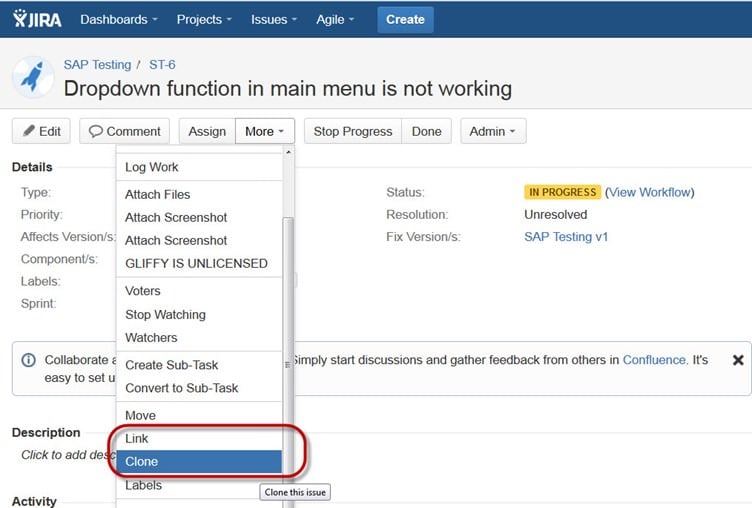
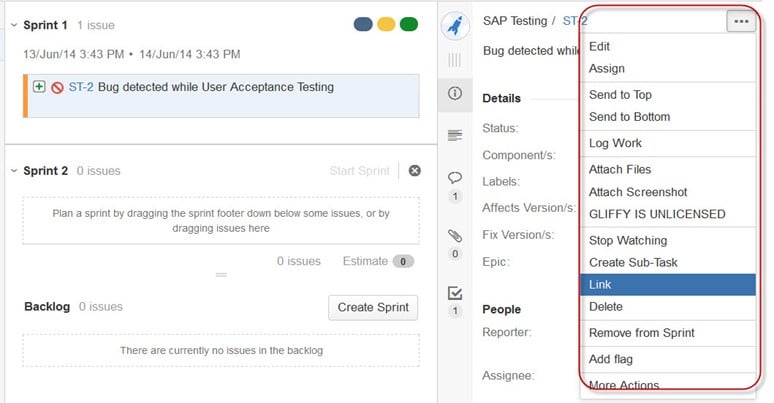
There is another useful function, Jira Odkaz. Issue linking allows you to create an association between two existing issues on either the same or different Jira servers. As shown in the screenshot, we have linked the current issue, “ST-6 Drop down menu is not working,” with another issue, ” ST-4 GUI is not responsive- retest GUI functions.”


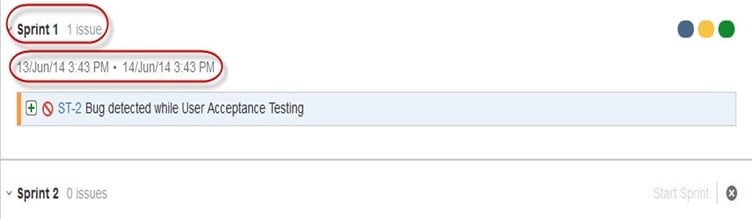
Like here, we have set a sprint for 1 day, and it will run for that specific time period, as shown in the screenshot below. If you are working with Scrum and want to prioritize the issue or rank the issue, then you just have to drag and drop the issue into the backlog.
Apart from this, there are multiple tasks that you can do; for instance, if you click on the right-hand corner of the window, a list of functions will pop up that you can use as per your need.
Reports in Jira
Chcete-li sledovat pokrok v Agile, a Burndown Chart zobrazuje skutečné a odhadované množství práce, kterou je třeba ve sprintu udělat. Typický diagram vyhoření bude vypadat nějak takto, kde červená čára označuje skutečný zbývající úkol, zatímco modrá čára označuje ideální úkol zbývající během cyklu scrumu.

Apart from the burn-down chart, there are other options available in Jira automation, like Sprint Zpráva, epická zpráva, zpráva o verzi, graf rychlosti, kontrolní diagram a kumulativní vývojový diagram. Můžete také použít různé možnosti grafu k znázornění postupu vašeho projektu.

Like the screenshot above, we have selected a pie chart for issue priorities. It will generate a Pie Chart representing the priorities and severity of the issues in percentage for the whole project, as shown below. You can view the pie chart from different perspectives, like Assignee, Components, Issue Type, Priority, Resolution, Status, etc.

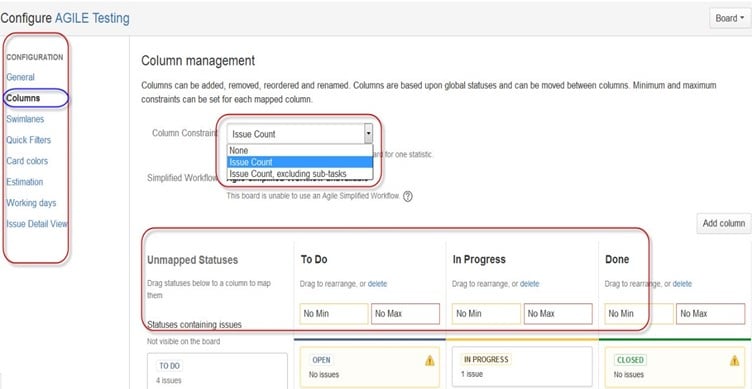
You can also configure how you want to see the Scrum board. The Scrum board gives various options through which you can make changes to your board’s appearance. Various features you can configure using Scrum are Columns, Swimlanes, Quick Filters, Card colors, and so on. Here, we have selected column management and selected the option Issue count, and it will show the total number of issues in progress, to do, or done. In column management, we can add an additional column as per our requirement; likewise, there are different features you can configure on the board.
Filtry
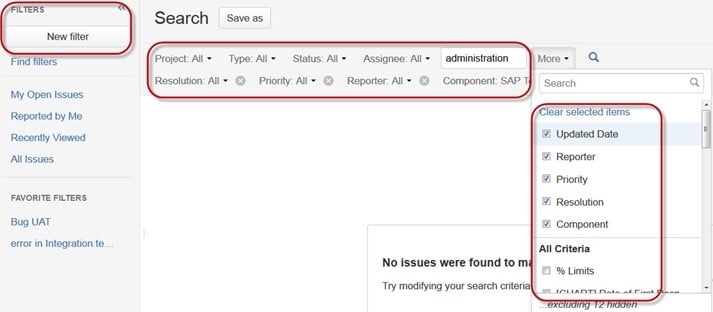
You can also set filters other than the default filters to filter the issues. The filters that you can use are datum, komponenta, priorita, rozlišení atd.
Kanban Board a řízení problémů
Like the Agile Scrum board, we can also create a Kanban Board. We have created a project named Cloud Testing. A Kanban board is useful for the team that manages and constrains their work in progress. Kanban boards are visible in Work mode but not in Plan mode.

Zde jsme vytvořili problém "Při zátěžovém testování zjištěna chyba" si „Zkontrolujte problémy související s cloudovým serverem“ in the Kanban Board as shown in the screenshot below, which also shows their status as highlighted in red.
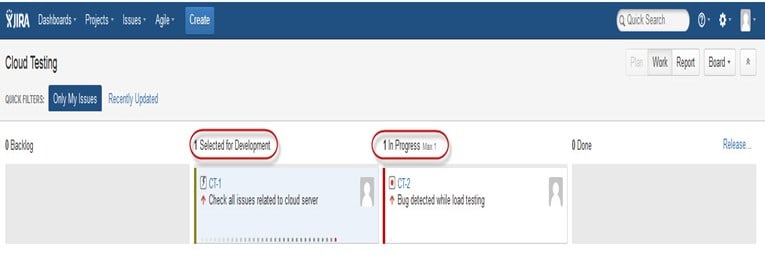
Kanban is considered the best methodology for bug fixing and maintenance releases, where incoming tasks are prioritized and then worked on accordingly. There are a few measures that can make Kanban more efficient.
- Vizualizujte svůj pracovní postup.
- Omezte nedokončenou práci.
- Práce na problémech.
- Změřte dobu cyklu.
Jira Scrum vs. Jira Kanban
From my experience, I can highlight the significant contrasts between Jira Scrum and Jira Kanban.
| Skrumáž | Kanban |
|---|---|
| zprávy Burndown Chart: The chart shows all the changes and scope changes while the sprint is still on; other charts include the Sprint Report, Velocity Chart, Epic Report atd. |
zprávy Kontrolní tabulka: Umožňuje měřit dobu cyklu pro problémy, ukazuje střední čas a skutečný čas potřebný k dokončení problémů. |
| Agile Board Umožňuje týmu vidět průběh sprintů. Toto je pracovní režim, kde můžete vidět samotnou desku rozdělenou do různých stavů. |
Omezení Tým se může rozhodnout, zda zvýší nebo sníží počet problémů, které by se měly zobrazovat v každém stavu. |
| Zálohování Zde bude tým plánovat sprinty a odhadovat příběhy do každého sprintu. |
Workflow Sloupce můžete mapovat na stavy svého pracovního postupu. Jednoduše přidáním nebo odebráním sloupců lze v případě potřeby změnit pracovní postup. |
How Can AI Tools Transform the Way You Use Jira?
Jira integrates seamlessly with hundreds of tools to automate workflows and boost productivity. You can connect Jira with Slack, GitHub, Jenkins, and Confluence for real-time updates and collaboration. With AI-powered integrations like Atlassian Intelligence, Tricentis Test Management, a Zapier, teams can automate repetitive tasks, generate test cases, and gain predictive insights into project performance. AI assistants can summarize issues, recommend assignees, and even prioritize tickets automatically. By combining Jira’s flexibility with AI automation, organizations reduce manual effort, improve accuracy, and accelerate delivery. These intelligent integrations turn Jira into a proactive project partner — helping teams plan smarter, execute faster, and deliver better results.
