Description
The GS Projects Showcase Plugin offers a professional way to display your projects or portfolio on your WordPress site. Showcase detailed project information, including project URL, client reviews, ratings, image galleries, and videos. Easily add and display projects using shortcodes or widgets with stunning layouts and smooth animations.
With 11 beautifully pre-designed themes, you can choose the layout that fits your brand and content styles, like Grid, Slider, Filter, Popup, and more. The plugin is perfect for agencies, freelancers, developers, and creatives who want to highlight their work with style and clarity. It’s fully responsive, fast, and highly customizable for any project showcase need.
Enjoy 24/7 priority support for any custom requests or setup help. We’re always here to support your success!
Plugin Features
Check main features
Super Fast Loading Time
Guarantee your site loads quickly to avoid user drop off for the best user experience.
Easily Customizable
Code readability makes the debugging process more quickly to maintain easily.
Suitable To All Browsers
Our plugins are cross browser compatible & display perfectly on modern browsers.
Responsive To All Devices
We use responsive grid system which offers responsiveness in all devices without overflows.
Online Documentation
Step by step visual & video documentation to configure with fun.
Up To Date Version Upgrade
We love to fix bugs & update regularly to make it compatible with latest WP version.
Some Other Features
More details feature list to get an overview
- Responsive Projects plugin
- Different Column options
- Works with any standard WordPress Theme.
- Add Unlimited Projects
- Developer friendly & easy to customize.
- All modern browsers supported.
- W3C valid markup
- Display anywhere at your site using shortcode like [gs_projects theme="gs_project_theme1"] & widgets
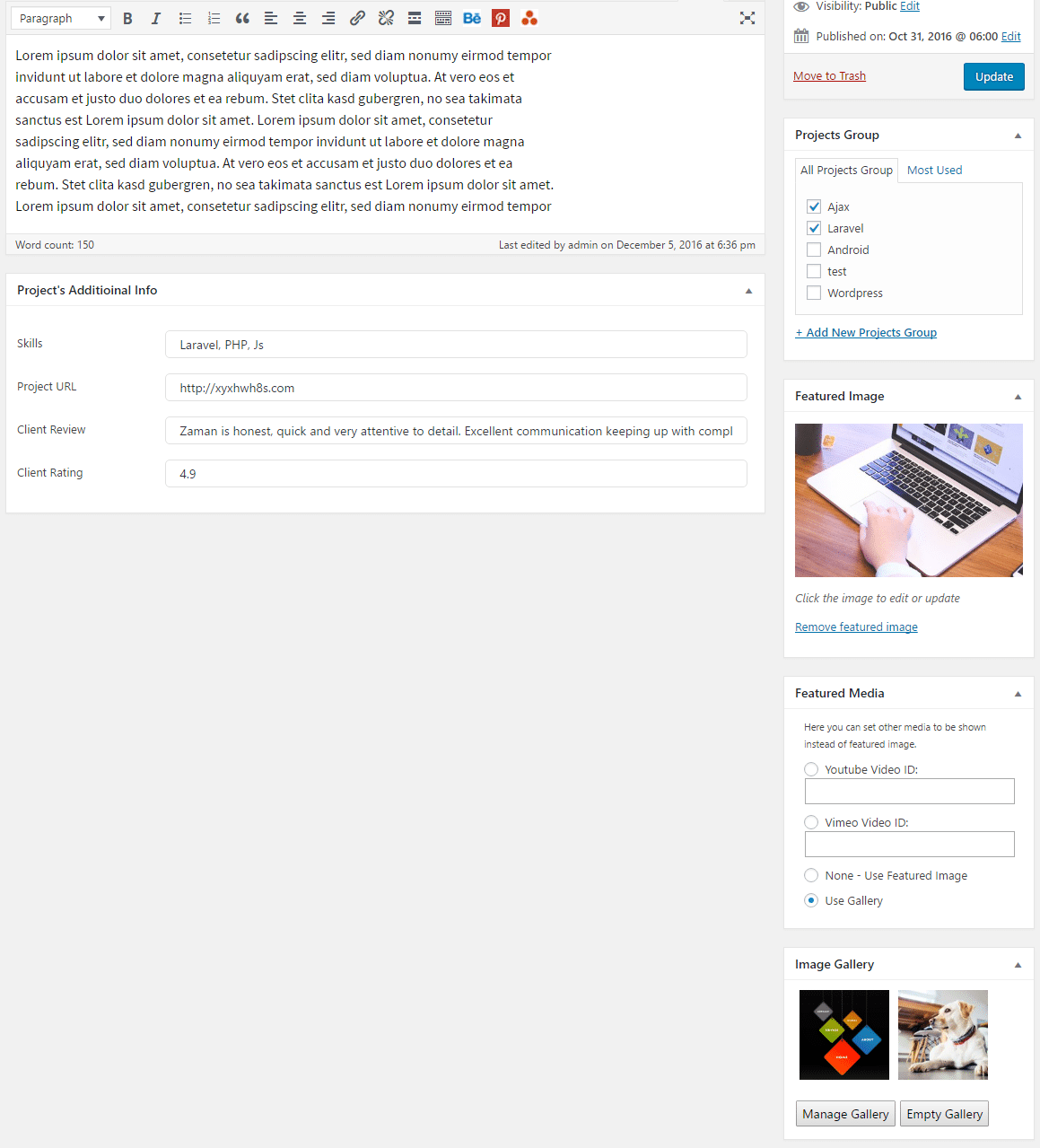
- Projects details with skills used, gallery/video
- Easy to setup
- Its easy-to-use interface allows you to manage, edit, create and delete Team Members with no new knowledge.
- 11 different themes
- Theme 01 – Square
- Theme 02 – Round
- Theme 03 – Left Sqr
- Theme 04 – Right Sqr
- Theme 05 – Left Round
- Theme 06 – Right Round
- Theme 07 – Slider
- Theme 07.1 – Slider & Hover
- Theme 08 – Popup
- Theme 09 – Filter
- Theme 10 – Greyscale
- Theme 11 – To Single
- Single Project Template included
- Archive Project Template included
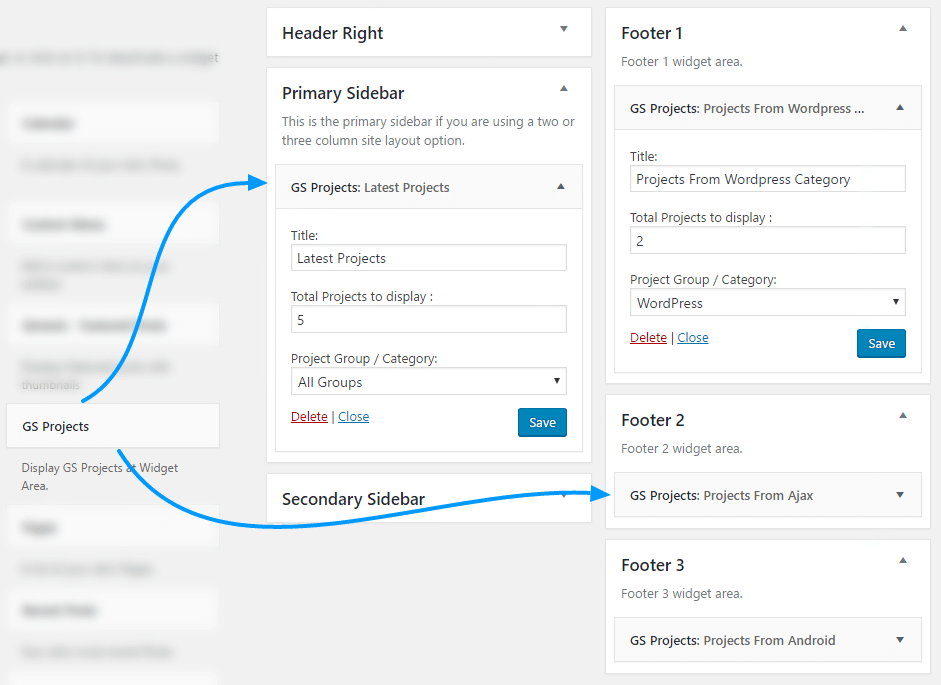
- GS Project Widget available
- GS Project Shortcode generator available at page/post
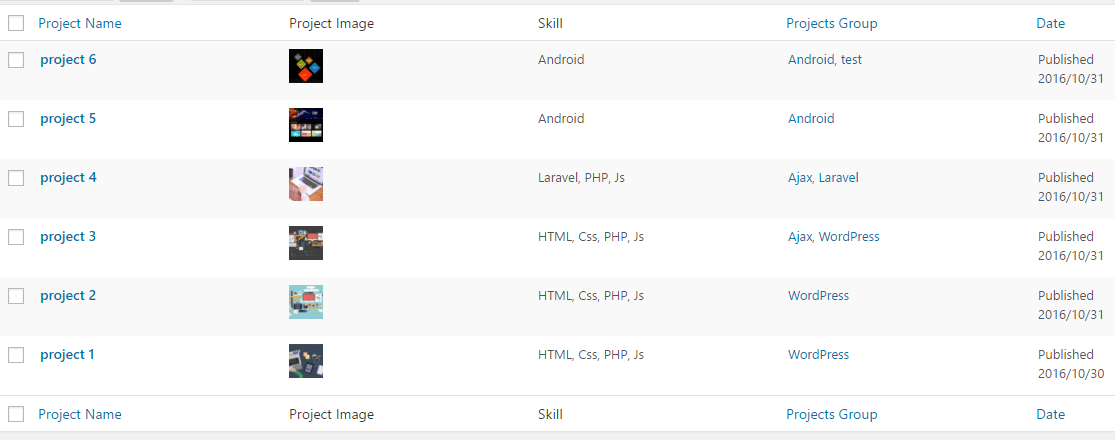
- Display Projects by Group/category wise
- Limit the number of Projects to display.
- Limit the number of characters for the description.
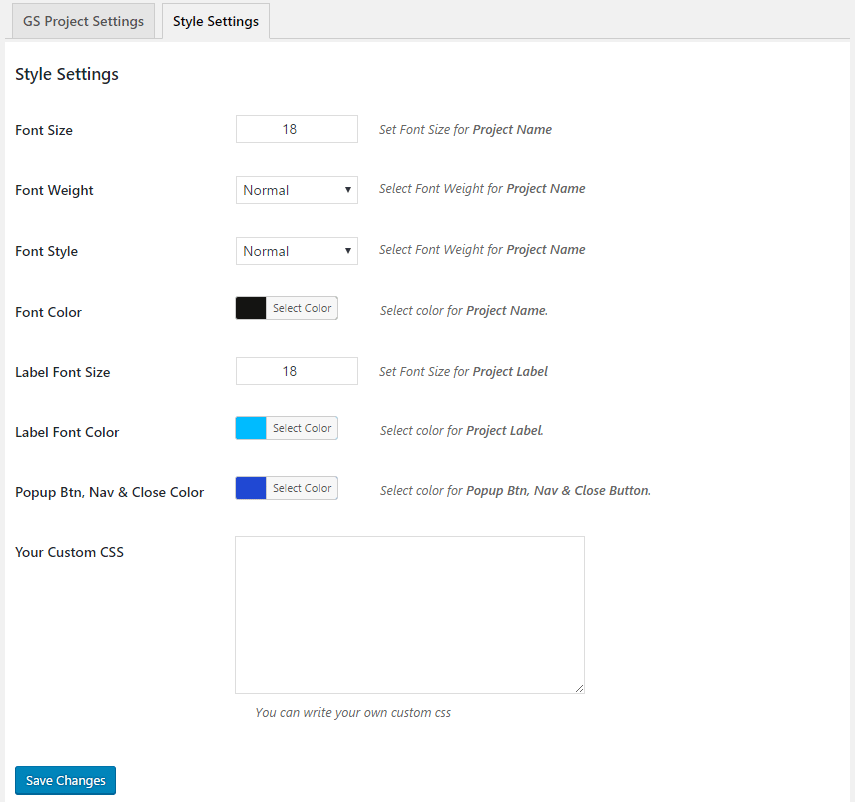
- Custom CSS – Add Custom CSS to GS Project
- Priority Email Support.
- Free Installation ( If needed ).
- Free updates for one year.
- Auto update notification.
- Auto update from dashboard.
- Well documentation and support.
- And many more..
Frequently Asked Questions
We’re here to help you with any questions you have
– Download the latest version
– Delete existing plugin from your site (You’ll NOT lose existing data)
– Now install the downloaded latest version
– Activate license
Plugin zip file & license key available at purchase history.
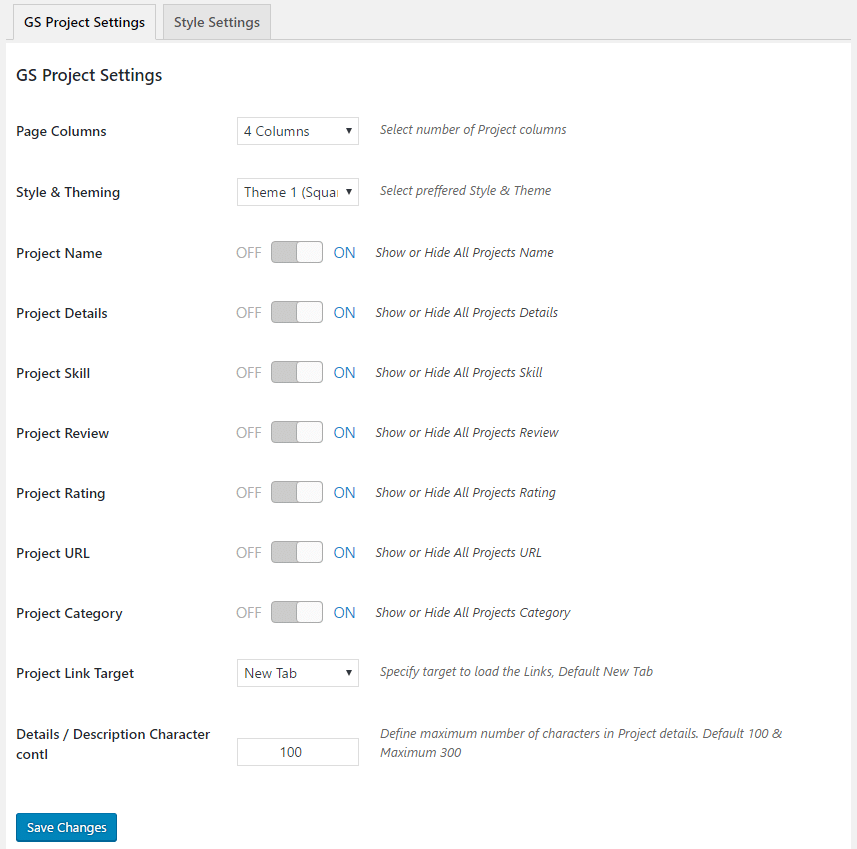
After license activation GS Project Settings page will display. For your info, License key available at Purchase history.
– Visual Installation & Usage Guide.
– Put [gs_projects theme="gs_project_theme1"] shortcode or select another theme, where you need to show the Projects.
– Theme 01: Square
– Theme 02: Round
– Theme 03: Left Sqr
– Theme 04: Right Sqr
– Theme 05: Left Round
– Theme 06: Right Round
– Theme 07: Slider
– Theme 07.1: Slider & Hover
– Theme 08: Popup
– Theme 09: Filter
– Theme 10: Grayscale
– Theme 11: To Single
*Note* orderby=”menu_order” order=”ASC/DESC” is mandatory for custom order working perfectly.
[gs_projects theme="gs_project_theme1" orderby="menu_order" order="ASC"]
*Note* orderby=”menu_order” order=”ASC / DESC” is mandatory for custom order.
Please check Demo of Custom order.
Descending Order: [gs_projects theme="gs_project_theme1" order="DESC"]
Note: Normally Projects will display by descending order, latest will show first. So no need to add the parameter order=”DESC”
Ascending Order: [gs_projects theme="gs_project_theme1" order="ASC"]
[gs_projects theme="gs_project_theme1" order="ASC" orderby="title"]
Check Demo of Alphabetical Order.
Current Version
- Version: 2.1.5
- Last Updated: 22 May, 24
- Changelog: View
Have questions?
Check out our Documentation / usage guide, or if you can’t find an answer there, Submit Ticket for Technical question.
 Good plugin , nice support team
 Works great and support is excellent
 Great product with Masterpiece of support
 Even on Mobile Works Like a Charm!
 Easy to use, with professional results.
 Great plugin and very efficient support
 Well built plugin, great tech support
Our Client Reviews
I have been using this plugin one year and is awesome, and when I had problems the support team helps me ve efficiently, very recomended
Pacho Moya

As a content person, I was afraid my lack of experience would get in the way of using this plugin…but I was wrong! Installation was easy, and, while it took me a bit to get used to the settings, the administrator was extremely helpful and patient while answering my questions.
Atal Naserie

Plugin worked out of the box with the latest WordPress version. Pro version has additional templates and everything but what I came to understand is that I actually paid for the awesome support, well worth the money! Recommend GS Plugins / Developer.
Brittany Lewis

I found GS plugins very useful and amazing. Even though it has the pro version the free version also serves good with a lot of functionalities and options. I can’t ignore the technical support given by the plugin team. They supported me with even the basic things. I recommend GS Plugins.
Magnus Daneling

After searching through the multitude of plugins on WordPress, I finally found this one. I tried a ton of them. I even purchased one of them, and I was still disappointed. I needed something more professional looking, and the demos of GS Plugins were amazing.
Anita Mazurek

I love the products of GS Plugins – they are clean, easy to set up. But the reason I keep using them is because the customer service is something other designers do not give. I get answers instantly that helps my work greatly. I recommend you using GS Plugins!
Michael Mahoney

If you are looking for a feature loaded, flexible, responsive plugin you just found it. GS Plugins is worth installing. If you got problems contact the developer and you will experience a service which is the benchmark for customer orientation! Invest into the pro version, it is worth the money!
Johnny Rosa

Screenshots
GS Projects Showcase Plugin Settings & Others