


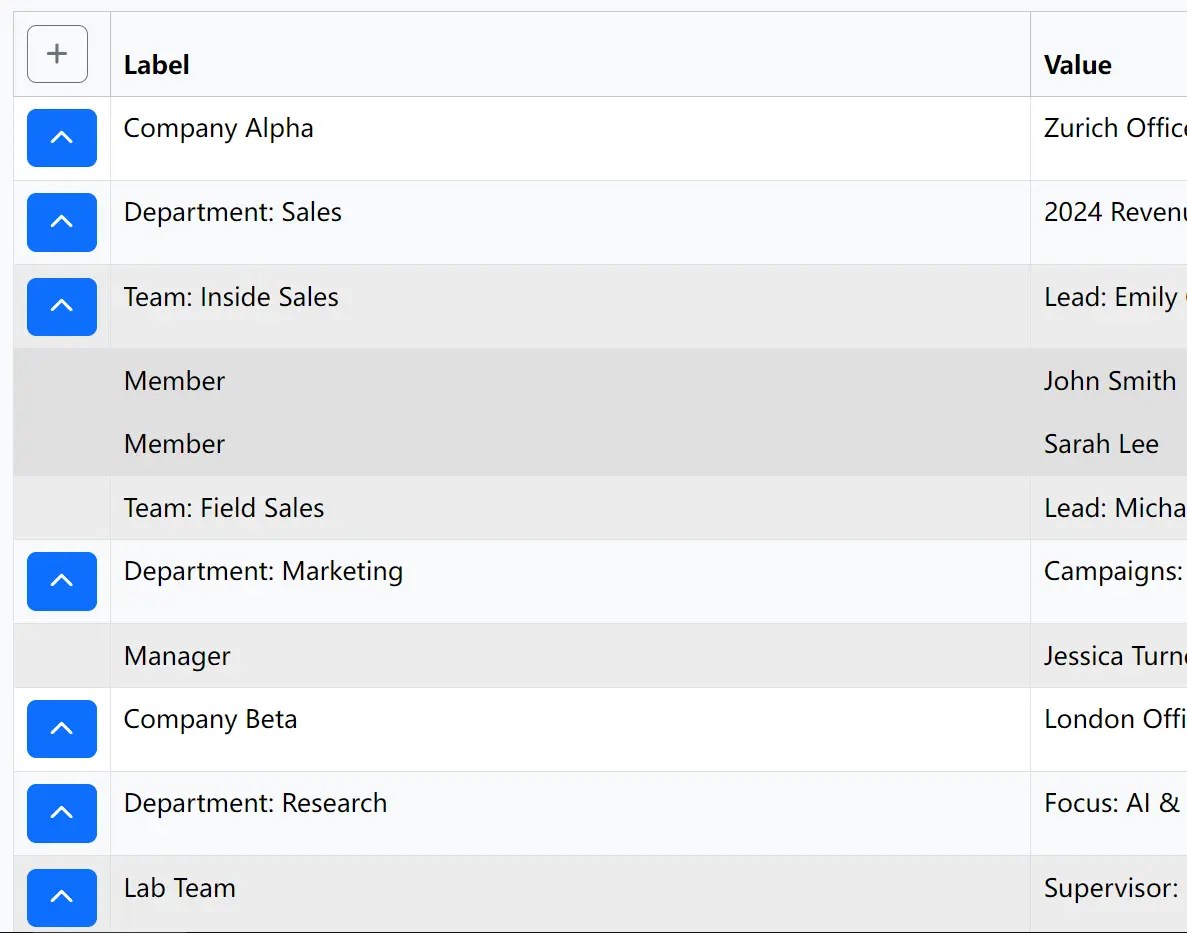
BootstrapTreeTable is a vanilla JavaScript plugin that creates collapsible, multi-level tables styled with the Bootstrap 5 framework.
It adds controls to your HTML tables that allow you to expand and collapse nested rows, search the content, and toggle all branches at once.
You can use it to display hierarchical data compactly within a familiar table layout.
Features:
- Unlimited hierarchy levels using CSS class-based structure (level-0, level-1, etc.)
- Collapsible row functionality with toggle buttons
- Global expand/collapse all control in table header
- Live search with match highlighting and customizable search depth
- Multi-instance support for multiple tables per page
- Full i18n support with customizable text labels
- Extensive styling customization through CSS classes
- Font Awesome icon integration for visual indicators
How to use it:
1. Download and load the BootstrapTreeTable.js plugin in the document.
<!-- Bootstrap -->
<link rel="stylesheet" href="/path/to/cdn/bootstrap.min.css" />
<script src="/path/to/cdn/bootstrap.bundle.min.js"></script>
<!-- Font Awesome -->
<link rel="stylesheet" href="/path/to/cdn/all.min.css">
<!-- BootstrapTreeTable Plugin -->
<script src="BootstrapTreeTable.js"></script>
2. Create your table with hierarchical rows using level-based CSS classes. Each row must include a level-x class where x represents the hierarchy depth:
<div id="search-container"></div>
<table class="table" id="treeTable">
  <thead>
    <tr>
      <th style="width: 60px;"></th>
      <th>Department / Employee</th>
      <th>Details</th>
    </tr>
  </thead>
  <tbody>
    <tr class="level-0">
      <td></td>
      <td>Engineering</td>
      <td>Core Development</td>
    </tr>
    <tr class="level-1">
      <td></td>
      <td>Frontend Team</td>
      <td>Lead: Alex Johnson</td>
    </tr>
    <tr class="level-2">
      <td></td>
      <td>Sarah Lee</td>
      <td>Senior Developer</td>
    </tr>
    <tr class="level-1">
      <td></td>
      <td>Backend Team</td>
      <td>Lead: Maria Garcia</td>
    </tr>
  </tbody>
</table>
3. Initialize the plugin and done.
BootstrapTreeTable.init({
  // configs here
});
4. All possible plugin options.
tableSelectorId(String): Required. The ID of your HTML table, without the#.searchContainerId(String): The ID of the element where the search input field should be placed. If omitted, no search field is created.showToggleAllButton(Boolean): Shows or hides the global expand/collapse button in the table header. Defaults totrue.highlightSearchMatches(Boolean): Toggles background highlighting on text that matches the search query. Defaults totrue.searchHighlightColor(String): A CSS color value (e.g.,#ffff8boryellow) for the search result highlight.searchMaxLevel(Number | null): Restricts the search to a maximum hierarchy depth. For example, a value of1will only searchlevel-0andlevel-1rows.nullsearches all levels.searchInput(String): Custom classes for the search<input>element.searchWrapper(String): Classes for the<div>that wraps the search input and reset button.searchWrapperStyle(String): Inline CSS styles applied to the search wrapper<div>.resetBtn(String): Custom classes for the search reset button.noResults(String): Classes for the “No results found” message container.toggleBtn(String): Custom classes for the individual row toggle buttons.toggleAllBtn(String): Classes for the global “Toggle All” button in the header.searchPlaceholder(String): The placeholder text displayed in the search input field.searchResetAria(String): Thearia-labelfor the search input’s reset button for accessibility.toggleAllBtnTitle(String): The tooltip text (title attribute) for the global “Toggle All” button.noResults(String): The message displayed when a search returns no results.toggleRow(String): The class for the icon on individual row toggle buttons.toggleAllOpen(String): The class for the “Toggle All” icon when rows are collapsed (e.g., a “plus” icon).toggleAllClose(String): The class for the “Toggle All” icon when rows are expanded (e.g., a “minus” icon).reset(String): The class for the icon on the search input’s reset button.
BootstrapTreeTable.init({
  tableSelectorId: "treeTable",
  searchContainerId: null,
  showToggleAllButton: true,
  highlightSearchMatches: true,
  searchHighlightColor: "#ffff8b",
  searchMaxLevel: null,
  toggleColumnIndex: 0,
  startExpanded: false,
  rememberState: false,
  restorePreSearchStateOnClear: false,
  classes: {
    searchInput: "pe-5",
    searchWrapper: "mb-3 position-relative",
    searchWrapperStyle: "max-width:400px;",
    resetBtn:
      "btn-sm position-absolute top-50 end-0 translate-middle-y me-2 d-none",
    noResults: "alert alert-warning small d-none mt-2",
    toggleBtn: "btn-primary",
    toggleAllBtn: "btn-outline-secondary",
  },
  iconClasses: {
    toggleRowOpen: "fa-solid fa-chevron-up fa-fw",
    toggleRowClose: "fa-solid fa-chevron-down fa-fw",
    toggleAllOpen: "fa-solid fa-plus",
    toggleAllClose: "fa-solid fa-minus",
    reset: "fa-solid fa-xmark",
  },
  i18n: {
    searchPlaceholder: "In allen Ebenen suchen...",
    searchResetAria: "Zurücksetzen",
    toggleAllBtnTitle: "Alle ein-/ausklappen",
    noResults: "Keine Ergebnisse gefunden",
  },
});
FAQs
Q: Can I use different icons instead of Font Awesome?
A: Yes. The iconClasses option object allows you to specify any CSS classes for the icons. You can replace the default Font Awesome classes with those from another icon library or your own custom CSS classes.
Q: What happens if I add rows to the table dynamically?
A: The plugin initializes once on page load. If you add rows with JavaScript after initialization, the new rows won’t have the toggle functionality. You would need to call BootstrapTreeTable.init() again on the table to re-scan the structure and attach the necessary event listeners.
Q: How do I handle very deep hierarchies with many levels?
A: The plugin supports unlimited hierarchy levels, but consider UX implications beyond 4-5 levels. Users often struggle with deep nesting navigation. You might implement breadcrumb indicators or limit visible depth while providing drill-down functionality for deeper levels.
You Might Also Like:
Changelog:
v1.1.0 (08/19/2025)
- Update options
v1.0.1 (08/15/2025)
- Fixed all known Bugs
See Also:
 Dynamic Bootstrap 5 Form Builder With Vanilla JavaScript
 Build Customizable Modals With AvalynxModal And Bootstrap
 Bootstrap 5 Theme with shadcn/ui Aesthetics – Shadstrap
 Bootstrap 5 & Material Design UI KIT
 Easy Tags Input Component For Bootstrap 5/4 – Tags.js
 Dynamic Bootstrap 5 Modal Windows via AJAX – loadmodal.js
 Easy Autocomplete Library For Bootstrap 5 – autocompleteBS
 Enhance The Accessibility Of Bootstrap 5 When Hight Contrast Is Activated On Windows