


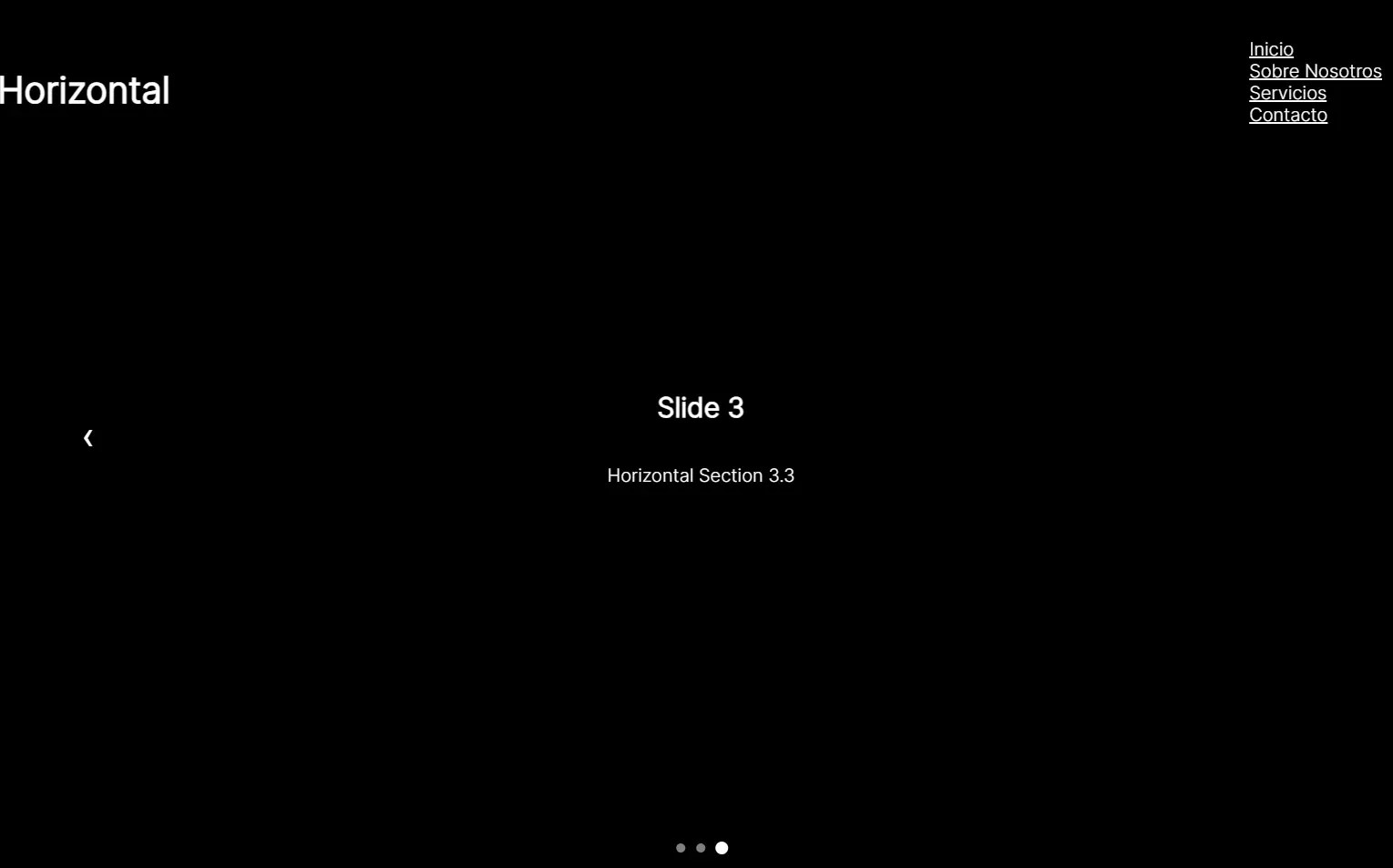
SnapRollJS.js is a lightweight JavaScript library for creating modern, responsive one-page scrolling sites and full-screen presentations with snap-scrolling behavior.
Features:
- Multiple Navigation Methods: Supports keyboard arrows, mouse wheel scrolling, and touch gestures.
- Nested Structure Support: Combines vertical sections with horizontal slides.
- Six Built-In Animations: Includes slide, fade, zoom, flip, skew, and rotate transitions that you can apply per section or slide.
- Hash-Based Routing: Updates the browser URL with section and slide identifiers.
- Automatic UI Generation: Creates pagination dots and navigation arrows without manual markup.
- Data Attribute Configuration: Configure options directly in HTML using
data-*attributes for quick prototyping.
Use Cases:
- Portfolio Sites with Project Showcases: Create a vertical navigation between portfolio categories, with horizontal slides showing individual projects within each category.
- Product Landing Pages: Build marketing pages where each section highlights a different feature, and slides within sections show variations, screenshots, or testimonials.
- Conference or Educational Presentations: Replace traditional slide deck tools with a web-based presentation that works across devices.
- Onboarding Flows: Guide new users through a multi-step process where each section represents a stage, and slides within sections cover related substeps.
How To Use It:
1. Download and load the SnapRollJS library’s JavaScript & CSS files in the document.
<link rel="stylesheet" href="/dist/snaprolljs.min.css" />
<script src="/dist/snaprolljs.min.js"></script>
// Or from a CDN
<link rel="stylesheet" href="https://cdn.jsdelivr.net/npm/snaprolljs/dist/snaprolljs.min.css" />
<script src="https://cdn.jsdelivr.net/npm/snaprolljs/dist/snaprolljs.min.js"></script>
2. SnapRollJS expects a container with sections as direct children. Sections can contain slides as their children. The data-snaproll attribute is used to initialize the library automatically.
<div
  class="sr-cont"
  data-snaproll
  data-loop="true"
  data-page-title="Mi Asombrosa Página"
  style="background-color: black"
>
  <section
    class="sr-sec"
    data-sr-title="Inicio"
    data-sr-hash="Inicio"
    style="color: white"
  >
    Section 1
  </section>
  <section
    class="sr-sec"
    data-sr-title="Sobre Nosotros"
    data-sr-hash="Sobre-Nosotros"
    style="color: white"
  >
    Section 2
  </section>
  <section
    class="sr-sec"
    data-sr-title="Servicios"
    data-sr-hash="Servicios"
    style="color: white"
  >
    <h1 style="position: absolute; top: 40px; z-index: 5">
      Horizontal
    </h1>
    <div class="sr-slides-cont" id="Diseño-Web">
      <div class="sr-slide" data-sr-hash="Diseño-Web">
        <h2>Slide 1</h2>
        <p>Horizontal Section 3.1</p>
      </div>
      <div class="sr-slide" data-sr-hash="Desarrollo-Backend">
        <h2>Slide 2</h2>
        <p>Horizontal Section 3.2</p>
      </div>
      <div class="sr-slide" data-sr-hash="Marketing-Digital">
        <h2>Slide 3</h2>
        <p>Horizontal Section 3.3</p>
      </div>
    </div>
  </section>
  <section
    class="sr-sec"
    data-sr-title="Contacto"
    data-sr-hash="Contacto"
    style="color: white"
  >
    Section 4
  </section>
</div>
3. If you need programmatic control or want to initialize multiple instances, use the JavaScript constructor:
document.addEventListener('DOMContentLoaded', () => {
  const presentation = new SnapRoll({
    container: '#container',
    sectionSelector: 'section',
    // more options here
  });
});
4. You can configure SnapRollJS via a JavaScript object or data-* attributes.
Notice how
camelCaseoptions from the JavaScript API map tokebab-casein thedata-*attributes (e.g.,scrollTimeoutbecomesdata-scroll-timeout).
container: The main selector or element for the SnapRoll instance. Defaults to'.sr-cont'.sectionSelector: The selector used to identify vertical sections. Defaults to'.sr-sec'.activeClass: The CSS class applied to the currently active section. Defaults to'sr-active'.sectionAnimation: Defines the default animation for section transitions. Options includeslide,fade,zoom,flip,skew, androtate. Defaults to'slide'.keyboard: A boolean that enables or disables navigation using keyboard arrow keys. Defaults totrue.loop: A boolean that, when true, allows scrolling from the last section/slide back to the first, and vice versa. Defaults tofalse.scrollTimeout: The time in milliseconds to wait between scroll events to prevent overly sensitive navigation. Defaults to800.pagination: A boolean that toggles the automatically generated pagination dots for sections. Defaults totrue.paginationPosition: Sets the position of the section pagination. Options are'right','left','top', or'bottom'. Defaults to'right'.slideSelector: The selector used to identify horizontal slides within a section. Defaults to'.sr-slide'.slideAnimation: Defines the default animation for slide transitions. Uses the same options assectionAnimation. Defaults to'slide'.slideActiveClass: The CSS class applied to the currently active slide. Defaults to'sr-slide-active'.slideArrows: A boolean that toggles the navigation arrows for horizontal slides. Defaults totrue.slidePagination: A boolean that toggles the pagination dots for horizontal slides. Defaults totrue.debug: A boolean that, when true, prints internal state and event logs to the browser console. Defaults tofalse.
5. Available API methods for programmatic control:
next(): Navigates to the next slide or section.prev(): Navigates to the previous slide or section.goToSection(index): Jumps directly to the section at the specified (0-based) index.goToSlide(index): Jumps directly to the slide at the specified (0-based) index within the current active section.refresh(): Re-initializes the library instance. This is useful if you have dynamically added or removed sections/slides from the DOM and need SnapRoll to update its internal state.destroy(): Removes all event listeners, UI elements (pagination, arrows), and added classes, effectively cleaning up the instance.
6. You can create your own animations by defining CSS classes. Here’s how the system works: sections and slides get an animation class like sr-anim-{name}, a state class (sr-prev for previous, sr-active for current), and the container applies styles to future elements.
.sr-sec.sr-anim-bounce {
  transition: transform 0.6s cubic-bezier(0.68, -0.55, 0.265, 1.55),
              opacity 0.6s ease;
  transform: translateY(0) scale(1);
  opacity: 1;
}
/* Previous state (scrolled past) */
.sr-sec.sr-anim-bounce.sr-prev {
  transform: translateY(-100px) scale(0.8);
  opacity: 0;
}
/* Future state (not yet reached) */
.sr-cont > .sr-sec.sr-anim-bounce {
  transform: translateY(100px) scale(0.8);
  opacity: 0;
}
/* Active state */
.sr-cont > .sr-sec.sr-anim-bounce.sr-active {
  transform: translateY(0) scale(1);
  opacity: 1;
}
<div class="sr-sec" data-sr-section-animation="bounce"> <!-- content --> </div>
Alternatives:
- Fullpage.js: A more feature-rich option with responsive layouts, scrollOverflow for long content, and extensions for parallax effects. It’s significantly larger and uses a commercial license for most projects, but it handles complex layouts that SnapRollJS doesn’t attempt.
- Swiper: Primarily focused on carousels and sliders but supports vertical slides that can mimic full-page scrolling. Better for mobile-first designs where you need touch gesture refinement, but lacks the two-dimensional section/slide structure.
- Rellax: Takes a different approach with parallax scrolling rather than snap sections. Lighter weight but gives you less control over navigation structure. Good when you want subtle depth effects rather than discrete sections.
FAQs:
Q: How do I make content within a section scrollable when it exceeds viewport height?
A: SnapRollJS assumes each section fits within the viewport. If you need scrollable content, create a nested div with overflow-y: auto and an explicit height like height: 80vh. The parent section should still occupy full height, but the nested container handles overflow. Just be aware that this can interfere with touch gestures on mobile devices.
Q: Can I disable navigation temporarily, like during a video playback?
A: Yes. Set the keyboard option to false and remove wheel/touch listeners by calling destroy(), then reinitialize when you’re ready to resume.
Q: What if I add or remove sections dynamically after initialization?
A: SnapRollJS won’t detect DOM changes automatically. After you’ve added or removed sections with JavaScript, you must call the mySnapRoll.refresh() method. This tells the library to re-scan the DOM, update its internal state, and rebuild the pagination.
Changelog:
10/27/2025
- fix: Update CSS to remove display property
See Also:
 CSS Only Presentation Library – slide.css
 Horizontal & Vertical One Page Scroll Plugin In JavaScript – Wholepage Slider
 Fullscreen Scrolling Presentation In JavaScript – Pageable
 Build Smooth One-Page Scrolling Websites With ScrollFlow.js
 Two-Dimensional One Page Scroll Navigation with Scroll-Grid
 CSS Split Scroll: No-JS Half-and-Half Scrolling Layout
 Modern One Page Scroll Web Template with Responsive Nav
 Enhance One-Page Websites with JavaScript Fullpage Slider