


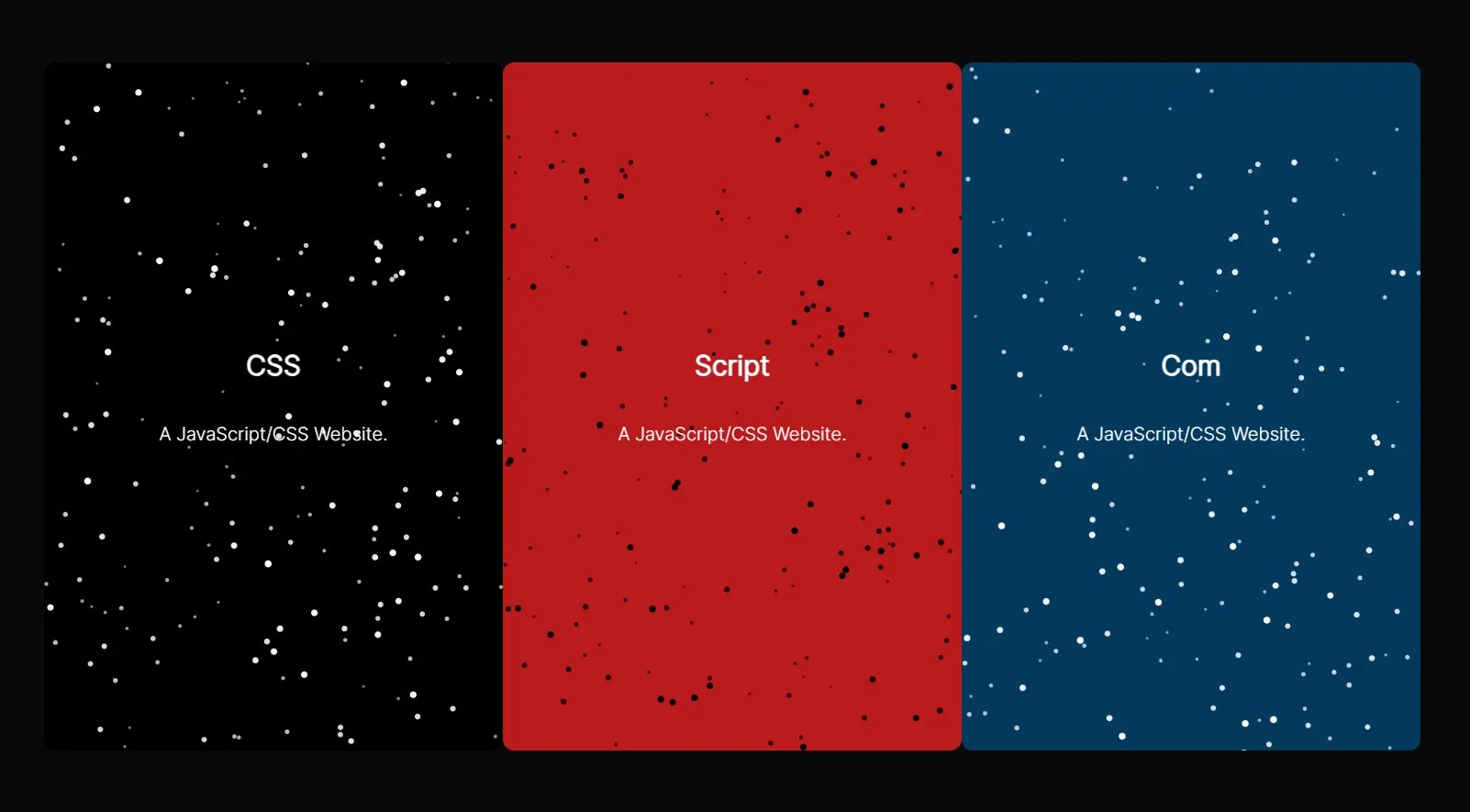
DotWave.js is a lightweight JavaScript library that creates interactive dot backgrounds for web containers.
It generates canvas-based particle systems that react to cursor movements with smooth transitions and parallax depth effects.
Features:
- Responsive particle backgrounds that adapt to any container size
- Particles that react smoothly to cursor movements with physics-based behavior
- Fully customizable appearance including colors, sizes, and opacity
- Lightweight implementation with zero dependencies (just 7KB minified)
- Fine-grained control over physics parameters like influence radius and friction
- Mobile-friendly with automatic resizing
- Depth perception with parallax effect (closer dots move faster)
See It In Action:
Use Cases:
- Hero Backgrounds – Create dynamic, interactive backgrounds for landing pages or hero sections without impacting page performance.
- Empty State Enhancement – Add visual interest to otherwise empty sections of applications, like loading screens or zero-state dashboards.
- Interaction Feedback – Use the cursor-following behavior to provide subtle visual feedback for user interactions without needing complex animations.
- Brand Enhancement – Match the dot colors and behaviors to brand guidelines for consistent but eye-catching brand presence.
How to use it:
1. Download the dotwave.js script and load it in your HTML document.
<script src="src/dotwave.js"></script>
2. Initialize DotWave on a specific element.
<div class="example">
  ...
</div>
document.addEventListener('DOMContentLoaded', () => {
  const dotwave = new DotWave({
    container: '#example',
  });
});
3. Available options to customize the dot background.
container: (String|Element) CSS selector or DOM element for the background. Defaults to'body'. Pro-tip: If targeting a specific div, make sure its CSSpositionisrelative,absolute, orfixedso the absolutely positioned canvas stays inside.numDots: (Number) How many dots to render. Default:200. Performance depends heavily on this.dotColor: (String) CSS color for the dots. Default:'white'. Accepts hex, rgb, rgba, or named colors.backgroundColor: (String) CSS color for the canvas background. Default:'black'. Set to'transparent'if you want the container’s existing background to show through.dotMinSize,dotMaxSize: (Number) Min/max radius for dots (pixels). Defaults:0.5,2.5. Used with depth (z) to vary size.dotMinOpacity,dotMaxOpacity: (Number) Min/max opacity (0-1). Defaults:0.5,1. Also tied to depth.influenceRadius: (Number) Radius (pixels) around the cursor where dots are affected. Default:150.influenceStrength: (Number) How strongly the mouse movement pushes dots. Default:0.08. Lower values mean subtler reactions.randomFactor: (Number) Amount of random “jitter” applied to dot movement each frame. Default:0.03. Keeps the field from looking too static.friction: (Number) Slows down dot movement (0-1).1= no friction,0.97(default) = slight slowdown. Lower values make movement stop faster.maxSpeed: (Number) Maximum pixels per frame a dot can move. Default:3. Prevents dots from shooting off uncontrollably.reactive: (Boolean) Toggle for cursor reactivity, enabling or disabling the dot field’s response to mouse movement. Default:true.zIndex: (Number) The CSSz-indexfor the canvas. Default:-1. Usually keeps it behind other content.mouseSpeedDecay: (Number) How quickly the detected mouse speed decays each frame (0-1). Default:0.85. Higher values mean faster decay.maxMouseSpeed: (Number) Maximum mouse speed considered, to prevent erratic jumps from sudden large mouse movements. Default:15.dotStretch: (Boolean) Enable dot stretching based on their velocity, creating a motion blur effect. Default:false.dotStretchMult: (Number) Multiplier for how much to stretch the dots based on velocity. Default:10.dotMaxStretch: (Number) Maximum pixel amount a dot can stretch. Default:20.rotSmoothing: (Boolean) Toggle for smoothing the rotation of stretched dots. Default:false.rotSmoothingIntensity: (Number) The duration (in milliseconds) over which dot rotation smoothing occurs. Default:150.
const dotwave = new DotWave({
  container: 'body',
  numDots: 200,
  dotColor: 'white',
  backgroundColor: 'black',
  dotMinSize: 0.5,
  dotMaxSize: 2.5,
  dotMinOpacity: 0.5,
  dotMaxOpacity: 1,
  influenceRadius: 150,
  influenceStrength: 0.08,
  randomFactor: 0.03,
  friction: 0.97,
  maxSpeed: 3,
  responsive: true,
  zIndex: -1,
  mouseSpeedDecay: 0.85,
  maxMouseSpeed: 15,
  dotStretch: true,
  dotStretchMult: 10,
  dotMaxStretch: 20,
  rotSmoothing: false,
  rotSmoothingIntensity: 150
});
4. DotWave instances provide several methods for controlling the animation:
// Stop the animation
dotwave.pause();
// Resume a paused animation
dotwave.resume();
// Update configuration options
dotwave.updateOptions({
  dotColor: 'red',
  influenceRadius: 200
});
// Clean up resources when no longer needed
dotwave.destroy();
5. Performance Considerations:
- For large containers, keep
numDotsbelow 300 to maintain smooth performance - Set appropriate
maxSpeedandfrictionvalues to prevent dots from moving too erratically - For mobile, consider using a smaller
influenceRadiusto account for touch interaction
Comparison with Alternatives
- particles.js / tsParticles: These are much more feature-rich particle system libraries. They offer connecting lines, different shapes, density modes, and tons more configuration. They are also significantly larger. If you need complex particle systems, go with those. DotWave.js is for when you specifically want this interactive dot field effect with parallax and minimal overhead.
- Three.js / Babylon.js: These are full 3D engines. Using them for just a 2D dot field is massive overkill, like using a sledgehammer to crack a nut. DotWave.js is infinitely simpler and more performant for this task.
- CSS-only animations: You could try animating lots of
divelements with CSS, but performance would likely suffer significantly compared to Canvas for hundreds of moving elements, and achieving the smooth, physics-based interaction with the cursor and parallax depth would be extremely complex, if not impossible, with CSS alone.
FAQs
Q: Can I use multiple DotWave instances on a single page?
A: Yes. Each instance creates its own canvas and runs independently. I’ve used up to 3 separate instances on different sections of a page without performance issues.
Q: The dots seem slightly blurry on my high-res screen?
A: The library does account for devicePixelRatio. If you still see issues, double-check that the canvas rendering size (canvas.width, canvas.height) is indeed larger than its CSS size (canvas.style.width, canvas.style.height) by the DPR factor. Sometimes framework rendering or CSS conflicts can interfere.
Q: Can the dots interact with each other?
A: No. The dots only react to the mouse cursor and have their own simple physics. They don’t collide or repel each other. That would require a much more complex simulation.
Changelog:
v1.1.0 (06/07/2025)
- Bug fix + added dot stretching
See Also:
 Customized & Responsive Particles Background In JavaScript – BVAmbient
 Create A Background Particles System With JavaScript And Canvas – nodes.js
 Create Interactive Photo Particle Effects with JavaScript and HTML5 Canvas
 Create Dynamic Particle Effects with Particulab JavaScript Library
 Transform Images into Dynamic Particle Animations – Particular Drift
 Create Dynamic Canvas Particle Animations – ParticleBackground.js
 Interactive Quantum Particle Animation in JavaScript
 Create Interactive Canvas Particles – js-particles-factory.js