


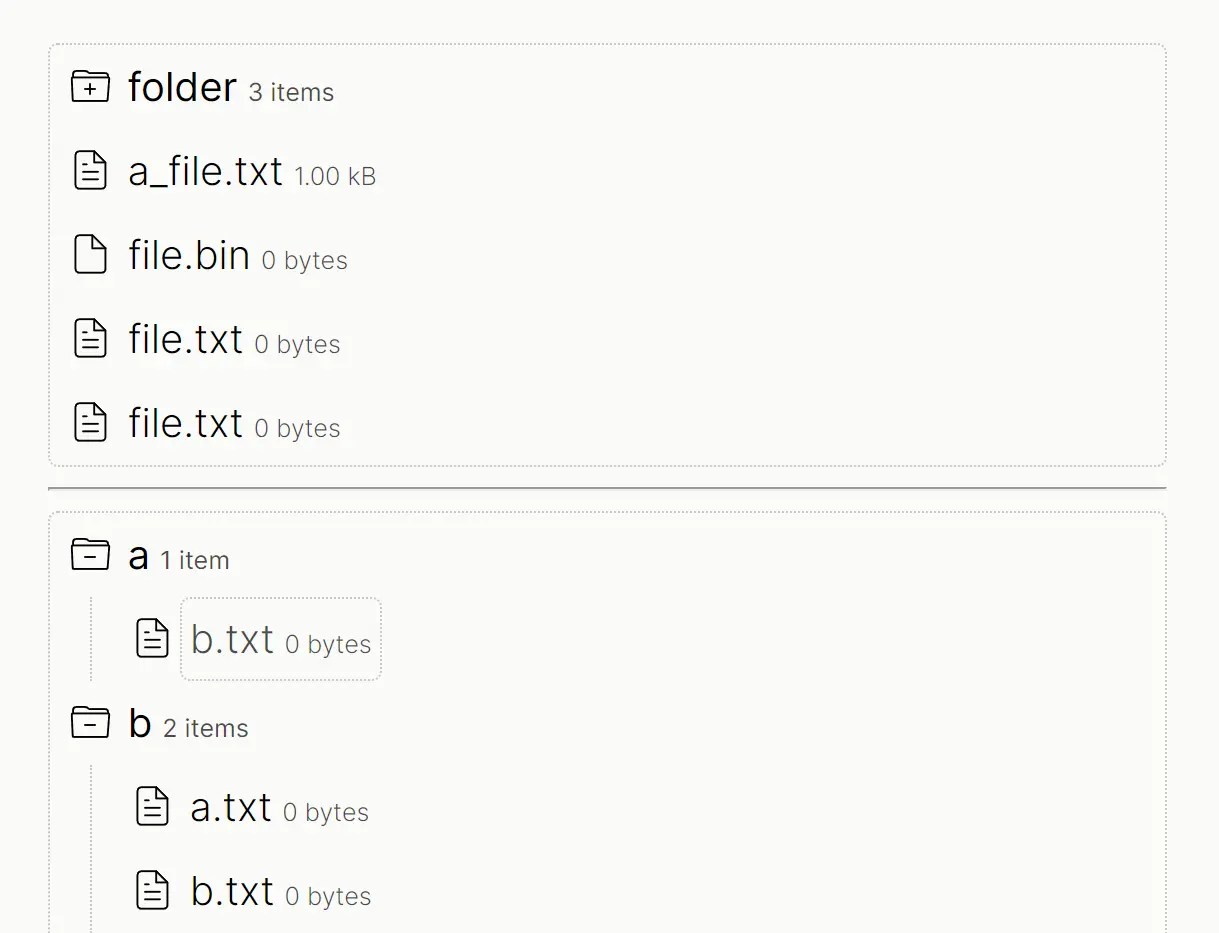
file-tree is a modern, lightweight folder/file tree component for the web that creates an interactive file hierarchy.
It’s a dependency-free custom element, so you can drop it into any project/framework or not and get a functional file tree.
It can be used to display nested files and folders, handle user interactions like clicks and right-clicks, and even load folder contents asynchronously.
Features:
- Custom Element: A simple
<file-tree>tag is all you need to get started. - Hierarchical Structure: Natively supports nested folders and files.
- Interactive: Responds to clicks, right-clicks, and keyboard navigation out of the box.
- Async Support: Has a built-in loading state for fetching folder contents on the fly.
Use Cases:
- Web-Based Code Editors: You can use it to build the file explorer pane, similar to what you see in VS Code. The async loading is perfect for fetching directory contents from a remote server as the user expands folders.
- Cloud Storage Browsers: It’s a solid choice for creating a UI to navigate a user’s files in a cloud service. You can dynamically load the contents of a folder when a user clicks to expand it.
- Documentation Sites: For sites with deeply nested content, it can serve as a table of contents or a file-based navigation tree.
- Content Management Systems (CMS): It’s well-suited for building an asset or media manager where users need to browse and organize uploaded files and folders.
Basic Usage:
1. Install the file-tree package via npm:
# NPM
$ npm install @webreflection/file-tree
2. Import it into your project and create a file tree programmatically:
import { Tree, Folder, File } from './prod.js';// Create a new tree instance
const tree = new Tree;
// Add it to your page
document.body.appendChild(tree);
// Add some files and folders
const dist = new Folder('dist');
dist.append(new File([], 'prod.js'));
tree.append(dist, new File([], 'README.md'));3. You can also initialize the tree directly from your HTML structure. Here’s a full example:
<file-tree>
  <ul>
    <li class="file" data-bytes="1000"><button>a_file.txt</button></li>
    <li class="file"><button>file.bin</button></li>
    <li class="folder">
      <button>folder</button>
      <ul>
        <li class="file"><button data-details="file.txt">file.txt</button></li>
        <li class="folder opened">
          <button>folder</button>
          <ul>
            <li class="file" data-type="text/plain"><button>file.txt</button></li>
            <li class="text"><button>file.txt</button></li>
            <li class="file"><button>file.svg</button></li>
            <li class="file"><button>file.png</button></li>
          </ul>
        </li>
        <li class="folder">
          <button>folder</button>
          <ul>
            <li class="file"><button>file.md</button></li>
            <li class="file"><button>file.txt</button></li>
            <li class="file"><button>file.txt</button></li>
            <li class="file"><button>file.txt</button></li>
            <li class="folder opened">
              <button>folder</button>
              <ul>
                <li class="file" data-type="text/plain"><button>file.txt</button></li>
                <li class="text"><button>file.txt</button></li>
                <li class="file"><button>file.txt</button></li>
                <li class="file"><button>file.txt</button></li>
              </ul>
            </li>
          </ul>
        </li>
      </ul>
    </li>
    <li class="file"><button>file.txt</button></li>
    <li class="file"><button>file.txt</button></li>
  </ul>
</file-tree>
<script type="module">
import { Tree, File, Folder } from './prod.js';
document.querySelector('file-tree').addEventListener('click', event => {
const { action, folder, owner, path, target } = event.detail;
console.log({ action, folder, owner, path, target });
});
const tree = new Tree;
document.body.appendChild(tree);
const a = new Folder('a');
const b = new Folder('b');
a.append('b.txt');
b.append('b.txt', 'a.txt');
const c = new File([], 'c.txt', { type: 'text/plain' });
globalThis.a = a;
globalThis.b = b;
globalThis.c = c;
globalThis.tree = tree;
tree.append(a, c, b, { name: 'n.txt' });
tree.addEventListener('contextmenu', event => {
const { action, folder, path, target } = event.detail;
console.log({ action, folder, path, target });
event.preventDefault();
});
tree.addEventListener('click', event => {
const { action, folder, path, target } = event.detail;
if (folder) {
if (action === 'open') {
event.waitUntil(new Promise(resolve => setTimeout(resolve, Math.random() * 1000)));
}
}
else {
console.log(path);
}
});
// setTimeout(() => tree.rename(c), 1000);
</script>Tree Component
The Tree class is the main component you’ll interact with. It extends HTMLElement, so you can use it as <file-tree> in your HTML or instantiate it with new Tree(). It also implements the full Folder interface, meaning you can add items directly to the root of the tree.
Properties
selected: Item | null: A read-only property that returns the last selectedFileorFolderinstance, ornullif nothing is selected.items: Item[]: An array containing all the top-levelFileandFolderinstances within the tree. This is an alias for thefilesproperty.
Methods
append(...items: (string | object | Item)[]): this: Adds one or more items to the root of the tree. You can passFileorFolderinstances, plain objects like{ name: 'new-file.txt' }, or just a string for a simple file.remove(...items: (Item | string)[]): this: Removes one or more items from the tree. You can pass the actualIteminstance or a string path like'src/components'.rename(item: Item | string, name?: string): Item | Promise<Item>: Renames a given item. Ifnameis not provided, it will prompt the user for a new name. You can pass theIteminstance or its path.update(file: File | string, content: Content | Content[]): File: Updates the content of a specified file. You can identify the file by its instance or by its string path.query(path: string): Item[] | null: A utility method to retrieve all items in a given path. It returns a flat array ofIteminstances leading to the target, ornullif the path is not found. For example,tree.query('src/main.js')would return[srcFolder, mainJsFile].
Events
The Tree component dispatches click and contextmenu events. You can listen for them using tree.addEventListener(). The event’s detail object contains a rich payload:
| Property | Type | Description |
|---|---|---|
action | "open" | "close" | "click" | The specific action performed (open/close for folders, click for files). |
folder | boolean | true if the item is a folder, false otherwise. |
originalTarget | HTMLLIElement | The actual <li> DOM element that was clicked. |
owner | Folder | The parent folder that contains the item. |
path | string | The full, web-compatible path to the item (e.g., src/components/Button.jsx). |
target | File | Folder | The File or Folder instance that the event concerns. |
Folder Component
The Folder class represents a directory within the file tree. It’s the primary way to organize items hierarchically.
Properties
name: string: The name of the folder.type: "folder": A read-only property that always returns"folder".size: number: The total size in bytes of all files contained within the folder, calculated recursively.items: Item[]: An array of allFileandFolderinstances directly inside this folder. This is an alias forfiles.
Methods
The Folder class shares most of its methods with Tree for a consistent API:
append(...items: (string | object | Item)[]): this: Adds items inside this folder.remove(...items: Item[]): this: Removes items from this folder.rename(item: Item, name?: string): Item | Promise<Item>: Renames a direct child item.update(file: File, content: Content | Content[]): File: Updates the content of a direct child file.
File Component
The File class extends the browser’s native File object, adding some convenience. It represents a single file in the tree.
Constructor
new File(content, name, options?)
content: Content | Content[]: The file’s content. This can be a string, a Blob, or an ArrayBuffer.name: string: The name of the file. The library automatically sanitizes the name to remove invalid characters.options?: { type?: string }: An optional object to override the MIME type. If not provided, the type is inferred from the file extension.
Example
// A simple text file. The type 'text/markdown' is inferred.
const readme = new File(['# My Project'], 'README.md');
// A binary file where we explicitly set the type.
const image = new File(['...binary data...'], 'logo.png', { type: 'image/png' });
// A file with a custom type.
const config = new File(['{"key": "value"}'], 'config.json', {
  type: 'application/json'
});
Async Operations with `event.waitUntil()`
When a user clicks to open a folder, you can fetch its contents from a server. The event.waitUntil() method is designed for this. You pass it a Promise, and the UI will automatically display a loading indicator on the folder until the promise resolves.
tree.addEventListener('click', (event) => {
  const { action, folder, target } = event.detail;
  if (action === 'open' && folder) {
    // If the folder is empty, fetch its content
    if (target.items.length === 0) {
      event.waitUntil(
        fetchFolderContent(target.name).then(content => {
          // Assuming content is an array of File and Folder instances
          target.append(...content);
        })
      );
    }
  }
});
FAQs
Q: Can I customize the visual appearance of the file tree?
A: Yes, the component uses standard CSS classes that you can style. The library generates semantic HTML with .file, .folder, and .opened classes. You can override these styles or add custom CSS to match your design requirements.
Q: How do I handle large directory structures without performance issues?
A: Use the async loading pattern with event.waitUntil() to load folder contents on demand. This prevents initial rendering bottlenecks and provides better user experience. Load only the immediate children when folders are expanded rather than the entire tree structure upfront.
Q: Can I use this with React or Vue?
A: Yes. It’s a standard Custom Element, so it works in any framework that supports them. You can use it in your JSX or Vue templates just like any other HTML tag. You’ll just need to handle event listeners according to your framework’s syntax.
Q: How do I handle right-click to show a custom context menu?
A: You listen for the contextmenu event. In your event handler, you can display your own menu and then call event.preventDefault() to stop the browser’s default context menu from appearing. The event.detail object will give you the target file or folder that was right-clicked.
Alternatives
See Also:
 Multi-Select Box With Tree Structured Data Dropdown List – Treeselect
 Dynamic Interactive Tree View With Checkboxes – Treejs
 Render JSON Data As A Tree View – json-view
 JavaScript Treeview Library for Hierarchical Data – Quercus.js
 Pure CSS Collapsible Tree View – SimpleTree.css
 Visualize JSON Data Like A Pro With JSONTree.js
 Build Interactive Organization Charts with treeSpider JavaScript Library
 Interactive Tree Structure for Hierarchical Data – Plain Tree