


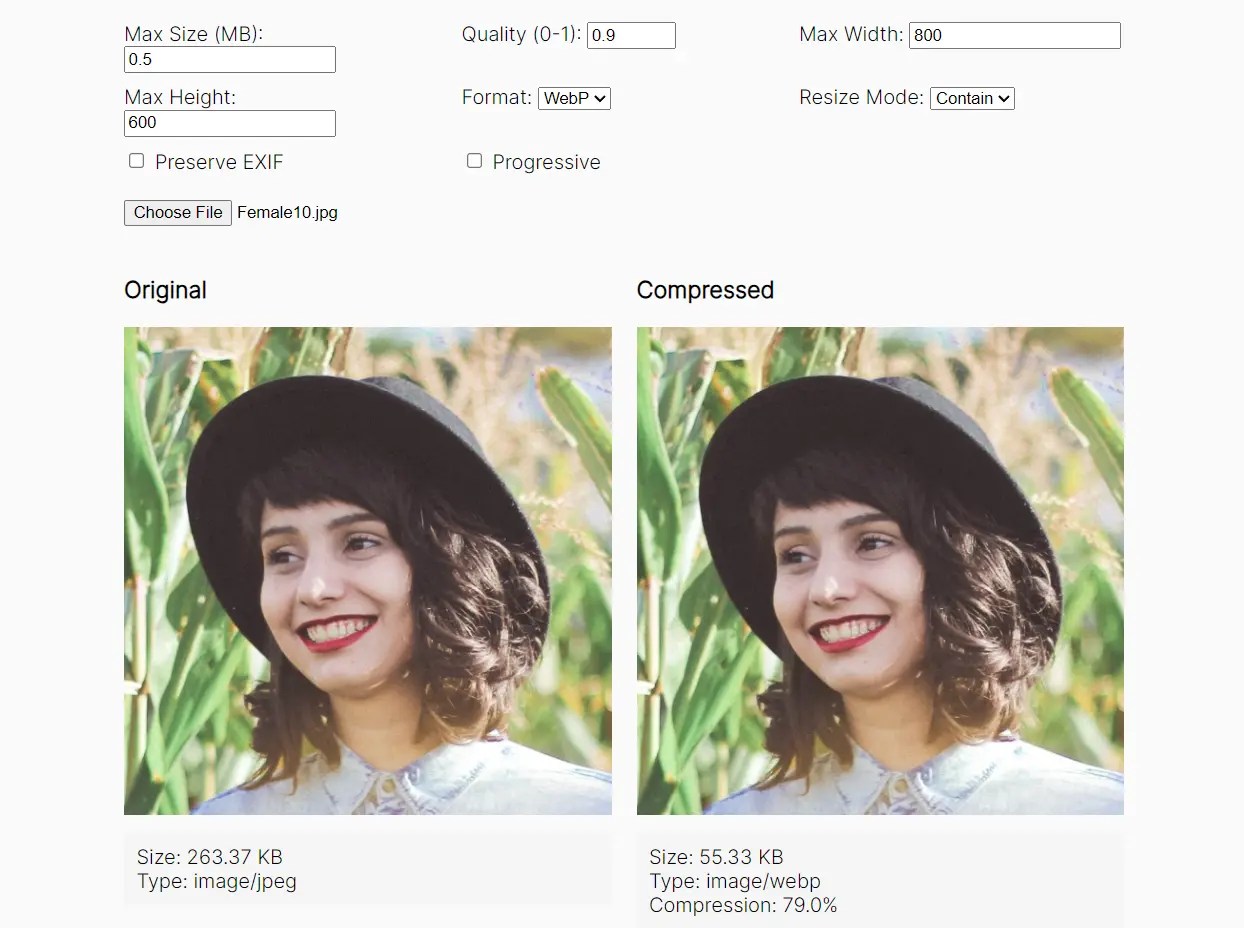
image-compression is a tiny & fast JavaScript library that enables you to compress and optimize images directly in the browser without server-side dependencies.
The library automatically detects browser capabilities and selects the optimal output format from WebP, JPEG, PNG, or AVIF.
It includes smart quality optimization using binary search algorithms to meet specific file size targets while maintaining visual quality.
More Features:
- Intelligent Resize Modes: Five distinct resize modes (contain, cover, fill, inside, outside) handle different aspect ratio requirements.
- Progressive JPEG Generation: Creates progressive JPEGs that load incrementally for better user experience.
- EXIF Metadata Handling: Preserves or strips EXIF data based on privacy and file size requirements.
- Automatic Downscaling: Handles large images efficiently with configurable downscaling ratios.
- Customizable compression: Control over quality thresholds, dimensions, and output filenames.
Use Cases:
- User upload preprocessing: Compress images before sending to your backend, reducing server load and bandwidth costs.
- Privacy-sensitive applications: Medical, legal, or confidential document handling where images must remain client-side.
- Mobile-optimized media: Automatic downscaling and modern format conversion for slower connections.
- Dynamic image processing: CDN-less applications that need format conversion or resizing without infrastructure.
How to use it:
1. For projects using a build step (like Webpack or Vite), install image-compression with NPM.
npm install @thaparoyal/image-compression
2. For quick demos or simpler projects, the UMD version is the fastest way to get started.
<script src="/dist/image-compression.umd.js"></script>
Once included, the library is available on the global ImageCompression object.
const { compress } = ImageCompression;3. The compress function accepts a File or Blob object and returns a Promise that resolves to a compressed File:
// Get the image your user picked
const file = document.querySelector('input[type="file"]').files[0];
// Compress the image
const compressedFile = await compress(file, {
  // options here
});
4. Available configuration options:
maxSizeMB: Sets the target maximum file size in megabytes. The library uses a binary search to adjust quality and meet this target.quality: The starting compression quality, represented as a number between 0 and 1. This serves as the initial guess for the optimization algorithm.maxWidth: Specifies the maximum width of the output image in pixels. The aspect ratio is maintained.maxHeight: Specifies the maximum height of the output image in pixels. The aspect ratio is maintained.preferredFormat: Defines the desired output format. You can choose between'webp','jpeg','png', or'avif'. If the browser doesn’t support the preferred format, it will automatically fall back to a suitable alternative.preserveExif: A boolean that determines whether to keep the original image’s EXIF metadata. Setting this tofalsecan help reduce file size and protect user privacy.resizeMode: Controls how the image is resized to fit within themaxWidthandmaxHeightdimensions. The available modes are'contain','cover','fill','inside', and'outside'.minQuality: The minimum acceptable quality (from 0 to 1) that the binary search is allowed to reach. This acts as a safeguard against overly degraded images.progressive: When set totrueand the output format is'jpeg', it generates a progressive JPEG. This can improve the perceived loading experience.debug: A boolean that, whentrue, logs detailed information about the compression steps to the browser console. This is very useful for troubleshooting.outputFilename: A string to set a custom filename for the returnedFileobject.downscaleDivisor: A number used for an initial, rough downscaling of very large images to improve performance before the main resizing process begins.
const compressedFile = await compress(file, {
  /**
   * Target maximum size in megabytes.
   * @default 0.1
   */
  maxSizeMB?: number;
  /**
   * Starting compression quality (0.0 to 1.0).
   * @default 0.9
   */
  quality?: number;
  /**
   * Maximum width in pixels.
   * @default 800
   */
  maxWidth?: number;
  /**
   * Maximum height in pixels.
   * @default null (will use maxWidth)
   */
  maxHeight?: number | null;
  /**
   * Downscale divisor for large images.
   * If the original image's width or height is larger than max dimension × downscaleDivisor,
   * it will be quickly downscaled by dividing dimensions by this divisor.
   * @default 5
   */
  downscaleDivisor?: number;
  /**
   * Preferred output format.
   * If the browser doesn't support the preferred format, it will fallback to JPEG.
   * @default 'webp'
   */
  preferredFormat?: ImageFormat;
  /**
   * Preserve EXIF metadata in the output image.
   * @default false
   */
  preserveExif?: boolean;
  /**
   * Mode to use when resizing images.
   * - 'contain': Scales to fit within maxWidth/maxHeight while maintaining aspect ratio
   * - 'cover': Scales to cover maxWidth/maxHeight while maintaining aspect ratio
   * - 'fill': Stretches to exactly fit maxWidth/maxHeight
   * - 'inside': Like 'contain' but won't exceed original dimensions
   * - 'outside': Like 'cover' but won't exceed original dimensions
   * @default 'contain'
   */
  resizeMode?: ResizeMode;
  /**
   * Minimum quality allowed during compression.
   * The compressor won't go below this quality even if the target size isn't met.
   * @default 0.1
   */
  minQuality?: number;
  /**
   * Enable progressive JPEG output.
   * @default false
   */
  progressive?: boolean;
  /**
   * Enable debug logging.
   * @default false
   */
  debug?: boolean;
  /**
   * Custom filename for the output file.
   * If not provided, will use original filename with new extension.
   */
  outputFilename?: string;
});
Frequently Asked Questions
Q: How does the binary search algorithm determine optimal quality?
A: The algorithm starts with the specified quality value and adjusts it based on the resulting file size. If the file exceeds the target size, quality decreases. If it’s under the target, quality increases. This continues until the file size falls within acceptable range or reaches the minimum quality threshold.
Q: Can I compress images larger than available RAM?
A: Browser memory limitations apply to canvas operations. Images requiring more memory than available will cause the browser to terminate processing. For very large images, consider implementing chunked processing or server-side compression.
Q: Does progressive JPEG support work in all browsers?
A: Progressive JPEG creation depends on browser Canvas implementation. Modern browsers including Chrome, Firefox, Safari, and Edge support progressive JPEG generation through the toBlob() method.
Q: How accurate is the maxSizeMB parameter?
A: The binary search algorithm typically achieves within 5-10% of the target size. Exact matches are impossible due to discrete quality steps and image content variability, but results consistently fall close to specified targets.
Q: What happens if the preferred format is unsupported?
A: The library automatically detects browser capabilities and falls back to supported formats. WebP falls back to JPEG, AVIF falls back to WebP or JPEG, and PNG remains PNG unless specifically converted.
Changelog:
08/24/2025
- added png support
See Also:
 Resize Images While Protecting Focus Areas – Responsify.js
 Scale & Stretch Image On The Client Side – skaler
 Image Resize Using JavaScript And Canvas – Morpheus Image Resize
 Minimalist Date Picker Web Component – Carbox
 Animated Snowball Loading Spinner With Pure CSS
 Tiny And Fast Autocomplete JavaScript Library – Autocomp.js
 300+ Loading Spinners For The Web – CSS Loaders
 Pick A Color From An Image Using Canvas and Javascript