


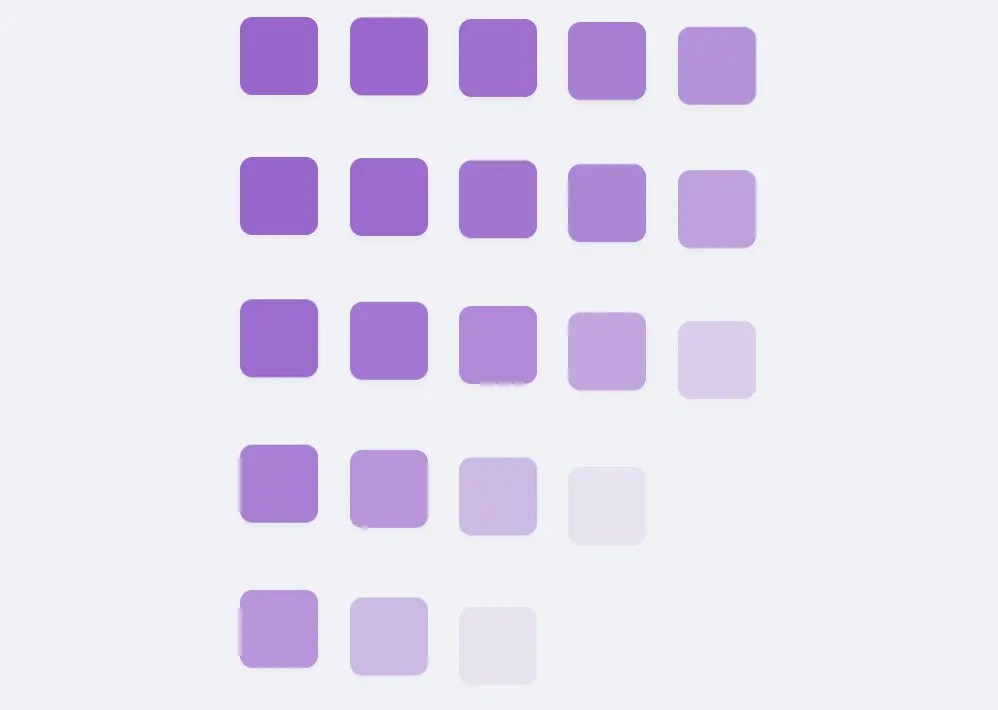
Animate When Visible is a lightweight, dependency-free JavaScript library that enables you to trigger CSS animations when elements enter the viewport.
The library uses the modern IntersectionObserver API to detect element visibility and automatically adds CSS classes for animation control.
Features:
- Staggered animation support: Automatically calculates and applies transition delays for sequential element animations.
- Dynamic content observation: Optional MutationObserver integration for handling dynamically added DOM elements.
- CSS-only animations: No JavaScript animation logic, keeping visual effects in the presentation layer where they belong.
- Configurable timing controls: Separate delay settings for normal and slow staggered animations.
- Lifecycle management: Built-in destroy and refresh methods for single-page applications.
- Directional scroll control: Optional setting to animate only when scrolling down.
See it in action:
Use Cases:
- Landing Page Reveals: Animate sections, feature lists, or testimonials as the user scrolls down the page.
- Image Galleries: Apply a staggered fade-in or slide-in effect to a grid of images, so they appear sequentially rather than all at once.
- Data-Driven UIs: When rendering lists of items fetched from an API, you can use the
observeMutationsoption to automatically animate new elements as they are added to the DOM.
How to use it:
1. Install animate-when-visible through npm for modern build systems:
# NPM
$ npm install animate-when-visible
2. Import it into your project.
import animateWhenVisible from 'animate-when-visible';
// OR
import animateWhenVisible from './lib/index.js';
3. Initialize animate-when-visible with default options.
animateWhenVisible();
4. Add the CSS class ‘awv-animate’ to the target element.
<div class="awv-animate"></div>
<div class="awv-animate"></div>
<div class="awv-animate"></div>
...
5. For staggered animations, wrap your elements in a container and add the stagger class. The library uses the container to group a set of staggered elements to prevent long delays if multiple groups appear on screen simultaneously.
<div class="awv-stagger-container">
  <div class="awv-animate awv-stagger"></div>
  <div class="awv-animate awv-stagger"></div>
  <div class="awv-animate awv-stagger"></div>
...
</div>
6. Define your animations in CSS:
./* Initial state of the element */
.awv-animate {
  opacity: 0;
  transform: translateY(20px);
  transition: opacity 0.6s ease, transform 0.6s ease;
}
/* Class added by the library when the element is visible */
.awv-visible {
  opacity: 1;
  transform: translateY(0);
}
7. All configuration options.
threshold: A number between0.0and1.0that determines what percentage of the element must be in the viewport to trigger the animation. The default is0.1.staggerDelay: The delay in milliseconds between each element in a standard stagger sequence. Defaults to100.staggerDelaySlow: The delay in milliseconds for elements marked with the slow stagger class. Defaults to250.animationClass: The CSS class added to an element once it becomes visible. The default is'awv-visible'.staggerClass: The class used to identify elements that should receive the standard stagger effect. Defaults to'awv-stagger'.staggerSlowClass: The class for elements that need the slower stagger timing. Defaults to'awv-stagger-slow'.targetSelector: The CSS selector used to find all elements that should be animated. The default is'.awv-animate'.staggerContainerSelector: The selector for parent elements that group a set of staggered items. Defaults to'.awv-stagger-container'.onVisible: A callback function that is called for each element right as it becomes visible. It receives the element as an argument. Defaults tonull.observeMutations: A boolean (true/false) that, when enabled, uses aMutationObserverto automatically detect and animate elements added to the DOM after the initial page load. Defaults tofalse.animateOnScrollDownOnly: A boolean that, if set totrue, will only trigger animations when the user is scrolling down the page. Defaults tofalse.
animateWhenVisible({
  threshold: 0.1,
  staggerDelay: 100,
  staggerDelaySlow: 250,
  animationClass: 'awv-visible',
  staggerClass: 'awv-stagger',
  staggerSlowClass: 'awv-stagger-slow',
  targetSelector: '.awv-animate',
  staggerContainerSelector: '.awv-stagger-container',
  onVisible: null,
  observeMutations: false,
  animateOnScrollDownOnly: false,
});
8. If you need to manually control the observers, you can import the destroy and refresh methods. This is useful in single-page applications (SPAs) when you’re transitioning between pages and need to clean up old observers and initialize new ones.
import { destroy, refresh } from 'animate-when-visible';
// Stop all observers
destroy();
// Re-initialize and observe all target elements again
refresh();
FAQs:
Q: How does this library handle elements that are initially visible in the viewport?
A: Elements visible during initialization receive the animation class immediately without delay. The IntersectionObserver fires intersection events for all observed elements during setup, so initially visible elements animate as expected.
Q: Can I use different animation timings for elements within the same stagger container?
A: The stagger timing applies uniformly within containers, but you can create multiple containers with different stagger classes (awv-stagger vs awv-stagger-slow) to achieve varied timing patterns. Individual elements can also have custom CSS transition durations.
Q: What happens to animations when users navigate back to previously viewed content?
A: By default, elements that have already animated retain their visible state. Set animateOnScrollDownOnly to true if you want animations to only trigger during initial downward scrolling, preventing re-animation when users scroll back up.
Q: How do I handle animations for dynamically loaded content like infinite scroll?
A: Enable the observeMutations option to automatically detect and observe new DOM elements. This uses MutationObserver to watch for added nodes and includes matching elements in the animation system without manual intervention.
Q: Can I use CSS keyframe animations instead of transitions?
A: Yes. The library just adds a class. You can use that class to trigger any CSS you want, including keyframe animations. Just be aware that the staggered delay is applied as a transition-delay, so if you want to delay a keyframe animation, you should use animation-delay in your CSS or have the JS apply that instead.
Related Resources:
Changelog:
v1.0.8 (09/23/2025)
- correct staggering logic
See Also:
 Modern Vanilla JS Library for Scrollytelling – Scrolleo
 Animate Elements On Scroll With Parallax Effect – locomotive-scroll
 Lightweight & Performant JavaScript Animation Library – MotionFlow
 Lightweight Modern Animation on Scroll Library (5.7KB) – aos.js
 Animate On Scroll Using CSS @keyframes – Scrollerful.js
 High-Performance CSS Scroll Animations with MOS.js
 Lightweight Animation Library for Modern Web – CSS Motion
 Performance-First Scroll Animation Library – WavBlock