

How to Change the WordPress Login Logo
By WPCodeBox
Learn how to automatically add image alt text in WordPress when uploading an image using a clean, efficient code snippet from WPCodeBox.

Image alt text plays a crucial role in your website’s SEO and accessibility. Manually adding alt text to every image becomes tedious as your media library grows.
You might upload dozens of images daily, each requiring unique descriptions. This repetitive task wastes time and is often overlooked when you’re busy creating content.
In this article, I’ll show you how to automatically add alt text to your WordPress images as soon as you upload them to your site.
Screen readers rely on alt text to describe images to visually impaired users. This descriptive text helps people who cannot see your images understand the content on your page. Without proper alt text, these visitors miss important visual information and have a poor user experience.
Google, on the other hand, uses alt text to understand the context of your images. Search engines cannot see images the way humans do, so they rely on text descriptions. Proper alt text helps your images rank in Google Images and improves your overall search performance.
You have two proven methods for automatically adding alt text to images. Let’s look at both methods individually.
Most SEOs already rename their image files before uploading. A file like blue-nike-shoes.jpg becomes descriptive alt text automatically. This method converts your clean filenames into proper alt text the moment you upload images.
This approach works better than other alternatives for several reasons. It costs nothing since you don’t need AI credits or expensive subscriptions. The method runs once on upload with zero external API calls or database bloat. You also control exactly what the alt text says through your filename.
Now, let’s look at the code snippet that automatically adds alt text from filenames:
<?php
/**
 * Auto-set image metadata when images are uploaded
 * Sanitizes filename and applies to Title, Caption, Description, and Alt Text
 */
add_action( 'add_attachment', 'my_set_image_meta_upon_image_upload' );

function my_set_image_meta_upon_image_upload( $post_ID ) {

    // Exit early if not an image
    if ( !wp_attachment_is_image( $post_ID ) ) {
        return;
    }

    // Get the attachment post
    $attachment = get_post( $post_ID );

    // Exit if post doesn't exist or has no title
    if ( !$attachment || empty( $attachment->post_title ) ) {
        return;
    }

    $my_image_title = $attachment->post_title;

    // Sanitize the title: replace hyphens, underscores & extra spaces with single space
    $my_image_title = preg_replace( '%\s*[-_\s]+\s*%', ' ', $my_image_title );

    // Capitalize first letter of every word (other letters lowercase)
    $my_image_title = ucwords( strtolower( $my_image_title ) );

    // Build array with image metadata to update
    $my_image_meta = array(
        'ID'             => $post_ID,           // Image ID
        'post_title'     => $my_image_title,    // Set Title
        'post_excerpt'   => $my_image_title,    // Set Caption
        'post_content'   => $my_image_title,    // Set Description
    );

    // Update Alt Text
    update_post_meta( $post_ID, '_wp_attachment_image_alt', $my_image_title );

    // Update post metadata (Title, Caption, Description)
    wp_update_post( $my_image_meta );
}
This snippet hooks into the WordPress upload process and extracts the filename. It removes hyphens and underscores, then capitalizes each word for proper formatting. The script automatically fills the alt text field along with the title, caption, and description.
Your filenames should use descriptive names with hyphens for best results. The snippet processes the filename and creates readable alt text like “Blue Nike Shoes” from blue-nike-shoes.jpg. This happens automatically without any additional steps after you upload.
Adding code directly to your theme’s functions.php file risks breaking your site. A single typo can trigger white screens or fatal errors that take your site offline. Theme updates also wipe out your custom code, forcing you to recreate everything.
WPCodeBox solves these problems by giving you a safe, controlled environment for managing your alt text automation code. It provides an intelligent code editor that protects your site from broken code. It detects most syntax errors and automatically disables problematic snippets before they cause issues. You also get WordPress autocomplete, documentation on hover, and smart code suggestions that help you write faster.

The plugin’s error handling is particularly important for upload-related code. If a snippet fails during image upload, WPCodeBox prevents errors from breaking your media library. The condition builder also lets you control which images trigger the alt text automation.
Now, let’s walk through adding this snippet to your site step by step:

Your WordPress site now automatically adds alt text to every image you upload. The alt text, title, caption, and description fill based on your filename without any manual effort.

The methods above work great for new image uploads, but existing media libraries need attention, too. You might have thousands of images already in your WordPress site without proper alt text. Manually updating each one would take countless hours.
A bulk update script can process all your existing images in one go. This fills missing alt text using the same filename logic as your upload automation. You run the script once, and your entire media library becomes optimized.
Now, let’s look at the code snippet that bulk updates existing image alt text:
/*
 * Bulk update alt text for existing images from filename
 * Creates an admin menu to run one-time bulk updates
 */
add_action('admin_menu', 'bulk_alt_text_update_menu');

function bulk_alt_text_update_menu() {
    add_management_page(
        'Bulk Alt Text Update',
        'Bulk Alt Text Update',
        'manage_options',
        'bulk-alt-text-update',
        'bulk_alt_text_update_page'
    );
}

function bulk_alt_text_update_page() {
    if (isset($_POST['bulk_update_alt_text'])) {
        $args = array(
            'post_type' => 'attachment',
            'post_status' => 'any',
            'posts_per_page' => -1,
            'post_mime_type' => 'image'
        );

        $images = get_posts($args);
        $updated = 0;

        foreach ($images as $image) {
            // Skip if alt text already exists
            $existing_alt = get_post_meta($image->ID, '_wp_attachment_image_alt', true);
            if (!empty($existing_alt)) {
                continue;
            }

            $filename = get_post($image->ID)->post_title;

            // Sanitize the filename
            $clean_title = preg_replace('%s*[-_s]+s*%', ' ', $filename);
            $clean_title = ucwords(strtolower($clean_title));

            // Update alt text
            update_post_meta($image->ID, '_wp_attachment_image_alt', $clean_title);

            // Update title, caption, description
            wp_update_post(array(
                'ID' => $image->ID,
                'post_title' => $clean_title,
                'post_excerpt' => $clean_title,
                'post_content' => $clean_title
            ));

            $updated++;
        }

        echo '<div class="updated"><p>Updated alt text for ' . $updated . ' images!</p></div>';
    }

    ?>
    <div class="wrap">
        <h1>Bulk Alt Text Update</h1>
        <p>This will update alt text for all images in your media library that don't have alt text. The alt text will be generated from the image filename.</p>
        <form method="post">
            <input type="submit" name="bulk_update_alt_text" class="button button-primary" value="Update All Image Alt Text" onclick="return confirm('This will update alt text for all images without alt text. Continue?');">
        </form>
    </div>
    <?php
}
This snippet creates a new admin menu item under Tools > Bulk Alt Text Update. The script queries all images in your media library and updates alt text for files without existing descriptions. It skips images that already have alt text, so you won’t overwrite your manual work.
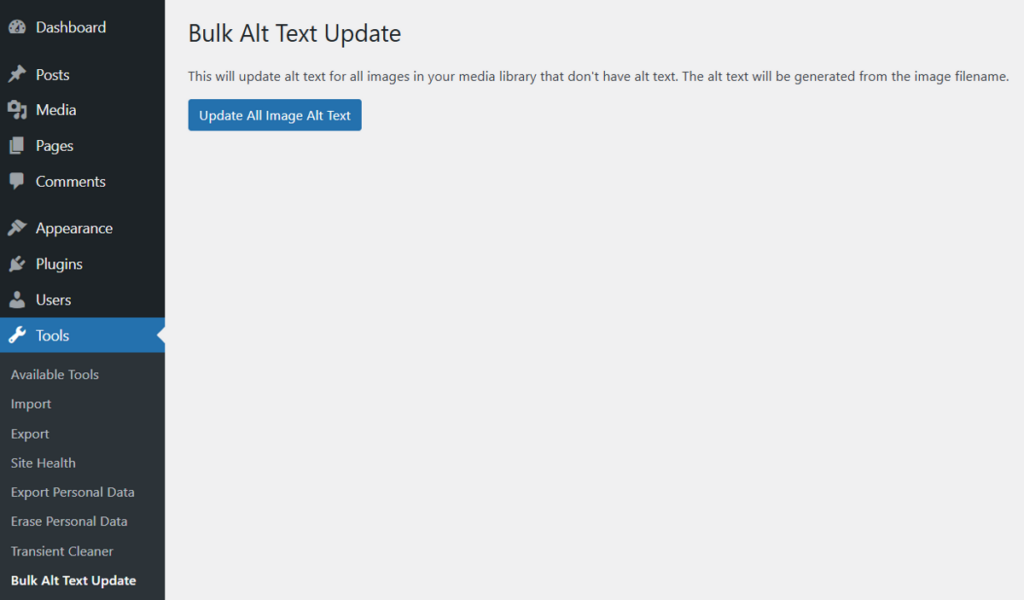
Click the button once to process your entire media library. The script reports how many images it updated and skips files with existing alt text. Add this snippet to WPCodeBox and visit the admin page to run your bulk update.
This method works best for users who upload images with generic names. Files like DSC001.jpg or IMG_2940.png don’t provide meaningful alt text, and renaming them manually isn’t practical. In such cases, you can make use of AI to analyze the actual image content and generate descriptive alt text automatically.
SEOPress offers an AI-powered alt text generation feature integrated directly into its WordPress plugin. The plugin uses OpenAI’s vision models to understand your images and create accurate descriptions. This approach works well when you have existing media libraries with poorly named files or when you batch-upload photos from cameras or phones.
The trade-off is that AI requires an OpenAI API key and credits to function. You also depend on third-party services rather than a purely native solution. The filename method from earlier provides zero-cost automation, while AI delivers better descriptions for unoptimized images.
Now, let’s set up SEOPress to generate alt text using AI:

Your site now automatically generates alt text when you upload images. The AI analyzes each image and creates descriptive text without manual input.
You can also bulk-generate alt text for existing images in your media library. Go to Media Library, switch to list view, select your images, and choose “Generate alt text with AI” from bulk actions. SEOPress processes all selected images and adds descriptive alt text to each one.
Method 1 relies on descriptive filenames to create meaningful alt text. Your file naming habits directly impact the quality of your automatically generated alt text. Here are some SEO best practices to follow when naming your image files:
Use Hyphens in Filenames
Use hyphens to separate words in your filenames like red-apple.jpg. Search engines treat hyphens as word separators, so your filenames read correctly. Avoid underscores since red_apple.jpg can confuse search engines and cause URL encoding issues.
Be Descriptive with File Names
Choose descriptive filenames that clearly describe what the image shows. A filename like woman-working-on-laptop.jpg tells search engines exactly what the image contains. Generic names like office.jpg or image1.jpg provide no context and won’t help your SEO.
Avoid Keyword Stuffing
Keep your filenames natural rather than trying to stuff multiple keywords. A filename like best-red-apple-cheap-price-sale.jpg looks spammy and hurts credibility. Focus on accurate, concise descriptions instead of forcing keywords into your file names. Good filenames help both automatic alt text generation and image search rankings.
Do image alt tags help SEO?
Image alt text helps SEO by providing search engines with descriptive information about your images. Google cannot see images directly, so it relies on alt text to understand image content and context. Proper alt text improves your chances of ranking in Google Images and contributes to better overall search visibility.
How to add image alt text in WordPress?
You can also add alt text directly when inserting images into posts or pages. Simply click on the image in the block editor and access the alt text field in the sidebar.
Can ChatGPT generate alt text for images?
GPT-4 and other modern AI models with vision capabilities can generate alt text for images. These models analyze the visual content of your images and create descriptive text based on what they identify. You can upload an image directly to ChatGPT, and it will provide a detailed description suitable for use as alt text.


