Recovery Mode is a built-in WordPress feature (introduced in version 5.2) that in some cases may help you regain access to your site when a fatal error occurs, without the need to use FTP and/or editing code directly. A fatal error is often caused by a plugin, theme, or custom code and it prevents normal login or site operation. Instead of showing a blank page or “White Screen of Death,” WordPress enters a safe mode that lets you log in to troubleshoot and fix the issue.
When does Recovery Mode activate?
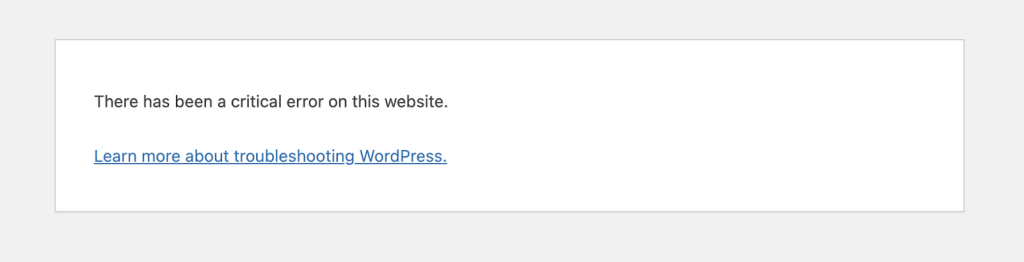
WordPress automatically activates Recovery Mode when it detects a fatal PHP error during a regular page load (not via CRON or background tasks). These errors commonly stem from incompatible or faulty plugins or themes. When this mode is activated, a user facing error screen will display on the site to explain that the site is experiencing technical difficulties so site visitors are aware:
At the same time, an email will be sent to the administrator’s email address informing them about the problems and with a link to login to the site with recovery mode activated:
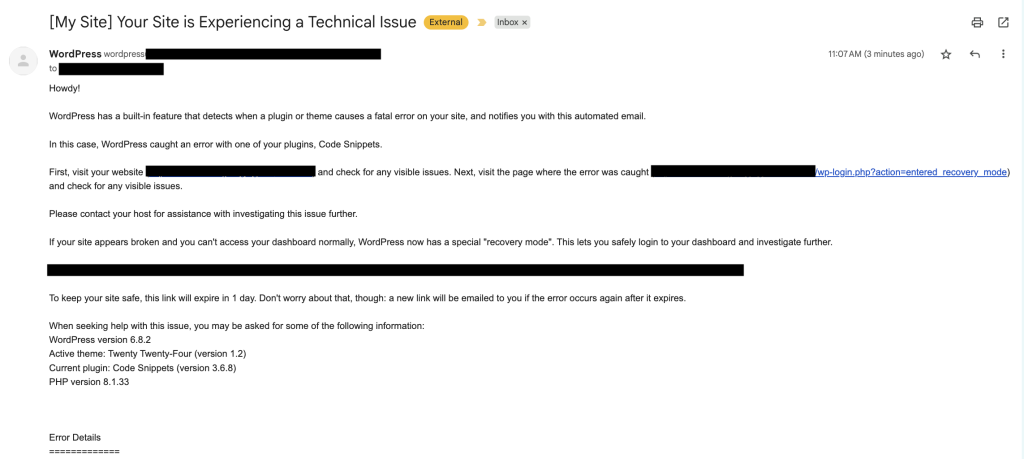
Keep in mind that WordPress loads active plugins in a set order. If your site uses a plugin to change how outgoing emails are sent, but a fatal error happens before that plugin loads, the email will be sent directly from your web server. If your server’s email settings aren’t fully trusted or its IP address is flagged for spam, the email might never reach the admin’s inbox—it could be filtered to spam or blocked entirely during delivery.
How to enter Recovery Mode
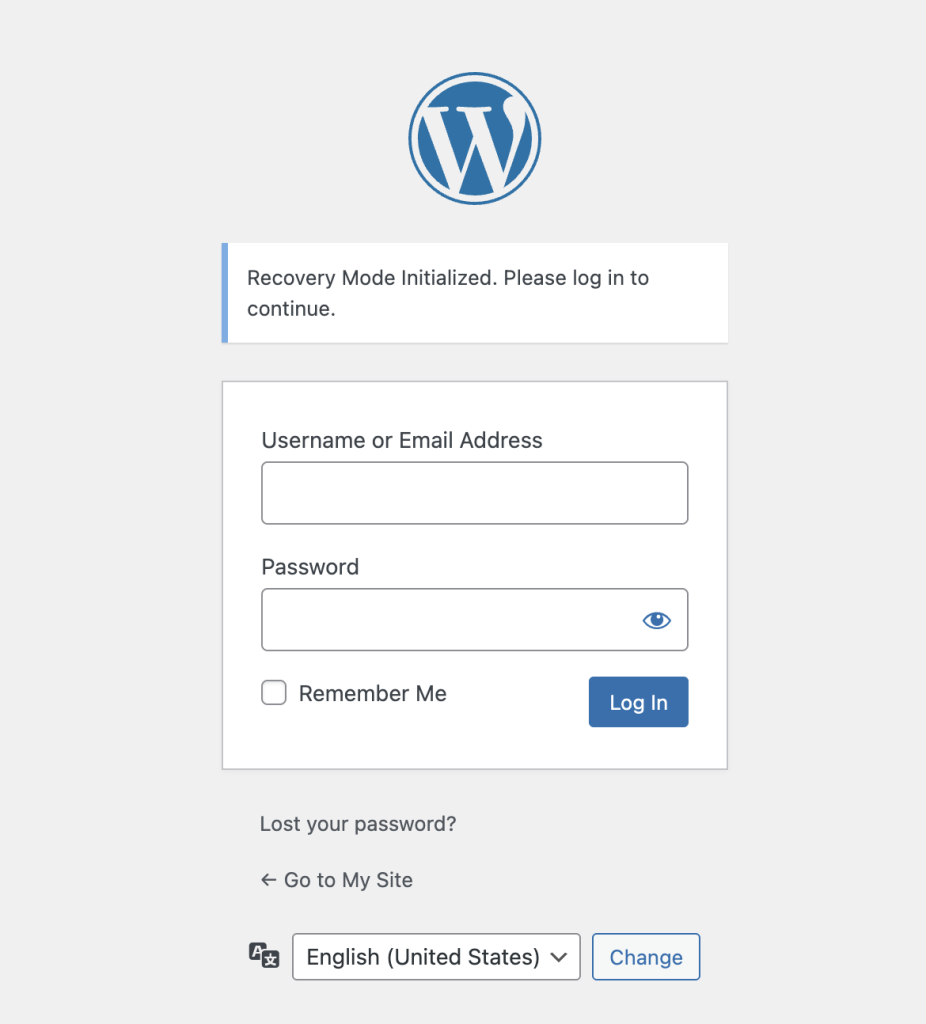
You’ll receive an email in your site administrator’s email account with a link to login and details about the error. Click the link to access your site in Recovery Mode and then proceed to login. You will see a notice about Recovery Mode upon logging in:
What happens in Recovery Mode
- Faulty plugins or themes are paused just for your admin session so you can log in safely.
- Your dashboard loads with error notices pointing to the problematic component.
- You can deactivate or fix the issue without affecting your site’s frontend users or needing FTP.
What to do in Recovery Mode
- Log in via the special Recovery Mode link received via your administrator email.
- Look for notices indicating which plugin or theme failed. Go to Plugins or Appearance > Themes to deactivate the problematic item. This is typically a temporary solution to the underlying problem, but provides an immediate resolution for the site to load.
- If you edited code (e.g. functions.php), correct it before resuming.
- Once fixed, click “Exit Recovery Mode” and verify your site works normally. Usually, you will see the ability to exit this mode in the admin toolbar.
What to do if the recovery email notification doesn’t arrive
You can still use the methods described in Advanced Administration Handbook for debugging WordPress.
If you’re using a professional web hosting provider, their customer support may be able to help you. Please contact them directly.
If you’re comfortable using FTP (or, if it’s available with your web host — an online file handler) you may temporarily deactivate one or several plugins by renaming their folder names. For instance, you may deactivate the Hello Dolly plugin using FTP by renaming the folder /wp-content/plugins/hello-dolly to wp-content/plugins/hello-dolly-1/. This method can be useful if your debug log indicates that the fatal error happens within a specific plugin or if you suspect any particular plugin of causing trouble.
Was this article helpful? How could it be improved?
Log in to submit feedback. If you need support with something that wasn't covered by this article, please post your question in the support forums.