

Descripción
PingBell for WooCommerce lets you connect key store events (orders, order status changes, add to cart) to your PingBell counters.
Use it to:
- Show live sales counters on landing pages.
- Track order flow as it happens.
- Fire counters when shoppers add products to their cart.
- Spectate counters live on a TV/dashboard, or embed them into your site.
What this plugin does
- Adds a PingBell settings page under WooCommerce PingBell.
- Lets you paste your PingBell API key and fetch all counters on your PingBell account.
- Lets you create connections between:
- A specific PingBell counter, and
- A WooCommerce event (e.g. Order created, Order completed, Product added to cart).
-
Automatically creates a WooCommerce webhook for each connection with this delivery URL format:
https://app.pingbell.io/log?id=PINGBELL_ID
-
Lets you delete a connection, which also deletes the underlying WooCommerce webhook.
- Shows buttons per connection:
- Edit Counter – opens the PingBell edit page for that counter.
- View Counter – opens the live spectator view for that counter.
Supported WooCommerce events
Out of the box, the plugin supports these webhook topics:
order.created– New order createdorder.updatedorder.deletedorder.status_pending_to_processing– Order paidorder.status_processing_to_completed– Order completedorder.status_completed– Any status Completedaction.woocommerce_add_to_cart– Product Added to Cart (custom action)
You can point the same PingBell counter at multiple events, or create separate counters per event.
External service
This plugin sends event data from your WooCommerce store to the PingBell service.
- Service URL: https://app.pingbell.io
- Data is sent using HTTPS via WooCommerce’s webhook mechanism.
You will need a PingBell account and API key to use this plugin.
Capturas

PingBell settings page – enter your API key and fetch counters. 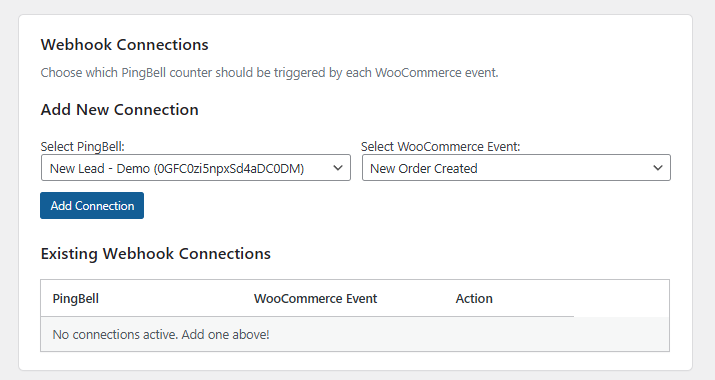
Add new connection – map a PingBell counter to a WooCommerce event (including “Product Added to Cart”). 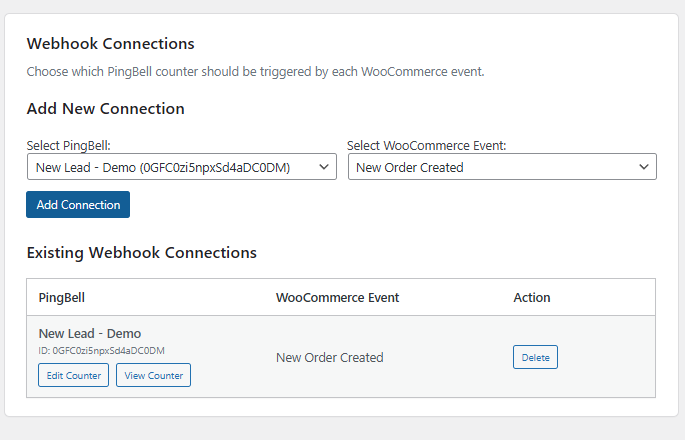
Existing Webhook Connections – see all connections with Edit Counter, View Counter, and Delete buttons. 
WooCommerce Webhooks list – webhooks created automatically with delivery URLs pointing to PingBell.
Instalación
- Install the plugin
- Upload the plugin folder to
/wp-content/plugins/
or - Upload the ZIP via Plugins Add New Upload Plugin.
- Activate
- Go to Plugins Installed Plugins and activate PingBell for WooCommerce.
- Connect PingBell
- Go to WooCommerce PingBell in the WordPress admin.
- Paste your PingBell API key (from your PingBell account).
- Click “Fetch PingBells” to load your counters.
- Create connections
- Under Add New Connection:
- Choose a PingBell from the dropdown.
- Choose a WooCommerce Event (e.g. “Product Added to Cart” or “New Order Created”).
- Click “Add Connection”.
- A WooCommerce webhook will be created automatically with the correct PingBell URL.
- Embed or spectate
- In the Existing Webhook Connections table:
- Click Edit Counter to configure the counter in PingBell.
- Click View Counter to open the live spectator view (for dashboards/TVs/iframes).
- Use PingBell’s embed options to place the counter where you like.
Preguntas frecuentes
-
Do I need a PingBell account?
-
Yes. This plugin connects your WooCommerce store to your PingBell account via an API key.
You can create an account and counters on the PingBell website. -
Where do I find my PingBell API key?
-
Log into your PingBell account and go to your account/settings section.
Copy the API key and paste it into WooCommerce PingBell PingBell API Key. -
What WooCommerce events are supported?
-
Currently:
- New order created
- Order updated
- Order deleted
- Order paid (pending processing)
- Order completed (processing completed)
- Any order status completed
- Product added to cart (custom action topic:
action.woocommerce_add_to_cart)
More events can be added in future updates.
-
What URL does the plugin use for webhooks?
-
Every connection creates a WooCommerce webhook pointing to:
https://app.pingbell.io/log?id=PINGBELL_IDThe
PINGBELL_IDis the ID of the selected PingBell counter. -
Does deleting a connection also delete the WooCommerce webhook?
-
Yes. Clicking Delete in the PingBell settings:
- Deletes the associated WooCommerce webhook using the WooCommerce API.
- Removes the connection from the plugin’s internal settings.
-
Does this plugin store any personal data?
-
The plugin itself stores only:
- Your PingBell API key (in WordPress options).
- A list of your PingBell counters (IDs + names).
- The mapping between counters, WooCommerce events, and webhook IDs.
Event payloads are sent directly from WooCommerce to PingBell via webhooks.
The data inside those payloads is whatever WooCommerce includes for that webhook topic (order details, totals, etc.). Please review PingBell’s privacy policy for how that data is handled on their side. -
Will this slow down my store?
-
WooCommerce sends webhooks asynchronously. The plugin simply configures the webhooks; it does not add heavy logic to your checkout flow. Under normal circumstances, the performance impact on your store is negligible.
-
Can I disable the integration temporarily?
-
You can:
- Delete specific connections in WooCommerce PingBell, which removes the corresponding webhooks.
- Or disable the plugin entirely from Plugins Installed Plugins.
Reseñas
No hay reseñas para este plugin.
Colaboradores y desarrolladores
«PingBell for WooCommerce» es un software de código abierto. Las siguientes personas han colaborado con este plugin.
Colaboradores
Traduce «PingBell for WooCommerce» a tu idioma.
¿Interesado en el desarrollo?
Revisa el código , echa un vistazo al repositorio SVN o suscríbete al registro de desarrollo por RSS.
Registro de cambios
1.0.0
- Initial release of PingBell for WooCommerce.
- Fetch PingBells via API key and create basic event-to-counter connections.