
In this tutorial, you will learn how to use Amazon S3 bucket with a Windows based virtual machine. This is a really great third party application to increase your storage capacity for a lower cost.
Follow the below steps in order to attach your S3 bucket to your V2 cloud hosted desktop
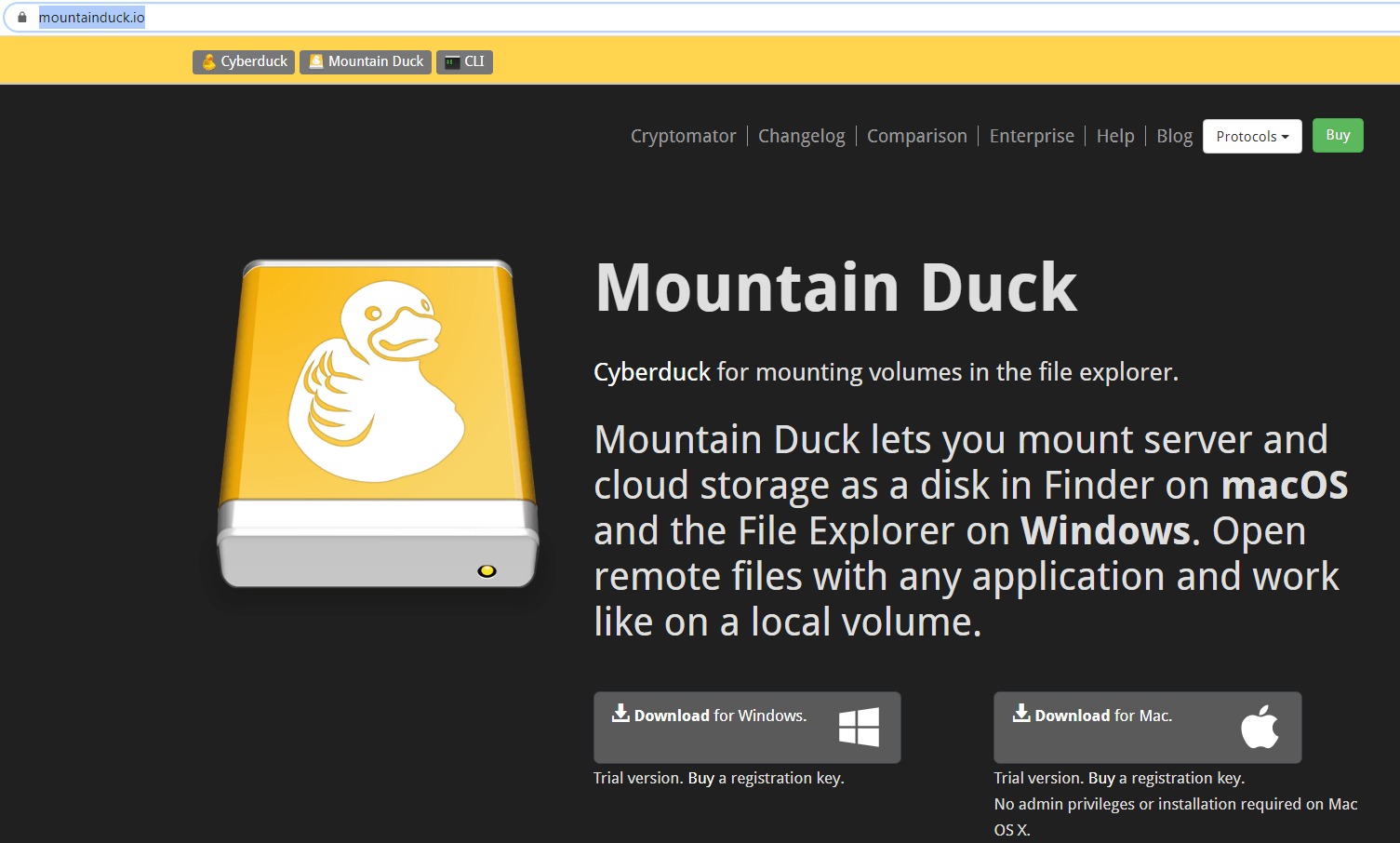
Download Mountain Duck software from mountainduck.io
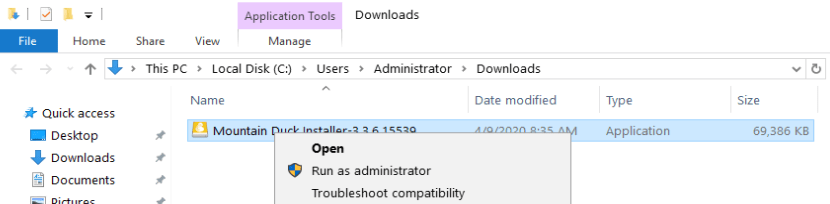
Go to the downloads folder and execute the installer as administrator
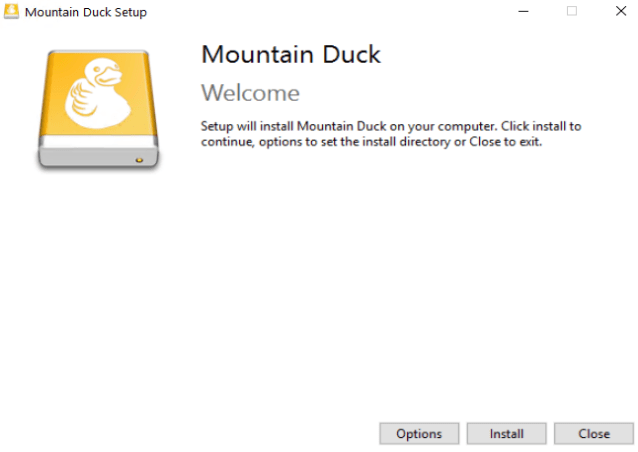
In the Mountain Duck Setup screen click Install button.
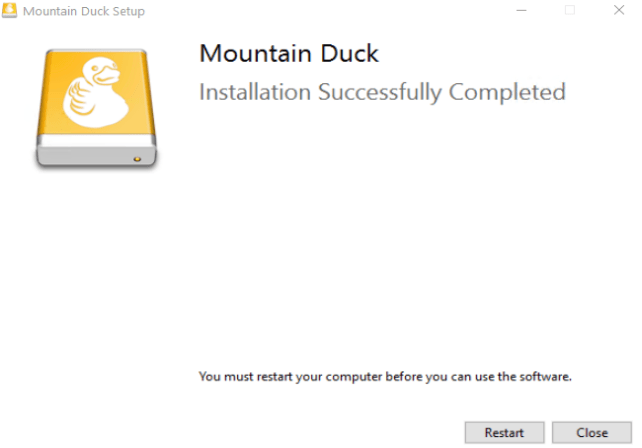
When finished click Restart or restart your cloud computer later to complete the installation.
When restart is finished, reconnect to your Cloud computer and open Mountain Duck program from the Windows start menu.
Click any of the options shown below, Buy, Continue or Request Trial. For more information about licensing you can check this link
The program will open in the main screen as shown below:

In the drop-down menu select Amazon S3 and fill the options depending on your needs, input your Access Key ID, Secret Access Key, select a Drive Letter (it will be the shown as a drive in windows explorer) and when ready click Connect.
Now you should have access to your Amazon S3 Bucket from Windows file explorer.



