

外掛說明
PDF Menu Linker is a small admin-only plugin that makes it easy to add and manage PDF links in navigation menus.
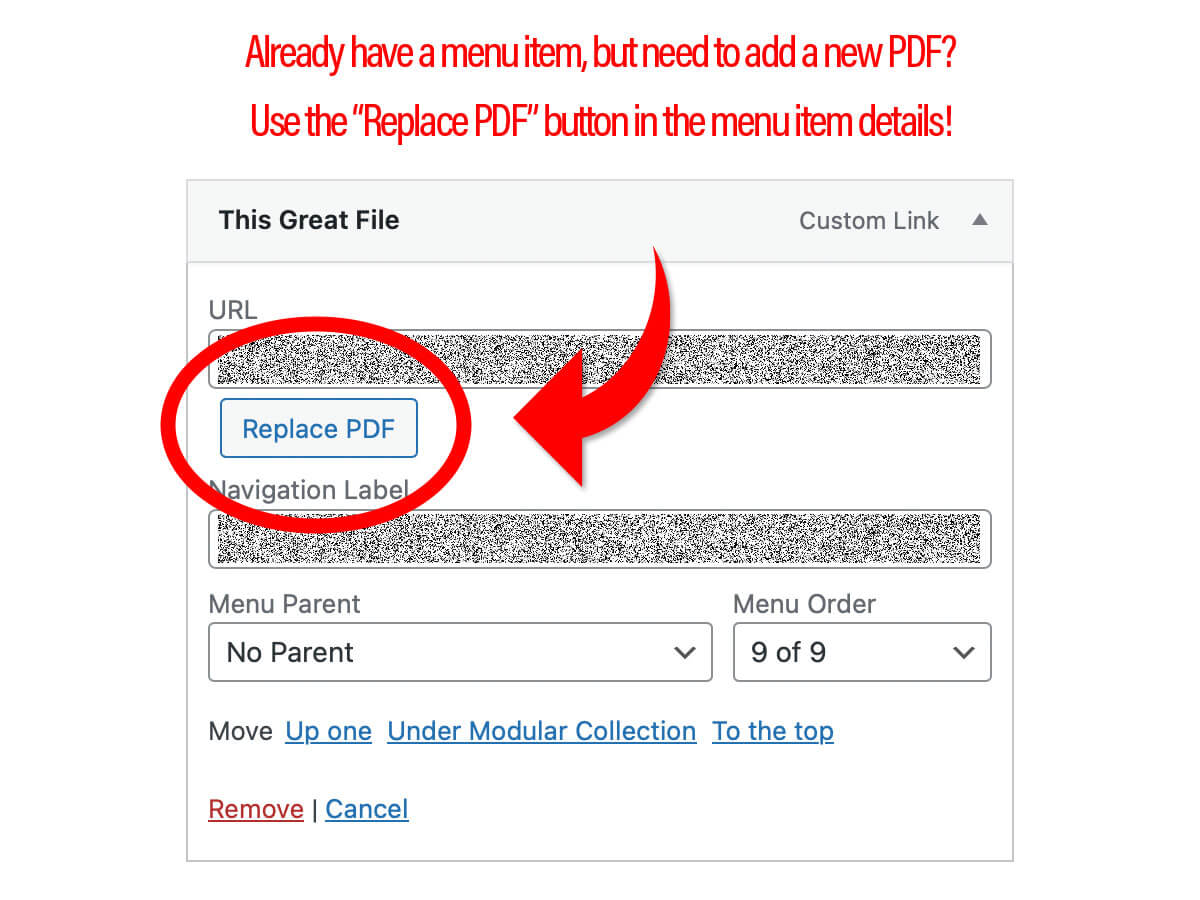
It adds a dedicated PDFs panel to Appearance Menus, and a Replace PDF control on PDF menu items, so you can swap files without recreating menu items or touching URLs manually.
Features
- PDFs panel on the Menus screen – Select a PDF from the Media Library and add it directly to any navigation menu.
- Automatic link text and title – Link Text and Link Title fields default from the PDF filename (without the extension), and can be edited before adding.
- One-click Add to Menu – Creates a standard custom menu item that opens the PDF in a new tab, using WordPress core menu APIs.
- Replace PDF on existing items – For custom links that point to a
.pdf, a Replace PDF button appears next to the URL field so you can change the file without changing labels. - Native WordPress UX – Uses WordPress’ Media Library, menu editor, styling, permissions, and nonces. No custom tables or front‑end changes.
Requirements
- WordPress 6.0 or higher
- PHP 7.4 or higher
- A user role with permission to manage menus (typically users who can
edit_theme_options).
Usage
Add a new PDF menu item
- In the WordPress admin, go to Appearance Menus.
- Ensure a menu is selected (or create one and save it).
- In the Add menu items column, open the PDFs panel.
- Click Select PDF and choose a file from the Media Library (PDFs only).
- Optionally adjust Link Text and Link Title.
- Click Add to Menu.
- A new Custom Link pointing at the PDF will appear at the bottom of the menu structure and will open in a new tab on the front end.
Replace the PDF for an existing menu item
- In Appearance Menus, locate a Custom Link whose URL ends with
.pdf. - Expand the menu item.
- Click Replace PDF next to the URL field.
- Choose a new PDF from the Media Library and confirm.
- The URL field updates to the new PDF, while Navigation Label and Title Attribute remain unchanged.
螢幕擷圖

安裝方式
- Upload the
pdf-menu-linkerfolder to the/wp-content/plugins/directory, or install the plugin via the Plugins screen. - Activate PDF Menu Linker through the Plugins Installed Plugins screen.
常見問題集
-
No. The plugin only runs in the admin and creates standard custom menu items that WordPress already knows how to render.
-
PDFs are normal media attachments in the Media Library, and menu items are standard
nav_menu_itemposts with their usual meta fields. The plugin does not create custom tables.
使用者評論

2026 年 1 月 9 日
This simplifies and speeds up the process for adding updated menus to the site
參與者及開發者

變更記錄
1.0
- Initial release.