

Description
Try Free Demo | 🚀 Try Pro Demo | Documentation
Float Menu is a free WordPress plugin to create and place a unique floating menu on your website. The extension allows users to get access to the functions of the panel regardless of its position on the resource. The menu moves along with the scrolling of the page and always remains in visibility.
🌟 Features:
- Floating menu that stays on the screen.
- Lightweight & fast – does not slow down your site.
- Easy customization – change colors, icons, and position.
- Works with any WordPress theme.
✅ Enhance usability and user experience with Float Menu!
—
Main features
The Float Menu makes user interaction with the site more comfortable. It can increase the conversion by improving the functionality of the web resource. Among the capabilities of the tool:
🎨 Customization & Design
- Create unlimited menus.
- Horizontal or vertical menu layout.
- Position menu left or right.
- Choose from 4 button shapes: Square, Round, Rounded, Rounded-out.
- Adjust spacing between menu items.
- Set custom colors for buttons and icons.
- Use 2000+ Font Awesome 7 icons.
- Load demo configuration – get started quickly with pre-made examples.
- Test Mode – show the menu only to administrators while configuring settings.
🔗 Link & Accessibility Options
- Open links in a new window.
- Set custom attributes:
ID,Class,rel,aria-label. - Hide the menu on small or large devices.
⚡ Performance & SEO
- Lightweight and fast – does not slow down your site.
- SEO-friendly structure for better indexing.
—
🚀 Ideal Uses
Float Menu is highly versatile and can be used for various scenarios:
– Instant Messaging: Add quick-access buttons for WhatsApp, Telegram, Skype, or Messenger.
– Floating CTA: Keep “Book Now” or “Get a Quote” buttons always visible to boost sales.
– Mobile App Experience: Create a professional bottom or side navigation bar for mobile users.
– Quick Support: Provide easy access to your Help Center, FAQs, or Support tickets.
– Anchor Navigation: Build a floating table of contents to navigate between long page sections.
– Social Presence: Link to your Instagram, Facebook, LinkedIn, or TikTok profiles.
– Membership Access: Quick links for Login, Register, and User Account pages.
– Special Offers: Highlight time-limited promotions or discount codes.
—
Pro Version
Unlock advanced features and take your floating menus to the next level with Float Menu Pro!
🎨 More Customization
- Create submenus – supports a single submenu level.
- Hold label open – keep menu labels visible.
- Vertical alignment – align menus precisely.
- Extra text & label fonts – display detailed descriptions with custom fonts.
- Custom icons – upload your own icons.
- Icon settings – rotate, flip, and customize icons.
🔗 More Functional Links
- Translate page – one-click website translation.
- Social sharing – share content via Facebook, Twitter, etc.
- Next/Previous Post – quick navigation between posts.
- Forced download – enable direct file downloads.
- Smooth scrolling – scroll to sections effortlessly.
- Scroll to top/bottom – quick page navigation.
- Print page – allow users to print the current page.
- Search integration – add search functionality to the menu.
🎯 More Display Rules
- Show/hide based on scroll – smart visibility control.
- User role permissions – restrict menu by user role.
- Multilingual support – adjust menus per language.
- Schedule menu display – control when menus appear.
- Activate by URL – display menus only on specific pages based on URL parameters.
- Activate by referrer URL – show menus based on where users came from.
📊 Analytics & Performance
- Google Analytics tracking – track menu interactions and clicks.
- Browser compatibility control – hide menus for outdated browsers.
🔥 Bonus Feature: Built-in Popup System
- Create popups – trigger popups when clicking menu items.
👉 Upgrade to Pro and unlock all premium features!
—
🚀 Maximize Results with Complementary Plugins
Enhance your website’s functionality and user engagement by combining Float Menu with these powerful tools from Wow-Company:
- Popup Box (Modal Windows) – Create stunning popups and triggers for your menu items to boost conversions.
- Counter Box – Easily add counters, timers, and countdowns to highlight urgency and events.
- Calculator Builder – Build custom interactive calculators for lead generation or user utility.
- WP Coder – Add custom HTML, CSS, PHP, and JS code snippets to your site and menus easily.
- Herd Effects – Use social proof notifications to increase user trust and performance.
👉 Explore all plugins by Wow-Company
Support
Search for answers and ask your questions at support center
Screenshots
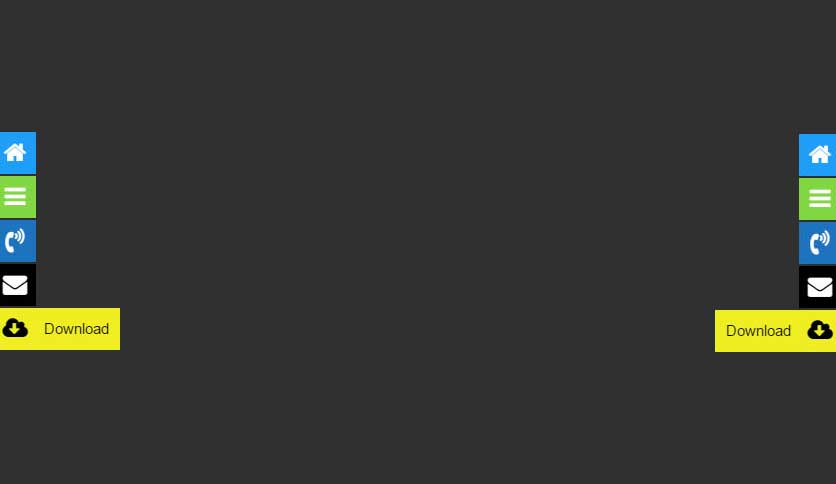
Menu
Installation
📌 Option 1: Install via WordPress Admin
- Go to
PluginsAdd Newin your WordPress admin panel. - Search for “Float Menu” and click Install Now.
- Click Activate after installation.
📌 Option 2: Install Manually
- Download the plugin ZIP file.
- In WordPress admin, go to
PluginsAdd NewUpload Plugin. - Click Choose File, select the downloaded ZIP file, then click Install Now.
- After installation, click Activate.
📌 Option 3: Install via FTP
- Download and unzip the plugin ZIP file.
- Upload the extracted
float-menufolder to/wp-content/plugins/via FTP. - Go to
Pluginsin WordPress admin and click Activate.
🚀 Getting Started
- Go to the
Float Menusection in the WordPress admin panel. - Click
Add Newto create your first menu. - Configure the menu settings.
- Click Save to apply changes.
FAQ
-
If the menu does not appear, it may be due to caching. Try the following steps to resolve the issue:
- Clear your browser cache – press
Ctrl + Shift + R(Windows) orCmd + Shift + R(Mac) to refresh the page without cache. - Clear your WordPress cache – if you’re using a caching plugin (e.g., WP Rocket, W3 Total Cache, LiteSpeed Cache), clear the cache in the plugin settings.
- Purge server cache – if your hosting provider uses caching (e.g., Cloudflare, SiteGround, or Nginx cache), clear the cache from your hosting panel.
- Disable caching temporarily – if the issue persists, try disabling the caching plugin and check if the menu appears.
- Clear your browser cache – press
-
Check if the “Test Mode” option is enabled in the menu settings. If Test Mode is activated, the menu will be visible only to the site administrator (logged-in users with administrative rights). This is useful for configuring and testing your menu before making it public.
-
How do “Mobile Rules” work on mobile devices?
-
When Mobile Rules are enabled, the menu uses a two-step interaction on touch screens: the first click shows the menu item label (tooltip), and the second click opens the link. This prevents accidental navigation and improves user experience on mobile.
-
Yes! You can set the menu to appear on the left or right side. If the menu is hidden behind other elements or overlaps them, you can adjust the Z-index value in the settings. You can also use Side Offset and Top Offset to move the menu away from the edges or header.
-
Yes, starting from version 7.1, you can choose between a Vertical or Horizontal layout. Horizontal layout is great for creating sticky bars or toolbars at the top or bottom of your site.
-
The plugin includes an Import/Export feature. You can export all your menus or a single menu as a JSON file and then import it into another WordPress site where Float Menu is installed. This is perfect for developers moving from staging to production.
-
How can I implement the scenarios mentioned in the “Ideal Uses” section?
-
Most of these cases are very easy to set up:
– Messaging & Social: Create a new item, pick a Font Awesome icon, and add your link (e.g.,https://wa.me/yournumberfor WhatsApp).
– Floating CTA & Support: Use a standard link to your “Contact” or “Booking” page. In the Pro version, you can open these in a Popup for a better conversion rate.
– Mobile Experience: Switch to the Horizontal Layout, position it at the bottom, and enable Mobile Rules to optimize label display on touch screens.
– Anchor Navigation: Use links like#section-idto jump to specific parts of your page. The Pro version adds Smooth Scrolling for this.
– Membership Access: Use the dedicated Login, Register, and Logout item types already included in the plugin. -
Yes, the plugin includes Responsive Visibility settings. You can use the “Hide on smaller screens” option to disable the menu on mobile devices or “Hide on larger screens” to hide it on desktops. You can also set custom breakpoint values (in pixels) for these rules.
-
Yes! In the Lite version, you can:
– Show the menu on all pages of your website.
– Insert the menu manually using a shortcode[Float-Menu id="1"]to display it only where needed.In the Pro version, you can set advanced display rules to show the menu only on specific pages, categories, post types, or based on user roles.
-
Yes, you can create and display multiple menus on a single page. Each menu has its own settings and can be controlled separately.
-
How do I use the plugin on a multisite?
-
If you’re using a Multisite WordPress installation, do not activate the plugin for the entire network. Instead, activate it individually on each site where you need it.
-
No, Float Menu is lightweight and optimized for speed, ensuring minimal impact on your website’s performance.
-
🌍 Compatibility & Accessibility
-
- RTL Ready – Full support for right-to-left languages (Arabic, Hebrew, etc.).
- Accessibility – Includes
aria-labelsupport for screen readers. - Page Builder Friendly – Works perfectly with Elementor, Divi, Gutenberg, and Beaver Builder.
Reviews


Contributors & Developers
“Float menu – awesome floating side menu” is open source software. The following people have contributed to this plugin.
Contributors

“Float menu – awesome floating side menu” has been translated into 2 locales. Thank you to the translators for their contributions.
Translate “Float menu – awesome floating side menu” into your language.
Interested in development?
Browse the code, check out the SVN repository, or subscribe to the development log by RSS.
Changelog
7.2.3
- Added: “Ideal Uses” section with 8+ real-world scenarios for the plugin.
- Added: Comprehensive FAQ entries covering Z-index, Horizontal layout, and Mobile Rules.
- Improved: Security by adding data escaping in the admin list table to prevent XSS.
- Improved: Overall code quality and fixed typos in internal properties and UI.
7.2.2
- Updated: Font Awesome library upgraded to version 7.1.
- Updated: Style for the items list
7.2.1
- Fixed: save the links
7.2
- Updated: Font Awesome library upgraded to version 7.0.0.
7.1.5
- Fixed: Minor bugs in the Maker class when upgrading from versions earlier than 7.0
7.1.4
- Fixed: class for display the menu
7.1.3
- Improved: Styles of small elements in the admin panel
- Improved: Reorganized method order in the DBManager class for better readability and maintenance
7.1.2
- Fixed: minor bug with js
7.1.1
- Fixed: minor bug with mobile devices
7.1
- Added: Option to set box size for menu items
- Added: Ability to load example/demo configuration
- Added: Horizontal menu layout
- Added: Custom border radius for each menu item’s icon and label
- Improved: Admin UI for better usability
- Fixed: Menu position issue on mobile devices
7.0.7
- Fixed: minor issue with settings
7.0.6
- Added: RTL support
7.0.5
- Fixed: Minor bug in Maker.php class
7.0.4
- Updated: Helpful links in the settings page.
- Updated:
wp-color-picker-alphato version 3.0.4.
7.0.3
- Fixed: Shortcode did not work correctly with some page builders.
7.0.2
- Fixed: Link width issue – added
max-widthproperty to the menu item.
7.0.1
- Fixed: Custom icon size issue.
7.0
🚀 Major Update
- Added: Categories for FontAwesome icons.
- Added: New “Icon Text” option.
- Added: Option to duplicate menu items.
- Updated: FontAwesome to version 6.7.1.
- Updated: Icon Picker with improved functionality.
- Changed: Rewritten script from jQuery to Vanilla JS for better performance.
- Removed: Velocity.js to reduce script size.
- Fixed: Minor bugs and improved overall stability.
6.1.4
- Fixed: Database update process.
6.1.3
- Fixed: Nonce verification logic for improved security.
6.1.2
- Fixed: Structure of database table columns.
6.1.1
- Fixed: Minor issue with saving links.
6.1
- Added:
aria-labelattribute for accessibility. - Fixed: Link saving issue.
6.0.6
- Updated: FontAwesome icon library.
6.0.5
- Fixed: Main icon in the admin menu.
- Fixed: Minor bugs.
- Updated: Translation files.
6.0.4
- Fixed: Rewritten “Mobile Rules” function.
6.0.3
- Updated: FontAwesome to version 6.6.
6.0.2
- Improved: Plugin interface.
6.0.1
- Fixed: Minor bug.
6.0
🚀 Major Update
- Added: “Menu Size” option for controlling icon and label size.
- Added: New item types – Login, Logout, Lost Password, Register.
- Added: Ability to change menu status and mode from the menu list.
- Added: Bulk actions for changing menu status and mode.
- Changed: Improved user experience for managing floating menus.
5.1.1
- Fixed: Dynamic property issue for PHP 8.2.
5.1
- Updated: FontAwesome to version 6.4.2.
5.0.3
- Fixed: Sanitization issue when saving links.
5.0.2
- Fixed: Minor bugs in the page-list.
5.0.1
- Fixed: Minor bugs.
5.0
🚀 Major Update
- Added: Hover colors for menu items.
- Added: Emoji support in item labels.
- Improved: Styles and scripts for better performance.
4.3.2
- Fixed: Issue with inserting special links.
4.3.1
- Fixed: Security update.
4.3
- Added: Ability to add shortcodes to pages.
4.2
- Added: Export/Import functionality.
4.1.1
- Fixed:
IDattribute handling for menu items.
4.1
- Added:
relattribute support for links. - Fixed: Issues with “Test Mode” and “Activated” options.
4.0
🚀 Major Update
- Added: Activate/Deactivate menu option.
- Added: Test Mode for previewing menus before publishing.
- Changed: Redesigned admin panel styles.
3.5.3
- Fixed: Minor bugs.
3.5.2
- Fixed: Minor bugs.
3.5.1
- Fixed: Conflict with old FontAwesome library.
3.5
- Updated: FontAwesome icons to version 5.15.3.
- Fixed: Minor bugs.
3.4
- Fixed: Issue with links containing
#. - Updated: FontAwesome icons to version 5.14.
3.3.1
- Fixed: FontAwesome conflict with older versions.
3.3
- Changed: AJAX update mechanism.
- Fixed: Minor bugs.
- Fixed: FontAwesome compatibility issue.
- Optimized: Code for cache plugins.
3.2.2
- Fixed: Conflict with old versions of the icon font.
3.2.1
- Fixed: Minor translation bug.
3.2
- Updated: FontAwesome to version 5.11.2.
3.1
- Added: Mobile rules support.
3.0.1
- Fixed: Script minification issue.
3.0
🚀 Major Update
- Added: Option to disable FontAwesome 5 on the front-end.
- Added: Custom attributes (
CLASSandID) for menu items. - Updated: FontAwesome to version 5.6.
- Changed: Redesigned admin panel.
- Fixed: Minor bugs.
2.2
- Fixed: Color picker alpha issue in WordPress 4.9.
2.1.1
- Fixed: Main Class structure.
- Fixed: Update mechanism.
- Fixed: Support page issue.
2.1
- Fixed: Minor bugs.
- Added: Support page.
- Added: Discount page.
2.0
🚀 Major Update
- Added: Option to hide menu on mobile.
- Changed: Redesigned admin panel.
1.2.1
- Fixed: Admin panel styling.
- Fixed: Toggle and sortable menu items.
1.2
- Fixed: Minor bug.
1.1
- Added: Sort function.
- Fixed: Minor bug.
1.0.1
- Fixed: Font icon issue.
1.0
- Initial release.