Category: Blog

New Tab Panel for Displaying Directory Types in WordPress Tooltip Control Panel, WordPress Tooltips Free 9.9.9

Hi, dear users of wordpress tooltips plugin, I hope this message finds you in good spirits and that you’re enjoying wonderful times with your family. 🙂

In the WordPress Tooltip directory control panel, we added a tab panel to display different types of directories in separate tabs

A couple of days ago, the instructor reached out to us once more with an exciting new feature suggestion. She began by greeting and expressing their fondness for the WordPress Tooltip plugin. They raised a specific issue regarding the user directory setup in the global settings panel.

The user noted that the settings for the WooCommerce directory appeared first, followed by the job board directory, then the WordPress post directory, and the WordPress page directory, with the user directory settings positioned last. They mentioned that scrolling through this arrangement with their mouse wheel was cumbersome and inquired if there was a more efficient solution to improve usability. 🙂

The developer of our wordpress tooltip plugin expressed that this is an excellent suggestion, leading us to create WordPress Tooltips Pro Plus version 31.8.8 to implement the functionality for tooltip users. 🙂

Then, our developer decide move this function to wordpress tooltips free plugin and wordpress tooltips pro version too 🙂

We integrated a Bootstrap tab panel into the WordPress Tooltip directory control panel to present various types of directories in distinct tabs. We captured some screenshots, and here’s how it looks:

1: Woocommerce product directory tab:

In addition, wordpress tooltips plugin support WooCommerce Tooltips

2:WordPress Job Board directory tabjob directory tab

3:WordPress post directory

4:wordpress page directory tab:

When the instructor accesses the global settings panel for the directory, they just need to click on the “User Directory” tab. From there, they can configure all the settings within that tab. This design is intuitive and enhances the visual appeal for WordPress Tooltip administrators.

Additional changes in WordPress Tooltips Free Plugin 9.9.9

To optimize load speed, we ensure that Bootstrap.js and Bootstrap.css are only loaded in the WordPress Tooltip directory global settings panel. On other pages within the WordPress admin area, these files will not be loaded.

We  also rewrite description of directory 🙂

Thank you for the valuable feature request for the WordPress Tooltip plugin! If you have any more suggestions, please feel free to reach out to us.


Thanks, have a blessed day with your family

Best Regards,

WordPress Tooltips Plugin Support

Tagged with: , , , ,

Support for creating and editing WordPress Tooltips in the Gutenberg editor, WordPress Tooltips free plugin version 9.9.3 has been released

Hi, dear users of  WordPress Tooltip plugin, I hope this message finds you are doing well and that you having a  happy day with your family   We just released version 9.9.3 of the wordpress tooltips free plugin. Based on feedback from wordpress tooltip users, here are changes in wordpress tooltips version 9.9.3:

1 We fixed issues with a few admin tooltips in global settings that were not working well

2 We changed a few titles in global settings to make them clearer and more attractive

3 We now support using Gutenberg to create and edit wordpress tooltips terms

We received a suggestion from a WordPress Tooltips plugin user -> ‘It would be absolutely fantastic if your Tooltip plugin could allow users to create tooltips directly within the Gutenberg interface,’ she said:

A Bright Idea for Tooltip Creation in Gutenberg!

Dear Tooltip Plugin Developers,

I hope this message finds you well and thriving! As an avid user of both WordPress and the powerful Gutenberg editor, I wanted to share a little suggestion that I believe could make a brilliant difference for many users.

Gutenberg offers such a wealth of dynamic features that the traditional WordPress editor simply can’t match, especially with its delightful drag-and-drop functionality. The ability to effortlessly rearrange blocks and customize layouts is a game changer! Not to mention, the reusable blocks allow us to keep our posts consistent and save precious time—a win-win if you ask me.

With all these fantastic capabilities, it would be absolutely fantastic if your Tooltip plugin could allow users to create tooltips directly within the Gutenberg interface. Imagine how convenient it would be for users to seamlessly incorporate tooltips into their content, all while utilizing the inherent strengths of Gutenberg.
This integration could empower the community even further, making it easier to enhance posts with helpful information at our fingertips. It would not only enrich the user experience but also elevate the content we create.

Thank you for considering this suggestion! I believe it could truly take your plugin to the next level and make the lives of many WordPress users that much brighter.

Cheers and best wishes,

Our developer of the WordPress Tooltip plugin reviewed her ticket, and we believe this is a great suggestion. As a result, we developed WordPress Tooltips Pro Plus version 31.4.8 and wordpress tooltips free 9.9.3 to implement the user’s amazing feature request

How to Create and Edit Tooltips with the WordPress Gutenberg Editor?

1: Login wordpress as admin.

2: In the WordPress dashboard, go to the “Tooltips” menu. Then, click on the “Global Settings” sub-menu item, you will open the “Global Settings” panel, it looks like this:

Tooltips Global Settings in wordpress tooltips 9.9.3

3: In ‘Global Settings,’ you will find a new option: ‘Enable Gutenberg Editor for Tooltips’ at the bottom of the panel.  If you want to use GutenBerg to edit tooltip terms, please enable this option. Then, when you create or edit a WordPress tooltip term, you will notice that you are using the WordPress Gutenberg editor, not the wordpress classic custom post type editor.

4: If you want to revert to using wordpress default custom post type editor, please simply disable it 🙂

Conclusion:

Supporting Gutenberg for creating and editing wordpress tooltips can greatly enhance user experience and functionality:

1. Improved User Experience

Intuitive Interface: Gutenberg’s block-based editor provides a more visual and user-friendly interface compared to the classic editor. Users can easily see how their content will look as they build it.

Drag-and-Drop Functionality: Users can easily rearrange blocks, which makes it simpler to customize the layout of their posts and pages without needing to know HTML or CSS.

2. Enhanced Customization

Blocks for Custom Content: With Gutenberg, developers can create custom blocks that allow users to add specific features or layout options tailored to their needs. This can significantly enhance what users can do with their wordpress tooltips.

Reusable Blocks: Users can create reusable blocks for frequently used content snippets, making it easier to maintain consistency across posts and saving time.

3. Better Content Management

Previewing Changes: Users can preview their changes in real time, which helps in ensuring that the end result meets their expectations before publishing.

Version Control: Gutenberg provides better support for revisions, allowing users to easily track changes over time and revert to previous versions if necessary.

4. Future-Proofing

Alignment with WordPress Trends: The shift towards the block editor is part of WordPress’s evolution. Supporting Gutenberg helps ensure that the plugin remains relevant and compatible with future updates to the WordPress core.

Access to New Features: As WordPress continues to develop new features for the block editor, supporting Gutenberg allows users to take advantage of these enhancements seamlessly.

5. Increased flexibility

Supports Additional Features: By adopting Gutenberg, wordpress tooltips can utilize additional capabilities within the editor, such as rich media, layout options, and dynamic content, which were more challenging to implement in the classic editor.

Easier Integration with Other Plugins: Many modern WordPress plugins are designed to work with Gutenberg. Supporting Gutenberg can ensure better compatibility and functionality with these tools.

Overall, supporting Gutenberg for wordpress tooltips not only meets user expectations for a modern editing experience but also empowers them with tools to create richer, more engaging content. This aligns with broader trends in web content management and enhances the flexibility and power of WordPress as a content management system.

Thanks for the great feedback! We offered the WordPress FAQ Pro Plugin as a token of appreciation to those who suggested it, and we also providing  a significant discount on the wordpress tooltips pro plus version as a thank you 🙂

Thanks, have a blessed weekend with your family 🙂

Best Regards,

WordPress tooltips plugin support


Tagged with: , , ,

How Do WordPress Tooltips Work?

WordPress Glossary:

Tagged with:

What is WordPress Tooltip Plugin?

Wordpress Tooltip Plugin

The WordPress Tooltip Plugin is a tooltip solution for WordPress, designed to help you create colorful, diverse, and elegant tooltip styles to present content to your users. It features lively and refined animation effects, all while saving valuable screen space.

When the users hover over a tooltip item in post, the colorful tooltip popup box will display with the animation effect. You can add video, audio, image, and even other content which generated by other wordpress plugins like QR code, Amazon AD, Google Map in tooltip popup box via wordpress standard editor, for example, WooCommerce Tooltips, or and even third-party data sources, endless content possibilities. It is very easy to use.

Tagged with: ,

What are WordPress Tooltips?

WordPress Tooltips are small popup boxes that provide additional information such as text,charts, images, videos (video-tooltip), audio, Google Maps, QR codes, wiki entries, and more. WordPress Tooltip boxes will pop up when users hover over an element on your pages. The element can be a word in your post, a search form input box, an image, a widget…, among others. The WordPress Tooltip plugin supports adding tooltip effects to any element within posts or displaying them in WordPress menus, comments, contact forms, E-Commerce products , forums, etc. It features attractive effects and many other amazing components and add-ons, such as Bullets Screen, and more

Tagged with:

WordPress smart content link free by wordpress tooltips 1.2 released

Hi Dear  WordPress Tooltip plugin users, hope this message find you are doing well and having wonderful days with your loved ones Maybe you known, we developed wordpress smart content link pro version in a few years before, now we are happy to report you, we just released wordpress smart content link free version 🙂

What is Smart Content Links plugin?

Enhance your website content and elevate user experience with the dynamic feature of smart content links. By seamlessly integrating links to relevant content within your wordpress blog posts, you can offer readers valuable context, information, and resources without interrupting their reading flow or diverting attention away from your core message. These intelligent links are meticulously crafted to provide readers with instant access to supplementary resources and information, simplifying their exploration of the subject matter at hand.

Harnessing the power of AI NLP (Natural Language Processing), smart content links assist in creating optimal internal link structures – a crucial element in boosting your SEO performance. By simply inputting a keyword in the backend, smart content links will rank posts based on their relevance to the keyword through advanced AI algorithms.

Experience the impact of smart links on your content today and witness firsthand how they can elevate your website’s appeal and engagement!

Discover the benefits of incorporating the smart content links plugin into your website:

Smart content links are a powerful tool for enhancing your website’s content and improving the user experience:

Elevate Your Content: Smart content links serve as a robust instrument for enriching the content on your website and enhancing the overall user experience. By seamlessly integrating links to relevant content within your articles and wordpress blog posts, you can furnish your readers with valuable context, information, and resources without disrupting their reading flow or diverting their attention from your primary message.

smart content link

Instant Access to Resources: The essence of smart content links lies in their ability to offer users easy access to supplementary information and resources that are closely tied to the topic under discussion. Enhance User Engagement: For instance, when crafting an article on content marketing, you can incorporate smart links directing readers to additional resources on SEO, email marketing, or social media marketing. This not only enriches their understanding of the subject but also facilitates their exploration of related content on your website.

Boost SEO Performance: Smart content links play a pivotal role in enhancing your site’s search engine optimization by providing search engines with a deeper understanding of the content on your wordpress. By interlinking relevant content, you signal to search engines that your website is a valuable repository of information for users interested in a specific topic. This, in turn, can bolster your site’s visibility in search results and drive increased traffic to your platform.

Empower Your Online Presence: In essence, smart content links are a versatile tool for refining the user experience on your website, offering valuable context and resources to your audience, and optimizing your site’s SEO. Whether you are a wordpress blogger, content marketer, or website owner, integrating smart content links is indispensable for enriching your wordpress content and expanding your reach.

Tagged with: ,

Member Directory by WordPress Tooltips Plugin 2.2.3 released, Showing only the users from a designated user ID list in the member directory

Hi, esteemed users of WordPress Tooltip, I hope this message finds you well and having happy days with your loved ones.  Recently, we received a ticket from a WordPress tooltip plugin user regarding our member directory. After reviewing our member directory documentation, the user discovered that our WordPress Tooltips Pro Plus version offers numerous impressive member directory functions that align with their requirements. Consequently, they kindly requested that we incorporate the “Showing only the users from a designated user ID list in the member directory” function into the free version of our member directory plugin. 🙂

We are very happy to know the member directory user like our functions, we are happy to add more and more function from our wordpress tooltips pro plus plugin into member directory plugin 🙂

We have released Member Directory by WordPress Tooltips Plugin 2.2.3, in which support showing only the users from a designated user ID list in the member directory 🙂

How to Show only the users from a designated user ID list in the member directory

1: Crete a new wordpres post and insert the wordpress tooltip member directory shortcode :

[ member_directory  include=’653,5,864’]

2: Inside the front-end page, you’ll see that the member directory will only display information about users with user IDs 653, 5, and 865.

What is WordPress Member Directory Plugin?

Member Directory, list all members on your site based on user roles, to help your company build a company address book, school portfolio… and so on, help users contact each other more easier


How to Use WordPress Member Directory Plugin

Member directory plugin is very easy to use, just inser wordpress Member directory shortcode [ member_directory ] in any page or post, you will get a member directory with pretty member directory template quickly


Further Reading: How to list specific type of users using fuzzy search in member directory of wordpress tooltip plugin?

Further Reading: How do I display only users with specific user roles from a specified list of user IDs in the Member Directory?

Further Reading: How to only display users with a specific role in the member directory and hide users from the specified user ID list?

Further Reading: How to disable a specified user from appearing in the member directory?

Further Reading: How to display only the users in a specified user ID list in the member directory?

… etc

What are tooltips?

Tooltips are small popup box with more information like video /  audio / image / google maps / QR code / wiki / text… and so, tooltips box will pop up when users hover over an element in your pages, the element can be a word in your post, a search form input box, an image in your page, a widget on your sidebar.. and so on, wordpress tooltip plugin supports add tooltip effect on any element on the wordpress posts, or display on wordperss menu, comment, contact form, woocmmerce product, bbpress forum, buddypress activity…etc, with pretty effects and many more little amazing components and addons, for example, Bullets Screen 🙂

What it WordPress Tooltip Plugin:

WordPress tooltip pro is a tooltips plugin for wordpress, which be designed to help you create colorful, varied and graceful tooltip styles to present the content to your users, with lively and elegant animation effects, and save your valuable screen space.

When the users hover over an item, the colorful tooltip popup box will display with the animation effect. You can add video, audio, image, and even other content which generated by 3rd wordpress plugins like QR code, Amazon AD, Google Map in tooltip popup box via wordpress standard editor, it is very easy to use.

WordPress Glossary:

Thanks for the feature request to our member directory plugin, if you have any more question, please don’t hesitate to contact us, have a blessed day with your family

Best Regards,

WordPress tooltips plugin support

Tagged with: , ,

WordPress FAQ plugins free 3.8.3 Released, Enhanced Code Security

Hello, esteemed users of WordPress FAQ Plugin! I hope this message finds you well and enjoying joyful moments with your loved ones. 🙂

Thank you for using our wordpress FAQ free plugin, as a user of wordpress FAQ plugin you may know that we developed this plugin many years ago, these days we have been refactoring our wordpress FAQ plugin, we are adding new FAQ features while rewriting our code to the wordpress specification and rewriting the code of our wordpress FAQ plugin.

Today, we used wp_nonce_field and check_admin_referer inside each form to validate the legitimacy of the form and the request according to the wordpress specification:

The wp_nonce_field() function in WordPress is used to generate a security token (Nonce). Nonce is a security mechanism to prevent Cross-Site Request Forgery (CSRF) attacks and verify the legitimacy of forms and requests. The function serves the following purposes:

  1. Form validation: By using wp_nonce_field(), a hidden field containing a unique security token is generated for a form. When the form is submitted, the server can validate this token to ensure the form submission is legitimate and prevent CSRF attacks.
  2. Request validation: In operations like links, button clicks, and AJAX requests, wp_nonce_field() can be used to generate a hidden field with a security token. The server can validate this token to confirm the legitimacy of the request.

On the server-side code, the validity of the security token can be checked using functions like check_admin_referer() or wp_verify_nonce(). Some important points to note:

  • The security token generated by wp_nonce_field() is typically meant for single-use, ensuring a new security token is used for each request.
  • The security token is user-specific, meaning each user will have their own security token. Thus, operations requiring verification of the security token should ensure that the user is logged in.
  • This function is commonly used in backend development, custom plugin, or theme development to enhance form and request security. For more detailed information about Nonce, you can refer to the official WordPress documentation.

Now we are adding more and more functions in wordpress FAQ free plugin from wordpress FAQ pro plugin, if you check our wordpress FAQ pro plugin, you will find it is easy to use plugin, users can select pretty FAQ templates from pre-designed template, custom FAQ style in back-end via a few clicks, Support use OpenAI ChatGPT to generate high-quality content for WordPress F.A.Q and wordpress post automatically, support WooCommerce Product FAQ, Responsive FAQ, Multiple FAQ Templates, FAQs grouped by category, specified number of FAQ items for each FAQ:

What is WordPress FAQ Plugin?

WordPress FAQ plugin is a powerful & fast jQuery FAQ solution to help wordpress blodder create / manage / edit FAQs easily, select default pretty FAQ template and custom FAQ style in back-end via a few clicks. With wordpress faq plugin, it is very easy to create and show accordion FAQs, display FAQs grouped by category…etc, it is developed by wordpress tooltips team based on many wordpress tooltips user’s feedback.

Further Reading: What is WordPress Tooltips Plugin?

Features in WordPress FAQ Plugin

* Lightweight & load fast & easy to use, just 3 minutes, you can build your own wordpress FAQ lists via wordpress custom post type editor and manage with wordpress custom post type manager
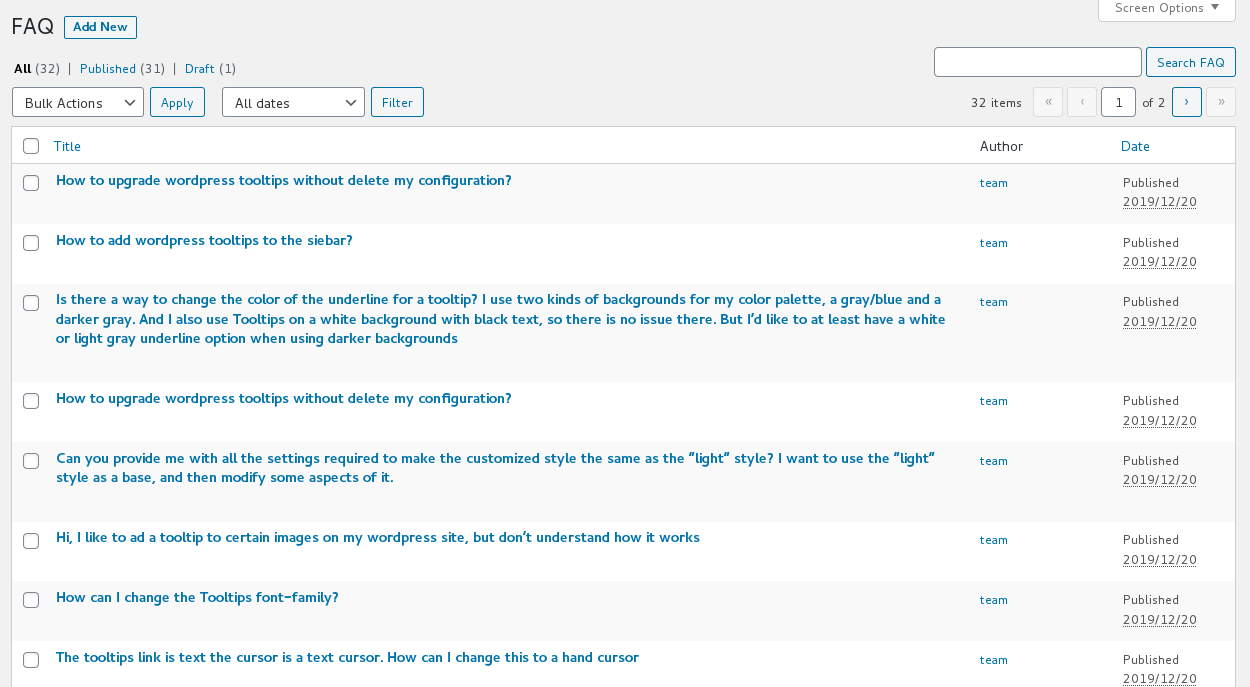
wordpress FAQ posts

wordpress FAQ posts

* AI FAQ — Support use OpenAI ChatGPT to generate WordPress F.A.Q automatically

You can use OpenAI ChatGPT to general high-level FAQ content automatically, just enter your OpenAI ChatGPT key in wordpress FAQ global settings panel:

WordPress FAQ Pro 4.0.6 Global Settings

And then click AI FAQ sub menu item, you will open “Generate FAQ via OpenAI” panel:

Generate FAQ via OpenAI

As you can see, just enter the FAQ title, and wrie prompt, max tokens, select to publish as FAQ post or wordpress post or wordpress page,  then click “Generate Content Automatically”, then OpenAI ChatGPT will generate high-quality wordpress FAQ or wordpress post for you automatically.
Please read more step by step document about AI FAQ

* Responsive FAQ design

* Add / Edit / Delete / Manage FAQ in Frequently Asked Questions via WYSIWYG wordpress standard editor

adding new wordpress FAQ plugin

adding new wordpress FAQ plugin

* Using any existed post or even custom post as FAQ:  WordPress blogger can use any eixted wordpress posts / pages / custom post type / ….etc as content of a wordperss faq item, it help you build FAQ page every fast and super easy, you do not need to re-write duplicated content in FAQ — that is not good for SEO,  we will reuse the post title as FAQ title, and reuse the post content as FAQ content  

Using existed post as wordpress FAQ post

Using existed post as wordpress FAQ post

* One click to change wordpress FAQ template and wordpress FAQ schema

By default, we have included a few pretty pre-designed faq template for you, what you need just select a pre-designed template via a few clicks:

In back end of WordPress FAQ Plugin:

wordpress faq preset templates

wordpress faq preset templates

In front end, a sample of wordpress FAQ  plugin Blue-Yellow template:

using different templates for wordpress FAQ plugin

using different templates for wordpress FAQ plugin

* Custom FAQ Color from wordpress color picker:

WordPress FAQ pro plugin support customize background color of FAQ question and FAQ answer, customize font color of FAQ question and FAQ answer, customize font size of FAQ question and FAQ answer, customize FAQ accordion activate item border color…etc, If you want to custom wordpress faq style, you do not need to add CSS manually, what you need to do  is just select color from color picker:

wordpres faq pro custom faq title background color

* Create FAQ categories and assign FAQ posts to categories

WordPress FAQ Categories

WordPress FAQ Categories

* Support display FAQs grouped by category, you can use You can use shortocde

to show FAQs by categories, in the case you have multiple products, you can build multiple faq lists which grouped by FAQ categories


* Support create multiple FAQs for different usage

* Support all morden browser

* Unlimited FAQs

* Unlimited FAQ categories

* In frontend, you can use shortocde

AI Tooltips for WordPress -- Revolutionizing Content Creation

In the latest update, WordPress Tooltip introduces a groundbreaking feature called AI Tooltips, powered by OpenAI's ChatGPT. This innovative addition enables users to effortlessly generate high-quality content for tooltips. With just a tooltip title and prompts, the plugin generates comprehensive content in minutes, revolutionizing content creation for WordPress Tooltip users.

To utilize AI Tooltips, users must download and install the latest version of the WordPress Tooltip Pro+ plugin (version >= 19.4.8). Following installation, they can input their OpenAI API key and create AI-generated tooltips. The generated content is conveniently saved as drafts, allowing users to review and edit it before publishing.

Please check our detailed document How to use artificial intelligence to automatically generate tooltip content.

The article also provides clear guidance on registering as an OpenAI user and obtaining an API key. It introduces OpenAI Max Tokens, a utility token facilitating access to OpenAI's services and promoting the development of AI tools and technologies.

Furthermore, the article defines tooltips, highlighting their importance in providing users with contextual information when they hover over website elements. While tooltips enhance user experience, it emphasizes the significance of maintaining clear and self-explanatory design to ensure seamless navigation on websites. This comprehensive update signifies a significant leap in content creation and user interaction within the WordPress Tooltip ecosystem.

Can I click links in tooltip content box?

Yes, you can:

1: Log in to your WordPress admin area.

Click on the "Tooltips Style" submenu.

This will open the "Tooltip Box Customize Setting" panel, which appears like this: tooltips font size link in wordpress tooltips pro plus Tooltips Style panel

Take a look at the "Tooltip Hidden When" option, where you can select the "Stay Open A While" option.

On the front end of your website, when you hover over WordPress tooltip terms, you can now click on links, videos, or audios within the tooltip pop-up box.

Does this plugin slowed the site speed?

No, we have a quick load speed, everything is CSS and Javascript, no image are used,also we do not use a lot of DOM, our algorithm make everything running quickly.

In wordpress tooltips pro plus version, we have used many methods to optimize the page loading speed of WordPress and tooltip, for example: we move all inline javascript code of tooltip term in a static javascript file to speed up page load speed, we load tooltips js codes / directory js codes / in wordpress footer, we move inline css code of tooltip in static css file to speed up wordpress pages automatically...etc

please check our detailed document at:

Improved tooltip performance optimization module which automatically optimize the loading speed and performance of wordpress post in WordPress Tooltips Pro Plus 25.1.8

How to Move all inline javascript code of tooltip term in a static javascript file to speed up page load speed? Supported by wordpress tooltips pro plus 20.4.8

Optimized WordPress tooltip running speed, wordpress tooltips pro plus 25.0.8

Rewrote the summary function to improve page load speeds, wordpress tooltips pro plugin 18.5.6

WordPress Tooltips Pro Plugin 15.5.2 Released, Increase Loading Speed of WordPress Pages

WordPress Tooltips Plugin 9.7.2, Optimized Code to Speed up Your Page Load Time

...and more

Hello, I bought and installed the plugin, added a "tooltip" I can see the highlighted word, but no window is displayed on the word

Hi,Hope this message find you are doing well and have happy days  with your family. 🙂Thanks for the message, we are very happy to help you solve the problem 🙂In general, this may caused by a cache plugin which compressed javascript code of plugins, sometimes it will caused similar problem, would you please try:1: In wordpress tooltips back-end, navigated to global settings, and locate to the option "load tooltip javascript in the wordpress header or wordperss footer".Please try to load tooltip js code at the footer, if it not work, then try to load js code at the header. 🙂2: You can also enable jquery-migrate in global settings.3: If this do not work , in cache plugin side, try to disable the option of compress javascript codesYou can check our detailed step by step document with screenshot at:How to let WordPress Tooltips Plugin Works Well With a Few Cache plugin?How to Let WordPress Tooltips Plugin Works Well With WP-Optimize?please note, in some advanced wordpress theme, they have js compress option, please try to disable it.If it still not work, sometimes, we found a few plugin using the same tooltip code like ours,and some of them did not follow wordpress API to return the content value correctly, in this case, lease tell us the URL which have the problem, I will assign our developer to check it and solve it for you asap 🙂Thanks, have a blessed day with your family 🙂Best Regard,Wordpress tooltip support

How can I change the Tooltips font-family?

You can change "Tooltip Title Font Family" and "Tooltip Content Font Family" via a few clicks in tooltips style settings panel, it looks like this:wordpress tooltip style settings panel 14.1.6For expert developer you can add more font-family for the class qtip-content and the class tooltipsall in tooltip.css. 🙂

How could I add a tool tip to an image? Not to a text phrase

Please check out detailed step by step document with screenshot at: WordPress Image Tooltips DemoAlso we have many wordpress tooltip shortcodes support add tooltip to images and icons, please check: Wordpress tooltip shortcode

How to add tooltip effect on dashicons / icons in wordpress post?

WordPress tooltips pro plugin have supported this feature with a few methods,Please check our detailed step by step document with screenshot at How to add tooltip effect on dashicons / icons in wordpress post?

How to add wordpress tooltips to the sidebar?

Please logged in your admin back end, enter control panel, click "widget" in "appearance" area, you can find "Tooltips" in the "available widget", drag "Tooltips" into sidebar, input the title, you will see all your tooltips appeared in the sidebar.

How to Create Your First Tooltips In WordPress Tooltips Pro Plugin?

How to customize tooltip style like background, font color, underline, shadow, direction…?

How to customize wordpress tooltip z-index value via one click?

How to deactivate free version of Wordpress tooltips?

How to disable wordpress tooltip for a specific page

When using the standard WordPress editor to add or edit a post/page (URL: https://yourdomain.com/wp-admin/post-new.php), you'll notice a "Disable Tooltip for this Page" metabox on the right-hand side. By checking the "Disable tooltips for this page" option in this metabox, our plugin won't automatically show tooltips on this post/page.For example, if your posts contain the word "wordpress" and you have a corresponding tooltip term and content, our plugin would add tooltip effects (such as dotted or double lines) and display the tooltip popup when users hover over the word "wordpress". However, if you disable tooltips for this page, even if the word "wordpress" appears in your post, we won't apply tooltip effects or show the tooltip content when users hover over it.Please note that even though tooltips won't work automatically on this page, you can still manually add tooltips using the tooltip shortcodeYou can find more detailed document with screenshots at:How to disable wordpress tooltips for a specific wordpress page  

How to displays the value of the alt attribute, rel attribute and title attribute  as a tooltip when you hover over an image?

How to download wordpress tooltips pro plugin?

How to Enable / Disable Glossary Search Bar on WordPress Tooltip Glossary Page?

Please check our detailed wordpress tooltip glossary document at: How to Enable / Disable Glossary Search Bar on WordPress Tooltip Glossary Page? 🙂

How to Enable/Disable WordPress Tooltips for Images?

How to Get Wordpress Tooltip Document?

Please check our URL of wordpress tooltip document, in wordpress tooltip plugin document, we have wrote 416 detailed document for wordpress tooltip users, our document include video,screenshot, step by step detailed how to use text, it is very easy to understand how to use wordpress tooltip plugin 🙂

How to import WordPress Tooltips From csv?

How to upgrade wordpress tooltips without delete my configuration?

Upgrading the WordPress Tooltip plugin is easy and safe. Our built-in upgrade function detects your current version and upgrades your settings and options without any data loss.

To get the latest version, please log in to your account at https://tooltips.org and download the new plugin. To install it, first deactivate and delete the old version from your WordPress admin area, then click the "Upload" link in the plugins panel, select the new ZIP file, and activate it. You'll see new menus and updates in the 'Tooltips Pro' menu, and the upgrade process is safe and won't cause any data loss.

How to upload and activate wordpress tooltips pro plugin?

How to use 7 preset stylesheet and beautiful color schemes?

How to use WordPress Tooltip Keyword Matching Mode?

How to use wordpress tooltips pro plugin?

Using the WordPress Tooltips Pro plugin is incredibly easy. Our focus is on providing a user-friendly system and ensuring a seamless user experience. To add, edit, or delete tooltips, simply log in to the admin panel and navigate to the "Tooltips" menu. From there, you can access the "All Tooltips" submenu to edit or delete existing tooltips, or the "Add New" submenu to create new ones.

The plugin fully integrates with the standard WordPress TinyMCE editor, allowing you to add various types of content such as text, images, songs, videos, and more.

When it comes to creating tooltips, we utilize the post title as the keyword and the post content as the tooltip content. For example, if your post title is "WordPress" and the content includes the phrase "we love WordPress," our plugin will automatically detect the word "WordPress" within the post. It will highlight the word with a dotted line and display a tooltip popup when users hover over it, revealing the content "we love WordPress."

If you wish to customize the style of your tooltips, simply go to the "Tooltips Style" menu. We provide a range of preset stylesheets and beautiful color schemes, including White, Blue, Light, Dark, Red, Cream, and Green. You can easily select your preferred style from the "tooltips box style" options.

Furthermore, you have the flexibility to customize the tooltip styles further in the "customize setting" box. Here, you can adjust the width, background, font color, and more. Once you've made your desired changes and clicked the "update now" button, the styles will be applied to your front page. Even if you forget to include units like "px" for the width or "#" for colors, the plugin will still function correctly. Alternatively, if you prefer manual customization, you can find the tooltips.css file in the tooltips folder within your theme's style.css.

In the wordpress tooltips pro plug version, we have hundreds of options to help users quickly build powerful and beautiful tooltips, glossary, bullet screen, directory...etc

How to customize glossary settings?

I just saw that is displayed a tooltip on the logo? How to remove it?

Hi,Thanks for the message 🙂About tooltips on the logo, would you please try:1: In wordpress tooltip global settings panel, navigate to "enable tooltips for image" option, then select "I want to disable tooltips for image"If you want to enable tooltips function for image yet, then you can try:2: In wordpress tooltip global settings panel, locate to "tooltips for mage setting“ option,  select "use rel attribute in img tag as content of tooltips for image"We have detailed step by step document with screenshot at:How to Avoid WordPress Tooltip Displayed on the Site Logo and Other Images?Hope this have a little help 🙂Thanks, have a blessed day with your family 🙂Best Regard,Wordpress tooltip support

I purchased Tooltips Pro, where is the download?

After completing your purchase, you will be redirected to the download link once you log in to our site. Please note that our hosting provider, dreamhost, may experience occasional instability. In such cases, after logging into your account, you can find the download link by clicking on the "Download" menu item located at the top menu bar.

I used the free version, When I add a url to the tooltip content is shows up fine but once the user’s mouse leaves the keyword to click on the link, the tooltip disappears so they can not click on the link… any help would be great… love the plugin

Thank you for using our free version. In the tooltips pro version, we provide support for your requirements. We offer 9 trigger methods in the backend: Mouse Over, Double Click, Click, Mouse Leave, Mouse Enter, Mouse Out, Mouse Move, Mouse Up, and Mouse Down. If you want the tooltip box to remain visible and allow your clients to click on a link, you can select the "Click" or "Double Click" option. This way, when users click on the link, they will be redirected to the specified URL either in a new window or in the current page.

I used your free version on my site, very great plugin! Works perfect for me. before this plugin I’ve tried a couple and this is the best.The color of the box is perfect but I would like to changes the style of the text in the box. Is this possible?

Thank you for using our free version. In the tooltips pro version, we offer 7 preset stylesheets and beautiful color schemes: White, Blue, Light, Dark, Red, Cream, and Green. Additionally, in the tooltips pro version, you have the flexibility to customize the entire stylesheet either in the customization panel or in the CSS file with ease. You can set any color, opacity, width, show method, hidden method, and more for your tooltip box according to your preferences.

The tooltips link is text the cursor is a text cursor. How can I change this to a hand cursor

Yes you can change it, we support customize your advance style of tooltips, please open tooltips.css which in our tooltip pro plugin folder, add the code lines like this:
.tooltipsall{
cursor:pointer;
}
It will works like what you wanting, have a good day. 🙂

Where is the CSS File of WordPress Tooltip Plugin?

Typically, users don't need to modify CSS codes directly in the CSS file. Instead, you can easily set up tooltip style options with just a few clicks. Here's how it works:

When accessing the WordPress tooltip style settings panel (version 14.1.6), you'll find various options to customize the tooltip appearance. It allows you to choose different styles and customize them according to your preferences. tooltips font size link in wordpress tooltips pro plus Tooltips Style panel

However, we also provide an alternative method for developers who want to customize the styles further using a CSS file. If you have activated the Tooltips Pro plugin, please check the page source, and you'll see that the tooltips.css file is loaded:

html:

<link rel="stylesheet" href="http://yourdomain.com/wp-content/plugins/tooltips-pro/tooltips.css" type="text/css" media="screen" />
By opening the tooltips.css file, you will find some commented code sections serving as a reference. Within these sections, you can edit the CSS properties. For example:

css:

.classtoolTips0 { color: red !important; }

to show all accordion faq in any wordpess post or page

* In frontend, users can toggle between hiding and showing large amount of faq content via a few clicks
and more…

Tagged with: ,

WordPress smart content link with tooltips 3.5.0 released

Hi Dear  WordPress Tooltip plugin users, hope this message find you are doing well and having wonderful days with your loved ones 🙂 We have received a ticket from a user of the WordPress Smart Content Link with Tooltips plugin, who informed us:

Hello, I am both a user of the WordPress Tooltips Pro and the Smart Content Link plugins. I received an update notification for WordPress Tooltips Pro, and when I downloaded the latest version from my account, I discovered that the Smart Content Link plugin had also been updated with several new versions. I was wondering if it is feasible to receive notifications for new version updates in the Smart Content Link plugin, similar to the notifications I receive for WordPress Tooltips Pro updates.

Our developer for the WordPress Tooltips plugin has recently created a new version of the Smart Content Link plugin, specifically version 3.5.0, to accommodate this feature request. By upgrading to Smart Content Link 3.5.0, you will receive notifications whenever a new version of the plugin is released.

Smart content links offer a dynamic solution to enhance your website’s content and elevate the user experience. By seamlessly incorporating links to relevant resources within your WordPress blog posts, you can effortlessly provide valuable context, information, and references to your readers, without disrupting their reading flow or diverting their attention from your primary message. These intelligent links are purposely crafted to grant readers expedient access to associated materials and insights, facilitating their exploration of the subject matter at hand. Leveraging AI NLP (Natural Language Processing), smart content links aid in the creation of optimal internal links. This process holds paramount importance in swiftly improving your SEO. By inputting a keyword in the backend, smart content links harness the power of AI calculations to rank posts based on their alignment with the designated keyword. This functionality ensures that the linkage between content and keywords is optimized, leading to a more refined and effective search engine optimization strategy. We developed this plugin based on wordpress tooltip user’s feedback, if you have any more requirement, please don’t hesitate to tell us,we are very happy to add more useful function for you 🙂

Smart content link plugin support add tooltips effect on each links, you can add video / audio / screenshot / text / image / maps in wordpress tooltip popup window

what is wordpress tooltip?

A tooltip is a graphical user interface element that provides additional information or context about a specific item or feature on a website or software application. When a user hovers over or clicks on the item, a small box or bubble pops up near it, displaying the tooltip text.
Tooltips are commonly used to enhance the user experience by providing brief explanations, descriptions, or instructions for various elements such as buttons, icons, links, or images. They serve as a way to offer additional details about the purpose or functionality of the item, helping users understand its meaning or how to interact with it.
The content of a tooltip can vary depending on the specific context and purpose. It can include plain text, formatted text, images, or even interactive elements like hyperlinks or buttons. The tooltip is usually displayed near the item it pertains to, often positioned dynamically to avoid obscuring the underlying content.
Tooltips can be found in a wide range of digital interfaces, including websites, web applications, desktop applications, and mobile apps. They are particularly useful in situations where the available space for text or labels is limited, allowing for a more streamlined and intuitive design.
By providing relevant and contextual information, tooltips can help improve user engagement, reduce confusion, and guide users in effectively using an application or navigating a website. They are a valuable tool for delivering additional information at the point of need, enhancing the overall usability and accessibility of a digital interface. 🙂

We greatly appreciate your valuable suggestion, which has been acknowledged with great gratitude by our WordPress tooltip developer. As a token of our appreciation, we would like to extend to you a license for the WordPress FAQ Pro Plugin.

The WordPress FAQ  Plugin is a robust tool specifically designed to simplify and streamline the creation and management of FAQs on your WordPress website. It offers an extensive range of features, including ready-made FAQ templates, a user-friendly interface for customizing FAQ styles, AI-generated high-quality content for FAQs and WordPress posts, support for WooCommerce Product FAQs, responsive design for optimal display across various devices, multiple FAQ templates to choose from, categorized FAQs, and the flexibility to specify the number of FAQ items per page, among many other impressive features.

Furthermore, our WordPress Tooltips Pro Plus version also includes an AI autoblog writer feature, which enables you to generate unique and top-notch content and titles for your WordPress website effortlessly. This innovative feature significantly enhances the quality and distinctiveness of your website’s content.
We sincerely believe that this plugin will greatly benefit your WordPress endeavors. If you have any further inquiries or require any assistance, please feel free to contact us without hesitation.

Thanks, have a blessed day with your family 🙂

Best Regards,

WordPress tooltip plugin support

Tagged with: , ,

WordPress AI Smart Content Link 3.4.0 With Tooltips Released

Hi dear cherished  WordPress Tooltip users,  I hope this message finds you in high spirits, enjoying a wonderful weekend with your loved ones. 🙂

We developed smart content link based on an amazing wordpress tooltips plugin user’s feedback, and we integrated wordpress tooltips functions with smart content link plugin, you can enable / disable wordpress tooltips effect on each smart link in the smart content link bar, by this way, users can get more related information about the link / document in wordpress tooltip popup window, you can insert video / link / audio / image / link living preview / google map / QR codes / Payment links……etc in wordpress tooltips pop-up, wordpress tooltips with smart content link enhanced the function of a internet link 🙂

As you known,  we have released many versions of  AI smart content link plugin for wordpres tooltips users, embedding smart content links in your wordpress content can greatly enhance the user experience and boost the overall quality of your blog posts. These dynamic links, carefully integrated within your WordPress articles, offer valuable context, information, and resources to your readers, all while seamlessly blending in with the main message you’re conveying. By utilizing smart links, you can effortlessly provide your audience with quick access to related content and additional information, empowering them to delve deeper into the topic at hand. AI-powered Natural Language Processing (NLP) is at the core of smart content links, ensuring optimal internal linking and immediate SEO improvement. By simply entering a keyword in the backend, Smart content links employ advanced AI algorithms to rank your posts based on the closest match to the keyword, expediting the process of enhancing your website’s SEO performance. This innovative approach enables you to optimize your content effortlessly and efficiently, ultimately boosting your website’s visibility and online presence.  🙂

Today our wordpress tooltips plugin developer conducted a code audit, and we followed wordpress security standard to enhance the security of codes in smart content link, please upgrade to 3.4.0  🙂

Thanks, have a blessed day with your loved ones 🙂

Best Regards,

WordPress tooltips plugin support


Tagged with: , , ,
Top