Tag: wordpress directory

migliorare le Tabelle di Directory con Zebra Striping per una migliore estetica e usabilità — WordPress Tooltips Pro Plus 33.9.8

Aggiunta di strisce zebra alla tabella delle directory per un layout più pulito e attraente, supportato da WordPress Tooltips Pro Plus 33.9.8

Ciao, cari utenti del plugin WordPress Tooltip, spero che questo messaggio porti un sorriso sul vostro volto e vi trovi in compagnia dei vostri cari, condividendo momenti meravigliosi pieni di gioia. Abbiamo rilasciato WordPress Tooltips Pro + 33.9.8 per migliorare il design della tabella delle directory, basato su un’ottima suggerimento di un fantastico utente di WordPress Tooltip, che ha menzionato di aver creato una directory molto lunga e, mentre navigava attraverso l’elenco esteso, era difficile identificare e tenere traccia dei diversi elementi; sperava che potessimo offrire una soluzione per ridurre l’affaticamento degli occhi.

Il nostro sviluppatore del plugin WordPress Tooltip ha esaminato la sua directory e sì, è davvero molto lunga; crediamo che l’uso delle strisce zebra (colori di sfondo alternati) nella directory possa migliorare significativamente sia l’esperienza dell’utente (UX) che la leggibilità sulle pagine di WordPress. Ecco il motivo:

L’uso delle strisce zebra (colori di sfondo alternati) nei design, specialmente in elenchi o tabelle come le directory, può migliorare significativamente sia l’esperienza dell’utente (UX) che la leggibilità sulle pagine di WordPress. Ecco i principali vantaggi:

  1. Migliore leggibilità

I colori di sfondo alternati creano una chiara distinzione visiva tra ogni riga, rendendo più facile per gli utenti seguire le informazioni. Ad esempio, quando si naviga in un lungo elenco, i blocchi di colore alternati aiutano gli utenti a identificare e tenere traccia dei diversi elementi, riducendo la confusione e prevenendo la lettura errata dei dati delle righe.

Separazione visiva: Aggiungendo diversi colori di sfondo tra le righe (ad es., grigio chiaro e bianco alternati), gli utenti possono distinguere rapidamente tra ogni riga, riducendo l’affaticamento degli occhi.
Allineamento delle righe: Nelle tabelle di dati con più colonne, i colori di sfondo alternati aiutano gli utenti a riconoscere chiaramente a quale riga appartiene ciascun punto dati, specialmente in lunghi elenchi.

  1. Navigazione migliorata per l’utente

Nelle directory, elenchi o tabelle, gli utenti spesso devono scansionare rapidamente i contenuti. Le strisce zebra aiutano a far risaltare ogni riga, consentendo agli utenti di trovare informazioni più velocemente e con maggiore precisione, specialmente in pagine ricche di dati.

Posizione rapida: Ad esempio, quando gli utenti stanno guardando un elenco di file, contatti o prodotti, i colori di sfondo alternati li guidano alla riga successiva, impedendo loro di perdere il posto mentre scansionano.
Riduzione degli errori: Con una migliore distinzione delle righe, gli utenti sono meno propensi a selezionare o leggere erroneamente quando scansionano lunghi elenchi, il che è particolarmente importante in tabelle complesse a più colonne.

  1. Gerarchia visiva migliorata

Una buona gerarchia visiva è cruciale nel design web, in particolare quando si visualizzano contenuti complessi. Le strisce zebra aggiungono strati visivi alternando i colori, rendendo la pagina più organizzata e chiara.

Sottolineare la struttura: Questo design aiuta gli utenti a vedere naturalmente le “sezioni” dell’elenco, e i colori di sfondo alternati rendono la pagina meno monotona, migliorando così la comprensione dell’organizzazione delle informazioni.
Riduzione del disordine visivo: Rispetto all’uso dello stesso colore di sfondo per tutte le righe, le strisce zebra spezzano visivamente il design, rendendo la pagina più coinvolgente e moderna.

  1. Migliore scansionabilità

Per lunghi elenchi o pagine con molti dati, le strisce zebra migliorano la scansionabilità. Gli utenti tendono a scansionare piuttosto che leggere ogni parola, e i colori di sfondo alternati li aiutano a scansionare in modo più efficiente.

Navigazione rapida: I colori alternati consentono agli utenti di scansionare più facilmente le righe, e in pagine con molte informazioni, questo aiuta gli utenti a localizzare rapidamente le parti che li interessano senza leggere ogni riga.
Guida visiva: Il contrasto dei colori alternati aiuta a guidare gli occhi dell’utente attraverso le righe, rendendo più facile seguire le informazioni senza sentirsi sopraffatti o confusi.

  1. Migliore estetica

Sebbene lo scopo principale delle strisce zebra sia migliorare la leggibilità, aggiunge anche un effetto visivo unico che può rendere una pagina web o una directory più esteticamente gradevole e moderna. La giusta combinazione di colori può migliorare il design complessivo della pagina.

Stile di design: Le strisce zebra sono spesso viste come uno stile di design pulito, semplice e facile da leggere. Aiutano a rendere la pagina web più professionale e rifinita.
Contrasto e armonia: Utilizzando colori complementari o a contrasto tenue, le strisce zebra aggiungono fascino visivo senza rendere il design troppo affollato o disordinato.

  1. Maggiore interattività

In alcune directory o tabelle interattive, le strisce zebra non solo servono a uno scopo estetico, ma possono anche migliorare l’interattività della pagina, specialmente quando combinate con effetti di hover o click.

Effetti dinamici: Molti siti web applicano le strisce zebra in combinazione con effetti di hover (ad es., cambiando il colore di sfondo quando il mouse passa sopra una riga tramite il plugin WordPress Tooltips). Questa funzione migliora l’interattività, aiutando gli utenti a identificare facilmente dove si trovano e migliorando l’esperienza complessiva dell’utente.

Conclusione:

Crediamo che l’uso delle strisce zebra (colori di sfondo alternati) nel glossario e nella directory di WordPress Tooltips migliori notevolmente la leggibilità, la navigazione dell’utente e l’appeal estetico. È particolarmente vantaggioso per le pagine con dati complessi o lunghi elenchi, poiché rende la presentazione delle informazioni più chiara e più facile da seguire. Inoltre, le strisce zebra migliorano l’interattività complessiva, migliorando l’esperienza dell’utente e l’effetto visivo su diversi dispositivi e dimensioni dello schermo.

Attualmente, abbiamo migliorato l’UX nella sezione delle directory di qualsiasi cosa, stiamo lavorando duramente per aggiungere questo effetto a tutti i glossari e le directory di WordPress Tooltips, lo vedrete presto

Tagged with: , , ,

Mejorando las Tablas de Directorio con Rayas de Cebra para una Mejor Estética y Usabilidad — WordPress Tooltips

Agregar rayas de cebra a la tabla de directorio para un diseño más limpio y atractivo, respaldado por WordPress Tooltips Pro Plus 33.9.8

Hola, queridos usuarios del plugin de WordPress Tooltip, espero que este mensaje les saque una sonrisa y los encuentre en compañía de sus seres queridos, compartiendo momentos maravillosos llenos de alegría. Hemos lanzado WordPress Tooltips Pro + 33.9.8 para mejorar el diseño de la tabla de directorio, basado en una increíble sugerencia de un asombroso usuario de WordPress Tooltip, quien mencionó que creó un directorio muy largo, y al navegar por la extensa lista, es difícil identificar y rastrear diferentes elementos; espera que podamos ofrecer una solución para reducir la fatiga visual.

Nuestro desarrollador del plugin de WordPress Tooltip revisó su directorio, y sí, es realmente muy largo. Creemos que usar rayas de cebra (colores de fondo alternos) en el directorio puede mejorar significativamente tanto la experiencia del usuario (UX) como la legibilidad en las páginas de WordPress. Esta es la razón:

Usar rayas de cebra (colores de fondo alternos) en diseños, especialmente en listas o tablas como directorios, puede mejorar significativamente tanto la experiencia del usuario (UX) como la legibilidad en las páginas de WordPress. Aquí están los beneficios clave:

Mejora de la Legibilidad

Los colores de fondo alternos crean una clara distinción visual entre cada fila, facilitando a los usuarios seguir la información. Por ejemplo, al navegar por una lista larga, los bloques de color alternos ayudan a los usuarios a identificar y rastrear rápidamente diferentes elementos, reduciendo la confusión y evitando que malinterpreten los datos de las filas.

Separación Visual: Al agregar diferentes colores de fondo entre filas (por ejemplo, alternando gris claro y blanco), los usuarios pueden distinguir rápidamente entre cada fila, reduciendo la fatiga visual.
Alineación de Filas: En tablas de datos con múltiples columnas, los colores de fondo alternos ayudan a los usuarios a reconocer claramente a qué punto de datos pertenece cada fila, especialmente en listas largas.

Mejora de la Navegación del Usuario

En directorios, listas o tablas, los usuarios a menudo necesitan escanear el contenido rápidamente. Las rayas de cebra ayudan a que cada fila se destaque, permitiendo a los usuarios encontrar información más rápido y con mayor precisión, especialmente en páginas con muchos datos.

Ubicación Rápida: Por ejemplo, cuando los usuarios están mirando una lista de archivos, contactos o productos, los colores de fondo alternos los guían a la siguiente fila, evitando que pierdan su lugar mientras escanean.
Reducción de Errores: Con una mejor distinción de filas, es menos probable que los usuarios seleccionen o lean incorrectamente al escanear listas largas, lo cual es especialmente importante en tablas complejas de múltiples columnas.

Mejora de la Jerarquía Visual

Una buena jerarquía visual es crucial en el diseño web, particularmente al mostrar contenido complejo. Las rayas de cebra añaden capas visuales al alternar colores, haciendo que la página parezca más organizada y clara.

Enfatizando la Estructura: Este diseño ayuda a los usuarios a ver naturalmente “secciones” de la lista, y los colores de fondo alternos hacen que la página parezca menos monótona, mejorando así la comprensión del usuario sobre la organización de la información.
Reducción del Desorden Visual: En comparación con usar el mismo color de fondo para todas las filas, las rayas de cebra rompen el diseño visualmente, haciendo que la página sea más atractiva y moderna.

Mejora de la Escaneabilidad

Para listas largas o páginas con muchos datos, las rayas de cebra mejoran la escaneabilidad. Los usuarios generalmente escanean en lugar de leer cada palabra, y los colores de fondo alternos les ayudan a escanear de manera más eficiente.

Navegación Rápida: Los colores alternos permiten a los usuarios escanear más fácilmente a través de las filas, y en páginas con mucha información, esto ayuda a los usuarios a localizar rápidamente las partes que les interesan sin leer cada línea.
Guía Visual: El contraste de colores alternos ayuda a guiar los ojos del usuario a través de las filas, facilitando el seguimiento de la información sin sentirse abrumado o confundido.

Mejora de la Estética

Si bien el propósito principal de las rayas de cebra es mejorar la legibilidad, también añade un efecto visual único que puede hacer que una página web o un directorio se vea más estéticamente agradable y moderno. La combinación de colores adecuada puede mejorar el diseño general de la página.

Estilo de Diseño: Las rayas de cebra se consideran a menudo un estilo de diseño limpio, simple y fácil de leer. Ayuda a que la página web se vea más profesional y pulida.
Contraste y Armonía: Al usar colores complementarios o de contraste suave, las rayas de cebra añaden atractivo visual sin hacer que el diseño se sienta demasiado ocupado o desordenado.

Aumento de la Interactividad

En algunos directorios o tablas interactivas, las rayas de cebra no solo sirven a un propósito estético, sino que también pueden mejorar la interactividad de la página, especialmente cuando se combinan con efectos de hover o clic.

Efectos Dinámicos: Muchos sitios web aplican rayas de cebra en combinación con efectos de hover (por ejemplo, cambiando el color de fondo cuando el mouse pasa sobre una fila a través del plugin de WordPress Tooltips). Esta característica mejora la interactividad, ayudando a los usuarios a identificar fácilmente dónde están y mejorando la experiencia general del usuario.

Conclusión:

Creemos que usar rayas de cebra (colores de fondo alternos) en el glosario y directorio de WordPress Tooltips mejora enormemente la legibilidad, la navegación del usuario y el atractivo estético. Es particularmente beneficioso para páginas con datos complejos o listas largas, ya que hace que la presentación de la información sea más clara y fácil de seguir. Además, las rayas de cebra mejoran la interactividad general, mejorando la experiencia del usuario y el efecto visual en diferentes dispositivos y tamaños de pantalla.

Actualmente, hemos mejorado la UX en la sección de directorio de cualquier cosa, estamos trabajando arduamente para agregar este efecto en todos los glosarios y directorios de WordPress Tooltips, ¡pronto lo verán!

Tagged with: , , , ,

Enhancing Directory Tables with Zebra Striping for Better Aesthetics and Usability — WordPress Tooltips Pro Plus 33.9.8

Adding zebra stripes to directory table for a cleaner, more attractive layout, supported by wordpress tooltips pro plus  33.9.8

Hi, dear WordPress Tooltip plugin users, I hope this message brings a smile to your face and finds you in the company of your dear ones, sharing wonderful moments filled with joy. We have released wordpress tooltips pro + 33.9.8 to improve the directory table design, based on an amazing suggestion from an amazing wordpress tooltip user , he mentioned that he created a very long directory, and while browsing through the extensive list, it is hard to identify and track different items, he hope we could offer a solution to reduce eye strain. 🙂

Our wordpress tooltip plugin developer reviewed his directory, and yes, it is indeed very long, we believe using zebra striping (alternating background colors) in the directory can significantly improve both user experience (UX) and readability on the wordpress pages. This is the reason:

Using zebra striping (alternating background colors) in designs, especially in lists or tables such as directories, can significantly improve both user experience (UX) and readability on wordpress and wordpress pages. Here are the key benefits:

1. Improved Readability

Alternating background colors create clear visual distinction between each row, making it easier for users to follow information. For example, when browsing a long list, alternating color blocks help users quickly identify and track different items, reducing confusion and preventing them from misreading row data.

Visual Separation: By adding different background colors between rows (e.g., alternating light gray and white), users can quickly distinguish between each row, reducing eye strain.
Row Alignment: In data tables with multiple columns, alternating background colors help users clearly recognize which data point belongs to which row, especially in long lists.

2. Enhanced User Navigation

In directories, lists, or tables, users often need to scan content quickly. Zebra striping helps make each row stand out, allowing users to find information faster and more accurately, especially in data-heavy pages.

Quick Location: For example, when users are looking at a list of files, contacts, or products, alternating background colors guide them to the next row, preventing them from losing their place while scanning.
Reduced Errors: With better row distinction, users are less likely to misselect or misread when scanning across long lists, which is especially important in complex multi-column tables.
3. Enhanced Visual Hierarchy

Good visual hierarchy is crucial in web design, particularly when displaying complex content. Zebra striping adds visual layers by alternating colors, making the page appear more organized and clearer.

Emphasizing Structure: This design helps users naturally see “sections” of the list, and the alternating background colors make the page appear less monotonous, thereby enhancing the user’s understanding of the information’s organization.
Reducing Visual Clutter: Compared to using the same background color for all rows, zebra striping breaks up the design visually, making the page more engaging and modern.

4. Improved Scannability

For long lists or pages with a lot of data, zebra striping improves scannability. Users typically scan rather than read every word, and alternating background colors help them scan more efficiently.

Quick Browsing: The alternating colors allow users to more easily scan through rows, and in pages with a lot of information, this helps users quickly locate the parts that interest them without reading every line.
Visual Guide: The alternating color contrast helps guide the user’s eyes across the rows, making it easier to follow the information without feeling overwhelmed or confused.
5. Improved Aesthetics

While the primary purpose of zebra striping is to enhance readability, it also adds a unique visual effect that can make a webpage or directory look more aesthetically pleasing and modern. The right color pairing can improve the overall design of the page.

Design Style: Zebra striping is often seen as a clean, simple, and easy-to-read design style. It helps make the webpage look more professional and polished.
Contrast and Harmony: By using complementary or soft contrasting colors, zebra striping adds visual appeal without making the design feel too busy or cluttered.

6. Increased Interactivity

In some interactive directories or tables, zebra striping not only serves an aesthetic purpose but can also enhance the interactivity of the page, especially when combined with hover or click effects.

Dynamic Effects: Many websites apply zebra striping in combination with hover effects (e.g., changing background color when the mouse hovers over a row via WordPress tooltipps plugin) . This feature enhances interactivity, helping users easily identify where they are and improving the overall user experience.

Conclusion:

We believe using zebra striping (alternating background colors) in wordpress tooltips glossary and directory  greatly enhances readability, user navigation, and aesthetic appeal. It is particularly beneficial for pages with complex data or long lists, as it makes information presentation clearer and easier to follow. Additionally, zebra striping enhances overall interactivity, improving the user experience and visual effect across different devices and screen sizes.

Currently, we have enhanced the UX in the anything directory section, we are working hard to add this effect on all wordpress tooltip glossary and directories , you will see it soon 🙂

Note:

We also updated:

Features of WordPress Tooltips Plugin

Change Log for the WordPress Tooltips Pro Plus Plugin

Tagged with: , , ,

Verbesserung der WordPress Tooltip Verzeichnistabellen mit Zebra-Streifen für bessere Ästhetik und Benutzerfreundlichkeit

Zebra-Streifen zum Verzeichnis-Tisch hinzufügen für ein saubereres, ansprechenderes Layout, unterstützt von WordPress Tooltips Pro Plus 33.9.8

Hallo, liebe WordPress Tooltip Plugin-Nutzer, ich hoffe, diese Nachricht zaubert ein Lächeln auf Ihr Gesicht und findet Sie in der Gesellschaft Ihrer Lieben, während Sie wunderbare Momente voller Freude teilen. Wir haben WordPress Tooltips Pro + 33.9.8 veröffentlicht, um das Design des Verzeichnis-Tisches zu verbessern, basierend auf einem großartigen Vorschlag eines fantastischen WordPress Tooltip-Nutzers. Er erwähnte, dass er ein sehr langes Verzeichnis erstellt hat, und beim Durchblättern der umfangreichen Liste ist es schwierig, verschiedene Elemente zu identifizieren und zu verfolgen. Er hoffte, dass wir eine Lösung anbieten könnten, um die Augenbelastung zu reduzieren.

Unser Entwickler des WordPress Tooltip-Plugins hat sein Verzeichnis überprüft, und ja, es ist in der Tat sehr lang. Wir glauben, dass die Verwendung von Zebra-Streifen (abwechselnde Hintergrundfarben) im Verzeichnis sowohl die Benutzererfahrung (UX) als auch die Lesbarkeit auf den WordPress Seiten erheblich verbessern kann. Das ist der Grund:

Die Verwendung von Zebra-Streifen (abwechselnde Hintergrundfarben) in Designs, insbesondere in Listen oder Tabellen wie Verzeichnissen, kann sowohl die Benutzererfahrung (UX) als auch die Lesbarkeit auf WordPress-Seiten erheblich verbessern. Hier sind die wichtigsten Vorteile:

1. Verbesserte Lesbarkeit

Abwechselnde Hintergrundfarben schaffen eine klare visuelle Unterscheidung zwischen jeder Zeile, was es den Nutzern erleichtert, Informationen zu verfolgen. Zum Beispiel helfen abwechselnde Farbblöcke den Nutzern, schnell verschiedene Elemente zu identifizieren und zu verfolgen, wodurch Verwirrung reduziert und das Missverstehen von Zeilendaten verhindert wird.

Visuelle Trennung: Durch das Hinzufügen unterschiedlicher Hintergrundfarben zwischen den Zeilen (z. B. abwechselnd hellgrau und weiß) können die Nutzer schnell zwischen den einzelnen Zeilen unterscheiden, was die Augenbelastung verringert.
Zeilenanpassung: In Datentabellen mit mehreren Spalten helfen abwechselnde Hintergrundfarben den Nutzern, klar zu erkennen, welcher Datenpunkt zu welcher Zeile gehört, insbesondere in langen Listen.

2. Verbesserte Benutzer-Navigation

In Verzeichnissen, Listen oder Tabellen müssen Nutzer oft Inhalte schnell scannen. Zebra-Streifen helfen, jede Zeile hervorzuheben, sodass die Nutzer Informationen schneller und genauer finden können, insbesondere auf datenschweren Seiten.

Schnelle Lokalisierung: Wenn Nutzer beispielsweise eine Liste von Dateien, Kontakten oder Produkten betrachten, führen abwechselnde Hintergrundfarben sie zur nächsten Zeile, sodass sie beim Scannen ihren Platz nicht verlieren.
Reduzierte Fehler: Mit einer besseren Zeilenunterscheidung ist es weniger wahrscheinlich, dass Nutzer beim Scannen über lange Listen falsch auswählen oder missverstehen, was besonders wichtig in komplexen Mehrspaltentabellen ist.

3. Verbesserte visuelle Hierarchie

Eine gute visuelle Hierarchie ist entscheidend im Webdesign, insbesondere bei der Anzeige komplexer Inhalte. Zebra-Streifen fügen visuelle Ebenen hinzu, indem sie Farben abwechseln, wodurch die Seite organisierter und klarer erscheint.

Struktur betonen: Dieses Design hilft den Nutzern, „Abschnitte“ der Liste natürlich zu erkennen, und die abwechselnden Hintergrundfarben lassen die Seite weniger monoton erscheinen, wodurch das Verständnis der Organisation der Informationen verbessert wird.
Visuelle Unordnung reduzieren: Im Vergleich zur Verwendung derselben Hintergrundfarbe für alle Zeilen unterbrechen Zebra-Streifen das Design visuell, wodurch die Seite ansprechender und moderner wirkt.

4. Verbesserte Scannbarkeit

Für lange Listen oder Seiten mit vielen Daten verbessert Zebra-Streifen die Scannbarkeit. Nutzer scannen typischerweise, anstatt jedes Wort zu lesen, und abwechselnde Hintergrundfarben helfen ihnen, effizienter zu scannen.

Schnelles Durchblättern: Die abwechselnden Farben ermöglichen es den Nutzern, leichter durch die Zeilen zu scannen, und auf Seiten mit vielen Informationen hilft dies den Nutzern, schnell die Teile zu finden, die sie interessieren, ohne jede Zeile zu lesen.
Visuelle Anleitung: Der Kontrast der abwechselnden Farben hilft, die Augen des Nutzers über die Zeilen zu führen, was es einfacher macht, die Informationen zu verfolgen, ohne sich überwältigt oder verwirrt zu fühlen.

5. Verbesserte Ästhetik

Während der Hauptzweck von Zebra-Streifen darin besteht, die Lesbarkeit zu verbessern, fügt er auch einen einzigartigen visuellen Effekt hinzu, der eine Webseite oder ein Verzeichnis ästhetisch ansprechender und moderner erscheinen lassen kann. Die richtige Farbkombination kann das Gesamtdesign der Seite verbessern.


Tagged with: , , , ,

Amélioration des tableaux de répertoire des WordPress tooltips avec des rayures zébrées pour une meilleure esthétique et une meilleure utilisabilité

Ajout de rayures zébrées à la table des répertoires pour un design plus propre et plus attrayant, soutenu par WordPress Tooltips Pro Plus 33.9.8

Bonjour, chers utilisateurs du plugin WordPress Tooltip, j’espère que ce message vous apporte un sourire et vous trouve en compagnie de vos proches, partageant des moments merveilleux remplis de joie. Nous avons publié WordPress Tooltips Pro + 33.9.8 pour améliorer le design de la table des répertoires, basé sur une suggestion incroyable d’un utilisateur exceptionnel de WordPress Tooltip. Il a mentionné qu’il avait créé un répertoire très long, et en parcourant cette liste étendue, il est difficile d’identifier et de suivre différents éléments. Il espère que nous pourrions offrir une solution pour réduire la fatigue oculaire.

Notre développeur de plugin WordPress Tooltip a examiné son répertoire, et oui, il est en effet très long. Nous croyons que l’utilisation de rayures zébrées (couleurs de fond alternées) dans le répertoire peut améliorer considérablement l’expérience utilisateur (UX) et la lisibilité sur les pages WordPress. Voici la raison :

L’utilisation de rayures zébrées (couleurs de fond alternées) dans les designs, en particulier dans les listes ou les tableaux tels que les répertoires, peut améliorer considérablement l’expérience utilisateur (UX) et la lisibilité sur les pages WordPress. Voici les principaux avantages :

  1. Lisibilité Améliorée

Les couleurs de fond alternées créent une distinction visuelle claire entre chaque ligne, facilitant le suivi des informations par les utilisateurs. Par exemple, lors de la consultation d’une longue liste, les blocs de couleur alternés aident les utilisateurs à identifier et à suivre rapidement différents éléments, réduisant la confusion et empêchant les erreurs de lecture des données des lignes.

  • Séparation Visuelle : En ajoutant différentes couleurs de fond entre les lignes (par exemple, gris clair et blanc alternés), les utilisateurs peuvent rapidement distinguer chaque ligne, réduisant ainsi la fatigue oculaire.
  • Alignement des Lignes : Dans les tableaux de données avec plusieurs colonnes, les couleurs de fond alternées aident les utilisateurs à reconnaître clairement quel point de données appartient à quelle ligne, surtout dans les longues listes.
  1. Navigation Utilisateur Améliorée

Dans les répertoires, listes ou tableaux, les utilisateurs ont souvent besoin de parcourir rapidement le contenu. Les rayures zébrées aident chaque ligne à se démarquer, permettant aux utilisateurs de trouver des informations plus rapidement et plus précisément, surtout sur des pages riches en données.

  • Localisation Rapide : Par exemple, lorsque les utilisateurs consultent une liste de fichiers, de contacts ou de produits, les couleurs de fond alternées les guident vers la ligne suivante, les empêchant de perdre leur place en parcourant.
  • Réduction des Erreurs : Avec une meilleure distinction des lignes, les utilisateurs sont moins susceptibles de sélectionner ou de lire incorrectement en parcourant de longues listes, ce qui est particulièrement important dans des tableaux complexes à plusieurs colonnes.
  1. Hiérarchie Visuelle Améliorée

Une bonne hiérarchie visuelle est cruciale dans le design web, en particulier lors de l’affichage de contenu complexe. Les rayures zébrées ajoutent des couches visuelles en alternant les couleurs, rendant la page plus organisée et plus claire.

  • Mise en Évidence de la Structure : Ce design aide les utilisateurs à voir naturellement les “sections” de la liste, et les couleurs de fond alternées rendent la page moins monotone, améliorant ainsi la compréhension de l’organisation des informations par l’utilisateur.
  • Réduction de l’Encombrement Visuel : Comparé à l’utilisation de la même couleur de fond pour toutes les lignes, les rayures zébrées rompent visuellement le design, rendant la page plus engageante et moderne.
  1. Scannabilité Améliorée

Pour les longues listes ou les pages avec beaucoup de données, les rayures zébrées améliorent la scannabilité. Les utilisateurs ont tendance à parcourir plutôt qu’à lire chaque mot, et les couleurs de fond alternées les aident à scanner plus efficacement.

  • Navigation Rapide : Les couleurs alternées permettent aux utilisateurs de parcourir plus facilement les lignes, et sur les pages avec beaucoup d’informations, cela aide les utilisateurs à localiser rapidement les parties qui les intéressent sans lire chaque ligne.
  • Guide Visuel : Le contraste des couleurs alternées aide à guider les yeux de l’utilisateur à travers les lignes, facilitant le suivi des informations sans se sentir submergé ou confus.
  1. Esthétique Améliorée

Bien que le but principal des rayures zébrées soit d’améliorer la lisibilité, elles ajoutent également un effet visuel unique qui peut rendre une page web ou un répertoire plus esthétiquement plaisant et moderne. Le bon choix de couleurs peut améliorer le design global de la page.

  • Style de Design : Les rayures zébrées sont souvent perçues comme un style de design propre, simple et facile à lire. Elles aident à rendre la page web plus professionnelle et soignée.
  • Contraste et Harmonie : En utilisant des couleurs complémentaires ou des couleurs à contraste doux, les rayures zébrées ajoutent un attrait visuel sans rendre le design trop chargé ou encombré.
  1. Interactivité Accrue

Dans certains répertoires ou tableaux interactifs, les rayures zébrées ne servent pas seulement un but esthétique, mais peuvent également améliorer l’interactivité de la page, surtout lorsqu’elles sont combinées avec des effets de survol ou de clic.

  • Effets Dynamiques : De nombreux sites web appliquent les rayures zébrées en combinaison avec des effets de survol (par exemple, changement de couleur de fond lorsque la souris survole une ligne via le plugin WordPress Tooltips). Cette fonctionnalité améliore l’interactivité, aidant les utilisateurs à identifier facilement où ils se trouvent et améliorant l’expérience utilisateur globale.

Conclusion :

Nous croyons que l’utilisation de rayures zébrées (couleurs de fond alternées) dans le glossaire et le répertoire des tooltips WordPress améliore considérablement la lisibilité, la navigation utilisateur et l’attrait esthétique. Cela est particulièrement bénéfique pour les pages avec des données complexes ou de longues listes, car cela rend la présentation des informations plus claire et plus facile à suivre. De plus, les rayures zébrées améliorent l’interactivité globale, améliorant l’expérience utilisateur et l’effet visuel sur différents appareils et tailles d’écran.

Actuellement, nous avons amélioré l’UX dans la section des répertoires divers, et nous travaillons dur pour ajouter cet effet à tous les glossaires et répertoires de WordPress Tooltips, vous le verrez bientôt

Tagged with: , , ,

Create Directories from Any WordPress Table for Third-Party Data, Supported by wordpress tooltips pro plus 33.4.8

Easily Create Directories for Third-Party Plugin Data in WordPress Tooltips Plugin

Hey, Dear WordPress Tooltip plugin users, I hope this message finds you well and that you’re enjoying a happy day with your family. A few days ago, we received a ticket from a valued WordPress Tooltip user who expressed a desire to insert a third-party listing plugin shortcode into the tooltip popup window but was unable to do so. Upon reviewing the plugin, we discovered that it employs a specific method to load content from the backend. The plugin author did not utilize WordPress custom post types and instead created multiple dedicated tables, making it challenging for other plugins to integrate their data and UI. After much effort, we have decided to address this issue for our WordPress Tooltips users—now you can directly retrieve content from third-party plugins using their tables! 🙂

We just released wordpress tooltips pro plus version 33.4.8 to Generate Directories from Any WordPress Table for External Data! 🙂

How to Create Directories for Data from Any WordPress Table?

1: Please click “download wordpress tooltip”  menu item to download wordpress tooltip pro plus plugin which version >= 33.4.8

2. Create a WordPress post and use the shortcode [ directory_via_tables ] to create a directory from a WordPress table directly.

It should look like this:
[ directory_via_tables table=’quote’ fields=’quote_title, quote_content’ ]

In this instance, the table is “quote,” which exists in your database. You can select the fields that you need to display in the directory. In my case, I only need quote_title and quote_content. The WordPress Tooltips plugin will then automatically use data from the “quote” table to create the directory.

The ideals which have lighted my way, and time after time have given me new courage to face life cheerfully, have been Kindness, Beauty, and Truth. The trite subjects of human efforts, possessions, outward success, luxury have always seemed to me contemptible.
Do something wonderful, people may imitate it.
To follow, without halt, one aim: There is the secret of success.
Reflect on your present blessings, of which every man has many; not on your past misfortunes, of which all men have some.
True happiness means forging a strong spirit that is undefeated, no matter how trying our circumstances.
Love is the flower you've got to let grow.
We shall never know all the good that a simple smile can do.
In order to succeed, we must first believe that we can.
The best way to pay for a lovely moment is to enjoy it.
There is no duty we so underrate as the duty of being happy. By being happy we sow anonymous benefits upon the world.

3. Please note that currently, the shortcode only supports two fields. Based on user requirements, we are working diligently to rewrite our core functions and UI to support more fields and additional features. 🙂

We are happy that we have made it so easy to use for WordPress Tooltip users! 🙂

Allowing a WordPress directory plugin to create directories from any WordPress table for third-party data can offer several benefits to users. Here are some key advantages:

1. Increased Flexibility

Users can showcase a wider range of data types and structures by pulling information from various tables, not just default post or page data. This flexibility enables customized directory solutions tailored to specific needs.

2. Enhanced Data Utilization

Many websites have valuable third-party data (e.g., business listings, product databases, user-generated content) stored in custom tables. This feature allows users to leverage that data effectively, turning it into a searchable and organized directory.

3. Streamlined Management

Users can manage directories more efficiently by integrating existing data into a unified view. This reduces the need for manual entry and helps ensure consistency across various data sources.

4. Improved User Experience

A well-organized directory allows site visitors to easily find and access the information they need, enhancing overall user experience. This can lead to increased engagement and repeat visits.

5. Customization and Control

We are developing new functions to allow wordpress tooltips users to customize how data is displayed, including sorting, filtering, and presenting information in various layouts. This level of control allows for better alignment with brand identity and user preferences.

6. Better Data Integration

Users can merge third-party data with existing WordPress content, creating a more comprehensive resource. For example, integrating reviews, ratings, or product details enhances the value of the directory. Or how about display stock quotes from third-party data-source?

7. Potential for New Use Cases

Users may discover new ways to utilize their data, such as creating directories for events, services, or affiliate products, expanding the site’s functionality and appeal.

8. SEO Opportunities

Properly structured directories can improve search visibility. By organizing and optimizing directory content, users can attract more traffic through search engines.

9. Easier Updates and Maintenance

Users can set up automatic updates for the directory, ensuring that any changes in the third-party data are reflected in real-time, reducing the need for manual oversight.

10. Informed Decision-Making

Having access to comprehensive data organized in a directory format helps users and their visitors make informed decisions based on the information provided.
In summary, enabling a WordPress directory plugin to pull from any WordPress table for third-party data can greatly enhance the functionality, usability, and value of users’ websites, making it a powerful feature for various applications.


Tagged with: , , , ,

Enhanced Directory Settings Panel with Bootstrap, WordPress Tooltips Pro Plus Plugin 32.5.8 and WordPress Tooltips Free 10.0.3 Released

WordPress Tooltips Pro Plus Plugin 32.5.8 Release , Enhanced Directory Settings Panel with Bootstrap

Hello, wonderful users of the WordPress Tooltip plugin! I hope this message greets you with joy and finds you surrounded by your loved ones, enjoying delightful moments together. Recently, we received a support inquiry from a valued member of our community regarding the WordPress Tooltip plugin. They mentioned noticing in the page source of the WordPress post editor that both bootstrap.css and bootstrap.js were being loaded. They expressed a desire for these files to be loaded exclusively within the settings panel of the WordPress Tooltip plugin, rather than in other sections of the admin area.

Our wordpress tooltips plugin support team replied:

Rest assured, we’ll look into this request closely and explore the best way to implement it so that you can enjoy an optimized and clutter-free admin experience. Thank you for being such an integral part of our community, and please continue to share your thoughts and suggestions with us. We will resolve the issue as soon as possible we can 🙂

Our wordpress tooltips plugin developer checked his ticket, sorry, yes, we found the issue,  we have re-developed the WordPress Tooltips Pro Plus Plugin 32.5.8 and WordPress Tooltips Free 10.0.3 to resolve the issue 🙂

As a long-time user of the WordPress Tooltips plugin, you’re probably aware of its incredible features. Over the past 14 years, we’ve worked diligently to broaden its capabilities and enhance your experience. Today, the WordPress Tooltips plugin boasts a range of functionalities, including tooltips, glossaries, and Bullets Screen displays.

In our ongoing efforts to improve, we’ve recently introduced a robust directory/listing module that greatly expands what the plugin can do. This new addition allows for the creation of diverse directories, such as Member Directory, Post Directory, Job Board Directory, WooCommerce Directory, and many more!
But that’s not all! The WordPress Tooltips plugin also empowers you to generate listings from any custom post type within WordPress. We’ve lovingly dubbed this exciting feature ‘AnyThing Directory.’ This means you can now leverage any WordPress post type to create personalized listings that suit your unique needs. How great is that?

For example, we will build a listing from our FAQ custom post type like this:

[ anythingdirectory type=’faq’ ]

And in front-end it looks like this:

In the latest update, WordPress Tooltip introduces a groundbreaking feature called AI Tooltips, powered by OpenAI's ChatGPT. This innovative addition Read More
Yes, you can: 1: Log in to your WordPress admin area. Click on the "Tooltips Style" submenu. This will open Read More
No, we have a quick load speed, everything is CSS and Javascript, no image are used,also we do not use Read More
Hi, Hope this message find you are doing well and have happy days  with your family. 🙂 Thanks for the Read More
You can change "Tooltip Title Font Family" and "Tooltip Content Font Family" via a few clicks in tooltips style settings Read More
Please check out detailed step by step document with screenshot at: WordPress Image Tooltips Demo Also we have many wordpress Read More
WordPress tooltips pro plugin have supported this feature with a few methods, Please check our detailed step by step document Read More
Please logged in your admin back end, enter control panel, click "widget" in "appearance" area, you can find "Tooltips" in Read More
Please read our detailed tutorial:  WordPress Tooltips Video Tutorial 4: How to Create Your First Tooltips In WordPress Tooltips Pro Read More
Please read our detailed tutorial:  WordPress Tooltips Video Tutorial 6: custom tooltip box color, font, underline, Shadow… and more

To get started, all you need to do is enter any wordpress custom post type into the AnyThing Directory. In the settings panel of the directory, the WordPress Tooltips plugin will automatically provide you with a comprehensive list of shortcodes for all your custom post types. We’ll transform any custom post type into beautifully formatted listings for you in just a minute!

anything directory in wordpress tooltips pro plus 32.1.8

anything directory in wordpress tooltips pro plus 32.1.8

Based on user’s feedback, we have developed more than 700 versions for wordpress tooltips users. Thanks for great feature requests, we’re thrilled to share these advancements with our community and can’t wait to see how you’ll utilize these new features to enhance your projects! Thank you for your continued support and enthusiasm for the WordPress Tooltips plugin. We’re here to help you every step of the way!

We truly appreciate this feedback, as it helps us enhance the user experience for everyone. Your insights are invaluable, and we are committed to ensuring that the plugin operates smoothly and efficiently in your workflow. 🙂

Tagged with: , , , , ,

Enhanced Directory Settings Functionality, WordPress Tooltips Pro Plus Plugin 32.4.8 Released

WordPress Tooltips Pro Plus Plugin 32.4.8 Released, Enhanced Directory Settings Functionality

Hi, dear users of  wordpress tooltips plugin, I hope this message find you are doing well and having happy days with your family 🙂 We’re happy to announce that we have improved the functionality of the WordPress Tooltips Directory plugin. 🙂

As an experienced WordPress Tooltips user, you might be familiar with the WordPress Tooltips plugin. Over the last 14 years, we’ve rapidly expanded its functionality. The WordPress Tooltips plugin now supports tooltips, glossaries, and Bullets Screen . In recent months, we’ve added a directory/listing module to the wordpress tooltips plugin, enhancing its capabilities significantly.

Currently, the WordPress Tooltips plugin supports various directories, including Member Directory, Post Directory, Job Board Directory, WooCommerce Directory, and more. Additionally, WordPress Tooltips Plugin allows you to create listings from any WordPress custom post type, a feature we refer to as ‘AnyThing Directory.’ 🙂

In other words, we now support using any wordpress post type to build wordpress listings. As a result of the rapid expansion of directory features, we have found that we need to address many different data structures and application scenarios, along with a significant number of different options. For example, in the user directory, we need to list all user permissions and categories,  while in the anything directory, we need to add an options panel to allow admins to decide where to display the featured image in the content of listings. This requirement our directory settings panel to support a wide range of different application scenarios and options.

That’s why we did many hard works to improve UI / UX of wordpress tooltip listings, for example, we use bootstrap tabs to insert many kinds of dedicated directory panel into tabs that include in one settings panel, this make wordpress tooltip users can manage Tons directory in one position and this make all works easier and faster.

That’s why we re-developed our wordpress tooltip listing modules many times, to support various directory application scenarios and data structures in a flexible and extensible manner.

In WordPress Tooltips Pro Plus Plugin 32.4.8, we enhanced directory settings functionality again, and our wordpress listings panel support many different wordpress directory better 🙂

In the user-end, you do not need change anything in backend of wordpress tooltips plugin, all changes will be completed automatically 🙂

If you have any more question, please don’t hesitate to contact us, we are very happy to offer powerful wordpress tooltips functions for you 🙂

Thanks, have a blessed day with your family 🙂

Best Regards,

WordPress tooltips plugin support team


Tagged with: , , ,

Supports the display of featured images in the content column of the WordPress Tooltips AnyThing Directory, WordPress Tooltips Pro Plus 32.2.8 Released

Hello, dear users of WordPress Tooltip! I sincerely hope this message finds you well and enjoying joyous moments with your loved ones. A few days ago, we released the WordPress Tooltips Plugin Pro Plus version 32.0.8, which allows the creation of directories using posts from various custom post types. Today, we’re excited to announce the release of version 32.2.8, which adds support for displaying featured images in the content column of the WordPress Tooltips AnyThing Directory. 🙂

What is AnyThing Directory?

The AnyThing Directory is a feature of the WordPress Tooltips Plugin Pro Plus that allows WordPress users to manage and display various types of content on their sites. This includes custom post types such as FAQs, portfolios, testimonials, events, listings, directories, and reviews. With the AnyThing Directory, users can create a centralized directory from any of these custom post types using a simple shortcode. The directory showcases all posts categorized under your specified  custom post type  in a single listing format. Each entry displays the title with a link to the post and the corresponding content. Users have the flexibility to choose between showing an excerpt or the full content, as well as the option to include images or videos for each post. These settings can be easily customized through the options available in the settings panel, enhancing the overall user experience.

 Why we developed the wordpress tooltips AnyThing Directory?

A few days ago, we received a ticket from a wordpress tooltip user, he said:

HI
i will like to show a tooltip that contain a list of events configured in abc booking plugin.
In a standard page this happen with a code [ abcbooking ]. I do not find the way to do that as in the tooltip appear only the inserted code and not the list of events.

Is there any possibility to meet what in my mind?
Many thanks

In the wordpress tooltips plugin, we do support inserting shortcode in the content of wordpress tooltip terms. Therefor,  it seems a bit unusual to  heard that it cannot work. Our wordpress tooltip developer installed the amazing booking plugin and tried our best to integrate it with wordpress tooltips plugin.

But we found that the amazing booking plugin uses Javascript to load events from database, we cannot find an  API to retrieve the generated content. A few years ago, we resolved a few similar issues with other 3rd wordpress plugins that generate content using javascript. We developed an option called “Delay the execution of tooltip function” in wordpress standard editor. If the wordpress editor  enter a number of millisecond in the “Delay the execution of tooltip function” metabox, wordpress tooltip plugin will support toolip effects for dynamically generated content, for example AJAX, Vue…etc.

But, we found that this method does not work with the booking plugin again. Therefor,  our wordpress tooltip developer decided to create our own directory module within wordpress tooltip plugin. This listing module will read all kinds of post from ANY wordpress custom post type and display them in lists via a simple shortcode.

That’s why we worked tirelessly from many days to complete version 32.0.8 of the wordpress tooltips plugin pro plus to solve the problem for the user 🙂

What’s more in wordpress tooltips plugin pro plus 32.2.8?

After releasing wordpress tooltips plugin pro plus 32.0.8, we tested it in many wordpress plugins, our developer discovered that  few 3rd wordpress plugins allow wordpress admin to upload featured image in wordpress custom post type, we believe it’s essential to give WordPress admins the choice to display these featured posts in the content column. Therefor,  we re-developed wordpress tooltips plugin to added a new option “Display featured image in the content column?”

If the WordPress admin select the “yes”,  we will check each post from custom type post and display the features image of the post in the content column, else, we will ignored the featured images 🙂

What is featured image in wordpress post?

In WordPress, a featured image (also known as a post thumbnail) is a representative image associated with a specific post or page. Here are some key points about featured images:

1. Purpose:

The featured image visually represents the content of the post, providing an eye-catching visual element that can attract readers’ attention.

It’s often used in post listings, archives, and social media sharing, helping to give context to the content.

2. Usage:

Featured images are commonly displayed at the top of posts, on the homepage, in grids of recent articles, and in category or tag archives.

They can also be used in slide shows or carousels on the site.

3. Setting a Featured Image:

In the WordPress block editor (Gutenberg), you can set a featured image in the sidebar under the “Post” or “Page” settings.

For classic WordPress editors, there’s an option within the editor interface labeled “Featured Image.”

4. Image Size:

The recommended size for featured images can vary depending on the theme. It’s good practice to check your theme’s documentation to know the optimal dimensions.

Using high-quality images that are properly sized can improve the overall appearance of your site.

5. Theme Compatibility:

Not all themes use featured images in the same way. Some may display them prominently, while others may only use them in specific contexts or layouts.


Features and display styles can usually be customized through theme settings.

6. SEO Benefits:

Featured images can enhance the visual appeal of your posts and improve user engagement, which may positively impact SEO.

Properly labeled images (with alt text) can also contribute to search engine optimization.
In summary, featured images are a valuable aspect of WordPress posts, enhancing visual appeal, user engagement, and overall site aesthetics. 🙂


Tagged with: , , , , , ,

WordPress Tooltips Plugin allows the creation of directories using posts from various custom post types, the WordPress Tooltips plugin pro plus version 32.0.8 has been released

Dear  WordPress Tooltip plugin users , I hope this message finds you well and that you’re having nice days with your loved ones. We are happy to inform you that we just released WordPress Tooltips Plugin Pro Plus version 32.0.8. This new version of the WordPress Tooltips Plugin allows the creation of directories using posts from various custom post types — we called it Any-Thing Directory 🙂

What is AnyThing Directory?

WordPress Users often work with various types of content on their WordPress sites, including custom post types like FAQ, portfolios, testimonials, events, listing, directory, reviews… etc.

The WordPress Tooltips Plugin Pro Plus version allows users to create a directory from any of these custom post types using a simple shortcode. It looks like this:

The ideals which have lighted my way, and time after time have given me new courage to face life cheerfully, have been Kindness, Beauty, and Truth. The trite subjects of human efforts, possessions, outward success, luxury have always seemed to me contemptible.
Do something wonderful, people may imitate it.
To follow, without halt, one aim: There is the secret of success.
This is wordpress audio tooltip demo, audio is loading, please wait a moment. Your browser does not support the audio element.
Robert Louis Stevenson
Since wordpress tooltips pro 5.9.2 (the current version is 17.1.4), we start to support bullet screen effect, what is bullet screen? In some countries, for example Korean, China... and so on, a few site start to allows show text messages fly across the screen like bullets, we call it bullet screen, a example site which Read More
Bullet Screen lets you add scrolling comments, quotes, or tips to any WordPress post, offering users a unique and engaging experience
Strawberry & Cream Torte $9 only! On sale! Limited Time Offer! SHOP NOW

As you can see, the WordPress Tooltip AnyThing Directory displays all posts in the wordpress custom post type “tooltips” in one directory. The WordPress Tooltip Directory shows the title with the post link and content in a single listing. You also have the option to display either the excerpt or full content, as well as to show images or videos for each post. You can customize these settings via the options in the settings panel 🙂

Why you need wordpress tooltip anything directory?

WordPress admin can integrate all these custom type posts into a wordpress tooltip directory, by pushing all the relevant content to the user at once, which will greatly facilitate the readers of wordpress blogs to quickly and comprehensively obtain valuable information to improve the accessibility of knowledge. Avoid wordpress blog readers to go around searching for scattered information, at the same time to avoid wordpress writers valuable information is ignored by the user, to improve your wordpress site user viscosity!

In the world of WordPress, there are tons of posts generated by various custom post type plugins. You can consolidate all this information into one WordPress listing, which will improve your site’s SEO ranking in search engines. Many of these custom post type plugins do not support displaying content as dedicated posts, so as a WordPress blogger, you may spend many days creating these posts. Of course, you hope this work will attract more readers! 🙂

How to use wordpress tooltip anything directory?

1:If you are a customer of the WordPress Tooltip Pro Plus plugin, please click on the “download wordpress tooltip” link to get the latest version of the wordpress tooltip pro + plugin. Make sure the version number is equal to or greater than 32.0.8. If you are a new user, you will need to purchase a license for the WordPress Tooltip Pro Plus plugin.


2: Log in to your site as  admin and click the “Plugins” menu to deactivate and delete the older version of the WordPress Tooltip plugin

3: Then, in the plugins panel, click the “Add New” button to upload and activate the WordPress Tooltip plugin version >= 32.0.8.

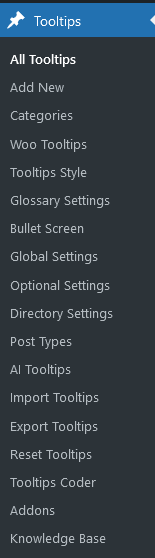
4: In the WordPress dashboard, click the “Tooltips” menu. Then, click on the “Directory Settings” sub-menu item. The WordPress Tooltip menu appears as follows:

tooltips menu in wordpress tooltips pro plus 27.5.8

tooltips menu in wordpress tooltips pro plus 27.5.8

5: Now you will open the ‘Directory Global Settings’ panel. In this panel, you will find a new tab labeled ‘AnyThing Directory.’ It looks like this:

anything directory in wordpress tooltips pro plus 32.1.8

6: As you can see, the WordPress Tooltips Plugin has listed all custom post types here, and we have automatically generated shortcodes for each custom post type.

So, the only thing you need to do is copy the shortcode into any post, that’s all.

Conclusion:

WordPress tooltip anything directory that includes various types of wordpress posts can provide a more enriched experience for visitors. They can find all relevant information, be it articles, services, or events, without having to navigate through different sections of the website. This is a great help for the owners of e-commerce sites, schools, event managers, etc.

The reasons why you should use the WordPress Tooltip Anything Directory are as follows:

1. Flexibility and Customization

  • Users often work with various types of content on their WordPress sites, including custom post types like portfolios, testimonials, events, etc. The ability to pull in any post type allows for greater flexibility in how they can organize and display their content.

2. Unified Directory Management

  • By allowing directories to be created from various custom post types, users can manage all their content in one place. This can streamline the user experience and reduce the need for multiple plugins or solutions tailored to each post type.

3. Enhanced Functionality

  • Users may want to create a directory that can serve specific needs. For example, they might want to create a directory of businesses, events, or resources that are categorized in different ways. This need for enhanced functionality pushes the user to seek plugins that provide a more comprehensive solution.

4. Improved UX for End Users

  • A directory that includes various types of posts can provide a more enriched experience for visitors. They can find all relevant information, be it articles, services, or events, without having to navigate through different sections of the website.

5. Easier Content Discovery

  • Enabling the directory to include custom post types can help enhance the discoverability of content. For example, if a site offers many articles, services, and events, having them all visible in a directory format can help users find what they’re looking for more easily.

6. Increased Usability for Site Owners

  • For site owners, it simplifies their content management system by allowing them to consolidate resources. They can create a comprehensive directory with minimal effort, rather than managing separate directories for each post type.


Tagged with: , , , , ,
Top