
Deskripsyon
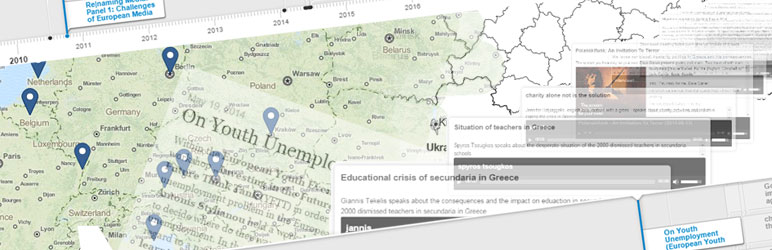
Tell a visual story to your posts and media!
Create playlists
Use the Playlist Tool to create collections of content presented in the order you choose. Audios, videos, images and text – or all of them at once!
Tell your story
Use the Story Editor to describe your playlist items and narrate your own story of the content presented.
Create your visualization
Choose a visualization method (Map, Timeline or Layers) and change its behaviour and appearance. Use combination of these settings to fit the purpose of your presentation. What you see is what you get!
Get a complete feature overview at https://cba.fro.at/uvisualize
Learn more in the text and video tutorials at https://cba.fro.at/uvisualize-tutorial
Mga Screenshot

Playlist function: The dropdown menu lets you manage your playlists easily. Add posts to playlists in just two clicks. You can make this feature available to your frontend too!

The Story Editor: Use it to describe your playlist items and narrate your own story of the content presented. Or just leave it empty to display the original content.

The Map module: Visualize your playlist on different maps. Change the look and feel of your visualization: Change the design of the basemap, the playlist, or the popup box. Decide which content to display at all and how the visualization behaves.

The Timeline module: Present your playlist on the popular knightlab timeline.

The Layers module: Visualize your playlist on three dimensional layers or as a horizontal or vertical slideshow.
Pag-install
- Upload the plugin files to the
/wp-content/plugins/uvisualizedirectory, or install the plugin through the WordPress plugins screen directly - Activate the plugin through the ‘Plugins’ menu in WordPress
- Go to the settings of the plugin and press ‘Modules’
- Activate all modules you want to use (“UVisualiz! Core Framework” and “Playlist function” must be activated)
How to use
- Go to ‘Edit Posts’ and start creating playlists and adding posts to them by using the dropdown menu beside a post (in the column ‘Add to playlist’)
- Go to ‘Playlists’, click one to edit and press ‘Create visualization’ to visualize your playlist on Maps, Timelines or in 3D.
FAQ
- Installation Instructions
-
- Upload the plugin files to the
/wp-content/plugins/uvisualizedirectory, or install the plugin through the WordPress plugins screen directly - Activate the plugin through the ‘Plugins’ menu in WordPress
- Go to the settings of the plugin and press ‘Modules’
- Activate all modules you want to use (“UVisualiz! Core Framework” and “Playlist function” must be activated)
How to use
- Go to ‘Edit Posts’ and start creating playlists and adding posts to them by using the dropdown menu beside a post (in the column ‘Add to playlist’)
- Go to ‘Playlists’, click one to edit and press ‘Create visualization’ to visualize your playlist on Maps, Timelines or in 3D.
- Upload the plugin files to the
Mga Review
Wala pang reviews para sa plugin na ito.
Mga Contributor at Developer
Ang “UVisualize!” ay open source software. Ang mga sumusunod na tao ay nag-ambag sa plugin na ito.
Mga Contributor

Isalin ang “UVisualize!” sa iyong wika.
Interesado sa development?
Tingnan ang code, i-check ang SVN repository, o mag-subscribe sa development log sa pamamagitan ng RSS.
Changelog
1.0b
- Initial Release