Best Open Source IDEs
From Visual Studio Code to IntelliJ, these free and open source integrated development environments offer robust features and customization options for developers of all skill levels.
Nov 15th, 2024 9:15am by

Featured image via Unsplash.
Visual Studio Code
Visual Studio Code (aka VS Code) is one of the more popular IDEs on the market. It also happens to be one of the easier IDEs to use. VS Code is maintained by Microsoft and is available for Linux, macOS and Windows with support for more languages than you’ll ever need. And if you don’t see built-in support for the language you’re using, there’s most likely an extension available that will make it so. VS Code includes features like support for debugging, syntax highlighting, intelligent code completion, snippets, code refactoring, Git support, themes, keyboard shortcuts and a large repository of extensions to expand the feature set. With VS Code, you can also configure frameworks for testing within the language you are using. Also, the debugging feature in VS Code makes debugging your code very efficient. Without a doubt, the best features found in VS Code are its customizability and IntelliSense code completion, hinting and parameter information. As you type your code, the application will present a context menu with related options that can help save you time.
VS Code is an outstanding option for just about any language.
VSCodium
VSCodium is the community-driven port of Microsoft’s VS Code. The reason this IDE exists is because VS Code is released under the MIT license, but the editor itself is licensed under a non-FLOSS license. On top of that, VS Code contains telemetry and tracking elements. So, if those things are an issue for you, VSCodium is the way to go. VSCodium includes a feature similar to VS Code, so you don’t have to worry that you’ll miss out on what you need to work efficiently and effectively. You can install VSCodium on Linux, macOS and Windows with binary installers for each. For macOS, you’ll find .dmg and .zip packages, and for Linux there are .deb, .rpm, AppImage and Snap installers, as well as a source .tar.gz.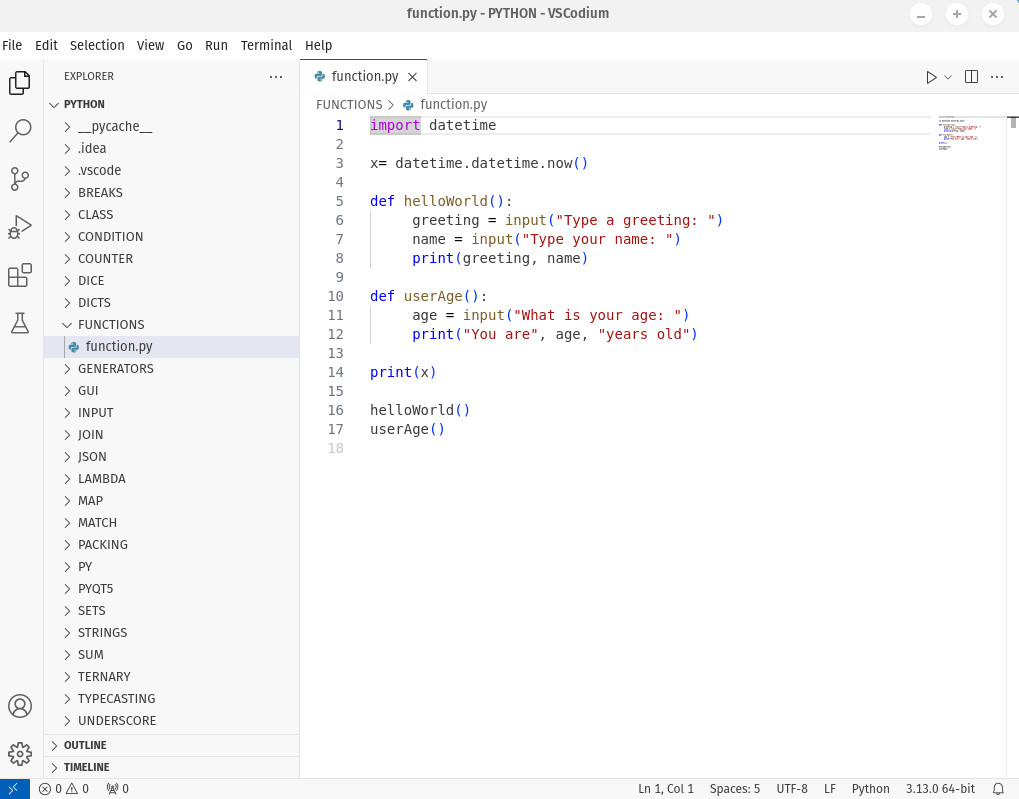
VSCodium looks and behaves very much like VS Code.
Eclipse
Eclipse is geared specifically for developing Java applications and is one of the more popular options available. One reason for Eclipse’s popularity is its robust feature set and vast plugin library. The plugin library includes options for version control integration, code generation, refactoring and more. Anyone who’s been developing Java applications for any length of time will tell you that Eclipse is the single best IDE for the language. There is a caveat to that. To really get Eclipse working as a solid IDE, you’ll need to comb through the plugins to find everything you need because, out of the box, Eclipse won’t do you any favors. On top of that, Eclipse does have a fairly steep learning curve, and the documentation is seriously lacking. On top of that, Eclipse is known for being a resource hog, so you’ll want to have a fairly powerful machine, especially if your projects tend to be larger in scope. Even with those caveats, Eclipse is an outstanding option for those who develop within the world of Java.
Eclipse has one of the steepest learning curves of any IDE on the market.
IntelliJ IDEA (Community Edition)
IntelliJ IDEA was written in Java and is intended to be used for projects developed in Java, Kotlin, Groovy and other JVM-based languages. IntelliJ IDEA was one of the first Java IDEs released with advanced code navigation and refactoring features built in. The reason some people prefer IntelliJ IDEA is because it’s not nearly as resource-intensive as Eclipse. With that said, some plugins for this IDE can consume your resources fairly quickly. IntelliJ IDEA includes version control support, an intelligent editor, full line code completion, an AI assistant, language injections, a Problems tool that displays issues found within your project, inspections and context actions, live templates, project-wide refactoring, detection of code duplicates and more. You’ll also find support for many popular frameworks, such as Spring, Spring Boot, Micronaut, Quarkus, Helidon, Jakarta EE, Ktor, JPA, Hibernate and more. IntelliJ IDEA can be installed on Linux, macOS and Windows. The best method of installing the IDE on Linux is via Snap, with the command:
sudo snap install intellij-idea-community --classic

You can even get IntelliJ IDEA to work with Python.
YOUTUBE.COM/THENEWSTACK
Tech moves fast, don't miss an episode. Subscribe to our YouTube
channel to stream all our podcasts, interviews, demos, and more.
