Categories
Ansible Open Source

Running Shell Scripts on Server Using Ansible

This blog is about how to run script on the server(s) using Ansible. You need to follow some various steps to run the script on hosts. It is very useful and helpful for a IT Admin to handle thousands of hosts using one command. You need to configure your hosts as well as your local machine from which you want to run the command.

Let’s Get Started

To run the script from your machine to host(s) you need to create a user for Ansible or change the configuration for existing user. To see this in detail you can refer this blog https://thejsdeveloper.wordpress.com/2020/08/06/getting-started-with-ansible/ Let’s see in breif what changes are needed to run script.

  • You need to allow no password for user in host. To do that run:
    $ sudo visudo
    Add the line <user> ALL=(ALL:ALL) ALL
  • You need to have passwordless entry for the user in order to use Ansible, for that you need to follow these commands.
    $ ssh-keygen
    $ ssh-copy-id -i ~/.ssh/id_rsa.pub <user>@<host>
    Now try logging in to the host to check whether it needs a password or not, for that run:
    $ ssh <user>@<host>
    This should log you in to the host without password. Otherwise Ansible will show the error of permission denied.

Running the script on Host machine

  1. Create a directory in which we will place all the files related to Ansible.
    $ mkdir Ansible && cd Ansible
  2. Create a shell script which you want to run. Note that the given script is of bash shell.
    $ vim create-file.sh

    Content for this file

    #!/bin/bash
    touch /tmp/ansible_script_file

  3. Create a configuration file for Ansible and paste the given content.
    $ vim ansible.cfg

    [defaults]
    inventory = ./inventory
    retry_files_enabled = False
    [ssh_connection]
    pipelining = True

  4. Create a file inside directory ./group_vars/ubuntu.yml. If you have more than one host you need to create different file for each host to specify some detail in it. The content inside the file will be:

    ---
    ansible_user: <username>
    ansible_python_interpreter: /usr/bin/python3


    ansible_usern => User for ansible on host machine
    ansible_python_interpreter => You need to define the path of python interpreter if it is by default other than /usr/bin/python
  5. Create file named ‘hosts’ inside the ./inventory directory. The content for the hosts file will be:

    [ubuntu]
    ubuntu_host ansible_host=<host>


    In this file ubuntu_host is the host name like this there could be multiple host name in this file.
  6. Now create the Playbook for Ansible. In this file all the instruction will be given to Ansible.

    $ vim create-file-playbook.yml

    Content for this file:

    ---
    - name: Transfer and execute a script
    hosts: "*" # It will match all the hosts in you ./inventory/hosts file
    tasks:
    - name: Copy shell script
    copy: src=/home/<local-machine-username>/ansible/file-create.sh dest=/opt/ansi mode=0777
    - name: Executing shell script
    command: sh /home/<username>/create-file.sh
  7. Your directory structure is going to look something like this
  • You are ready to rock. Now run the playbook command of Ansible to run the playbook.
    $ ansible-playbook create-file-playbook.yml
    You will see output like this…
After running ansible-playbook command

That’s all for it. I hope this helped you to solve your problem. Have a nice day!
Getting Started With Ansible

Ansible is the simplest way to automate apps and IT infrastructure. Application Deployment + Configuration Management + Continuous Delivery.

Prerequisite for Ansible

1. You need Python 2 (version 2.6 or later) or Python 3 (version 3.5 or later).

Installation Steps for Ubuntu

$ sudo apt update
$ sudo apt install software-properties-common
$ sudo apt-add-repository --yes --update ppa:ansible/ansible
$ sudo apt install ansible

Configuring and using Ansible

In this configuration there are two new terms. One is Managed node which is the remote server that is managed by Ansible. Other one is Control node which is the machine from which command will be given to Ansible. There are some steps to use Ansible which are written below:

  1. Log onto theΒ controlΒ and managed node to add a user and set a password. Use the command:
    useradd <username>
    passwd <username>
  2. On the managedΒ node, we need to ensure our Ansible user can utilize theΒ sudoΒ command without a password. Run command:
    $ sudo visudo
    admin ALL=(ALL) NOPASSWD: ALL
    Add the above line to the end of file.
  3. In the control node we need SSH key pair, for that run:
    $ ssh-keygen
    Copy the public key to our managedΒ node, run:
    Β  $ ssh-copy-id <host>
  4. Β Create an Ansible Inventory. Before that make sure you are logged onto theΒ ControlΒ node as the same user you created.
    $ vim /home/${whoami}/inventory
    Type the <host> in the file and save. Eg. node.theamanjs.com
  5. On control node, create an Ansible Playbook.
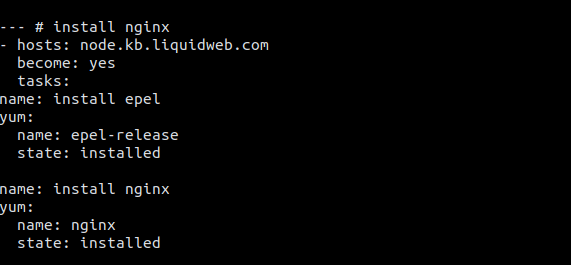
    $ vim /home/${whoami}/install-nginx.yml
    Write the below content in the yaml file to create the playbook.

6. After the yaml file is created now run the Playbook with Ansible using the following command:
$ ansible-playbook -i /home/${whoami}/inventory /home/${whoami}/install-nginx.yml

Categories
Moodle

Getting Started with ad-hoc database queries Moodle

Hola amigo, are you looking for the ad-hoc database queries plugin in moodle? You are at right place, here we will see how to set up this plugin and how to use this. Let’s get started with the basic overview of what this plugin do. Before that you can download this from https://moodle.org/plugins/report_customsql you will also get some basic information about this plugin over there. Here the main focus is to start using this plugin. Ad-hoc is a business intelligence process in which dynamic, real-time dataΒ reportsΒ are created by the user on an as-needed basis.

Overview of ‘ad-hoc db queries’

This plugin allows the administration to run the database queries on demand or at a scheduled time. It helps the admin to get the queries result simply via email or directly exporting in csv, html table, etc. It do not bother the admin to look for desired result from GUI which have the ocean of links in Moodle. So, we will look at usage of this plugin rather than installation which you can see on Moodle’s guide https://docs.moodle.org/39/en/Installing_plugins

After installation of this plugin

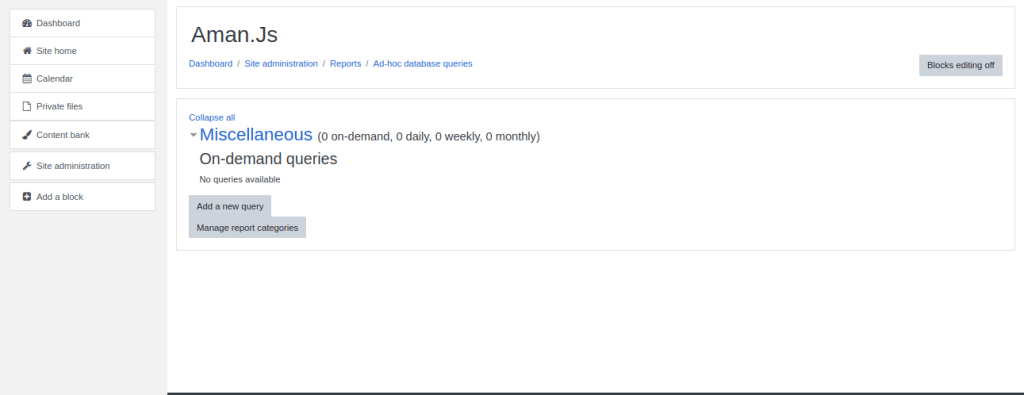
In order to use this plugin head toward the Site administration from Admin account. To reach this plugin for use go to Site administration -> Reports(from sub nav menu) -> Ad-hoc database queries. You will be on plugin usage page.

Now click on ‘Add a new query’. It will open a page to configure the queries. It will have some different options in form. You can also manage the category of the queries on this page.

On ‘Add a new query’ you will see a form all the options of form are described below:

Category: It defines the category to which the sql query belongs.

Query Name: Here you can give name to the query.

Description: It is used to give detailed description of query.

Query SQL: You write the actual query here. There are some instruction writing queries some are given on next entity on form that is Notes. In order to use the table from database you need the prefix_. For instance I want to access the ‘user’ table from database. I will write ‘SELECT * FROM prefix_user’ (without single quote) It will give the output; suppose my tables have prefix mdl. Then the query is ‘SELECT * FROM mdl_user’ You can add filters in order to get the desired output form database. Though It require in-depth knowledge of database of moodle and how tables are working in backend. So that, you can apply the sql.

After writing the query you can check the query by clicking ‘Verify the Query SQL text and update the form’.

Notes: It have some basic instructions regarding to usage of sql query.

Who can access this query: It has some basic list of access that is:

  • Anyone who can view this report (report/customsql:view)
  • Users who can see system reports (moodle/site:viewreports)
  • Only administrators (moodle/site:config)

You can use suitable option from here.

Limit on rows returned: You can limit the number of rows to be returned and showed in output. To avoid long unnecessary data.

Run: Here you can set the time when to run and how to run. It can be run by two methods:

  • On Demand: When you click run
  • Schedule: At a particular time

Type of result: It has a checkbox to enable option ‘The query returns one row, accumulate the results one row at a time’

Export csv report to path / directory: It will save the output file directly to the specified directory. Note that It runs only when the query is scheduled.

Automatically email to: Takes email as input where the query result will be mailed. It also runs only when the query is scheduled.

What to email: It has two options which gets enable only when the query is scheduled, that are:

  • Just the number of rows and the link
  • Put the results in the email body

In the end, click on save changes the query will run according to your configurations.

Conclusion

You can have multiple set of queries which can give you output in some fraction of seconds which can also be seen on list of queries on plugin usage page, which show how much time was taken by the query to execute. In order to get some value from this plugin you must have good knowledge about the database and tables.

Categories
Uncategorized

Installation of Seed DMS

Seed DMS is open sourse free Document Management System. It offers various features to user like creating full index for files, Managing Users repective to their Group. Apart from this, it helps user to have a complete statistics of files uploaded by every user, Whether it is about consuming usage by files or making changes to file after uploading. You can download SeedDMS directly by clicking Here

Steps to Install SeedDMS

  1. Download the folder from this Link
  2. Extract the folder directly to the root directory of server(Example in Xampp software root directory is xampp/htdocs/ . If you are using LAMP in linux then extract to directory /var/www/html/)
  3. Now start the Server
  4. Open from the root folder of server i.e. SeedDMS51x/seeddms-5.1.12/install/install.php
  5. SeedDMS5.1.12 is the version which I had used while installling
  6. After opening this path. It will show an error to create a file named ‘ENABLE_INSTALL_TOOL’ Note: The file does’nt have any kind of extension.
  7. Create that file in folder named ‘conf’ which will be present on main path of the software (Use command `# touch ENABLE_INSTALL_TOOL` on linux )
  8. Then run the file again(install.php)
  9. It will set your home directory automatically
  10. If the home directory is not got changed and errors are showing on the screen. Do some customizations
  11. Open the file conf/settings.xml change the root directory in this small file everywhere you see and change database credentials to yours.
  12. It is recomended to create database(If you are creating it in mysql then change the sqlite to mysql)
  13. Then run the install.php file(Location: seeddms51x/seeddms-5.1.12/install/install.php)
  14. Your installation will be started and completed soon
  15. Note: In case you are unable to open install.php file even after making changes to settings.xml file then you have issue with server
  16. Now delete the file conf/ENABLE_INSTALL_TOOL
  17. You will automatically be redirected to the login portal
  18. Use `admin` and `admin` as defalut username and password if you not set it earlier
  19. Boom! You are done with the installation πŸ™‚

If you have any other error or need any help. I would be happy to help you please leave a comment πŸ™‚

Regards

Amanjot Singh

Twitter : Open Profile

Design a site like this with WordPress.com
Get started