

Description
PDF Menu Linker is a small admin-only plugin that makes it easy to add and manage PDF links in navigation menus.
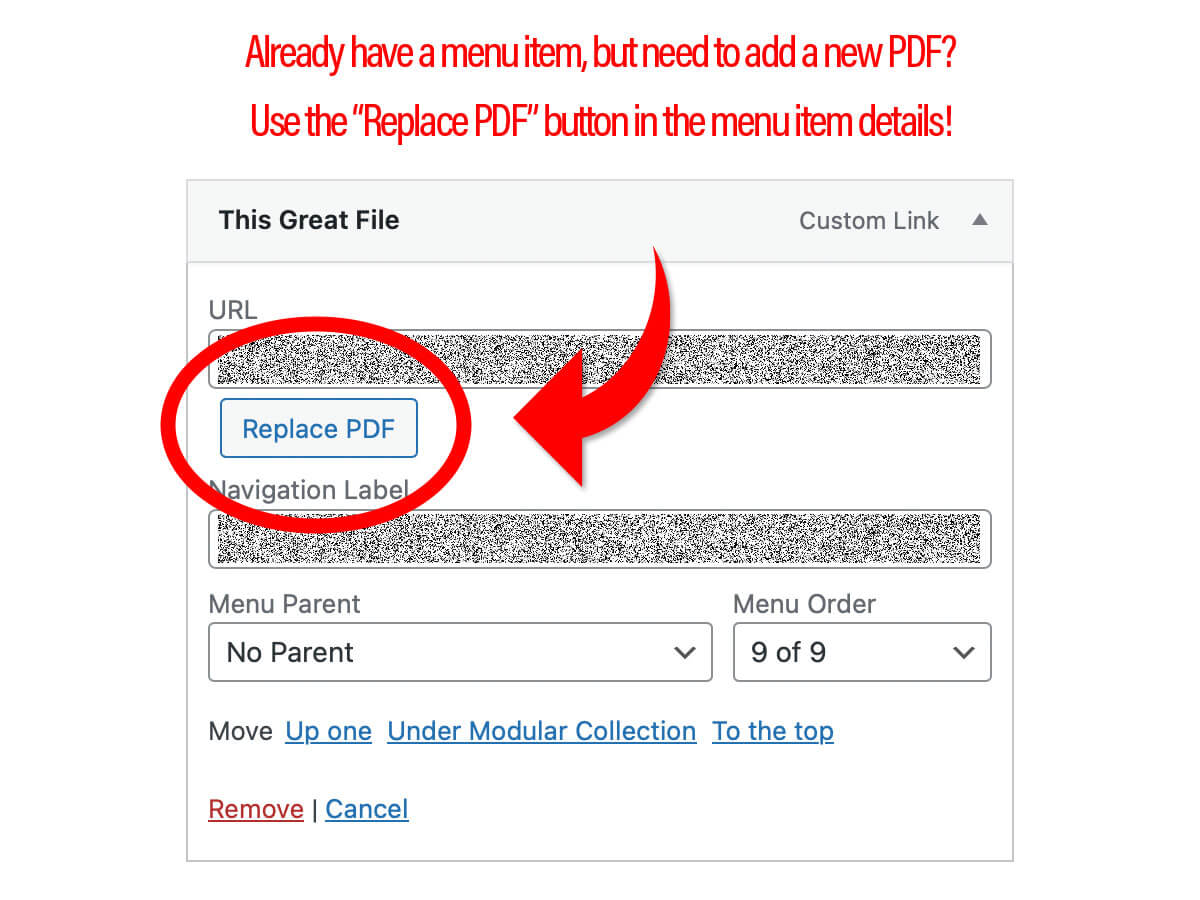
It adds a dedicated PDFs panel to Appearance Menus, and a Replace PDF control on PDF menu items, so you can swap files without recreating menu items or touching URLs manually.
Features
- PDFs panel on the Menus screen – Select a PDF from the Media Library and add it directly to any navigation menu.
- Automatic link text and title – Link Text and Link Title fields default from the PDF filename (without the extension), and can be edited before adding.
- One-click Add to Menu – Creates a standard custom menu item that opens the PDF in a new tab, using WordPress core menu APIs.
- Replace PDF on existing items – For custom links that point to a
.pdf, a Replace PDF button appears next to the URL field so you can change the file without changing labels. - Native WordPress UX – Uses WordPress’ Media Library, menu editor, styling, permissions, and nonces. No custom tables or front‑end changes.
Requirements
- WordPress 6.0 or higher
- PHP 7.4 or higher
- A user role with permission to manage menus (typically users who can
edit_theme_options).
Usage
Add a new PDF menu item
- In the WordPress admin, go to Appearance Menus.
- Ensure a menu is selected (or create one and save it).
- In the Add menu items column, open the PDFs panel.
- Click Select PDF and choose a file from the Media Library (PDFs only).
- Optionally adjust Link Text and Link Title.
- Click Add to Menu.
- A new Custom Link pointing at the PDF will appear at the bottom of the menu structure and will open in a new tab on the front end.
Replace the PDF for an existing menu item
- In Appearance Menus, locate a Custom Link whose URL ends with
.pdf. - Expand the menu item.
- Click Replace PDF next to the URL field.
- Choose a new PDF from the Media Library and confirm.
- The URL field updates to the new PDF, while Navigation Label and Title Attribute remain unchanged.
Screenshots

Installation
- Upload the
pdf-menu-linkerfolder to the/wp-content/plugins/directory, or install the plugin via the Plugins screen. - Activate PDF Menu Linker through the Plugins Installed Plugins screen.
FAQ
-
No. The plugin only runs in the admin and creates standard custom menu items that WordPress already knows how to render.
-
PDFs are normal media attachments in the Media Library, and menu items are standard
nav_menu_itemposts with their usual meta fields. The plugin does not create custom tables.
Reviews

Contributors & Developers
“PDF Menu Linker” is open source software. The following people have contributed to this plugin.
Contributors
Translate “PDF Menu Linker” into your language.
Interested in development?
Browse the code, check out the SVN repository, or subscribe to the development log by RSS.
Changelog
1.0
- Initial release.