
My team often runs into problems when running automated scripts against our unique testing environments. One of them is that some of our application screens contain proprietary custom controls that don’t have any real unique values except for Windows ID, which works about 99% of the time.
Another issue we face is due to the fact that we run against shared test environments, which means that anyone can make system-wide setting changes without our knowledge. Some of those changes cause a custom screen to appear rather than the expected screen.
As you can imagine, these two issues in particular can throw up myriad roadblocks to running our test automation scripts reliably.
Custom screen issue in QTP
Below is an example of an expected screen being replaced with a custom screen. (Notice that both the screen name label and field’s location changes.) Since we use Window ID as an identifier, the expected MRN field is Window ID 516 for screen one, and 519 for screen two.
Possible Screen One

Possible Screen Two

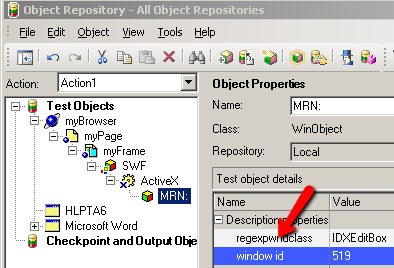
There are a few ways we can handle this, but for this example I’m going to use QTP’s “Visual Relation Identifier” feature.
Visual Relation Identifier in QTP
Visual Relation Identifiers allow you to identify fields in your application based on other objects that are always near them. In my example, the MRN label text always appears to the left of the MRN field.
How to add a Visual Relation Identifier to an object repository
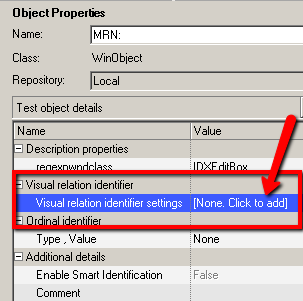
In the QTP object repository click to on the visual identifier setting’s click to add
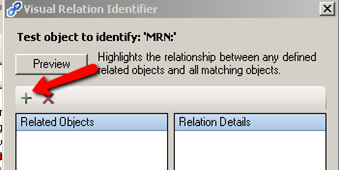
On the Visual Relation Identifier screen click on the + plus sign under the preview button:
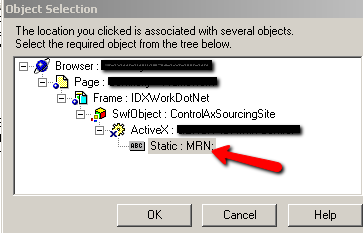
Point to the object you want to use to help QTP identify the field you need to recognize

I’ll point to the MRN text that’s adjacent to the MRN field that I want to enable QTP to find:
Three Visual Relation Identifier detail options:
When you bring up the Visual Relation Identifier you’ll have three main categories (under Relation Details) to choose from: Horizontal, Vertical and Distance and Hierarchy.
- Horizontal – Enables you to tell QTP to id objects according to their horizontal location in relation to the field to be identified. You’ll have two options (Left and Right)
and an In line (horizontal) checkbox option. In my example, I want to tell QTP that the text “MRN” is to the left of my MRN textbox and that it is in line horizontal. - Vertical – Enables QTP to find related objects based on their vertical location relative to the object you want to identify. It also has two options (Above and Below) and a In Line (vertical) checkbox option.
- Distance and Hierarchy – Enables QTP to find related objects based on their distance to the location of the object you want to identify. It has four options: Closest on the X-axis, Closest o n the Y-axis, Closest on both axes and Contains. (For my example, I needed to use “Closest to the Y-Axis” to make the field identification unique.)

Preview –does QTP see it now?
If I hit the preview button I can see that QTP is now able to identify the MRN textbox using the MRN text as its visual identifier. Now my script can identify the MRN field on the custom screen:

And on the expected screen:
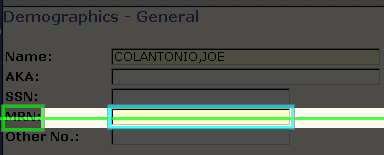
QTP Visual Relation Identifier Working
The preceding is a real-world example of automation awesomeness using QTP’s new Visual Relation Identifier feature. Let me know what your experience has been with the Visual Identifier by leaving a comment below with your thoughts.

Joe Colantonio is the founder of TestGuild, an industry-leading platform for automation testing and software testing tools. With over 25 years of hands-on experience, he has worked with top enterprise companies, helped develop early test automation tools and frameworks, and runs the largest online automation testing conference, Automation Guild.
Joe is also the author of Automation Awesomeness: 260 Actionable Affirmations To Improve Your QA & Automation Testing Skills and the host of the TestGuild podcast, which he has released weekly since 2014, making it the longest-running podcast dedicated to automation testing. Over the years, he has interviewed top thought leaders in DevOps, AI-driven test automation, and software quality, shaping the conversation in the industry.
With a reach of over 400,000 across his YouTube channel, LinkedIn, email list, and other social channels, Joe’s insights impact thousands of testers and engineers worldwide.
He has worked with some of the top companies in software testing and automation, including Tricentis, Keysight, Applitools, and BrowserStack, as sponsors and partners, helping them connect with the right audience in the automation testing space.
Follow him on LinkedIn or check out more at TestGuild.com.
Related Posts

Look, I’ve been doing test automation for over 25 years. I’ve heard the predictions. “Manual testing is dead.” “AI will […]

The 72.8% Paradox That Changes Everything After interviewing 50+ testing experts in 2025 and analyzing data from our 40,000+ member […]

Look, I’ve been doing this testing thing for over 25 years now. I first wrote about the AI “three waves” […]

What’s New in Low-Code/No-Code Testing for 2026 A lot had changed on the The low-code/no-code testing space and it has […]