

Description
Voomo Blog to Video turns your WordPress posts into shareable videos through the Voomo.ai service. When a post is published we notify your Voomo integration, wait for the generated video URL, download it into the WordPress Media Library, and optionally embed it at the top of the post for you.
Key features
- Single settings screen to store your Organization ID and API Key
- Downloads the remote video to the Media Library using a consistent naming pattern
- Optional “Embed video automatically” toggle that inserts the saved video at the top of your post
- Automatic video generation when posts are published
- Videos are always saved to your WordPress Media Library
- Videos are also available in your Voomo account dashboard
- Optional YouTube auto-upload when you connect your channel in Voomo workspace settings
Requirements
- A WordPress website
- A Voomo account (create one at https://app.voomo.ai)
- Organization ID + API key from your Voomo dashboard
- Access to your Voomo workspace settings to adjust how videos are generated
Troubleshooting
Verification Failed
- Double-check that your Organization ID and API Key are correct
- Ensure your blog domain in Voomo matches your WordPress site URL exactly
- Make sure your WordPress site is accessible from the internet
Video Not Generating
- Verify that your post was published (not just saved as draft)
- Check that your Voomo account has sufficient credits/quota
- Review the Voomo column in your Posts list to see the generation status
Domain Mismatch Error
- Ensure the blog domain in Voomo workspace settings exactly matches your WordPress site URL
- The domain validation is case-sensitive and must include the protocol (http:// or https://)
External Services
This plugin requires the use of external services provided by Voomo.ai to function. The following external services are used:
Voomo API Service
What the service is and what it is used for:
The plugin connects to the Voomo API service (dashboard-api.voomo.ai) to request video generation for your blog posts and to verify your API credentials. This service is essential for the plugin’s core functionality of converting blog posts into videos.
What data is sent and when:
-
When a blog post is published: The plugin automatically sends the following data to Voomo’s API:
- Post ID (numeric identifier)
- Post title (text)
- Post URL (the full permalink to your published post)
- Your Organization ID (identifier for your Voomo account)
- Your API Key (authentication credential)
-
When verifying credentials in plugin settings: The plugin sends the following data to Voomo’s API:
- Your Organization ID
- Your API Key
Voomo Video Hosting Service
What the service is and what it is used for:
The plugin downloads generated video files from Voomo’s video hosting servers. After Voomo generates a video for your blog post, the plugin receives a video URL via webhook callback and downloads the video file to your WordPress Media Library.
What data is sent and when:
- When downloading videos: The plugin makes HTTP requests to download video files from URLs provided by Voomo. No additional data is sent beyond the video URL request. The video files are downloaded automatically when Voomo notifies the plugin that video generation is complete (via webhook callback).
Service provider information:
This service is provided by Voomo.ai:
* Terms of Service: https://www.voomo.ai/terms
* Privacy Policy: https://www.voomo.ai/privacy-policy
Note: All data transmission to Voomo services occurs over encrypted HTTPS connections. Your API credentials are stored securely in your WordPress database and are only transmitted when necessary for API authentication.
Screenshots

WordPress dashboard settings screen with Organization ID and API Key fields (plus auto-embed toggle). 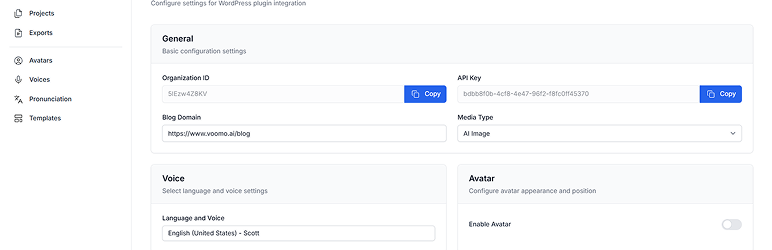
Voomo dashboard workspace configuration showing avatar, voice, media type, and related options. 
Voomo workspace settings where a YouTube account is connected so new blog posts automatically generate and upload videos to YouTube.
Installation
Step 1: Create Your Voomo Account
- Visit https://app.voomo.ai and create a new account
- Complete the signup process and log in to your dashboard
Step 2: Configure WordPress Plugin Settings in Voomo
- Navigate to your Workspace Settings in your Voomo dashboard
- Find the WordPress Plugin Configuration section
- Fill in the following details:
Basic Configuration:
- Blog Domain: Enter your WordPress blog URL
- Example:
https://www.voomo.ai/blog/ - Make sure to include the full URL with protocol (http:// or https://)
- Example:
Video Generation Settings:
- Voice: Select your preferred voice for the video narration
- Language: Choose the language for your video content
Avatar Settings (Optional):
The avatar feature is optional. You can either:
- Enable Avatar: Keep the avatar enabled and configure additional settings:
- Avatar View: Choose from Circle, Full Body, or Close Up
- Avatar Position: Select Left, Right, or Center
- Disable Avatar: Turn off the avatar feature entirely
Get Your Credentials:
On the same WordPress Plugin Configuration page, you’ll find:
- Organization ID: Copy this value
- API Key: Copy this value
Keep these credentials handy for the next step.
Step 3: Install and Configure the Plugin in WordPress
- Install through the WordPress Plugins screen
- Activate the plugin through the “Plugins” menu in WordPress
- Navigate to Voomo in the left sidebar menu
- Enter your credentials:
- Organization ID: Paste the Organization ID you copied from Voomo
- API Key: Paste the API Key you copied from Voomo
Automatic Video Embedding:
- Embed video automatically: Check this option if you want videos to be automatically inserted into your blog posts when they are generated
- ✅ Checked: Videos will be automatically added to the post content (videos are always saved to your WordPress media library)
- ❌ Unchecked: Videos will be saved to your WordPress media library, and you can manually add them to posts
- Click Verify to validate your credentials
- Wait for the success message confirming your settings have been saved
Step 4: Using the Plugin
Once your plugin is configured and verified:
- Publish a new blog post in WordPress
- The plugin will automatically:
- Send the post to Voomo for video generation
- Generate a video based on your workspace configuration (voice, language, avatar settings, etc.)
- Process and save the video to your WordPress Media Library
- The video will also be available in your Voomo account dashboard
If Automatic Embedding is Enabled:
- The video will be automatically inserted into your blog post content
- The video will appear in your published post
- The video is also available in your WordPress Media Library
If Automatic Embedding is Disabled:
- The video will be saved to your WordPress Media Library (same as when enabled)
- You can manually add the video to any post using the media library
- The video will also be available in your Voomo account dashboard
- If you connect YouTube in your Voomo workspace, generated videos from new posts can be uploaded automatically to your linked YouTube channel
FAQ
-
Can I disable auto-embed but still download the video?
-
Yes. Uncheck Embed video automatically in settings. The plugin will still download the file and save it to your WordPress Media Library. You can manually add the video to any post using the media library.
-
Are videos always saved to the Media Library?
-
Yes. Videos are always saved to your WordPress Media Library regardless of the automatic embedding setting. The only difference is whether the video is automatically inserted into the post content or must be added manually.
-
Where can I find my Organization ID and API Key?
-
Navigate to your Voomo dashboard, go to Workspace Settings, and find the WordPress Plugin Configuration section. Your Organization ID and API Key will be displayed on that page.
-
What happens if my plan doesn’t support the video duration I requested?
-
If your plan doesn’t support the requested video duration, you’ll see an upgrade notice in the WordPress admin. Visit https://app.voomo.ai to upgrade your plan.
-
Can the plugin upload videos to YouTube automatically?
-
Yes. In your Voomo workspace settings you can connect a YouTube account. Once connected, videos generated from your WordPress posts can be uploaded automatically to that channel. Control the connection and upload behavior from Voomo; the WordPress plugin only needs your Organization ID and API Key.
Reviews
There are no reviews for this plugin.
Contributors & Developers
“Voomo Blog to Video” is open source software. The following people have contributed to this plugin.
Contributors
Translate “Voomo Blog to Video” into your language.
Interested in development?
Browse the code, check out the SVN repository, or subscribe to the development log by RSS.
Changelog
0.1.2
- Updated sidebar icon to use Voomo logo.
0.1.1
- Version update.
0.1.0
- Initial release with webhook callback, media download, optional auto-embed, and admin UI.