
To get started, install and activate the Optiontics plugin. Navigate to WP Admin → Add Plugins → Upload Plugin, upload the Optiontics plugin file, and then click Install followed by Activate.
The Optiontics plugin is included with the WPCafe Pro bundle
Step-by-Step Process for Creating Product Options #
- Go to WP Admin → Optiontics → Add Options to begin creating a new option for products.
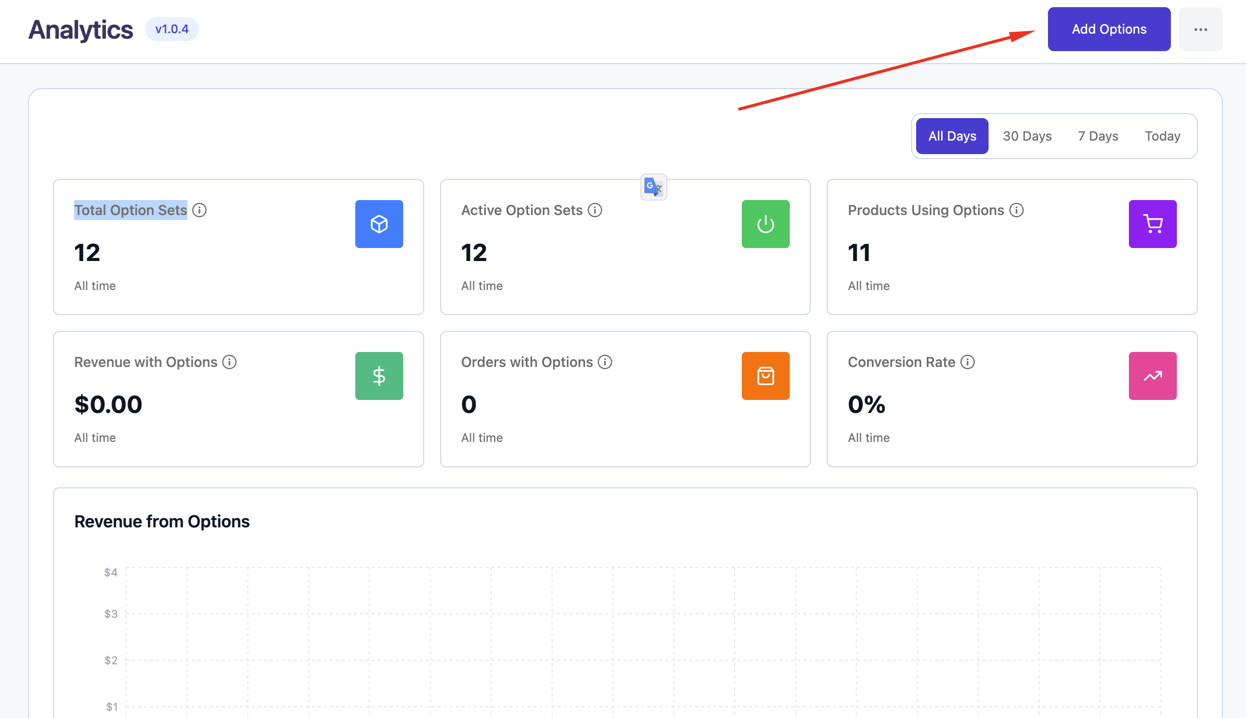
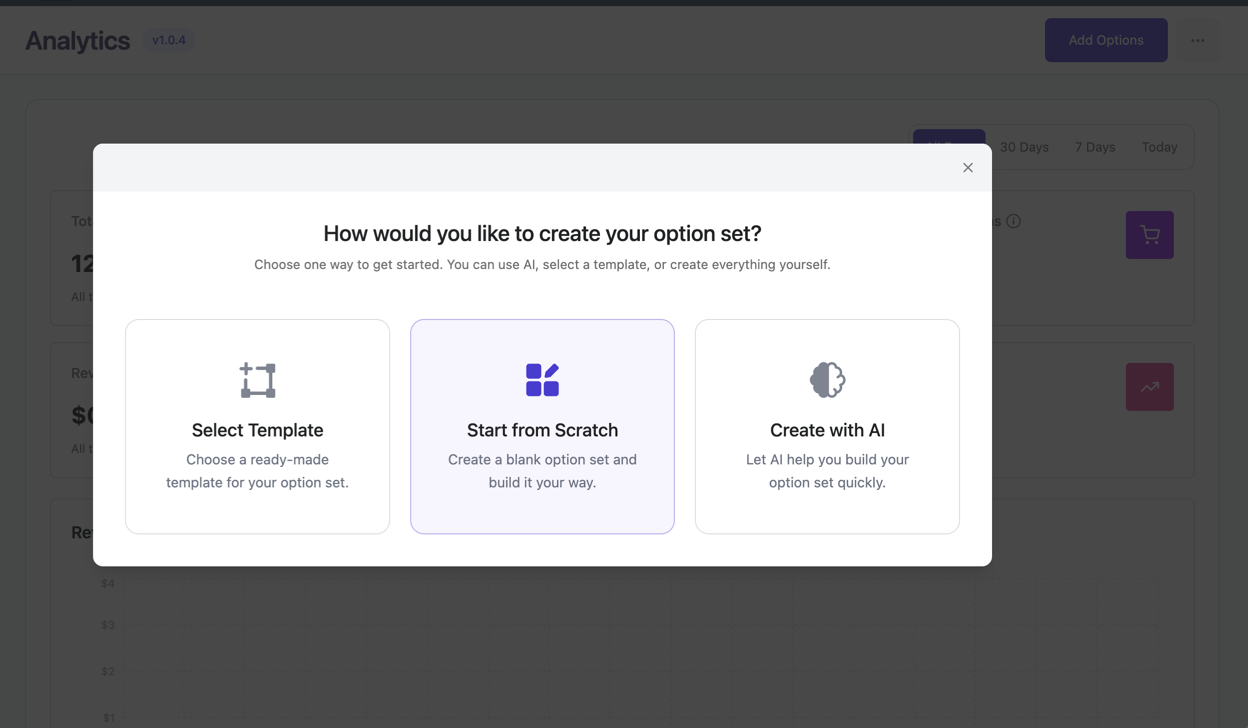
Once clicked Add Option Button a modal popup will appear where you can choose how you want to create your option set.
You will see three available methods:
1. Select Template
Choose from pre-built templates to quickly set up your option set. This is useful if you want a ready-made structure and save time.
2. Start from Scratch
Create a completely new option set from the beginning. This gives you full control to customize everything based on your needs.
3. Create with AI
Use AI to automatically generate an option set. This helps you quickly build options with minimal manual effort.
Select any method based on your preference and proceed to create your option set.
- Use the available field block: Text Field, Heading, Radio, Dropdown, Checkbox, Switch, Number Field, and Textarea. Drag and drop any block to add it to your options for the product.

- Click on any field to customize its settings from the right sidebar. You can adjust the Label, Placeholder, Required/Optional, Default Value, Conditional Logic, Price Add-On, and Field Instructions. Add as many fields as needed.

- Click Publish or Save. The option group becomes active for the selected products. From the main Optiontics menu, you can manage all groups: edit, delete, or rename them at any time.
Publish & Assign Products #
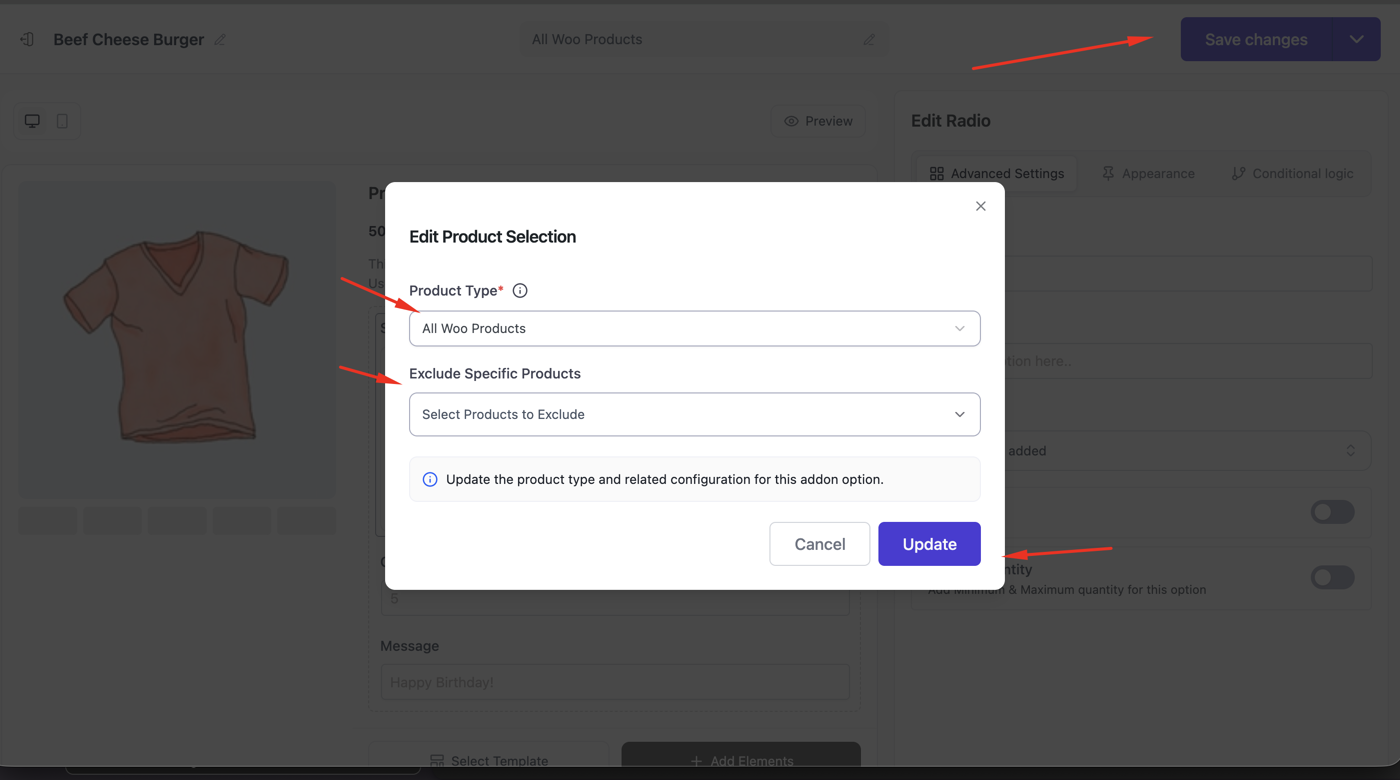
After creating and configuring your option set, click the “Publish” button to save your setup. Once saved, a product selection modal will appear. This step allows you to control where the option set will be applied in your WooCommerce store. You will see the following options

Product Type
Choose where the option set should be displayed:
- All Woo Products – Apply the option set to all products.
- Specific Woo Products – Apply only to selected products.
- Specific Woo Category – Apply to products under selected categories.
Exclude Specific Products
You can optionally select products to exclude from the option set, even if they match the selected product type. After configuring the product selection, click the “Update” button to apply the changes.
This will update the product type and all related configurations for the addon option.
Front-end view: #
When your customer selects a product, they will see the add-ons and options available for that product.


