


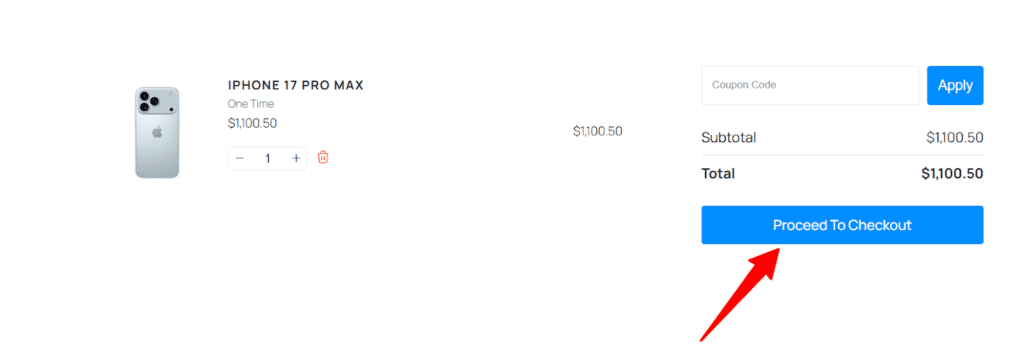
The StoreEngine proceed to checkout shortcode is used to show a Proceed to Checkout button anywhere on your WordPress site.
It helps customers move from the cart page to the checkout page with a single click.
You can place this shortcode on cart pages, custom layouts, or any page where you want to guide users to checkout.
Shortcode
[storeengine_proceed_to_checkout] This will instantly display a Proceed to Checkout button that sends users directly from the cart to the checkout page.
What This Proceed to Checkout Does
The StoreEngine Proceed to Checkout button helps customers move forward with their purchase without confusion.
It gives them a clear next step after reviewing cart items.
Proceed to Checkout Button Information
- Shows a Proceed to Checkout button
- Sends users to the StoreEngine checkout page
- Connects directly with the StoreEngine cart system
- Can be added to any page, post, or template
- Commonly used with other cart-related shortcodes
This helps create a clean and simple checkout flow for users.
Usage Examples
Cart Page Example
[storeengine_proceed_to_checkout]Place this shortcode below the cart items so users can go to checkout with one click.
Custom Layout Example
In custom cart or landing page designs, add the shortcode where you want the checkout button to appear.
How to Add in Gutenberg Editor
- Edit the page where you want the button.
- Click ➕ (Add Block).
- Search for Shortcode block.
- Insert the block and paste:
[storeengine_proceed_to_checkout] - Save or Publish the page.
Once published, the Proceed to Checkout button shows on the front end.

Using with aBlocks
You can also add the Proceed to Checkout button using aBlocks→ StoreEngine Proceed to Checkout block.
Just insert the block into your page and adjust the button settings from the block options—no shortcode needed.