

Description
Event – Add to Calendar is a powerful and user-friendly WordPress plugin that allows your website visitors to add events to their preferred calendar service with a single click. Perfect for event websites, business sites, webinars, workshops, and any site that promotes events. Everything you need to share your events, schedules, calendars, and appointments—so your audience can easily add them to their calendar and never miss an important moment.
Features
- Multiple Calendar Services – Supports Google Calendar, Outlook, Office 365, Yahoo Calendar, and Apple Calendar (.ics)
- Easy Implementation – Simple shortcode that can be added to any post, page, or widget
- Fully Customizable – Configure event title, description, location, date/time, and timezone
- Customizable Button Colors – Match your site’s design with custom button colors
- Responsive Design – Beautiful dropdown menu that works perfectly on desktop and mobile devices
- Accessible – Built with WCAG 2.1 accessibility standards (ARIA labels, keyboard navigation)
- Secure – Includes nonce verification and proper input sanitization
- Fast & Lightweight – No external dependencies or API calls
- Translation Ready – Fully internationalized and ready for translations
- Developer Friendly – Clean, well-documented code following WordPress coding standards
- Admin Dashboard – Easy-to-use settings page with color picker and service toggles
Supported Calendar Services
- Google Calendar – Direct integration with Google Calendar
- Office 365 – Microsoft Office 365 Calendar integration
- Outlook.com – Outlook web calendar integration
- Yahoo Calendar – Yahoo Calendar integration
- Apple Calendar & Outlook Desktop – Universal .ics file download compatible with:
- Apple Calendar (macOS/iOS)
- Microsoft Outlook (Desktop application)
- Mozilla Thunderbird
- Any calendar application that supports .ics files
Use Cases
- Event promotion and registration
- Workshop and webinar scheduling
- Business appointments and consultations
- Community events and meetups
- Educational sessions and classes
- Conference and seminar scheduling
- Online and in-person events
- Product launches and sales events
- Nonprofit fundraisers and galas
- Sports events and tournaments
Privacy First
This plugin respects your privacy and your users’ privacy:
- No tracking or analytics
- No personal data collection
- No cookies used
- No external API calls
- All processing happens on your server
Usage
Basic Usage
Add this shortcode to any post, page, or widget:
[evtcal_add_to_calendar]
Advanced Usage
Customize all event details:
[evtcal_add_to_calendar
    title="Annual Company Conference 2025"
    description="Join us for our biggest event of the year with industry leaders and networking opportunities."
    location="Grand Conference Center, New York, NY"
    start="2025-09-15 09:00:00"
    end="2025-09-15 17:00:00"
    timezone="America/New_York"
    label="Add to My Calendar"]
Shortcode Attributes
- title – Event title (default: “My Event”)
- description – Event description (default: “Join us for an amazing event”)
- location – Event location (default: “Event Venue”)
- start – Start date and time in format YYYY-MM-DD HH:MM:SS (default: “2025-11-15 10:00:00”)
- end – End date and time in format YYYY-MM-DD HH:MM:SS (default: “2025-11-15 12:00:00”)
- timezone – PHP timezone identifier (default: “America/Los_Angeles”)
- label – Button text (default: “Add to Calendar”)
Timezone Examples
Use standard PHP timezone identifiers:
- America/New_York – Eastern Time
- America/Chicago – Central Time
- America/Denver – Mountain Time
- America/Los_Angeles – Pacific Time
- America/Phoenix – Arizona Time
- Europe/London – GMT/BST
- Europe/Paris – CET/CEST
- Asia/Tokyo – JST
- Australia/Sydney – AEST/AEDT
PHP Usage
You can also use the shortcode in your PHP templates:
<?php echo do_shortcode('[evtcal_add_to_calendar]'); ?>
Or with dynamic content:
<?php
$event_shortcode = sprintf(
    '[evtcal_add_to_calendar title="%s" start="%s" end="%s"]',
    esc_attr($event_title),
    esc_attr($start_datetime),
    esc_attr($end_datetime)
);
echo do_shortcode($event_shortcode);
?><h3>Additional Information</h3>
Browser Compatibility
- Chrome (latest)
- Firefox (latest)
- Safari (latest)
- Edge (latest)
- Opera (latest)
- Mobile browsers (iOS Safari, Chrome Mobile, Samsung Internet)
Technical Requirements
- WordPress 5.0 or higher
- PHP 7.4 or higher
- Modern browser with JavaScript enabled
Credits
Developed by Melon Web Studio
Website: https://www.melonwebstudio.com
Support Our Development
If you find this plugin helpful, please consider:
* Leaving a 5-star review
* Sharing with friends and colleagues
* Supporting us via PayPal
Privacy Policy
Event – Add to Calendar does not:
* Track users
* Store personal information
* Use cookies
* Send data to external servers
* Collect analytics
* Require user registration
All calendar generation and downloads happen locally on your WordPress installation.
The plugin creates links to third-party calendar services only when users voluntarily choose to add events to their calendars.
Developer Information
Hooks & Filters
Currently, the plugin doesn’t expose custom hooks and filters, but they may be added in future versions based on user feedback.
File Structure
/assets/css/– Stylesheet files/assets/js/– JavaScript files/assets/images/– Calendar service icons/includes/– PHP class files/templates/– Template files/languages/– Translation files
CSS Classes
.evtcal– Main container.evtcal-btn– Calendar button.evtcal-dropdown– Dropdown menu.evtcal-arrow– Arrow icon.evtcal.active– Active state
Contributing
We welcome contributions! Please contact us at [email protected] if you’d like to contribute to the development of this plugin.
Support
- Documentation: https://www.melonwebstudio.com/docs
- Email: [email protected]
- WordPress Forum: https://wordpress.org/support/plugin/event-add-to-calendar/
Third Party Services
This plugin creates links to the following third-party calendar services when users choose to add events:
-
Google Calendar – https://calendar.google.com
Privacy Policy | Terms of Service -
Microsoft Outlook/Office 365 – https://outlook.com and https://outlook.office.com
Privacy Policy | Terms of Service -
Yahoo Calendar – https://calendar.yahoo.com
Privacy Policy | Terms of Service
These links are opened in new tabs and the plugin does not send any data to these services. Users choose to add events to their calendars voluntarily. No API keys or authentication is required.
License
This plugin is licensed under GPLv2 or later.
Copyright 2025 Melon Web Studio
This program is free software; you can redistribute it and/or modify
it under the terms of the GNU General Public License as published by
the Free Software Foundation; either version 2 of the License, or
(at your option) any later version.
This program is distributed in the hope that it will be useful,
but WITHOUT ANY WARRANTY; without even the implied warranty of
MERCHANTABILITY or FITNESS FOR A PARTICULAR PURPOSE. See the
GNU General Public License for more details.
You should have received a copy of the GNU General Public License
along with this program; if not, write to the Free Software
Foundation, Inc., 51 Franklin St, Fifth Floor, Boston, MA 02110-1301 USA
Screenshots

Add to Calendar button on the frontend with dropdown menu 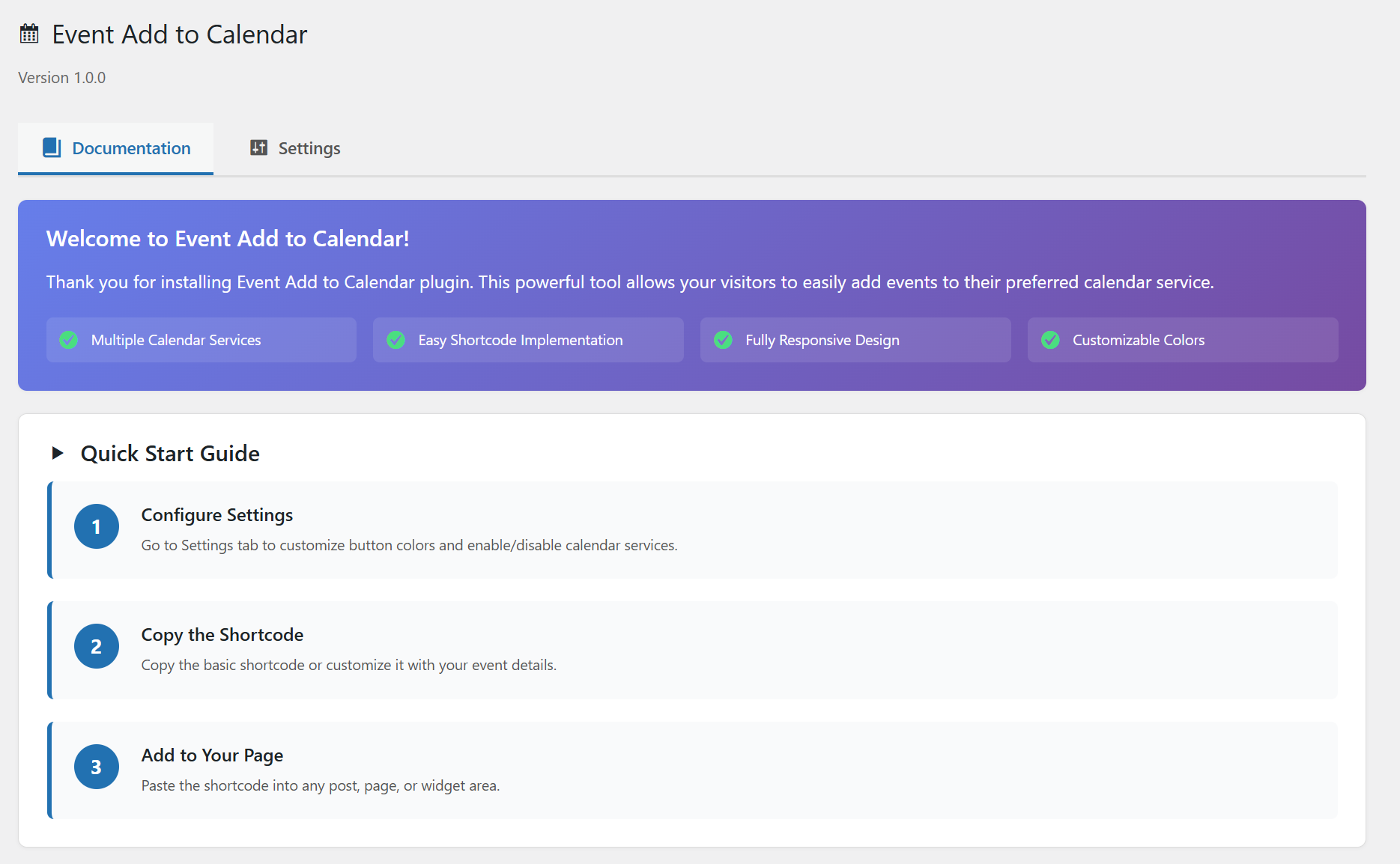
Admin settings page – Documentation tab with shortcode examples 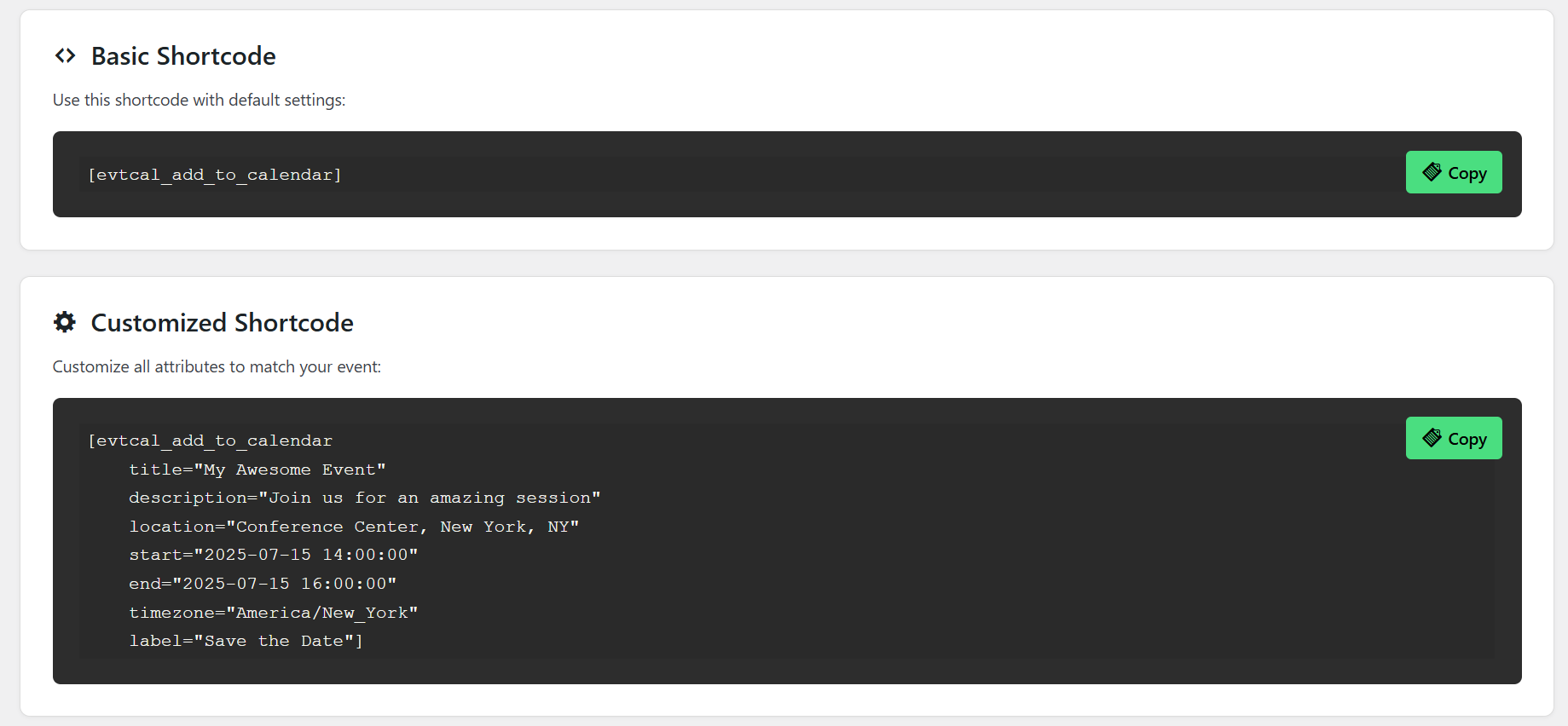
Admin settings page – Settings tab with color customization 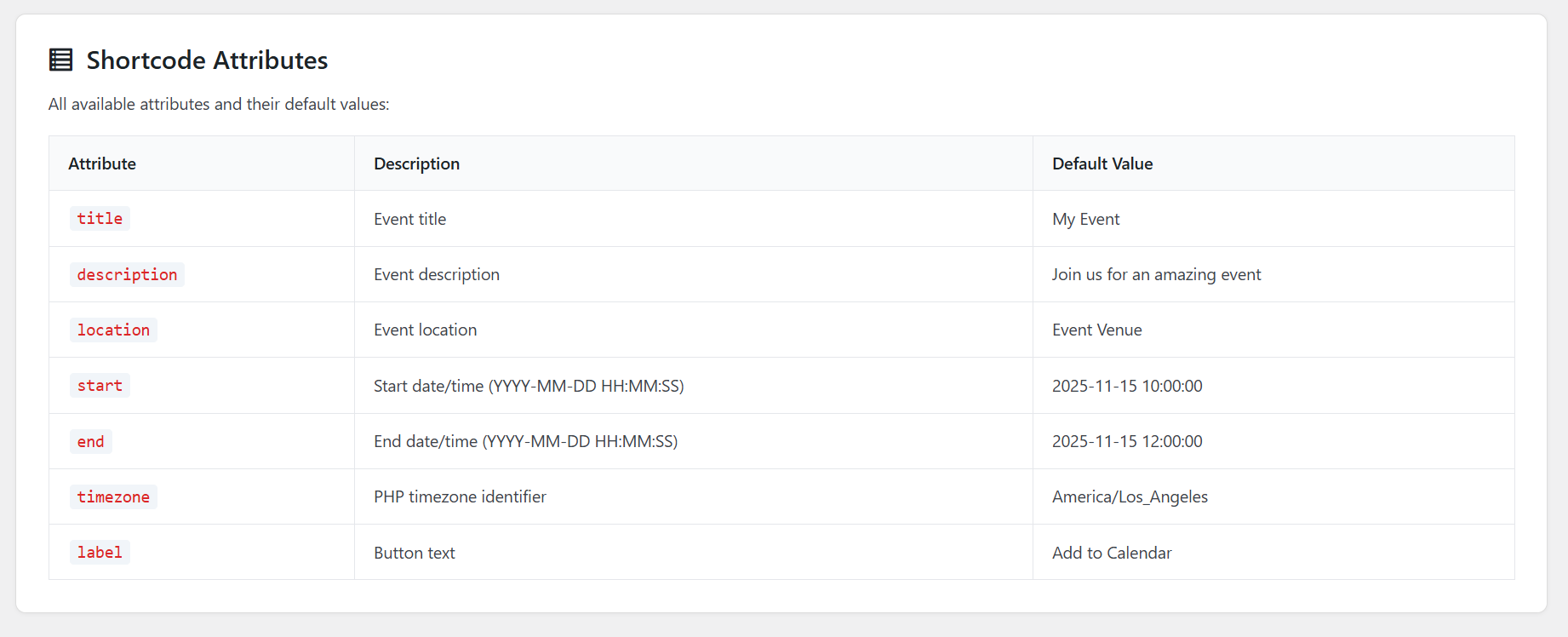
Mobile responsive design showing dropdown menu 
Button color preview in admin settings 
Multiple calendar service options displayed
Installation
Automatic Installation
- Log in to your WordPress admin panel
- Navigate to Plugins > Add New
- Search for “Event – Add to Calendar”
- Click “Install Now” button
- Click “Activate” to enable the plugin
Manual Installation
- Download the plugin ZIP file
- Log in to your WordPress admin panel
- Navigate to Plugins > Add New > Upload Plugin
- Choose the downloaded ZIP file
- Click “Install Now” and then “Activate”
FTP Installation
- Download and extract the plugin ZIP file
- Upload the
event-add-to-calendarfolder to/wp-content/plugins/ - Activate the plugin through the ‘Plugins’ menu in WordPress
After Installation
- Navigate to “Add to Calendar” in your WordPress admin menu
- Configure button colors and enable/disable calendar services
- Copy the shortcode and add it to your posts or pages
FAQ
-
Simply add the shortcode
[evtcal_add_to_calendar]to any post, page, or widget area. You can customize the event details using shortcode attributes. -
Go to WordPress Admin Add to Calendar Settings tab. Use the color pickers to choose your preferred button background, hover, and text colors. Click “Save Settings” to apply changes.
-
How do I enable or disable calendar services?
-
Go to WordPress Admin Add to Calendar Settings tab. Use the toggle switches to enable or disable individual calendar services (Google, Office 365, Outlook, Yahoo, Apple Calendar).
-
What date and time format should I use?
-
Use the format YYYY-MM-DD HH:MM:SS (24-hour format). For example:
2025-12-25 14:30:00represents December 25, 2025 at 2:30 PM. -
Yes! You can customize colors through the admin settings page, or override CSS in your theme’s stylesheet using these classes:
*.evtcal– Main container
*.evtcal-btn– Button element
*.evtcal-dropdown– Dropdown menu
*.evtcal-arrow– Arrow icon -
Does this work with page builders?
-
Yes, the plugin works with all major page builders including Elementor, Divi, Beaver Builder, WPBakery, and others. Simply add the shortcode using the page builder’s shortcode widget.
-
Absolutely! You can add as many calendar buttons as you need on a single page, each with different event details.
-
Is this plugin GDPR compliant?
-
Yes, the plugin does not collect, store, or process any personal data, making it fully GDPR compliant.
-
Does this plugin require any external services?
-
No, all calendar generation and processing happens on your WordPress server. No external APIs or services are used. The plugin only creates links to calendar services when users choose to add events.
-
Will this slow down my website?
-
No, the plugin is extremely lightweight with minimal CSS and JavaScript. Assets only load on pages where the shortcode is used.
-
Can I translate this plugin?
-
Yes, the plugin is fully translation-ready with the text domain
evtcal-add-to-calendar. Translation files can be placed in the/languagesfolder or use WordPress translation tools. -
What if the .ics file doesn’t download?
-
Make sure your server allows file downloads and check that there are no PHP errors. The plugin generates .ics files dynamically with proper headers.
-
How do I get support?
-
For support, please visit our website at https://www.melonwebstudio.com or contact us at [email protected]. You can also use the WordPress.org support forum.
Reviews
There are no reviews for this plugin.
Contributors & Developers
“Event – Add to Calendar” is open source software. The following people have contributed to this plugin.
Contributors
Translate “Event – Add to Calendar” into your language.
Interested in development?
Browse the code, check out the SVN repository, or subscribe to the development log by RSS.
Changelog
1.0.0 – 2025-01-15
- Initial release
- Support for Google Calendar, Outlook, Office 365, Yahoo, and Apple Calendar
- Shortcode implementation with customizable attributes
- Admin settings page with color customization
- Toggle switches to enable/disable calendar services
- Responsive dropdown design
- Full accessibility support (ARIA labels, keyboard navigation)
- Security enhancements with nonce verification
- Translation ready with proper text domain
- Clean, well-documented code following WordPress coding standards
- Mobile-friendly and touch-optimized interface