Are you tired of WooCommerce stores that break every time you update a plugin?
Most page builders try to include everything: popups, fancy sliders, and endless marketing widgets. While this sounds appealing, it often leads to slow load times and compatibility headaches. Beaver Builder takes a completely different approach. It focuses on stability and clean code, and gives you a solid foundation to build on.
In this review, we’ll look at whether this focus on reliability over flashy features actually works for a real WooCommerce store.
What You’ll Learn
Beaver WooCommerce Builder Overview
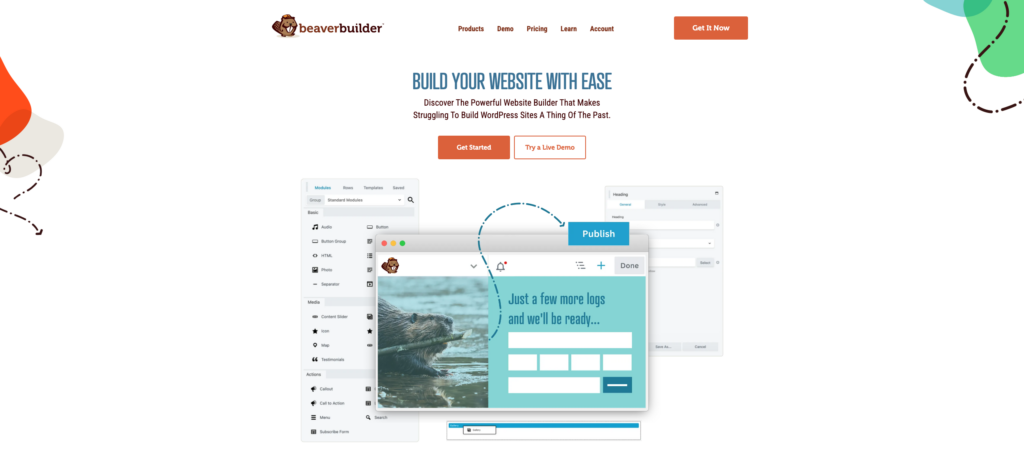
Beaver Builder has been a reliable choice in the WordPress space since 2014. Unlike WooCommerce builders that chase every new feature, it focuses on stability and clean code that will not break your site when updates roll out. It comes in three pieces that now come bundled together in all premium plans: the Page Builder for content, the Beaver Builder Theme as a lightweight base, and Beaver Themer for full-site editing, including WooCommerce templates.
This approach suits agencies and developers who prioritize long-term stability over having every marketing widget included by default. For WooCommerce, this means you get solid structural features for building product pages and archives. You get a foundation that stays fast and reliable, with the flexibility to add specific features through third-party plugins when you actually need them.
Interface & Ease of Use
Before you start designing products and checkout pages, you need to understand how Beaver Builder actually feels to work with. The interface has remained largely unchanged for years, as it prioritizes stability over visual trends. Let us look at what happens when you sit down to build your first page.
Installation and Initial Setup
Beaver Builder installs like any standard WordPress plugin. After activation, you enter your license key to unlock premium features. Unlike some builders that take over immediately, Beaver Builder waits for your permission. You must navigate to Settings and explicitly enable the editor for specific post types like Pages, Posts, or Products. This prevents the builder from loading unnecessary scripts where they are not needed.
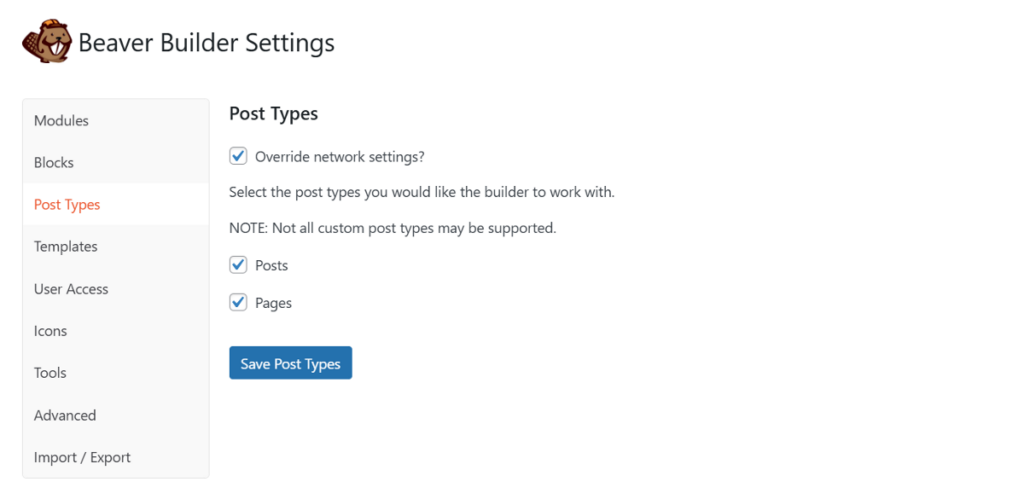
Once enabled, you will see a Launch Beaver Builder button on the WordPress edit screen. When you click this button, it opens a front-end visual editor where you work directly on a live preview of your page.
Beaver Editor Workspace
Beaver Builder uses a true front-end interface. You edit the actual page as visitors will see it, not a backend builder like the Block Editor.
The workspace is organized into four main areas. The Top Bar sits at the top with the Tools menu, global settings, and publishing controls. It also houses the responsive editing toggle so you can switch between desktop, tablet, and mobile views instantly.

When you click the Plus button in the top bar, the Content Panel slides out. This contains your Modules organized by groups, pre-built Rows for column structures, and page Templates you can import.
Click any element on the page, and the Settings Window appears. This floating window organizes controls into three consistent tabs: General for content, Style for appearance, and Advanced for layout and conditions. You can pin this window to the side or let it float over the canvas.

On the right, the Outline Panel shows a hierarchical tree view of your page structure. This is essential for navigating complex WooCommerce layouts where elements nest deeply.

Ease of Use
The interface is widely described as professional and unobtrusive. It loads approximately 30 to 40 percent faster than Elementor, making it feel snappy even on complex product pages. Elements stay where you put them, and the drag and drop output is highly accurate. What you see in the editor is exactly what appears on the published site.
The learning curve is low. The separation between adding content (the Plus panel) and editing existing content (the Settings window) makes the workflow intuitive for beginners. Unlike builders that clutter the screen with floating icons, controls appear only when you hover over an element.
You can click directly on text to edit inline without opening a settings panel, though complex formatting still requires the full editor. The History tab tracks your edits and supports undo and redo, giving you a safety net to experiment freely.
For power users, keyboard shortcuts speed up the workflow. You can save with a keystroke or toggle device views without clicking through menus. It also has a right-click context menu, which gives you access to shortcuts like duplication and management of complex layouts.
Site Settings & Global Styles
When you’re building a WooCommerce site, you need a unified design system to maintain consistency across every product and checkout page. Beaver Builder handles this through two different control panels: Global Settings for structure and Global Styles for visuals. Here’s how each panel works.
Global Settings
Once you’re into the editor, you can access Global Settings through the Tools menu or the keyboard shortcut. This panel lets you control the structure of your site rather than the colors.

You can set the default maximum width for rows, usually 1100 pixels, ensuring your content container stays consistent across every page.

You can also define the responsive breakpoints here for large, medium, and small devices. A useful feature is Auto Spacing, which automatically resets margins and padding to zero on mobile devices to prevent layout issues without manual tweaking. There is also a dedicated area to inject site-wide CSS or tracking scripts without editing theme files.
Global Button and Typography Style
Global Styles is where you establish your brand identity. You can access this via the same Tools menu, and it lets you define your color palette, font families, and button designs. When you create a global color, Beaver Builder generates a CSS variable automatically. This means if you change your primary brand color here, it updates everywhere instantly.
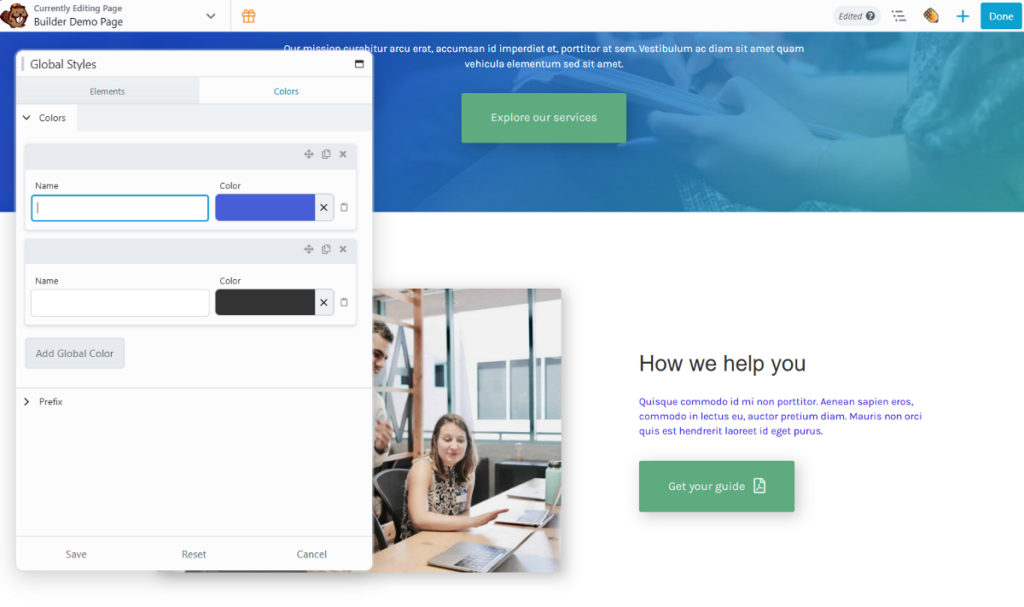
For typography, you set your base font and heading hierarchy from H1 through H6. These choices apply to all text across your store.

The button settings are particularly useful for WooCommerce. You define the background color, text color, padding, border radius, and hover states once. Every button module on your site inherits these rules automatically.
WooCommerce Specific Controls
Beaver Builder does not have a separate Global Styles panel specifically for WooCommerce. Instead, it relies on the main Global Styles. The button styles you set apply automatically to WooCommerce buttons like Add to Cart, Apply Coupon, and Checkout.
Your typography choices flow through to product titles and descriptions. This ensures your store feels integrated with the rest of your site without requiring manual styling on every product page. For deeper customization of WooCommerce specific elements like sale badges or archive layouts, you would use Beaver Themer.
WooCommerce Template Types
Beaver Builder does not limit you to styling existing WooCommerce layouts. With Beaver Themer, you get a dedicated builder for every major store page type. Let’s look at the different templates supported by the builder.
Individual Product Pages
For single product templates, Beaver Themer comes with many WooCommerce-specific modules. You can place Product Title, Price, Add to Cart Button, Product Images, and Product Meta anywhere on the page. This lets you break away from the standard WooCommerce layout. You could place the price above the title, or move the description into a sidebar.
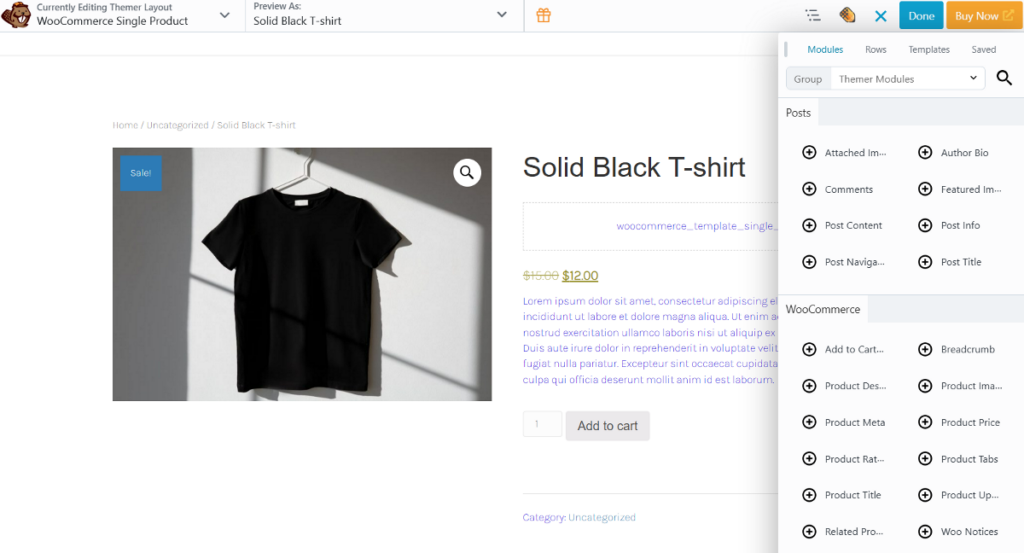
The Preview As feature is particularly useful here. While editing, you can view your layout populated with data from a specific product, like a Black T-Shirt. This ensures your design handles variable content correctly, whether the product has a long title or is currently out of stock.

Product Archives and Loops
For shop and category pages, you can replace the standard grid entirely. Instead of accepting preset layouts, the Loop Module lets you design a custom product card from scratch.

You combine standard modules like Photo for the product image, Heading for the title, and Button for the price. The Loop Module then repeats this layout for every product in your query.

You can create one master archive layout that applies to all categories, or build specific layouts for different product types. The module supports custom queries, so you can filter by featured products, best sellers, or specific categories without writing code.
Other Template Types
Beyond products and archives, Beaver Themer covers the entire customer journey. You get dedicated builders for the Cart, Checkout, and My Account pages. You can also customize the Thank You page customers see after purchase, the Order Tracking page, and the Search Results template.

For Cart and Checkout, Beaver Builder takes a container approach. You embed the standard WooCommerce forms into your custom layout, allowing you to add trust badges or testimonials around the checkout form. However, you cannot natively drag and drop individual checkout fields or create multi-step checkouts without third-party addons.
Advanced Features & Dynamic Data
Advanced features separate hobby sites from professional stores. You need conditional rules that respond to cart contents and dynamic connections that pull live product data without manual updates. Beaver Builder handles these through Beaver Themer, though you should know upfront that it skips some marketing features like native popups that competitors include.
Conditional Logic
Beaver Themer includes a visibility engine that controls when specific rows, columns, or modules appear. You find these controls in the Advanced tab of any element, under Display settings.

You build rules using AND/OR logic groups. For WooCommerce stores, this becomes particularly powerful. You can show a free shipping banner only when the cart total exceeds $100, or display a special discount only to logged-in users with a Gold Member role. You can hide prices for guest users entirely, or show specific upsells only to customers who purchased a particular product in the past.

The logic processes on the server side. This means hidden elements are completely excluded from the HTML markup, not just hidden with CSS. This keeps your code clean and prevents savvy users from viewing source code to see content meant for other audiences.
Dynamic Field Connections
Dynamic data in Beaver Builder works through field connections. Instead of typing static text into a heading module, you click the plus icon next to the field and connect it to live database values.

You can link modules to product titles, featured images, prices, SKUs, and stock status. If you use Advanced Custom Fields, you can pull custom product data like material specifications or care instructions directly into your layouts. When you update information in the WooCommerce backend, the frontend updates instantly without touching the builder.

Other WooCommerce-Friendly Features
For agencies and developers, Beaver Builder includes over 340 hooks and filters to allow you to inject content programmatically or modify module output.

With Version 2.9, it also introduced a Clean Code Mode that strips default wrapper divs from modules, giving you complete control over HTML output for stricter semantic requirements.
If you are on the Unlimited plan, you also get White Labeling that lets you replace all Beaver Builder branding with your own company name and logo. This allows you to present the builder as a proprietary tool to your clients.
Unlike Elementor or Breakdance, Beaver Builder does not include a native popup builder. If you need exit-intent offers or announcement bars, you must integrate with third-party plugins like Popup Maker.
Performance
When you’re building a WooCommerce site, performance becomes really important as a delay of a single second can cost you actual sales.
On a standard WooCommerce product page with Product Title, Images, Price, Add to Cart Button, and Related Products, Beaver Builder scores 94 on mobile and 96 on desktop in Google PageSpeed Insights. The page size is approximately 280 KB with 16 HTTP requests. This places it firmly in the top tier for speed, though slightly behind Oxygen and Beaver Builder.
This solid performance comes from deliberate architectural choices. Beaver Builder generates fewer wrapper divs than Elementor or Divi, reducing the DOM size. It loads only the assets required for the specific modules you use on each page.
For most WooCommerce stores, this performance provide balance, but you may still need optimization plugins if you stack too many third-party extensions.
Pricing
Beaver Builder recently restructured its pricing so that all premium plans include the Beaver Themer and Loop Builder, which were previously separate purchases. There is also a limited free version available for testing.
Here is how the pricing plans break down:
- Free Lite Version ($0/year): Includes basic builder and standard modules without WooCommerce support.
- Starter Plan ($89/year): Covers one live website. Includes the Page Builder, Beaver Builder Theme, Beaver Themer, and Loop Builder.
- Plus Plan ($179/year): Covers three live websites. Includes everything in the Starter plan.
- Professional Plan ($299/year): Covers up to 50 live websites and adds Multisite support.
- Unlimited Plan ($546/year): Covers unlimited live websites and adds White Labeling and six months free of Assistant Pro cloud storage.
Pros & Cons
Pros
- You get stability with updates that rarely break live sites.
- It generates clean code that loads approximately 30 percent faster than Elementor.
- You avoid vendor lock-in because deactivating the plugin leaves readable HTML without a shortcode mess.
- All premium plans now include Beaver Themer and the Loop Builder at no extra cost.
- The editor interface loads significantly faster than competitors, making complex pages feel snappy.
- It offers over 340 hooks and filters for developers who need deep customization.
- The Unlimited plan includes White Labeling so you can present it as your own tool to clients.
Cons
- The core module library is smaller than competitors.
- It lacks a native popup builder, forcing you to install separate plugins for exit-intent offers.
- The user interface looks dated compared to modern builders and lacks a right-click menu on the canvas.
- It is more expensive than competitors if you only need to build a single website.
- You need third-party plugins for native variation swatches and advanced checkout field editing.
- New features are released slowly compared to the rapid update cycles of Divi or Elementor.
Is Beaver Builder the Right WooCommerce Builder For You?
So who should actually use Beaver Builder for their WooCommerce store?
If you need every feature included out of the box, from faceted filters to exit-intent popups, Beaver Builder will frustrate you. You will find yourself installing separate plugins for features that competitors include natively, and the dated interface might feel limiting compared to modern alternatives.
However, if you are building stores for clients or running a business where stability matters more than flashy features, Beaver Builder offers something rare. You get code that will not break when WordPress updates.
You have to decide what matters more for your specific project. Do you need a builder that includes every marketing widget you’d want, or do you need something that works without much maintenance?
If you prioritize long-term maintainability over having the biggest feature set, Beaver Builder is the right choice. It suits agencies and developers who care more about what happens to the site six months after launch than how quickly they can click publish today.
Beaver Builder WooCommerce Review: Your Questions Answered
Is beaver builder better than Elementor?
For stability and long-term maintenance, yes. Beaver Builder generates cleaner code, loads approximately 30 percent faster, and updates rarely break existing layouts. You also avoid vendor lock-in since deactivating it leaves readable HTML. However, Elementor offers more native features like popups and marketing tools, plus a vastly larger template library.
Which page builder is best for WooCommerce?
For WooCommerce sites and performance, Breakdance is currently the best theme builder option with its native features and fast load times. For the largest template library and community support, Elementor leads the market. For visual effects and established workflows, Divi remains popular. If you want to build a fast, maintainable store without managing multiple plugin subscriptions, Breakdance is the best all-in-one theme builder.
What is the fastest theme for WooCommerce?
Lightweight themes like Astra, GeneratePress, and Kadence are popular choices that keep your site fast by loading minimal CSS. However, the fastest approach is to skip the theme entirely. Breakdance offers a themeless mode that disables the WordPress theme completely, eliminating theme bloat while giving you more customization control than any traditional theme allows.
How to make WooCommerce fast?
- Choose quality hosting with modern PHP versions and HTTP/2 support.
- Install a caching plugin to serve static HTML.
- Select a lightweight theme or go themeless with a Breakdance builder.
- Convert product images to WebP format and compress them before upload.
- Minimize JavaScript by deferring non-critical files and removing unused scripts.
- Clean up CSS by removing unused styles and optimizing delivery methods.


