Create and manage a variety of discount strategies effortlessly to increase conversions and customer engagement. This module lets you create and manage advanced discount rules, automate coupon application, and offer personalized deals based on customer behavior.
Smart Coupons module is a powerful tool to upgrade a store’s coupon strategy. It has 2 tabs, General and Shortcode.
1. General #
1.1 Enable Smart Coupons: Toggle this button to activate the smart coupons module.
1.2 Extra Admin Columns: You can choose extra admin columns to show on the coupons table.
1.3 Enable Bulk Coupon Generator: Switch on this option to enable the bulk coupon generator. You can find it under “Marketing > Coupons > Bulk Coupon Generator.”

1.4 Enable Coupon Explorer? Activate this button to enable the coupon explorer. It will allow you to export coupons in csv format.

Now, click on the “Save Changes” button to save the updates.
2. Shortcode #

2.1 You can display the coupon list using the following shortcode. You need to place it anywhere on your cart, checkout or product page:
[rtsb_coupon_list layout="rtsb-coupon-layout1" group="" type="all" include="" exclude="" coupon_limit="10" visibility="active,no_expiry,expired"]
2.2 Coupon Card Background Color: You can choose the coupon background color according to your choice.
2.3 Coupon Card Text Color: Set the text color of coupon card.
Now, click on the “Save Changes” button to save the updates.
Extra Admin Columns

Navigate the Marketing section and click on ‘Coupons.’
1. You can see the coupon tables with extra columns.
2. You can export coupons in CSV format by clicking on this button.
3. Manage coupon group by clicking on this button.

To customize the coupon group, you can add Name, Slug, and Description. Lastly click on “Add New Coupon” Group to save the updates.
Coupon Page With Extra Setting #
On the “Add New Coupon” page, you will get some extra settings.
Click on the General section

1.1 In the discount type option if you choose “Percentage Discount” “Fixed Cart Discount” or “Fixed Product Discount”, you will receive 3 different extra settings
1.2 Switch on this button to activate auto apply coupon.
1.3 Enable this option for the first purchase coupon.
1.4 If you want to show the coupon in the front-end, enable this button.
Discount Type-Volume Discount #
If you choose “Volume Discount” as discount type, you will get two additional settings along with the extra settings.
1.5 Discount Type: You can choose the discount type as “Per Product (discount(%) to each product individually)” or “Total Cart Item (discount(%) based on total cart quantity).”
- For “Per Product”, select products in the “Usage Restrictions” tab. If you do not choose any, the discount won’t apply.
- “Total Cart Item” applies to the cart’s total quantity, ignoring selected products in “Usage Restrictions”.

1.6 Volume Discount Tiers: Enter ‘Quantity:Discount%’ pairs separated by | (pipe).
For Example: 10:5|20:10 means 10:5 for 5% off above 10 items, 20:10 for 10% off above 20, etc.
2. Now, move to the “Usage Restriction” section.

You will get some extra settings here
2.1 Insert the amount of the minimum cart quantity.
2.2 Enter the maximum cart quantity.
2.3 Choose user roles applicable to use the coupon.
2.4 Select the shipping method for using this coupon.
2.5 Determine the payment method for the coupon.
2.6 You can choose a particular location for the coupon.

Usage Limits
3. Now move to the Usage Limit part.
3.1 Set up the usage limit per coupon.
3.2 Determine usage limit per user.

Gift Products #
4. Click on the “Gift Products” Section.
4.1 Activate the “Gift Products” button.

4.2 Select the gift products you want to provide from the dropdown list.
4.3 Determine the gift product quantity according to your preference.
4.4 You can also insert custom gift notes to display to the customers.
Lastly, click on the update button from right above the side to save all the updates.
5. You can generate automatic coupon code by clicking this button.
6. You can also copy the coupon code with just a single click.
7. If you want to customize coupon groups, you can complete the process in this section. You will be able to select coupon groups or mose used coupon groups. Add new coupon groups if necessary.
After all these updates, click on the update button to save all the changes.
8. You can copy and share the link from here to automatically apply this coupon to the user’s cart.

Bulk Coupon Generator #
Through this option you can create bulk coupons by following some simple steps.
1.1 Firstly, you need to insert the number of the coupons you want to generate.
1.2 Then you need to set the coupon prefix.
1.3 Enter the coupon suffix.
1.4 after that, you need to write a short description of the coupons. This is optional.

1.5 Then, move to coupon data general section. You will get two extra settings in the section. You can activate both “Auto Apply Coupon” and “First Purchase Coupon” according to your choice. But if you choose “Volume Discount” from the drop down, you will receive same setting as “Add New Coupon”.

1.6 The usage restrictions settings is same as creating a single coupon page. It also hase extra settings options. You need to fill out the fields according to your requirements.
1.7 In the usage limit part you can set usage limit per coupon and per user.
1.8 In the gift product section you can enable this option, choose gift products with quantity, and add a special note.
After all the updates, click on “Generate Coupons” to make bulk coupons automatically.
Front End View of Volume Discount #
- Volume Discount coupon will be automatically applied after adding products in the cart.

In the “Cart Page” customers will receive a congratulation message on adding the discount and the details of the discount in the cart table.
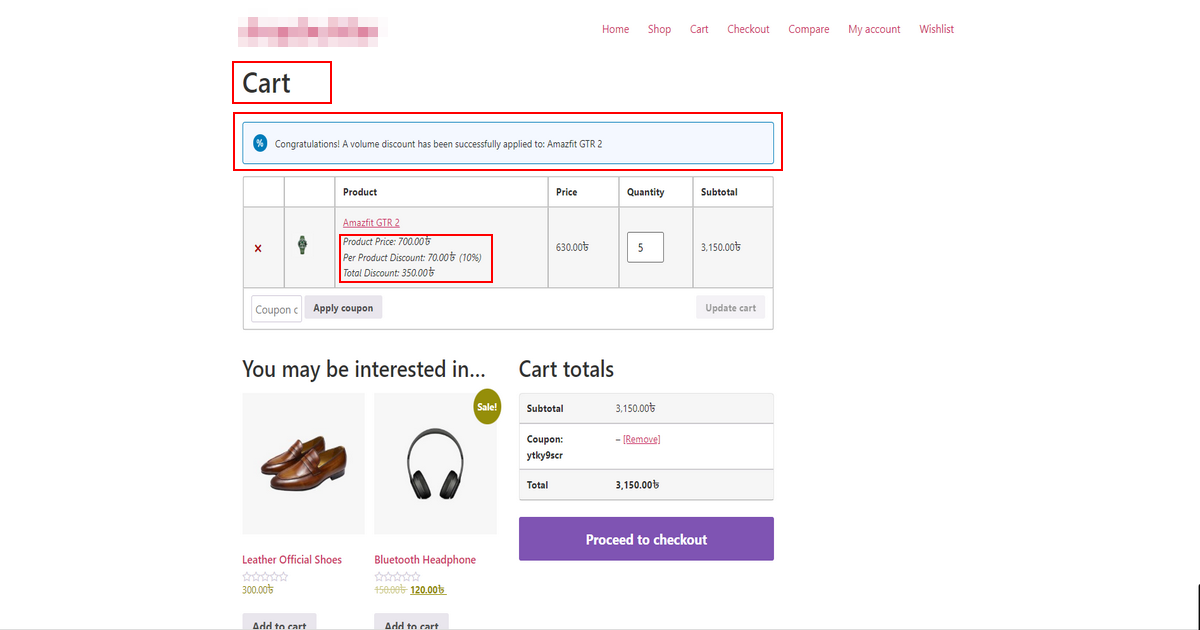
If you choose “Total Cart Item (discount(%) based on total cart quantity) from the discount type of “Volume Discount” customers will receive the cart quantity discount message.

In the “Checkout Page” discount details will be visible again for the customers

– Customers can also see the volume discount details in the “Order Received” page.

Admin View of Volume Discount #
- Firstly, Navigate WooCommerce
- Click on orders and select the particular order to see details.

Admin can see the volume discount items with coupons in the order details page.

Front-End View of Gift products Option & Sharable Coupon Link
Customers will get a congratulation message of the gift and can see the coupon discount from the sharable link