Boost Online Store’s sales by suggesting different product options (cross-sell, upsell, related, categories, custom).
Effectively showcase related products based on your customer’s selected items. Level up your business growth by smart recommendations with an interactive pop-up. Independently control the product limit and customize the overall style (colors, buttons, and borders).
1. General #
To configure Extended Cross Sell for WooCommerce, navigate to the WordPress admin menu ShopBuilder =>Settings =>Modules =>Extended Cross Sell => General

1.1) Enable Extended Cross Sell?: Toggle this button to activate the module.
1.2) Product Lists Popup Title: Insert the product’s pop-up title.
1.3) Product Source: You can define which products to display. Cross-sells, up-sells, and related products, product categories, and custom products are available for display.

1.3.1) If you choose the Cross-sell & Up-sell option, then after selecting any particular products, customer will see the pop-up of corresponding cross-sell and up-sell products.
Cross-sell & Upsell Edit on Product Page
If you select cross-sell or up-sell options, then you need to perform the setting by navigating to a particular product page.
1. After landing on the Edit Product Page, Move to the Linked Product Section and click the option.

2. Now, Cross-sell and Up-sell product options will be visible to you. You need to add the preferred products for pop-up. You need to enter the first three letters of the products and it will show you the related products suggestions. Now, add all the products one-by one. After completing, you can save the edits.

1.3.2) On the other hand, if you choose Product Categories or Custom Products, a new field will appear below, termed as respectively Applicable Categories or Applicable Products.
Now, you can independently choose your preferred categories or products. They will show up in the pop-up whenever shoppers add products in their cart.

Here, we’ve selected the Custom Product option. After selection, a new field appeared termed as Applicable Products. We choose the preferred products here.
1.4) Popup Delay (milliseconds): You can independently adjust the pop up delay in milliseconds.

1.5) Template Layout: Select the pop-up layout from 2 choices.
1.6) Product Limit: Determine the maximum number of products to display.
2. Style #
Now, click on the Styles tab.
You can customize the extended cross sell section according to your brand guideline.
Personalize the Button Background, Button Color, Border Color, Border Hover Color, Button Hover Background, and Button Hover Color according to your preferences.
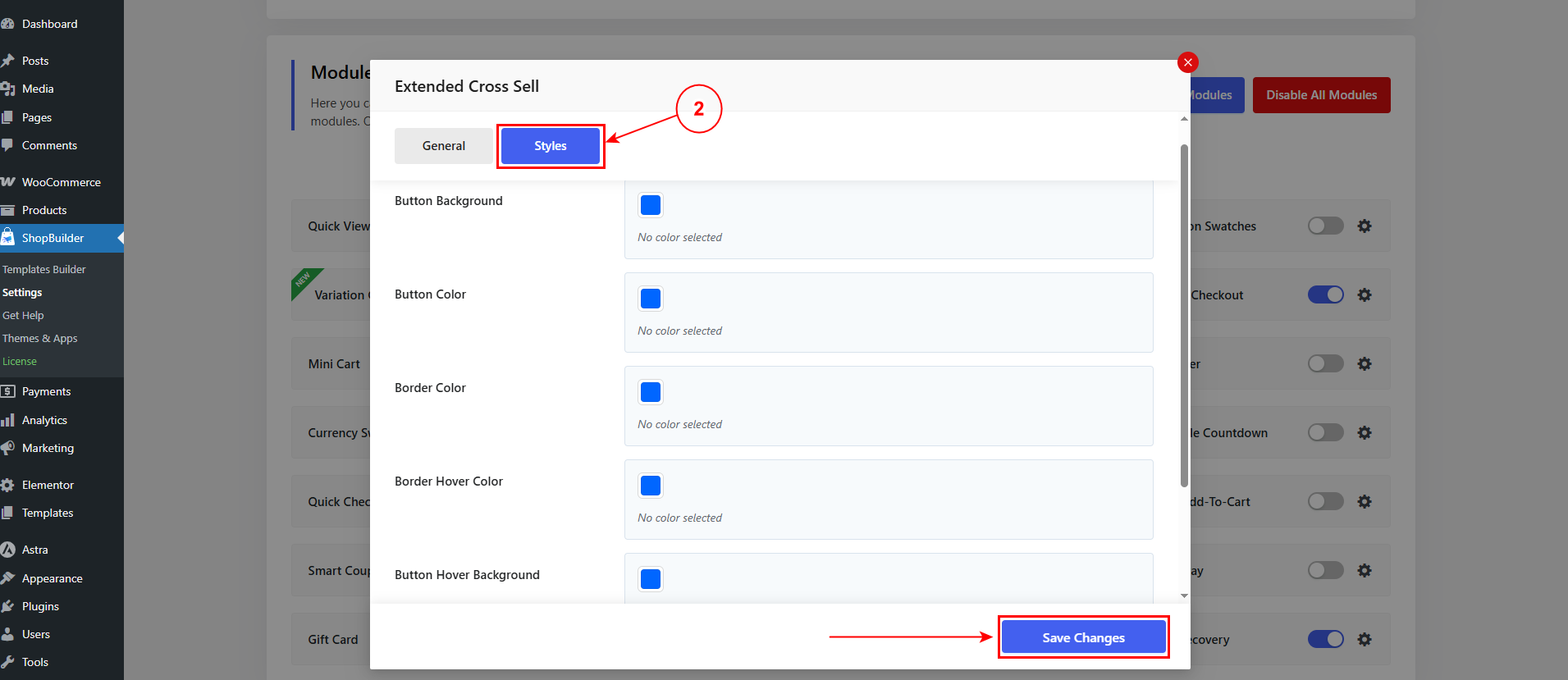
Now, click on the “Save Changes” button to save the updates.
Front End of Extended Cross Sell Module
Whenever customers add a product on their cart, the extended cross sell products will be visible in pop-up format.