
If you’d like to accept credit card payments for your digital products, courses, or memberships, Stripe is a secure and reliable solution, and Smart Creator Press (SCP) makes it easy to integrate.
Follow this step-by-step guide to connect Stripe to SCP, enter your API keys, configure webhooks, and test everything to make sure it’s working smoothly.
☑️ Step 1: Log in to Your Stripe Account
- Go to https://dashboard.stripe.com/
- Log in using your Stripe credentials
☑️ Step 2: Get Your Stripe API Keys (Test & Live)
To connect Stripe to SCP, you need 4 keys total:
✔ Test Publishable Key ✔ Test Secret Key ✔ Live Publishable Key ✔ Live Secret Key
Here’s how to get all of them.
Get Your TEST Keys First

- Log into your Stripe Dashboard
- Look at the top-right corner. Make sure Test Mode is ON (the toggle should be switched so you see “Test mode” highlighted)
- Go to Developers → API Keys
- Your Test Publishable Key is right there on the screen. Copy it and save it somewhere safe
- Now click “Create secret key”
- Stripe asks: “How will you use this API key?” Select “Building your own integration” (because you’re connecting Stripe to your own site via SCP)
- Click Create
- Your Test Secret Key appears once. Copy it immediately. Stripe will NOT show it again ⚠️
Now Get Your LIVE Keys
Copy your Live Secret Key immediately. Again, Stripe won’t show it twice ⚠️
Go back to the top-right corner and toggle Test Mode OFF. You’re now in Live Mode
Stay on Developers → API Keys
Your Live Publishable Key is on the screen. Copy it
Click “Create secret key” again
Same drill: select “Building your own integration” → Click Create
Copy your Live Secret Key.
☑️ Step 3: Enter Your Stripe Keys in SCP
- In your WordPress dashboard, go to:
SCP → Settings → Payments - Toggle Enable Stripe to ON
- Click Edit next to Stripe
- Paste:
- Test Publishable Key
- Test Secret Key
- Live Publishable Key
- Live Secret Key
- Save changes
✅ That’s it! Stripe is now connected to SCP.
☑️ Step 4: Set Up Stripe Webhooks
Webhooks allow Stripe to notify SCP when a payment is successful, a subscription is cancelled, or a payment fails – ensuring user access stays up to date.
📩 In SCP:
- In your WordPress dashboard, go to:
SCP → Settings → Payments - Click on Edit Webhook Settings.
- Copy the webhook URL.
- Leave this screen open
🔁 In Stripe:
Go to Developers → Webhooks

Click + Add destination

Step 1: Add the required events in Stripe. Search and select each event from the list below:
customer.subscription.updatedcustomer.subscription.deletedcharge.refundedinvoice.payment_succeededinvoice.payment_failed

Step 2: Select the Webhook endpoint option

Step 3: Enter the webhook URL you copied from SCP and save it

🔐 Get the Stripe Webhook ID:
Step 1: After creating the endpoint, click to view it:

Step 2: Click Reveal Signing Secret
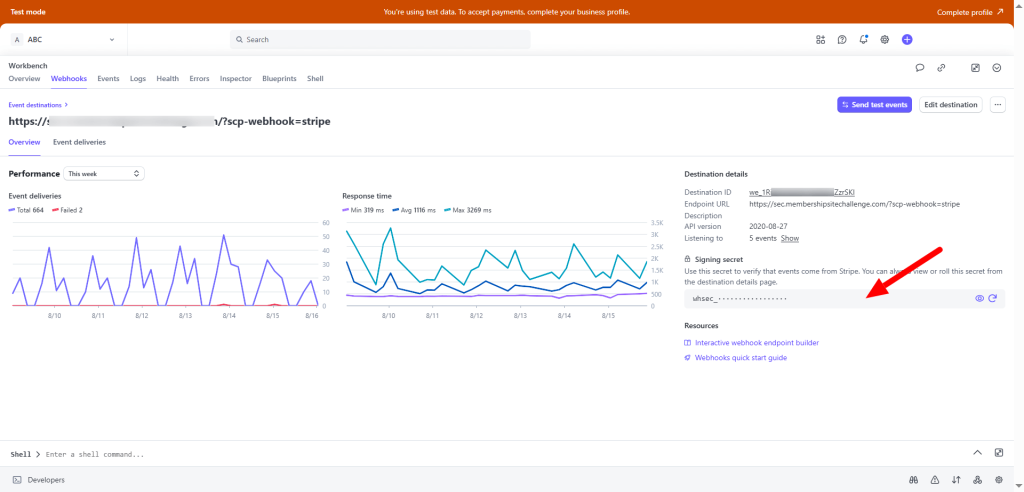
Step 3: Copy the secret key
Step 4: Paste it into the Webhook ID field in SCP. Save changes.
✅ Your webhook is now active and secure.
☑️ Optional: Force Test Mode for Admins
Want to always test purchases in sandbox mode when logged in as admin?
- Go to SCP → Settings → Payments
- Enable the toggle for
“Always Use Test Mode for Admin”
Great for debugging and testing live funnels without affecting real sales.
🧪 How to Test a Payment
To test your Stripe checkout flow:
- Open a private/incognito window
- Visit the Course or Product URL
- Click Enroll, Buy Now, or Sign Up
- On checkout, use this Stripe test card:
4242 4242 4242 4242- Any future expiry date
- Any CVC and ZIP
✅ Confirm the Flow Works:
- You land on the Order Summary Page
- You’re logged in automatically
- You can access your product from the Member Dashboard
- You receive a Welcome Email
- The content is displayed properly
You’re now ready to accept real payments with Stripe!


