Setup Domain Name for Raspberry Pis, wired to Local Network

In my previous article, I have shared my experience about sharing internet connection received by my Desktop PC, to the RPis. While this setup is okay to me, there is a small matter that bugged me. Whenever I need to reach other RPi from another RPi or from my connected desktop PC (e.g. doing SSH), It requires me to remember & type in the target machine’s IP Address. I want to improve this experience further by just typing the hostname of the target machine such as ssh pi@rylai instead of ssh [email protected]

I understand that in order to achieve this, I would need to setup & run Domain Name System (DNS) servers in my RPis LAN. But, it’s another “I know ( what I should do), but I don’t know (the technical detail of how to do it)” problem to me. After I spent a couple of days searching references which fit to my case, I then bumped with this article. Someone has done it, but I’d like to prove it and see if it fits & works on my RPis LAN.

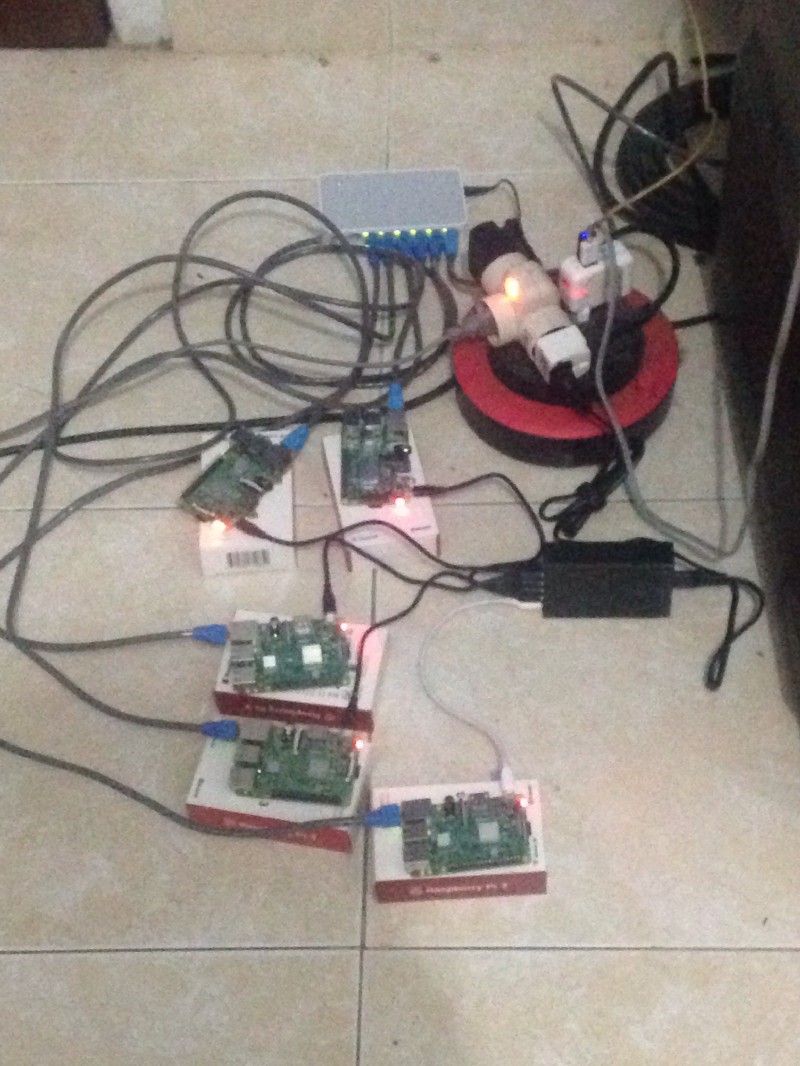
In this article, I am going to share my experience of how I setup the primary & secondary servers on my Desktop PC and my old Raspbery Pi 2 Model B, I connected to the RPis Private Local Network.

Updated the IP Addresses

I did not change any physical parts that are involved in the private network. However, in order to get this done by following the article, I changed each RPis and my desktop PC’s IP Addresses as in the following list:

List of each machine’s new IP Addresses 

Since I updated the network’s address to xxx.xxx.0.0 (netmask 255.255.0.0), these updates will allow me to connect more nodes up to 255 x 255 = 65k devices. Thus, I won’t need to feel worry with re-updating my network’s IP Addresses in the future, when I’ll add more devices into the private network.

I applied the new IP Addresses to RPis through reverting the IP Address configuration I made in dhcpcd.conf file, moved them into /etc/network/interfaces file and also changed the host’s IP Address in the /etc/hosts file.

Added a new entry which map the new IP address to the new host name.domain name 
/etc/dhcpcd.conf in each RPis were reverted into default
/etc/network/interfaces in each RPIs.

I also did similar change on my Dekstop PC’s /etc/network/interfaces and /etc/hosts files.

Changed /etc/network/interfaces file with the new IP on my PC’s LAN port (enp6s0)

I then restarted all RPis and my PC after making these changes on each of these machines, to ensure the changes took effect.

The new IP Address reported by ifconfig command, after rebooted the RPi

Setup Primary DNS Server on My Ubuntu PC

The software which runs DNS server in Linux OS is bind9. I installed bind9 and an additional software(dnsutils ) software on my Ubuntu Dekstop PC, through running this command:

sudo apt-get update && sudo apt-get install bind9 bind9utils bind9-doc dnsutils

Then, I modified bind9’s default config to ensure that it will run on IPV4 mode.

Modified /etc/default/bind9 to force bind9 runs in IPV4 mode

Next, I modified /etc/bind/named.conf.options , /etc/bind/named.conf.local files to put my Private network’s address and the new IP Addresses of each connected hosts, into bind9 ‘s configurations.

Adjusted /etc/bind/named.conf.options file
Adjusted /etc/bind/named.conf.local file

Then, I created /etc/bind/zones/db.<my private network's domain name> as the zone’s config file and /etc/bind/zones/db.<my private network's unmasked ip address's parts>  as the reversed zone’s config file. I changed these files, as shown in the following screenshots.

The Zone File
Enter a caption

After I modified & created these files, I then run named-checkconf & named-checkzone commands to ensure that the changes are valid.

Validate changes in bind9’s config files.

I also wanted to ensure my desktop PC still could access the connected RPis by specified hostname, instead of IP address later. To achieve this, I replaced /etc/resolv.conf file with a symbolic link to /run/resolvconf/resolv.conf .

Replaced /etc/resolv.conf with a link

Then I modified /etc/resolvconf/resolv.conf.d/head file, by entering nameserver entries with IP Addresses of Google’s DNS servers and my Desktop PC.

edited /etc/resolvconf/resolv.conf.d/head file

Lastly, I rebooted my Ubuntu Dekstop PC to see if all changes that I made would take effect and the Primary DNS server ran properly.

Setup Secondary DNS Server on the Raspberry Pi 2 Model B

Setup a secondary DNS is an optional path. I decided to do it anyway, just to make sure when my PC is not turned off and my clusterd RPis are still running, the RPis still could reach each other by specifying their host names. I decided to run the secondary DNS server on my Raspberry Pi 2 Model B, so that I could maximise the number of RPis 3 in the private network to be focusing on actual works that will happen in future.

Setup bind9 on my RPi 2 is quiet similar to setting it up on my Desktop PC earlier. 1st, I did SSH to the Rpi 2, ran update repository command followed by apt-get command for installing bind9, bin9utils, bind9-doc & dnsutils .

Install bin9 and utils on RPi 2

Then, I did same changes on my PC’s bind9 default config file, to enforce bind9 will run on IPV4 mode later.

Enforce bind9 runs in IPV4 mode

Next, I edited both/etc/bind/named.conf.options & /etc/bind/named.conf.local files as shown in these following screenshots:

/etc/bind/named.conf.options file of Secondary DNS server
/etc/bind/named.conf.local file of Secondary DNS server

Notice the different settings in the named.conf.local file compared to the Primary DNS’s file: the type of each zones are set as slave and within each of zones, there is masters entry which points to the Primary DNS’s IP address.

I did not create zone files for secondary DNS server. Thus, I just rebooted my Raspberry Pi 2 to see the changes that I made earlier.

Testings

Once I rebooted my desktop PC and my Raspberry Pi2, I then began conducting a number of Tests, to confirm that the Primary & Secondary DNS are working properly. For 1st Test, I did ping, dig& ssh from my Dekstop PC to one of Raspberry Pi3.

Ping & SSH other nodes by their hostnames from Primary DNS Server

As we could see, the Primary DNS server (My PC) was able to reach the RPis by their hostnames. Next, I ran dig against one of the RPis by host name, from my PC.

Run dig against one of RPi3 by hostname & domain name

We noticed more interesting info appeared from dig , such as the IP Addresses of Primary & Secondary DNS servers, beside the RPi’s full domain name and its IP Address.

2nd Test was doing same thing as in 1st Test, but this was done from within an RPi3.

Ping & SSH test from within an RPi3 to other machines
Running dig against other nodes from the RPi 3

Lastly, for the final test, I turned off bind9 service on my Desktop PC, to simulate if the Primary DNS server is downed, the Secondary DNS server will serve as the Naming server.

Disabling the bind9 on the Primary DNS server

Then I performed ping & ssh commands from within an RPi 3 to other RPi3 or 2.

ping & ssh from a RPi3 to other machines when Primary DNS is turned off

As shown in the screenshots, the secondary DNS server was successful took over the Primary DNS server’s role when it is turned off.

Next plans 

At this point, my clustered RPis can “talk” each other by specifying their host names, instead by their IP Addresses. Also, we could ensure that this feature won’t be gone when I turned off my PC (the Primary DNS server), as long as my RPi 2 B (the Secondary DNS server) is still connected & functional.

In the future, I am going to utilise these clustered ARM Small Computers for serving as my personal R&D infrastructure, supporting my backend application’s development, such as: running Jenkins build in master/slaves mode, running clustered Redis database instances, simulating HA & Load Balancing test scenarios against my Application’s Backend API, security tests, running Docker swarm master/worker containers and many more.

Reference(s)

Sharing internet connection to Raspberry PIs, wired to Local Network

Sometime before I write this article, I bought 5 units of Raspberry Pi 3 Model B, along with : 6 pieces of UTP Cat 6 RJ-45 cables, 5 Sandisk 16GB Micro SD cards, an 8 ports TP-Link TL-SF1008D LAN Switch, and an Anker 6 ports USB Power Adapter with 6 USB OTG cables as well. I ordered those parts, to be used for building an ARM based Computers Cluster, wired altogether forming a Local Area Network.

Once I have setup Raspbian Jessie OS on each of these RPis, I then booted them, (by using my Desktop PC’s Keyboard , Mouse & HDMI monitor) and began on assigning host name & static IP on each of the RPis (through editing their /etc/hostname & /etc/hosts files). I did this because I want to remote the RPis from my own desktop PC using SSH or Remote Desktop, by specifying their static IP Address.

I wired the Rpis using the UTP Cat6 cables to the LAN Switch, and also connected my Ubuntu Desktop PC into the Switch as well. I planned the topology of the wired Network as shown in this following picture:

I did ping test from an RPi to other connected RPis, from my Desktop PC to RPis, run ssh command from my desktop PC to the RPis, and the outcome were all went well.

A problem arise when I connected my Desktop PC to internet. Either through tethering my iPhone to my PC or connecting the PC to my Wireless MiFi modem, I could get access to internet from my Desktop PC, BUT not from the RPis in the wired LAN. It seemed that my Desktop PC did not share the Internet connection it receives to my RPis.

It took me few hours to understand, how sharing internet connection from my Ubuntu PC to my RPis can be done. Through google-ing efforts and trial-error attempts, I bumped into this article & followed partial steps in the article to get this done.

In this article, I am going to share my experience about how to share the internet connection received by my Ubuntu Desktop PC to the wired Raspberry Pis via Local Area Network.

Configure DHCP Client service on each of RPis

Defining a static IP address on an RPi through writing it on /etc/hosts file , helped me remoting the RPi from my Desktop PC. However, it’s not enough to help the RPis for recognising my Desktop PC as the Gateway to Internet. Also, we need to define the address of DNS servers that the RPi should lookup to, so that when they browse to a specific URL Site, they could find it by the site’s Domain name (e.g. http://www.intel.com), instead of by its IP Address (e.g. 103.56.234.57).

Through experimentation, I also found that each of RPis runs DHCPCD server. It is a daemon software which helps the RPi receiving dynamic IP assigned by DHCP server. On one of my RPi, it gave me trouble: it overridden the defined Static IP, replaced it with Dynamic IP (e.g. 169.71.55.12).

In order to prevent this and also `telling` RPis that they should lookup for valid DNS server and recognise my PC as Gateway to the internet, I modified the /etc/dhcpd.conf file in the RPi as in the following screenshot:

Additional changes in the red-squared lines are interpreted as follow:

  1. interface eth0 — Next configuration lines are applied to the LAN interface of the RPi, the eth0 .
  2. static ip_address — This line defines the static IP of current RPi and the subnet mask (/24)
  3. static routers — Defines the Gateway’s IP. In this case, it points to the IP Address of my Ubuntu PC.
  4. static domain_name_servers — Define IP addresses of valid DNS servers. In this case, I defined IP Addresses of Google’s DNS servers.

I saved the changes and then reboot the RPi. By the time my RPi was rebooted successfully, I ran ifconfig to confirm the IP address of eth0 interface has been assigned with the Static IP defined in /etc/dhcpd.conf earlier.

Then, I ping my ubuntu Desktop and I can confirm that the RPi still can reach out my PC.

I repeated these modification steps against the rest of RPis, except I gave different IP Address but still under same subnet address (e.g. RPi #2 = 192.168.8.202, RPi #3 = 192.168.8.203, etc).

Configure IP Tables on the Ubuntu Desktop PC

At this point, It was still half way to share the internet connection to the RPis. Then, I added Network Address Translation ( NAT ) configuration on my PC, through running thisiptables command in terminal window:

sudo iptables -t nat -A POSTROUTING -o wlx6466b309ab63 -j MASQUERADE

Then followed by running this command, to ensure that the IP packets routed from any wired RPis, will be forwarded to wlx6466b309ab63 wireless interface:

sudo iptables -A FORWARD -i enp6s0 -o wlx6466b309ab63 -j ACCEPT

Lastly, we run this iptables command to forward incoming packets from wlx6466b309ab63 interface to corresponding RPis, when the packets have an established initial request.

sudo iptables -A FORWARD -i wlx6466b309ab63 -o enp6s0 -m state --state RELATED,ESTABLISHED -j ACCEPT

To confirm that the changes were applied, I browsed a web page from any of the connected RPi and I confirmed that the web page is loaded on my RPi’s Chromium.

Confirming that the Internet is shared to Rpi

Persist the Changes on IP Tables, permanently

In this moment, I have configured NAT & packets forwarding rules in my Ubuntu Desktop PC for sharing the internet to my RPis. To ensure that these configuration won’t be gone at next time I restart my PC, I installed iptables-persistent tool (run sudo apt-get install iptables-persistent for installing it) and then I ran sudo netfilter-persistent save command in terminal window. This will ensure that the IP Tables Configuration that I has made will be persisted and reloaded at next time I restarted the PC.

Where to go from here

I felt excited, seeing my RPis are fully connected in Local Area Network and also able to access Internet. Next, I would like to setup DNS server(s) in the LAN, so that each of nodes in the LAN would have their own internal domain name, such as mydesktop.nextresearch.local Once I could setup this, I would like to setup DHCP server in the LAN, so that each of the connected parties will have Dynamic IPs.

Reference(s)


HOW TO – Install Facebook’s Watchman on Linux Ubuntu 16.04 LTS

Facebook’s watchman. Initially, I do not have any particular needs with this software. However, I got issues when I tried to run a sample mobile app, created in Expo XDE (https://expo.io/). By looking at the error logs shown on Expo XDE, I noticed that Expo XDE runs watchman, before it builds the project and this process was ended as failing.
Armed with this error logs, I decided to install watchman and the efforts were not simply as running a sudo apt-get install command in one go. watchmancan be installed through pulling its source code, build the source code and install it. It took me some time to figure out the details of dealing with these chores and be able to install it properly.
I created this article as a reference for my future’s needs and to anyone who shared same problem as mine when running Expo XDE or React Native development tool.
  1. Install GNU M4: sudo apt-get install m4
  2. Install automake & autotools-dev: sudo apt-get install autotools-dev automake
  3. Install libssl-dev: sudo apt-get update && sudo apt-get install libssl-dev
  4. Ensure that checkinstall has been installed: sudo apt-get install checkinstall
  5. Pull watchman’s repository and then move into watchman’s source code directory: git clone https://github.com/facebook/watchman.git && cd watchman
  6. Run these commands to build the source code: ./autogen.sh && ./configure && make
  7. Package the binaries as a debian package by running this command: sudo checkinstall . Follow the instructions on the screen until finished and confirm that the debian package is created ( the .deb file)
  8. Install the .deb package using either GDebi Package installer or ubuntu’s default software installer.

By following these steps guide, the watchman should be installed in your ubuntu machine , if there were no errors displayed on any of these steps.

Deploying Sails.js Web Application on AWS EC2 Instance

Sails.js is a Web MVC Framework, built on the top of Node.js platfom, that is interesting to me. Beside the framework leverages MVC pattern and offers blazing fast performance during runtime (thanks to Node.js), it also came in with a built in HTTP server. When i am going to run my web application, I do not need to compile, package & deploy my code into a separated web server. Instead, it just requires me to invoke a line of command to get my web application up & running:

 sails lift MyAwesomeWebApplication 

Also, it just need me to press CTL+C keys in the terminal, to stop the running web application. This is a similar feature that exists in Play.

In the meantime, I was thinking about what if I deploy & run a sails web application on a cloud environment, let’s say, Amazon Web Service. So, i made the first attempt by deploying a simple sails web app on AWS through Elastic Beanstalk (EB). The result is my web app’s homepage did not show in my browser. Instead, it displays EB App’s default homepage.

Then, I took the other route. I create an EC2 Instance (It’s a virtual private server) using AMI (Amazon Machine Image) with pre-installed Ubuntu 14.04 OS. I installed required softwares in the created EC2 instance then lift my sails web app on it. Then, check it using my browser & it confirmed me that my sails web app was up & running.

In this article, I would like to share you the steps that I did to get my sails app running in a Ubuntu AWS EC2 instance. And, here they are:

Create a new AWS Instance using Ubuntu 64 AMI

  1. Browse to AWS console at https://console.aws.amazon.com & click EC2 link.aws_console
  2. On the EC2 Dashboard, click IMAGES->AMIs menu link.
  3. On the Filter menu bar, modify the options to Public images | 64-bit images | Ubuntu.
  4. On the returned filtered result, tick a desired AMI (e.g. ubuntu/images/ebs/ubuntu-trusty-14.04-amd64-server).ubuntu_ami
  5. Click [Launch] button.
  6. On the “Step 2: Choose an Instance Type” page, tick a desired EC2 Instance Type (e.g. Micro Instances) then click [Next: Configure Instance Details] button.choose_instance_type
  7. On the “Step 3: Configure Instance Details” page, leave the default settings and click [Next: Add Storage] button.
  8. On the “Step 4: Add Storage” page, adjust the Root’s storage size or just leave the default settings then click [Next: Tag Instance] button.add_storage
  9. On the “Step 5: Tag Instance” page, leave the default settings and click [Next: Configure Security Group] button.
  10. On the “Step 6: Configure Security Group” page:
    • Select “Create a new security group” option.
    • Enter name & description for the new security group.
    • Click [Add Rule] button & on the new entry, enter: Type = Custom TCP Rule, Protocol = TCP, Port Range = 1337, Source = Anywhere.
    • Click [Review and Launch] button.configure_security_group
  11. On the “Step 7: Review Instance Launch”, click [Launch] button.
  12. On the displayed “Select an existing key pair of create a new key pair” dialog, select “Create a new key pair” on the combo field, enter Key pair name then click [Download Key Pair]  & [Launch Instances] buttons.
  13. Save the downloaded .pem file into somewhere within your home directory & restrict its access by running this command in terminal:
    chmod 400 yourdownloadedkeypair.pem
    
  14. Go back to browser, click [View Instance] button. Notice that the browser redirects to Instances dashboard page and the new AMI Instance is shown in the Instances list. Give the new Instance a name if you like ( by clicking the new instance’s empty Name cell and type the name on it).  Make notes on the new Instance’s Public IP or Public DNS fields.instances_dashboard

Connecting to the created AMI Instance using SSH

  1. On the Instances Dashboard page, click [Connect] button. A dialog would appear, showing 2 options for connecting to the Instance. Select “A standalone SSH client”, block and copy the command written under ‘Example’ section.connect_to_instance
  2. Open the command line Terminal box, move to the directory that has the downloaded .pem file and run the command written in the earlier instructions dialog.
    ssh -i downloaded_keypair.pem ubuntu@new_instance_public_ip_or_dns
    

    try_ssh_connect

  3. Confirm that you have logged in successfully.ssh_connected
  4. Set the root’s password by running these commands:
    sudo su
    passwd
    

    change_root_passwd

Setup required softwares on the created AMI Instance (as root)

  1. In the SSH terminal connected to the new Instance, run these following commands to update the new Instance’s software repositories:
    apt-get upgrade && apt-get dist-upgrade && apt-get update && apt-get autoclean
    

    upgrade_update

  2. Run these commands to set up the git client:
    apt-get install build-essential git
    

    install_git

    check_git_version

  3. Create a new directory & pull the latest Node.js source code in this directory by running this command ( using git client ):
    git clone https://github.com/joyent/node.git
    

    clone_node_source

  4. Change directory to the cloned Node.js source directory, then run these commands to compile & install the Node.js:
    sudo ./configure && make && make install
    
  5. Confirm that the compilation process is finished successfully.check_node_version
  6. Install sail.js web MVC framework by running this command:
    npm -g install sails
    
  7. Confirm that the installation is finished successfullycheck_sails_version

Deploy a sails.js app into the created Instance

  1. Ensure that you have put the sails.js app source code in your git account (e.g. github, bitbucket, etc ).
  2. On the created Instance, create a new directory and do git clone the sails.js app source code into this directory.clone_app_source
  3. Change directory to the cloned source code’s directory and run this command to install node module dependencies referenced by your sails.js app
    npm install
    

    install_app_dependencies

  4. Run this command to lift the sails.js app online on the created instance:
    sails lift
    
  5. Confirm that the sails.js app is lifted successfullysails_lift
  6. Go back to your internet browser and browse to your instance’s public IP address , port 1337.sails_app_url
  7. Confirm that the lifted sails.js app’s home page is displayedlifted_sails_app

It’s alive now ! But, wait..

When I close my current SSH session that was connected to the EC2 instance & refreshed the sails app’s page in my browser, I noticed that it returns 404 error. My sails web app was offline. Apparently, each processes that have been started during SSH session within the EC2 instance, would be shutdown when the SSH connection is closed. Somehow, I need to prevent the running sails app from being closed even when the SSH session is ended.

Fortunately, the solution for this is already suggested in the documentation of sails.js. The document suggests us to install & start a sails.js app by using forever. Forever prevents any running scripts from being closed during SSH session by running them as a Daemon (*nix service). Then, I tried the solution and it worked well. I would explain the steps of how to forever my sails app in EC2, in the next section,

Run the deployed app as a running daemon in the EC 2 Instance

  1. Install forever globally:
    npm -g install forever
    
  2. In the terminal connected to the EC2 Instance, change directory to the sails.js app’s root folder then run this command:
    forever start -ae errors.log app.js --dev --port 1337
    

    OR, run this command if you wish to run the production version:

    forever start -ae errors.log app.js --prod --port 80
    
  3. If you write your controllers as coffee script files, open the errors.log file. Notice that there is error message written in it (http://tinyurl.com/p8y4ovl). This means the sails.js app is failing to be lifted by running prior command. This is a known issue in Sails.js version 0.9.16. This issue has been raised to balderdashy and it can be seen in this link, along with the temporary workaround as well : http://tinyurl.com/m2jyx24).
  4. Logout or disconnect from the EC2 instance’s SSH session and then browse to your lifted sails.js app’s url. Confirm that your lifted app is still up & running now.
The previous section marks the end of this article. I hope this ‘how-to’ guide would help you deploying your sails.js web app on your AWS account. Happy sailing in your AWS cloud.

Setup Latest Oracle JDK on Ubuntu Linux

Most of people understand that installing Oracle JDK & JRE on their Windows machine is mostly easy like eating peanuts ( Well, they might still need to setup JAVA_HOME variable & update their PATH variable though). It can be turned out to be a problem when due to some case they need to move from Windows to Linux development environment, such as Ubuntu Linux. In this HOW TO article, i’ll cover the steps for setting up the JDK on Ubuntu Linux. I hope it would be useful for anyone whom are still having problem with it.

  • Open a terminal window (press CTL+T) and run these commands in order (we’ll assume that we are going to install JDK version 7 ):
    1. sudo add-apt-repository ppa:webupd8team/java
    2. sudo apt-get update
    3. sudo apt-get install oracle-java7-installer
    
  • If you wish to remove the JDK from your machine, run this command in the terminal box:
    sudo apt-get remove oracle-java7-installer
  • Should you need to upgrade your current JDK version to the latest one, you could try running this command and see if it would work:
    sudo update-java-alternatives -s java-7-oracle
  • If the prior command does not work then you could remove your current JDK and re-install the latest one using prior steps as the last resort.

Those are the steps that I always follow when setting up JDK on my Ubuntu machine. Until the time I written this post, i still found no problem when using it on my Intellij IDEA 12.1,  working for either Android application development or Play 2 based web application development.