

Description
Hwinote Dashboard Control helps you organize and manage WordPress plugins from a dedicated admin screen and a dashboard widget.
You can group plugins into custom tabs, display selected tabs on the WordPress dashboard, quickly activate or deactivate plugins, run stable bulk operations, and keep personal notes for each plugin.
It is designed for site owners and administrators who manage many plugins and want a cleaner way to check plugin status, updates, categories, and operational notes.
Recommended for
- Sites with many installed plugins
- Administrators who frequently activate or deactivate plugins
- Users who want to organize plugins by purpose, such as SEO, security, forms, display, or disabled candidates
- Users who want quick dashboard access to selected plugin groups
- Users who want personal notes for plugin management
Features
Plugin Group Management
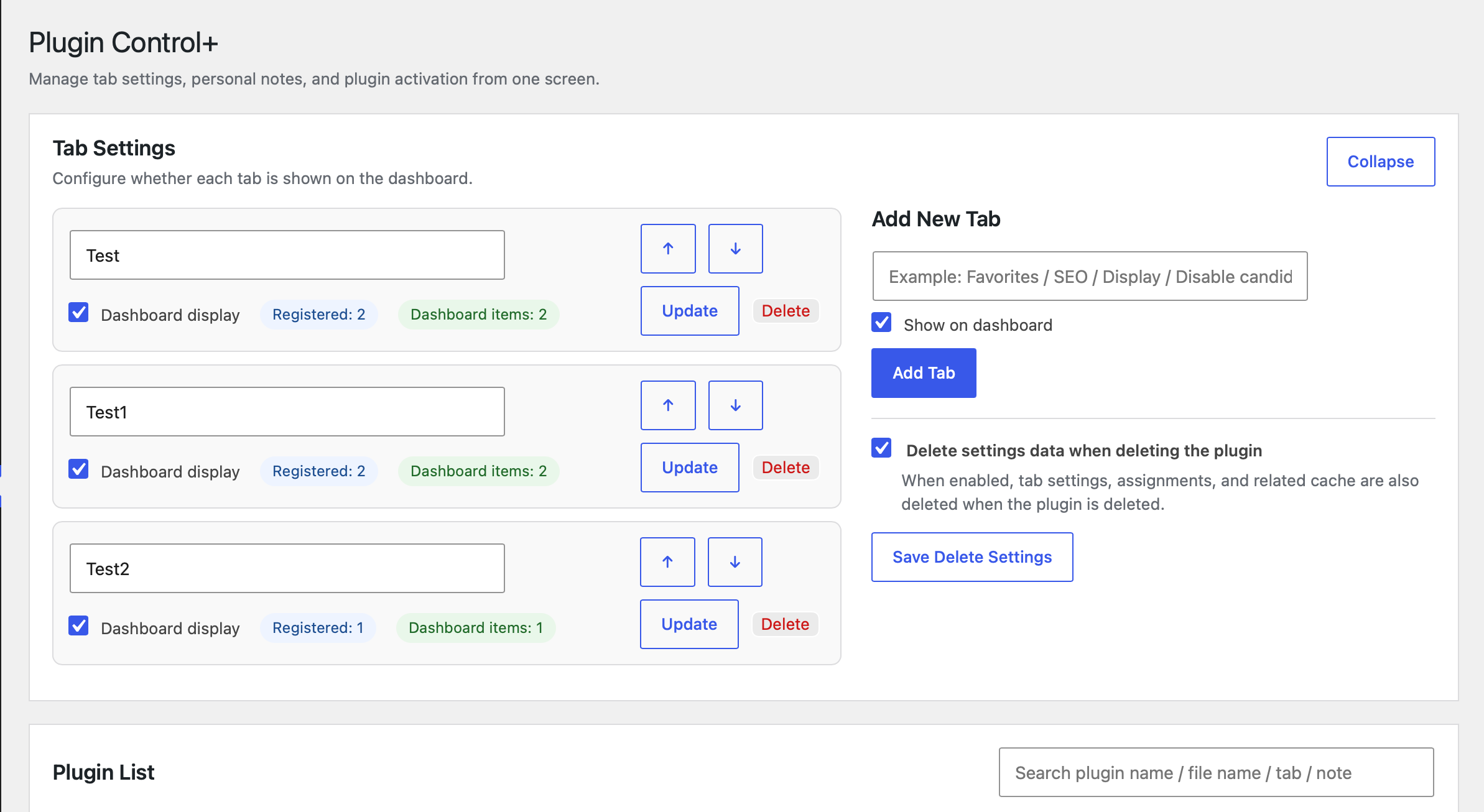
- Create custom tabs for organizing plugins
- Assign each plugin to a tab
- Add personal notes to each plugin
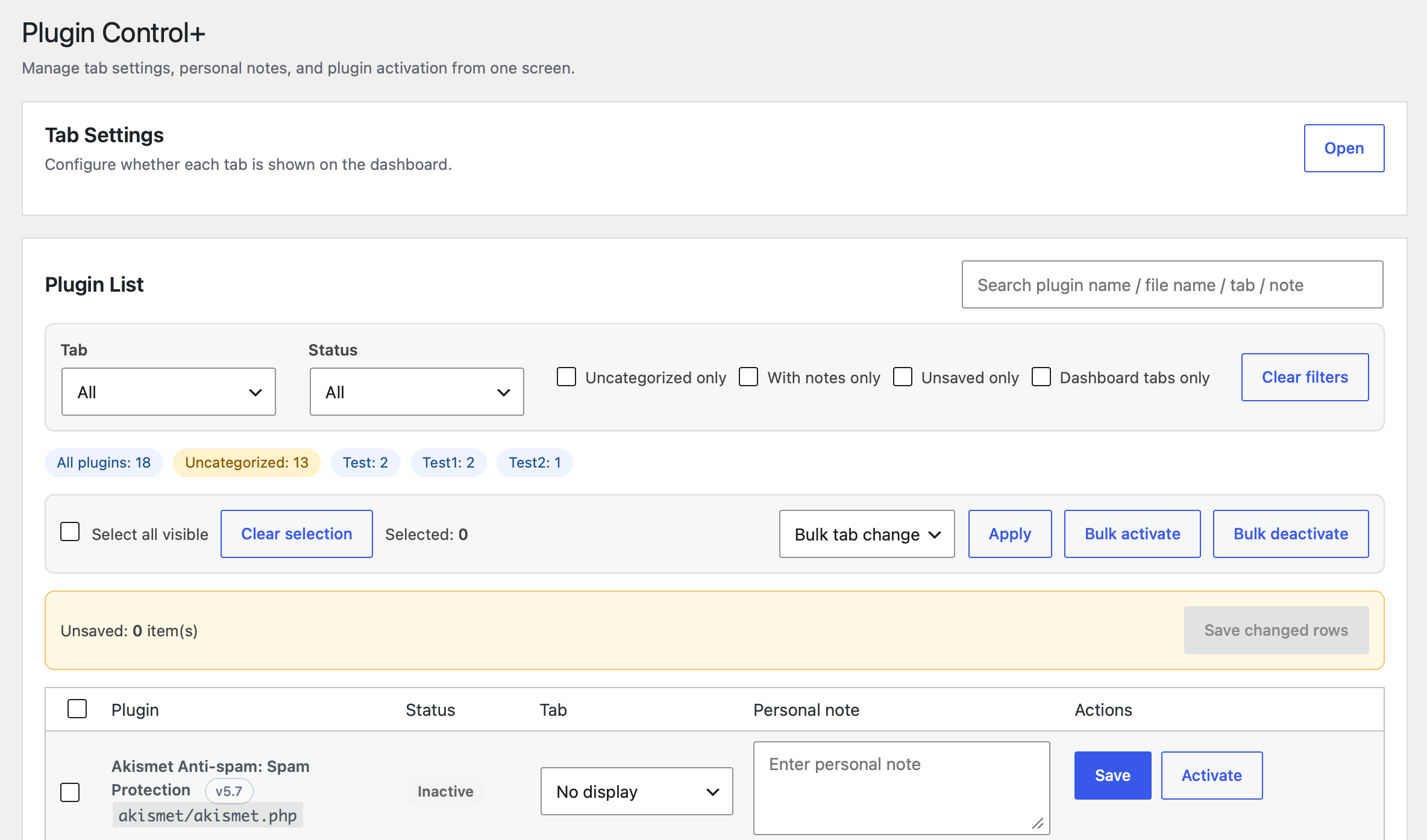
- Search and filter plugins by name, tab, status, note, or dashboard visibility
- Save changed rows in bulk
Dashboard Widget
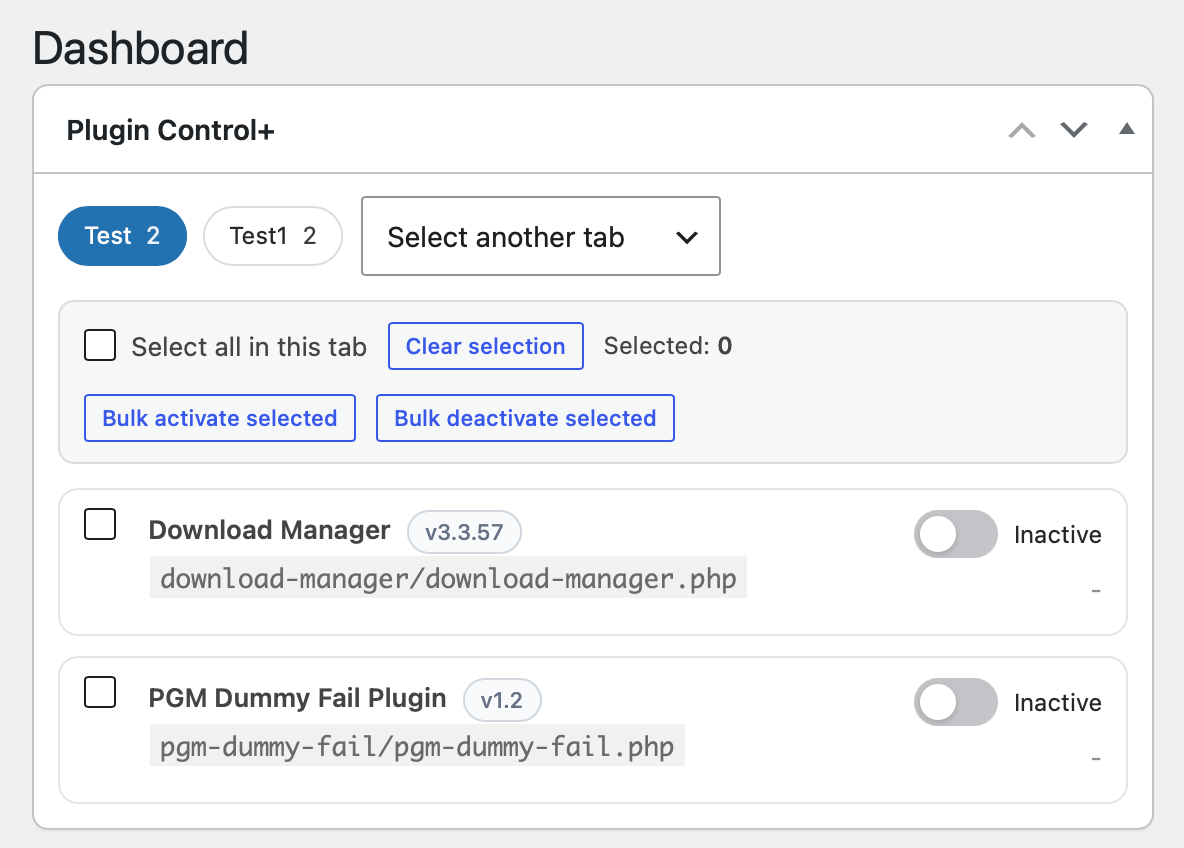
- Display selected tabs directly on the WordPress dashboard
- Quickly check active or inactive status
- Activate or deactivate plugins with switch controls
- Select multiple plugins and run bulk activation or deactivation
- Display detected admin menu names when available
- Limit the initial number of plugins shown in each dashboard tab
- Expand long lists with a “Show all (remaining N)” button
- Collapse expanded lists again
Dashboard Display Count
- Default initial display count is 5 plugins per dashboard tab
- The display count can be set from 1 to 10
- Tabs with fewer plugins than the configured count are shown fully
- Tabs with more plugins display an expand button
- Hidden plugins are not included in dashboard bulk selection until expanded
Admin Menu Name Display
- Detect and show related admin menu names when possible
- Supports plugin-created submenus such as Tools / Content Search
- Hides WordPress core screens such as Appearance / Widgets when they are not plugin-specific
- Works as reference information only and does not modify notes automatically
Bulk Operations
- Bulk activate selected plugins
- Bulk deactivate selected plugins
- Sequential processing for improved stability
- Clear success and failure feedback
Plugin Update Management
- Show update labels for plugins with available updates
- Update plugins directly from the management screen
- AJAX-based updates without page reloads
- Refresh version information after updates
- Show native WordPress update errors when available
Data Cleanup Option
- Choose whether plugin settings should be removed during uninstall
- Preserve tab and assignment settings when the option is off
- Remove tab settings, assignments, and related data when the option is on
Usage
Create and manage tabs
- Open Plugin Control+ from the WordPress admin menu.
- Add a new tab, such as SEO, Security, Forms, Display, or Disabled candidates.
- Choose whether the tab should be shown on the dashboard.
- Assign plugins to the tab from the plugin list.
Manage plugins from the dashboard
- Open the WordPress dashboard.
- Select a tab in the Plugin Control+ widget.
- Use the toggle switch to activate or deactivate a plugin.
- Use the bulk controls to activate or deactivate selected visible plugins.
Change the dashboard display count
- Open Plugin Control+.
- Find the Dashboard initial display count setting.
- Enter a number from 1 to 10.
- Save the setting.
When a dashboard tab contains more plugins than the configured count, a “Show all (remaining N)” button appears below the list.
Add personal notes
- Open the plugin list in Plugin Control+.
- Enter notes in the Personal note field.
- Save the row or use Save changed rows.
Update plugins
- Click the Update available label for a plugin.
- Confirm the update dialog.
- The update runs without leaving the management screen.
Data Removal
You can choose whether plugin data should be removed when the plugin is uninstalled.
- OFF: Settings are preserved after uninstall.
- ON: Tab settings, plugin assignments, notes, and related data are permanently deleted.
Warning: This action cannot be undone after uninstall.
Related Links
- Plugin Overview:
https://hwinotes.com/plugin-group-manager/
Notes
- Bulk operations prioritize stability over speed.
- Processing time may vary depending on the server environment.
- Plugin updates require proper file permissions.
- This plugin only affects the WordPress admin area.
- Menu name detection is best-effort and may not detect every plugin menu.
License
This plugin is licensed under the GPL v2 or later.
Screenshots
Installation
- Upload the plugin folder to
/wp-content/plugins/. - Activate the plugin from the WordPress Plugins screen.
- Open the new Plugin Control+ menu in the WordPress admin area.
- Create tabs, assign plugins, and choose which tabs appear on the dashboard.
FAQ
-
Why are bulk operations processed one by one?
-
Bulk operations are processed sequentially to prioritize stability and reduce status mismatches.
-
Some plugins do not add their own admin menu. Others use custom menu slugs that cannot always be reliably matched to a plugin. In those cases, no menu name is shown.
-
Core screens are not plugin-specific. Showing them as plugin menu names can be confusing, so they are excluded from the menu name display.
-
What happens when a dashboard tab has many plugins?
-
Only the configured number of plugins is shown initially. If more plugins are assigned to that tab, a “Show all (remaining N)” button appears.
-
Can I change the dashboard initial display count?
-
Yes. You can set it from 1 to 10. The default is 5.
-
Why do plugin updates fail?
-
Possible reasons include:
- Insufficient file permissions
- Restricted external connections
- Plugin-specific update issues
- WordPress update API errors
Please review the displayed error message for details.
Reviews
There are no reviews for this plugin.
Contributors & Developers
“Hwinote Dashboard Control” is open source software. The following people have contributed to this plugin.
Contributors
Translate “Hwinote Dashboard Control” into your language.
Interested in development?
Browse the code, check out the SVN repository, or subscribe to the development log by RSS.
Changelog
1.6.4
- Added a dashboard initial display count setting with a range of 1 to 10 and a default of 5.
- Dashboard tabs now show a “Show all (remaining N)” button when more plugins are assigned than the configured initial count.
- Added a collapse action for expanded dashboard plugin lists.
1.6.3
- Excluded WordPress core submenu screens such as Appearance / Widgets from menu name candidates.
- Plugin-created submenus under core parents, such as Tools / Content Search, remain detectable.
1.6.2
- Improved localized admin menu detection for menu name display.
- Better detection for translated menu labels such as Download Manager shown as ダウンロード in Japanese.
1.6.1
- Reduced false menu-name matches against WordPress core parent menus such as Comments.
- Cleaned notification badge text from detected admin menu labels.
1.6.0
- Replaced plugin file paths with detected admin menu names in the dashboard widget where available.
- Simplified the plugin management screen by removing the menu-name-to-memo button.
- Menu names are now displayed as reference information only.
1.5.9
- Removed the duplicate menu name candidate display below the memo field.
- The menu name candidate and memo button now appear only below the plugin name.
1.5.8
- Improved submenu detection for menu name candidates using meaningful slug keywords.
- Better detection for shortened menu slugs such as hwincose-content-search when the plugin uses a related text domain or folder name.
1.5.7
- Improved admin submenu detection for menu name candidates.
- Menu name candidates can display parent and child menu labels such as Tools / Content Search when detectable.
1.5.6
- Moved the menu name candidate below the plugin name.
- Removed the plugin file path from the main plugin list display to simplify the management screen.
1.5.5
- Fixed the unsaved item count label localization in the plugin management screen.
1.5.4
- Fixed the menu name candidate label localization.
- Changed the menu-name memo button to append only the menu name without a prefix label.
- Rebuilt Japanese translation files with UTF-8 encoding.
1.5.3
- Added an optional button to append detected admin menu names to personal plugin notes.
- Existing notes are not changed unless the button is clicked.
1.5.2
- Fixed tab settings toggle label localization in the admin screen.
- Improved multilingual display consistency for dynamic admin UI labels.
1.5.1
- Prevented plugin names from being translated by the admin UI translation layer.
- Improved consistency of multilingual display in the dashboard and admin screens.
1.5.0
- Fixed admin page access after updating from version 1.3.0.
- Restored the original admin page slug for update compatibility.
- Added compatibility handling for admin links from previous test builds.
- Improved multilingual support structure and text domain consistency.
1.4.5
- Added multilingual support structure.
- Improved text domain consistency.
- Improved admin strings for translation.
- Improved dashboard and update management labels.
- Added compatibility handling for admin page links after updates.
1.3.0
- Improved continuous update stability.
- Enhanced update error detection.
- Added support for native WordPress error messages.
- Added toast notifications.
- Added uninstall data cleanup option.
- Improved the admin UI.
1.0.0
- Initial release.
- Added dashboard management features.
- Added bulk activation and deactivation.
- Added AJAX-based plugin update actions.
- Added update failure detection.