
Description
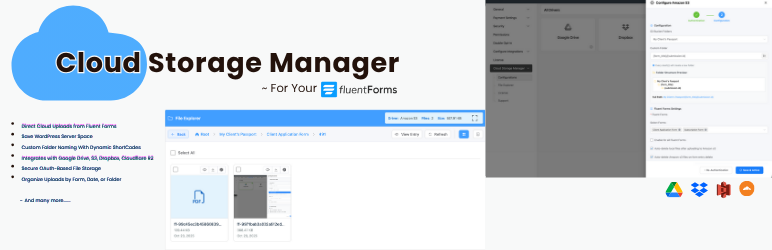
Cloud Storage Manager for Fluent Forms lets you automatically upload files submitted through Fluent Forms to external cloud storage services such as Google Drive, Dropbox, Microsoft OneDrive, Amazon S3, and Cloudflare R2.
If your website collects documents, images, PDFs, resumes, or other attachments via Fluent Forms, storing them on your WordPress server can quickly consume disk space and impact performance. This plugin offloads file uploads to cloud storage, helping you reduce server storage usage, improve site performance, and keep your files organized in secure cloud folders.
The plugin works with your existing file and image upload fields—no changes to your forms are required. Files are uploaded in the background, so users experience fast form submissions while uploads are securely stored in the cloud.
Who should use this plugin?
This plugin is ideal for:
• Agencies collecting client documents
• HR teams collecting resumes and attachments
• Schools collecting student submissions
• Membership sites receiving user uploads
• SaaS onboarding forms
• Any site using Fluent Forms to collect files
Key Features
- Automatically upload Fluent Forms file submissions to cloud storage
- Reduce WordPress server disk usage
- Works with existing file and image fields
- Background uploads for faster form submissions
- Secure OAuth authentication
- Cloud file links supported in email notifications and attachments
- Built-in file explorer (Pro)
- Analytics and usage insights (Pro)
Free Features (Google Drive & Dropbox)
- Upload Fluent Forms files to Google Drive
- Upload Fluent Forms files to Dropbox
- Choose a parent folder for uploads
- Background file uploads
- Email notifications and attachments
- OAuth-based secure authentication
Pro Features (OneDrive, Amazon S3 & Cloudflare R2)
- Microsoft OneDrive integration
- Amazon S3 integration
- Cloudflare R2 integration
- Custom folder paths per form
- Conditional folder structure using form inputs
- File explorer to manage uploaded files
- Storage usage analytics
- File visibility control
- Priority support
Upload Fluent Forms Files to Google Drive
Automatically store file uploads in Google Drive folders.
Upload Fluent Forms Files to Dropbox
Send file uploads to Dropbox for easy sharing and collaboration.
Upload Fluent Forms Files to Microsoft OneDrive
Store uploads in OneDrive for Microsoft-based workflows.
Upload Fluent Forms Files to Amazon S3
Use Amazon S3 for scalable and secure file storage.
Upload Fluent Forms Files to Cloudflare R2
Store uploads in Cloudflare R2 for global access with zero egress fees.
External Services
This plugin integrates with third-party cloud storage services:
Google Drive
Used for storing uploaded files.
Data sent: Files and file metadata.
Terms: https://cloud.google.com/terms
Privacy: https://policies.google.com/privacy
Dropbox
Used for storing uploaded files.
Data sent: Files and file metadata.
Terms: https://www.dropbox.com/terms
Privacy: https://www.dropbox.com/privacy
Screenshots

Cloud Storage Manager settings 
Cloud driver authentication 
Folder selection 
File explorer 
Storage analytics
Installation
- Upload the plugin folder to
/wp-content/plugins/cloud-storage-manager, or install via the WordPress Plugins screen. - Activate the plugin from the “Plugins” menu.
- Go to Fluent Forms Cloud Storage Manager.
- Connect your cloud storage provider.
- Select a default folder for uploads.
Setting Up Google Drive
- Create a Google Cloud project and enable the Google Drive API.
- Generate OAuth credentials.
- Enter the Client ID and Client Secret in plugin settings.
- Connect your Google account.
- Choose a destination folder.
Setting Up Dropbox
- Create a Dropbox app from the Dropbox Developer Console.
- Copy the App Key and App Secret.
- Enter credentials in plugin settings.
- Authorize Dropbox.
- Choose a destination folder.
FAQ
-
Does this work with Fluent Forms Free?
-
Cloud Storage Manager works with Fluent Forms. File upload fields require Fluent Forms Pro.
-
Which cloud storage services are available in the free version?
-
Google Drive and Dropbox are included in the free version.
-
Will files still be stored on my server?
-
By default, files remain on your server. You can enable automatic deletion after successful cloud upload.
-
Can I organize uploads into different folders?
-
Yes. The Pro version allows custom and conditional folder structures.
-
Can I use different storage services for different forms?
-
Currently, one cloud storage provider can be configured globally.
-
What happens if cloud upload fails?
-
Files remain on your server and can be retried.
-
How do I upgrade to Pro?
-
Visit https://fluentwiz.com/cloud-storage-manager to upgrade to Pro.
Reviews


Contributors & Developers
“Cloud Storage Manager for Fluent Forms – Google Drive, Dropbox, OneDrive, S3 Uploads” is open source software. The following people have contributed to this plugin.
Contributors


Interested in development?
Browse the code, check out the SVN repository, or subscribe to the development log by RSS.
Changelog
1.0.12
- Added: Cloud-uploaded files are now compatible with all Fluent Forms integrations
- Improved: Optimized file upload speed
- Fixed: Minor bug fixes
1.0.11
- Fixed: Email notification not sending after file upload issue
- Fixed: Email attachment breaking issue
1.0.10
- Fixed: Condition sub folder creation issue
- Fixed: ShortCode parsing issue
1.0.9
- Fixed: Minor bugs
- Improved: UI and stability
1.0.8
- New: Cloud file URLs in email notifications
- New: Email attachment support
- Improved: Upload performance
1.0.7
- New: File naming options
- New: File visibility control
- Fixed: Security improvements
1.0.6
- Fixed: FluentBoards attachment issues
1.0.5
- New: Per-form parent folder selection
- New: Auto-delete local files after upload
- New: FluentCRM file link support