Query Loop Block Tutorial
In this lesson, we will talk about the Query Loop block that appeared in WordPress version 5.8. Today, you can use it to display post loops in both block and classic WordPress themes.
In the first part of the tutorial (and in the video below), I will show you how to create a child block for the query loop block. In the second part, we will talk about creating a query loop block variation.
Sorry, but you don’t have access to this video lesson.
Sign in to your account or get the course.
In the screenshot below, you can see the block we’re creating on the video above. It is going to be a taxonomy filter block (but a simplified version – it will only work with the default category and post_tag taxonomies).
However, below I will describe some basic steps we need to keep in mind when we’re developing a child block from the Query Loop block.
Part 1. Creating Custom Blocks for WordPress Query Loop
As usual, everything starts with block.json file configuration. And we need to pay attention to the following parameters there:
"ancestor": [
	"core/query"
],
"usesContext": [
	"queryId",
	"query",
	"enhancedPagination"
],
The ancestor parameter contains an ID of the parent block where this specific block can be used; in our case, it is core/query (Query Loop).
When the ancestor parameter is set, you may notice that your block is visible in the inserter only when you’re currently inside a specific block. In other words, you need to navigate to the query loop block to be able to add our category filter block inside. You can not just add the category filter block anywhere you want.
Another interesting parameter is usesContext which represents the block context.
Basically, what block context allows you to do is to pass some block attributes from the parent block to its child blocks.
| Attribute | Description |
|---|---|
queryId | Each query on the page created with a Query Loop block has its unique ID. Using this attribute is a lifesaver when you have multiple queries on the page. |
query | Contains information about the query itself. |
enhancedPagination | Indicates whether “Force page reload” is enabled for a query loop, or we go full AJAX. |
But is it difficult to tap into the context of the query loop block inside our custom child block?
Not really. You can do it the following way in JavaScript:
export default function Edit( { attributes, setAttributes, context } ) {
	console.log( context[ 'enhancedPagination' ] )
}
In PHP, for dynamic blocks, you can do it like this:
$has_enhanced_pagination = isset( $block->context[ 'enhancedPagination' ] ) && $block->context[ 'enhancedPagination' ] ? true : false;Part 2. Create a Query Loop Block Variation
This is going to be an interesting one.
The thing is that when we work with classic WordPress themes, creating a custom loop is as easy as passing some parameters into the WP_Query class. But what happens when we need to do it for a block theme? A lot of JavaScript and React code is getting involved, which not every PHP developer can handle.
But it is not as complicated as it seems; all we need to do is create a query loop variation, which is a copy of the query loop block with some modifications.
Let’s dive straight into it.
registerBlockVariation()
First things first, instead of registerBlockType() we need to use registerBlockVariation().
import { registerBlockVariation } from '@wordpress/blocks'

registerBlockVariation( 'core/query', {
	name: 'query-listing',
	title: 'Listings',
	icon: 'building',
	description: 'Displays listings CPT.',
	isActive: [ 'namespace' ],
	attributes: {
		namespace: 'query-listing',
		align: 'wide',
		query: {
			postType: 'book',
			perPage: 3,
			pages: 1,
			order: 'asc',
			orderBy: 'title',
			offset: 0,
			exclude: [],
			inherit: false,
		},
	},
	allowedControls: [ 'order' ],
	innerBlocks: [
		[
			'core/post-template', { 'layout': { type: 'grid', columnCount: 3 } },
			[
				[ 'core/post-featured-image' ],
				[ 'core/post-title', { level: 3, isLink: true } ]
			],
		]
	]
} )
The nice thing about the code snippet above is already ready to use. You can just copy and paste it into your src/index.js file or whatever, and here you go:

But now let’s take a look at some specific parameters.
Let’s start with the block attributes first.
namespace– this is a part of how the Block Editor kind of decides that it is a standalone block – query loop block variation. If you don’t provide it, don’t expect that something will work. The lineisActive: [ 'namespace' ]is also a part of it,align– it is just the block default alignment, we decided that it is going to be “wide”,query– here we can see different parameters for a custom query – we’re displaying posts of a custom post type ordered by title alphabetically.
I think everything should be clear with the block attributes, at least if you’ve ever worked with them when creating custom Gutenberg blocks, but now we’re going to take a look at a more interesting parameter, which is allowedControls. As you can see, I allowed only order here, so if we go to our custom query loop settings, we can see it there:

query attribute.At the same time, we can provide a lot of stuff here:
allowedControls: [
	'inherit',
	'postType',
	'order',
	'sticky',
	'taxQuery',
	'author',
	'search',
],
As a result, our query block variation settings are going to look like this:

And I want to highlight this moment once again – the default values of these query settings you can provide in the query attribute.
Last but not least, let’s take a look at innerBlocks parameter, which allows us to predefine the default template of each item of the query.
innerBlocks: [
	[
		'core/post-template', { 'layout': { type: 'grid', columnCount: 3 } },
		[
			[ 'core/post-featured-image' ],
			[ 'core/post-title', { level: 3, isLink: true } ]
		],
	]
]
Step by step:
- The first and main block here is a “Post Template” block (I also want it to be displayed as a grid in 3 columns
{ 'layout': { type: 'grid', columnCount: 3 }), - Then – “Featured image” block with standard settings,
- And lastly – “Title” (H3 and as links
{ level: 3, isLink: true }).
Of course, you can provide any default structure you want here.
Add custom settings
Now you can create query loop block variations – congratulations! But what about making it really customized?
Since our custom query loop, by design, displays property listings, what about filtering them by city? Of course, of course, the easiest way to do it – by using a custom taxonomy, but we’re learning here, aren’t we? So let’s use custom fields instead.
You can insert the code below right into the src/index.js file or create and include another JavaScript file, as you want.
import { addFilter } from '@wordpress/hooks';
import { InspectorControls } from '@wordpress/block-editor';
import { PanelBody, SelectControl } from '@wordpress/components';


// ...
// registerBlockVariation() and stuff can be here
// ...


export const withListingControls = ( BlockEdit ) => ( props ) => {

	// let's deconstruct the nested object here
	const {
		attributes: { query, namespace },
		setAttributes
	} = props

	return (
		<>
			<BlockEdit {...props} />
			{
				'query-listing' === namespace &&
				<InspectorControls>
					<PanelBody title="Listings Settings">
						<SelectControl
							label="City"
							value={ query.metaCity }
							options={ [
								{ value: '', label: 'Select city...' },
								{ value: 'athens',  label: "Athens" },
								{ value: 'istanbul',  label: "Istanbul" },
								{ value: 'nyc',  label: "NYC" },
							] }
							onChange={ ( value ) => {
								setAttributes( {
									query: {
										...query,
										metaCity: value
									}
								} );
							} }
						/>
					</PanelBody>
				</InspectorControls>
			}
		</>
	)
}
The long story short here is that we’re filtering the default <BlockEdit {...props} />, and if this is our query loop variation (we check the namespace query-listing), then we add one more settings panel with the help of the <InspectorControls> component. By the way, if it is difficult for you to understand how this condition works, you can check a simpler example.
I also decided to use a custom field name metaCity instead of just city, because at the moment of creating this tutorial, there was a custom taxonomy city registered on my test site, so nothing worked when I tried to use city as another query attribute value.
Here we go:
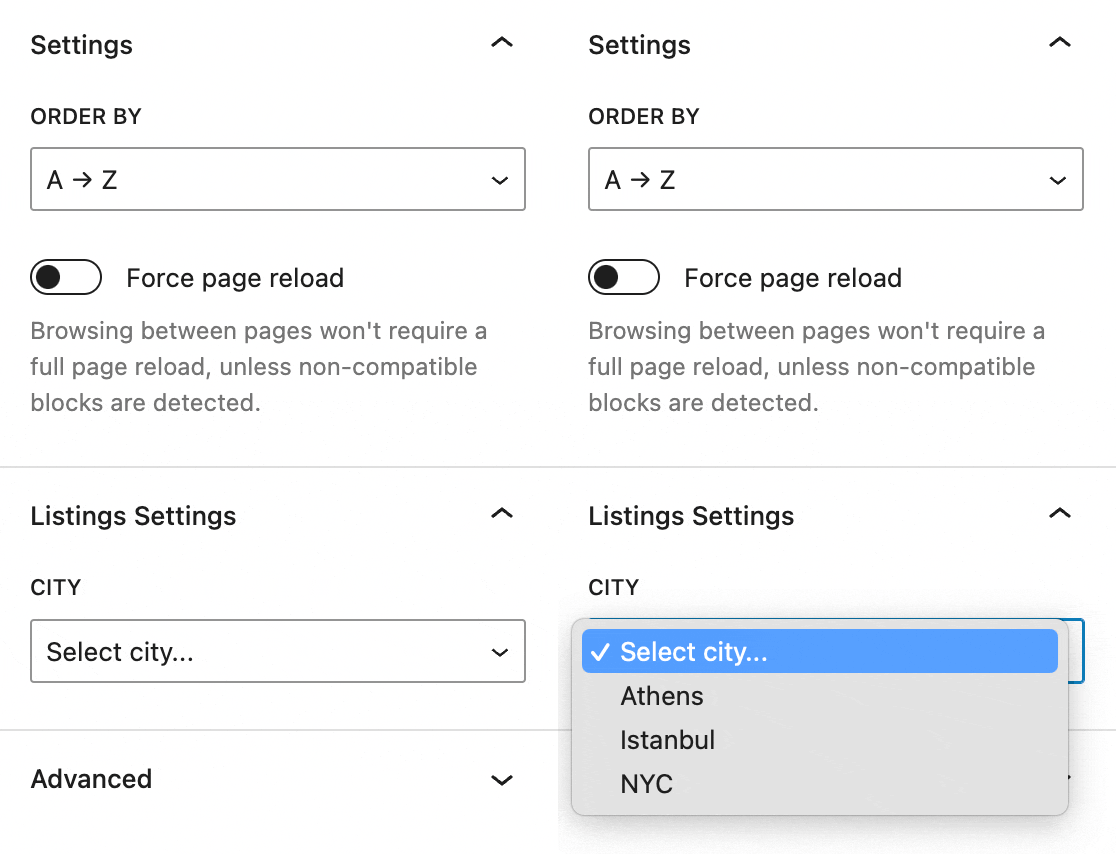
At this moment, if you change a city value in the “Listings settings”, nothing will happen. In order to make it work, we need to use two filter hooks:
rest_{post type name}_query– for filtering the posts in the block itself in the Block Editor,query_loop_block_query_vars– for doing the same on the site front-end part.
Ok, let’s take a detailed look at both of these hooks.
rest_{post type}_query – filtering the query in the editor
It is time to do some query filtering. Let’s start with the Block Editor.
// add_filter( 'rest_{CPT NAME}_query', ...
add_filter( 'rest_listing_query', function( $args, $request ) {

	$city = $request->get_param( 'metaCity' );
	// do nothing if there is no metaCity parameter in the query
	if( ! $city ) {
		return $args;
	}

	// our custom meta query for filtering
	$meta_query = array(
		'key' => 'city',
		'value' => $city,
	);

	// in case there already was a meta query!
	if( ! empty( $args[ 'meta_query' ] ) ) {
		$args[ 'meta_query' ] = array(
			$args[ 'meta_query' ],
			$meta_query,
		);
	} else {
		$args[ 'meta_query' ] = array(
			$meta_query,
		);
	}

	return $args;

}, 10, 2 );
Once again, I would like you to pay attention to the difference between a meta key name, which is just city, and a query parameter name, which is metaCity.
Also, I decided to use a meta_query parameter instead of just meta_key and meta_value. Because who knows, maybe you have some plugin installed that already does some posts filtering by a meta field, so we don’t want to interrupt it.
As a result, it works now:
query_loop_block_query_vars – filtering the query on the site front end
Last but not least, let’s do the same kind of filtering on site pages.
add_filter( 'pre_render_block', 'rudr_pre_render_block', 10, 2 );

function rudr_pre_render_block( $pre_render, $block ) {

	if( isset( $block[ 'attrs' ][ 'namespace' ] ) && 'query-listing' === $block[ 'attrs' ][ 'namespace' ] ) {

		add_filter( 'query_loop_block_query_vars', function( $query ) use ( $block ) {

			if( isset( $block[ 'attrs' ][ 'query' ][ 'metaCity' ] ) && $block[ 'attrs' ][ 'query' ][ 'metaCity' ] ) {

				$meta_query = array(
					'key' => 'city',
					'value' => $block[ 'attrs' ][ 'query' ][ 'metaCity' ],
				);

				if( ! empty( $query[ 'meta_query' ] ) ) {
					 $query[ 'meta_query' ] = array(
						 $args[ 'meta_query' ],
						 $meta_query,
					 );
				} else {
					$query[ 'meta_query' ] = array(
						$meta_query
					);
				}

			}

			return $query;

		});

	}

	return $pre_render;

}
Misha Rudrastyh
Hey guys and welcome to my website. For more than 10 years I've been doing my best to share with you some superb WordPress guides and tips for free.
Need some developer help? Contact me
Thanks a lot, it helped me a lot :)
Maybe I miss somthing but I think you just forgot to add filter to add the SelectControl:
Thanks again !
Hi, do you have a guide on how to create a query loop block with its inner blocks like the template from scratch to create a fully customized and more powerful filter?
Hi Matteo,
at this moment I do not
Hi misha. Are you still using @wordpress/scripts instead of npx @wordpress/create-block ? Can you explain the differences between the two, and the reason for choosing one instead of the other?
Hi Federico,
“Still”? 🙂 Is it outdated or something?
I am using the first one because I don’t need an example code for a block. You can learn more in this lesson about it.