Simple Fields
Allows to create easily settings pages and meta fields for posts, taxonomy terms, comments and users. Gutenberg sidebars are supported. Super-fast and minimalist plugin.
Creating Multisite Settings Pages
This is all-in-one tutorial where I’m going to show you how to create two types of WordPress multisite settings pages.
Network options pages – they look just like regular WordPress options pages, but in the Network Admin dashboard.

Site-specific settings pages – they are displayed in tabs, so if you go to Sites > All Sites page and then click “Edit” link, you can find them there.

Create Settings Pages with Tabs
In many different WordPress plugins settings are organized by tabs, we can consider it like a default functionality, because when creating tabs you don’t even need to write any CSS for them, it is already provided by WordPress code, just use the appropriate classes.
For example:

Or:

So in this tutorial we’re going to create a simple WordPress settings page with a couple of tabs in two different ways:
- In the first method we’re going to create options pages from scratch using WordPress Settings API. If you’ve never had a chance to work with it, then either consider using the second way or read a tutorial about Settings API.
- The second method is much simpler, all you need to do is to copy and paste the ready code into your plugin or theme, but in this case you have to have my Simple Fields plugin installed on your website.
That’s what we are going to have by the end of this tutorial:

WooCommerce Custom Setting Validation, Sanitization and Escaping
Recently I’ve been working on a light version of my Simple Inventory Sync plugin which I hope you will see soon in the WordPress plugins directory and I faced with a very interesting task.
I needed to create additional settings fields in WooCommerce > Settings > Products and one of the fields should contain an application password for REST API authentication, so obviously I didn’t want that value to be displayed for anyone who can view the settings pages.
So I needed this:

And more than that I needed to escape an URL in the “Store URL” fields. So, now let’s dive into this in details.
Create Custom Options Pages
WordPress custom settings pages are quite useful when you are developing a plugin or a theme. You will definitely need some place in admin area where users can configure your plugin and Settings API is perfect for that.
And yes, we are going to use Settings API which will help us creating our options pages. It was added in WordPress 2.7 only. I really doubt that you are using a WordPress version prior 2.7, but anyway I think I have to mention that.
Below is the screenshot of a settings page we are going to create in this tutorial. I decided to make it simple, so we have multiple fields – a text field and a checkbox.
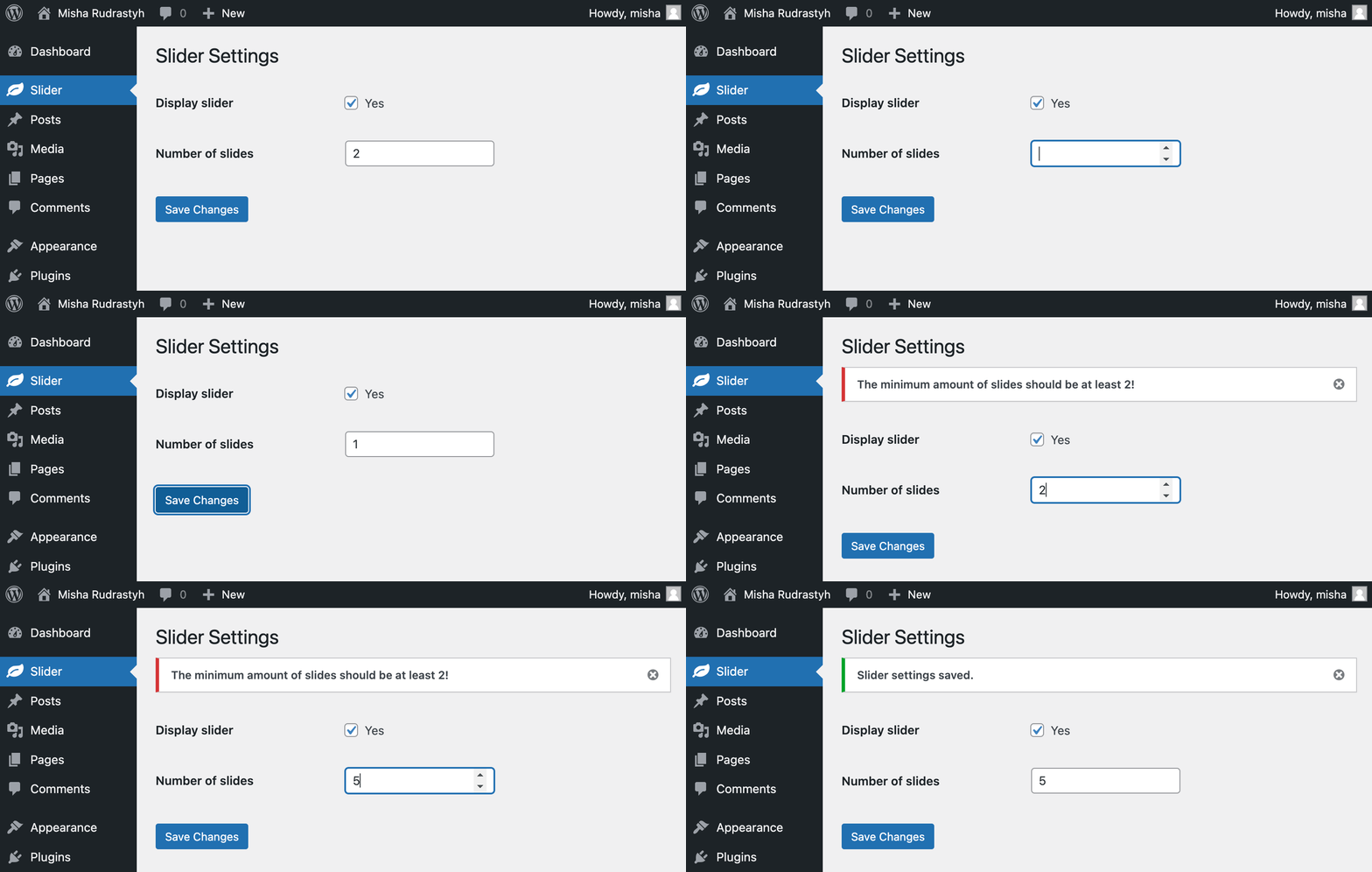
Settings Pages in WooCommerce
Just a couple days ago I was doing some updates for one of my plugins and I decided to move plugin settings from a regular WordPress options pages to WooCommerce > Settings.
Because why overload WordPress admin menu with links when the plugin is intented to sync product inventory between stores and it is crystal clear that its settings should be in WooCommerce > Settings > Products > Inventory tab. Don’t you think so?