Elementor Integration
This is a step-by-step guide on how you can configure Elementor when you need to copy pages created with Elementor between WordPress sites using my Simple WP Crossposting plugin.
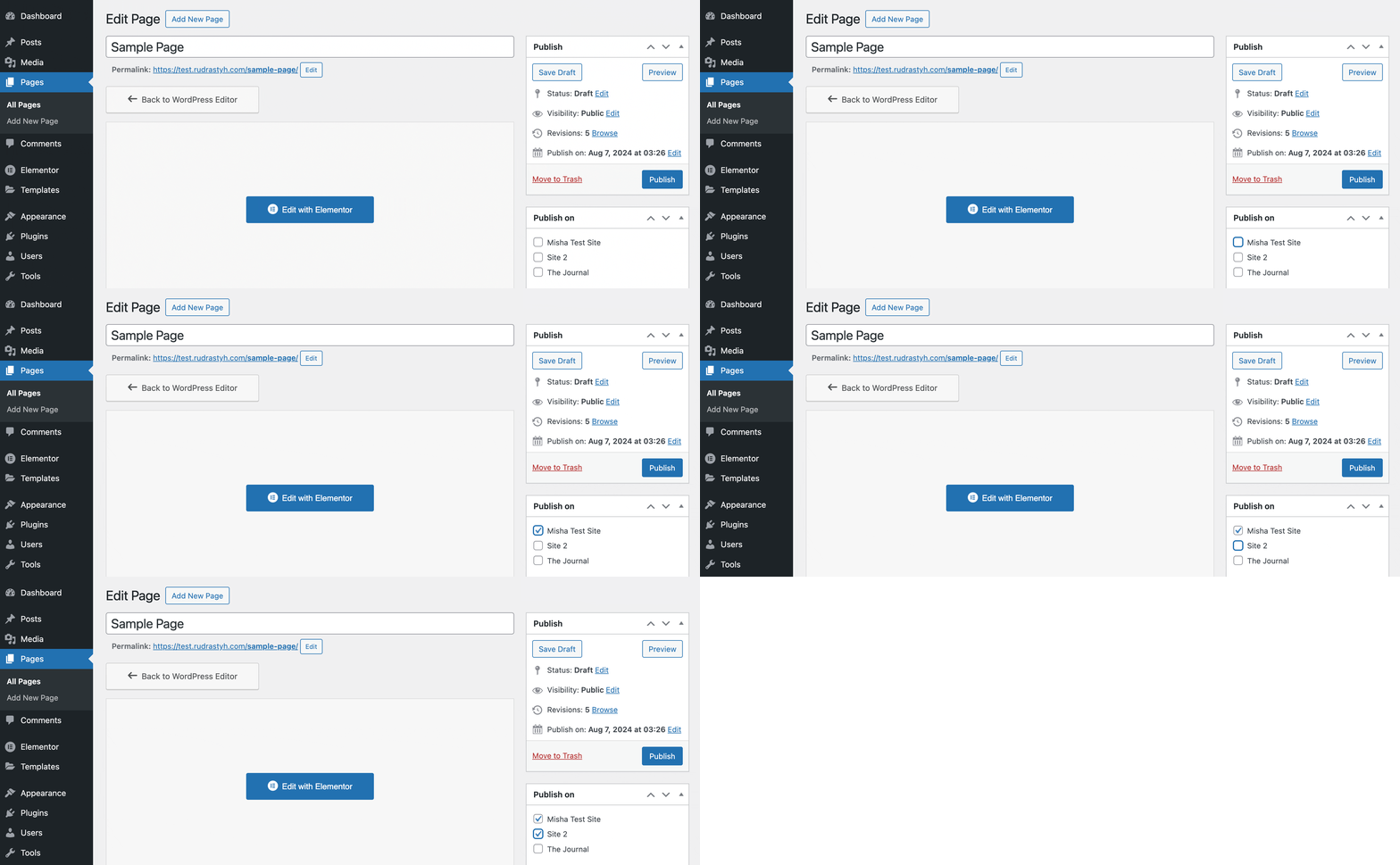
The whole process is similar to copying a regular WordPress page, you just need to select the sites you would like to copy your Elementor page to and then hit the “Publish” button either in the WordPress editor or in the Elementor editor.
Now, let’s dive into specific details.
1. Make sure that you’re using the same layout settings
If you want to copy an Elementor page to another website correctly, it is the first thing you need to check.
In Elementor version 3.6, the way Elementor builds its layouts has been changed. “Inner Section” and “Column” widgets had disappeared, and now we have just “Containers”. But this feature can be turned off in the Elementor settings.
What’s super important is that if you’re using “Inner Sections” on one website and “Containers” on another website, then obviously crossposting Elementor pages between these websites isn’t going to work.
So please go to Elementor > Settings > Features and make sure that you have the same value of the option Container on all the sites you’re crossposting between.

I’d recommend you do your website backup copy before changing this option, especially if you’re not sure about it, or check official Elementor documentation beforehand.
2. Allow Elementor metadata for WordPress REST API
After you have installed the Simple WP Crossposting plugin, the first thing you need to do is to configure metadata in Settings > Crosspost > Metadata, no matter whether you’re using Elementor or not. You can find more info about configuring it on this page.
The whole idea is that Elementor stores your page widget settings in _elementor_data custom field, and in order to copy Elementor pages to another website, we need to make sure that this meta field is copied correctly and included in the REST API (by the way, in the latest versions, Elementor does it itself, but better safe than sorry).
3. Install the add-on (Optional)
I also recommend you install and activate a special add-on on the same site where you have the main plugin activated.
The add-on is not required, but it allows the certain features to work properly:
- Gallery widget support in Elementor PRO and better support for Image widget,
- Support for custom SVG icons in Icon, Icon-Box, and Flip Box widgets (please make sure that SVG’s are supported on your WordPress website).
- Background images and background image overlays for Containers, Inner Sections, Columns, and Flip Box widget.
- Global colors and global fonts support.
- Elementor templates support (read more).
4. Allow Elementor templates for WordPress REST API (Optional)
If you’re using custom Elementor templates in your pages, before copying an Elementor page that contains a template to another site, make sure that this specific template is already crossposted (copied) to the same site.
If you’re not sure about it, just go to Templates > Saved Templates, open the template you need, select sites in the “Publish on” metabox, and hit the “Update” button.
If you’re using an older version of Elementor, you may need to include templates (the elementor_library custom post type into the REST API manually).
If you’re not into reading, then you can watch the video 🙂