


How to Add a Load More Button in WordPress?
Before we dive into the load more button configuration, below is a quick example of how this button looks on a default WordPress Twenty Twenty-Four block theme for a custom post type.

Now, let me show you how to add this kind of button to your WordPress website.
Step 1. Install the plugin
I know, it may sound pretty obvious, but first of all, you need to install and activate this “Simple Load More Block” WordPress plugin.
Once you purchased and downloaded it, you need to upload it to your WordPress website either from the Plugins page or via FTP, and then just hit the “Activate” button.
After that, the Load More block will become available in the Block Editor (Gutenberg).
Step 2. Add the Load More block inside the Query Loop block
One moment I would like to highlight here, especially if you can not find the Load More block in the Block Editor – it is only available inside the Query Loop block (it is a standard Gutenberg block that appeared in WordPress 5.8). It is normal behavior, for example, the default “Pagination” block is also available only inside the Query Loop. Probably, this moment is also obvious for you, I mean, how are we going to load more posts if we just don’t have them displayed on the page?
Now, you can choose either a template from “Appearance > Editor” or probably a page from “Pages” which contains a target Query Loop block where we’re about to add a load more button (or infinite scroll).
Then navigate inside this Query Loop block and the Load More block will be available there:

Or you can just use the “Inserter”, of course:

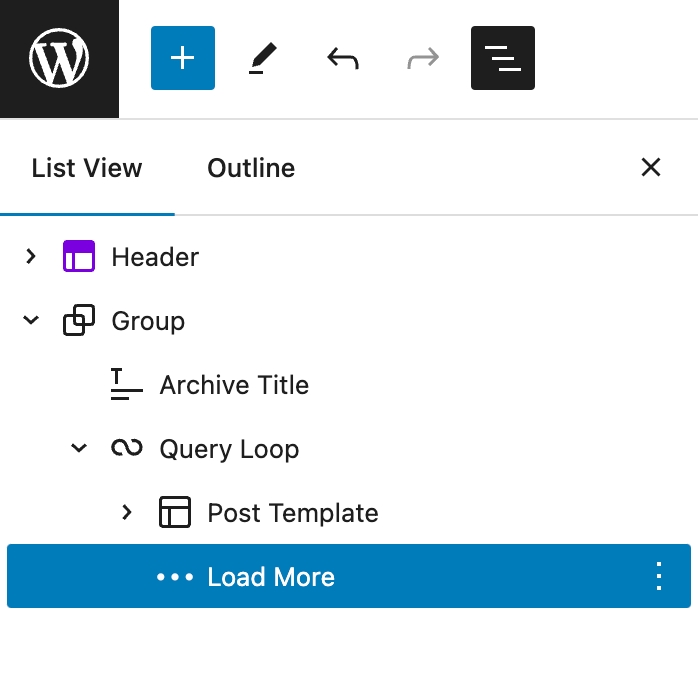
Once again, when you add a Load More block to your page, it should be inside the Query Loop block if you check it in the “Document Overview”:
Step 3. Decide whether you’re going to use an AJAX load more button or infinite scroll
I am pretty much sure that many of you guys aren’t looking for exactly the load more button, but for the infinite scroll for your posts (or products or any custom post type).
Good news – the load more block can do it for you.
To make it work as an infinite scroll, once you added the block to the target page or template, you will need to open the block settings and change the “Load more type” setting:

I have more good news for you here, if you’re worried about your site performance, and you know a little bit about the technical part of websites – this infinite scroll plugin for WordPress doesn’t use the slow JavaScript onscroll event, instead, it uses Intersection Observer.
Step 4. Load more button styles
In case you decide to load more posts using a button (not a link or infinite scroll), then the following button styles will be available for you:
- Button text and background color (for normal, hover, and active button states),
- Font size,
- Padding and margin,
- Button border (color and width),
- Border-radius.
Check the video below to see all these styles in action:
WooCommerce: Load More Products
Last but not least, you can also easily use this Gutenberg block to load more WooCommerce products via AJAX (without page reload).
