Tag Archives: pkg

Download a package from a Jamf Pro Cloud Distribution Point

I ran into a new issue. I have a policy that is pushing a package that I’m not clear on what it’s doing. What’s worse, the policy is pending or failed on a large number of machines. To confuse matters, I have 3 different “Google Chrome” packages but no idea what the differences are.

I wanted to download the packages and open them with something like Suspicious Package to see what they are actually doing.

Since there’s no “Download” option in Jamf for your pkg, and I don’t want to install the package to figure out if it’s working. You can create a policy, cache the package, scope it to your machine and then copy the package to your desktop.

  • Create a new policy
  • Add each package you want to download
  • Set the Action to Cache
  • I made the policy available in Self Service, so I wouldn’t have to wait for a check-in
  • Scope the policy to only your machine

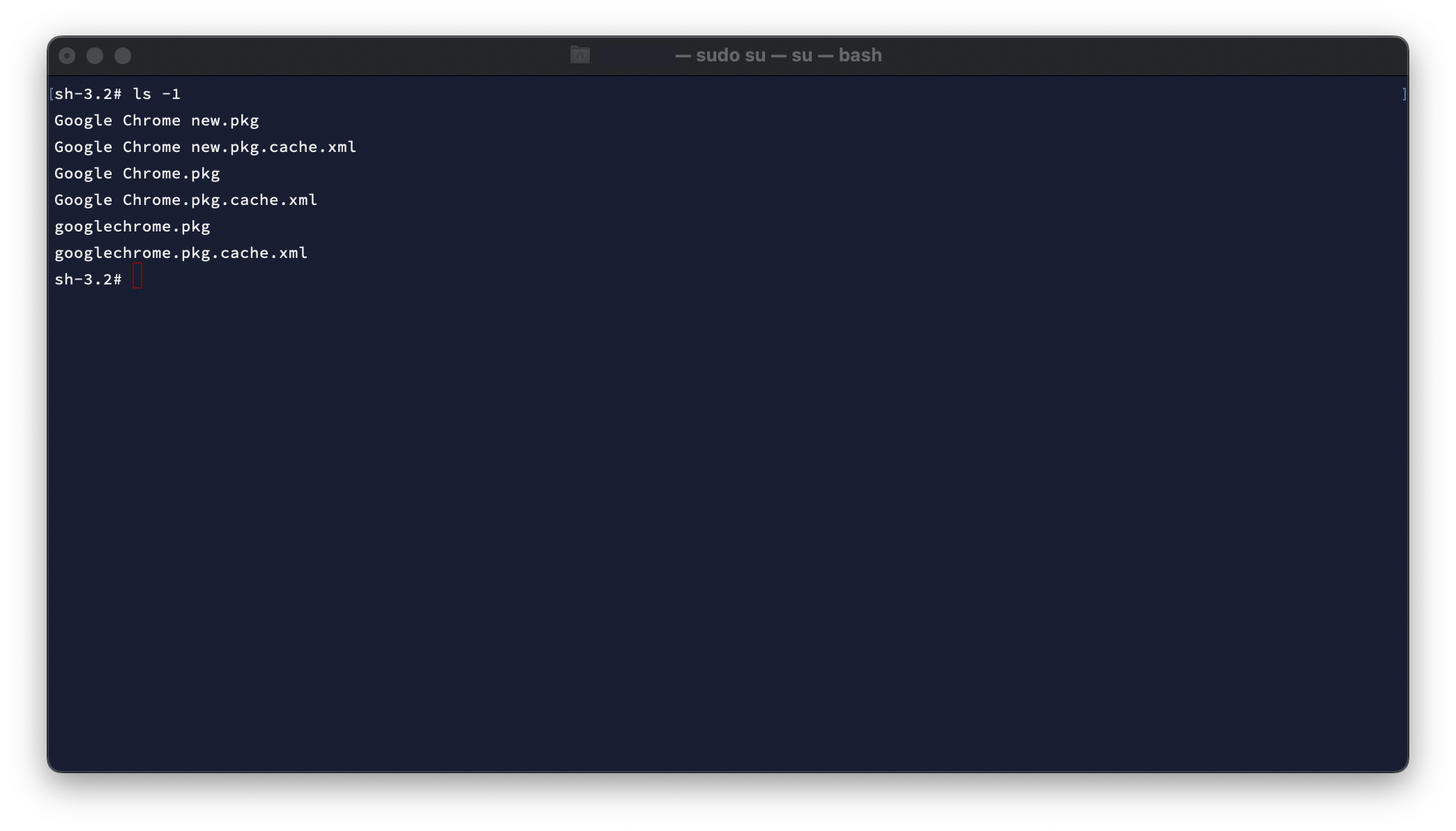
After you install the packages. Open Terminal and switch to root. Change to the directory and verify the packages are downloaded.

sh-3.2# sudo su
sh-3.2# cd /Library/Application\ Support/JAMF/Waiting\ Room/
sh-3.2# ls -1

Now, let’s copy the packages (ignore the cache.xml files) to our desktop and change the owner to our account, so we can examine them.

#copy pkgs to your desktop
cp Google Chrome new.pkg /Users/username/Desktop/
cp Google Chrome.pkg /Users/username/Desktop/
cp googlechrome.pkg /Users/username/Desktop/

#change the owner from root, to your user account
chown username /Users/username/Desktop/Google Chrome new.pkg
chown username /Users/username/Desktop/Google Chrome.pkg
chown username /Users/username/Desktop/googlechrome.pkg
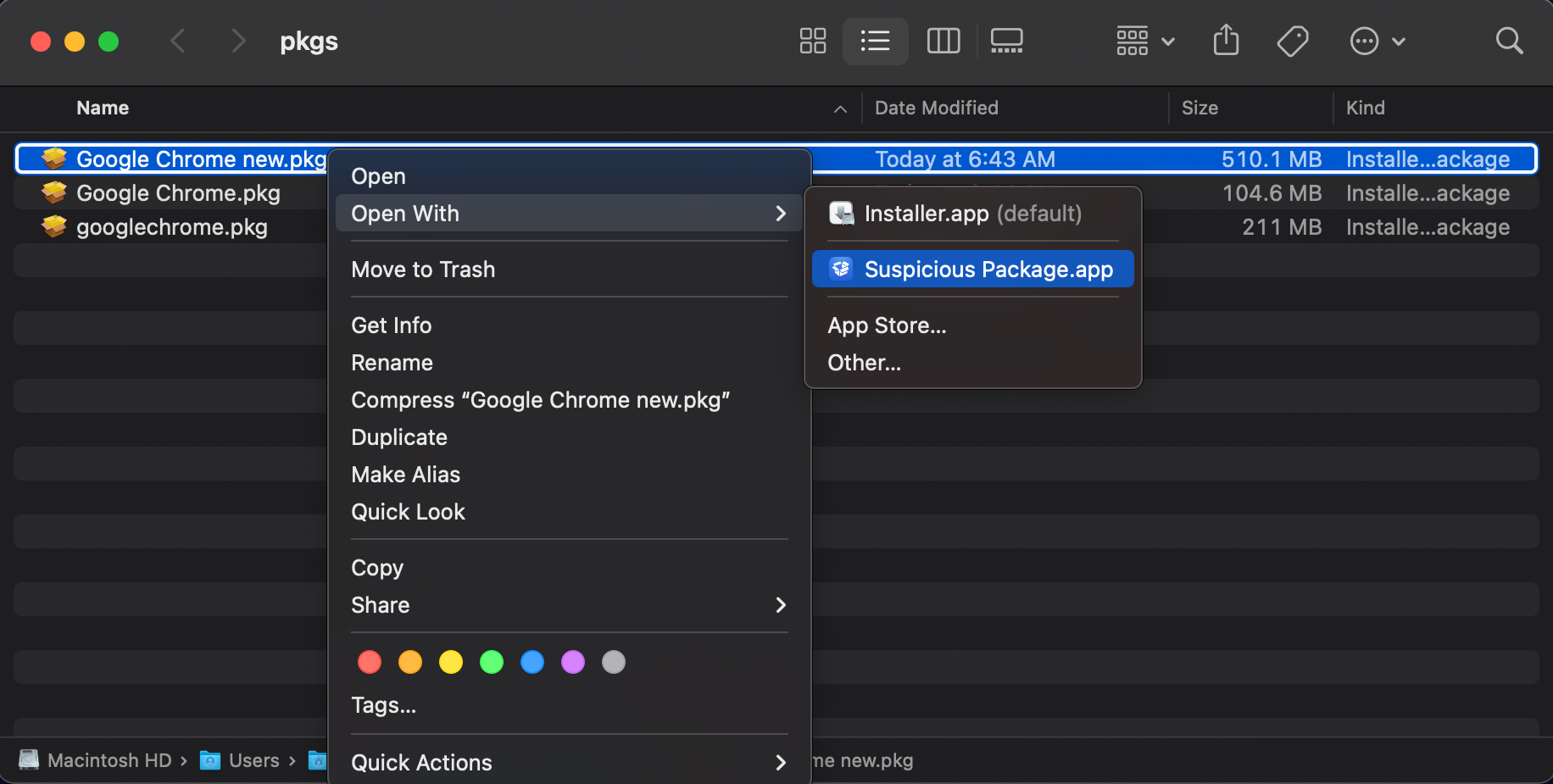
If all you needed to do was download the packages, you’re done! In my case, I want to see what they are installing, so I’ll open them with Suspicious Package.


This package, Google Chrome new.pkg is installing v89.04.4389.90! Maybe this was new at some point, but clearly poorly named now.

Turns out the package that was causing me the most issues was googlechrome.pkg which was trying to install Chrome to the System volume, instead of "/Applications“, which was causing it to fail on every client it was scoped to.
Using munki-pkg

pkg-235

Greg Neagle released a new tool named munki-pkg, that gives Admins a super quick way to create packages for deployments. it’s not a replacement for the luggage if you’re already using it. But for me, it’s exactly what I needed. I’ve tried the luggage on more then one occasion and just can’t seem to get it down.

So taking my last post about creating a Policy Banner. I’m going to use munki-pkg to create a pkg so I can deploy it to lab machines. Once you’ve downloaded munki-pkg. I moved the executable to /usr/local/bin so it’s in my search path. other wise you simply have to drag the executable to terminal to get the path.

To create a new project, open Terminal and run “munkipkg –create name_of_folder”. For me it looks like this.

cd ~/Desktop
munkipkg --create PolicyBanner

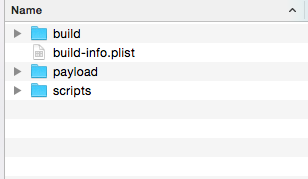
That should create a new folder with the following:

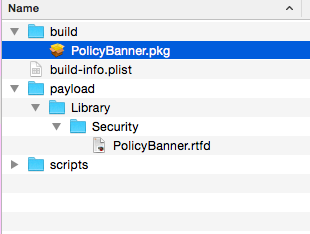
– build (directory)
– build-info.plist
– payload (directory)
– scripts (directory)

Screen Shot 2015-07-31 at 7.39.43 PM

build: Don’t touch this folder. This is where the newly creating package will go.

build-info.plist: This is a default template that should be edited. Open it in a text editor or Xcode. I typically edit “identifier” and change it to something appropriate for my company. Like, com.company.pkg.PolicyBanner. For other options check out the munki-pkg page for usage and instructions.

payload: Inside the payload folder create the folder structure you need. For my example it looks like: payload > Library > Security > PolicyBanner.rtfd

Screen Shot 2015-07-31 at 7.52.13 PM

scripts: If you have a preinstall or postnatal script, put them in this folder with those exact names and make sure they are executable

Then open terminal and run the command, “munkipkg pathtofolder”, my example is:

munkipkg /Users/nscott/Desktop/PolicyBanner

You should see some random output and the terminal should come back to the prompt. Check the build folder. You should see a pkg file that can be deployed via your favorite software distribution tool (don’t forget to test, test, test).

Screen Shot 2015-07-31 at 7.55.09 PM

That’s the quick and dirty. That’s it!

if you’ve never ventured into the world of packaging your own apps and scripts. Other tools can be very intimidating for beginners … so try munki-pkg and start packaging like a MacAdmin.